00194591_02.pdf - 第30页
3 Instal lation Installation Manual SIPLACE Setup Center RF 2.1 3.3 Installation of SIPLACE Setup Center and Possible Setup Types Edition 09/2005 EN 30 Step 5 → The installation routine is now st arted. The Setup Complet…
Installation Manual SIPLACE Setup Center RF 2.1 3 Installation
Edition 09/2005 EN 3.3 Installation of SIPLACE Setup Center and Possible Setup Types
29
Step 4
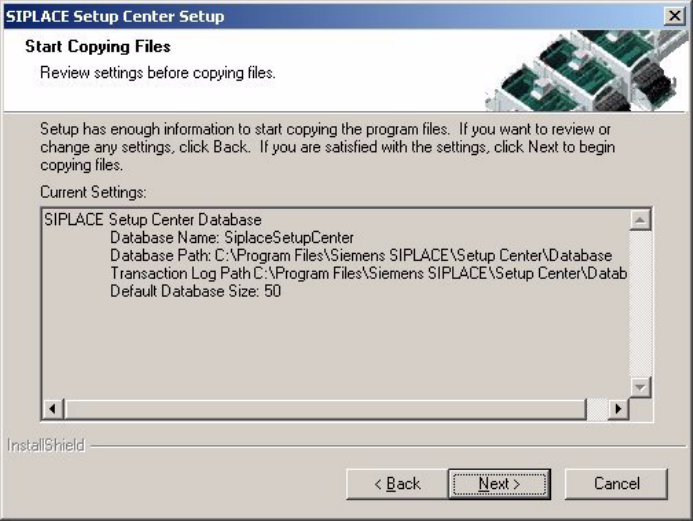
→ The Start Copying Files dialog box gives you a last chance to check the information you have
entered during the previous steps.
3
Fig. 3.3 - 17 "Start Copying Files" dialog box
3 Installation Installation Manual SIPLACE Setup Center RF 2.1
3.3 Installation of SIPLACE Setup Center and Possible Setup Types Edition 09/2005 EN
30
Step 5
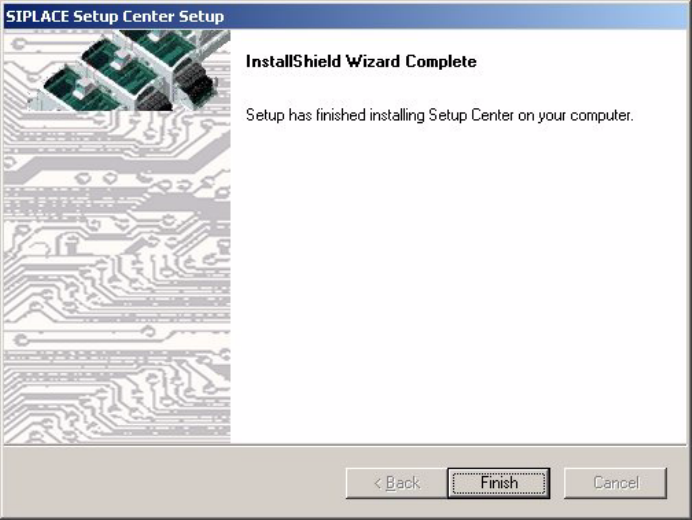
→ The installation routine is now started.
The Setup Complete dialog box confirms that the installation has been completed success-
fully. 3
3
Fig. 3.3 - 18 "InstallShield Wizard Complete" dialog box
Installation Manual SIPLACE Setup Center RF 2.1 3 Installation
Edition 09/2005 EN 3.3 Installation of SIPLACE Setup Center and Possible Setup Types
31
3.3.2.3 Setup Type - SIPLACE Pro Complete
This setup type contains all SIPLACE Setup Center components for operating the system on a
single computer. It is used to install a Setup Center stand alone system. 3
Setup detects if SQL Server or MSDE (Microsoft Data Desktop Engine) has already been in-
stalled. 3
Select this type to install all SIPLACE Setup Center system components (GUI, Database) on one
computer. However, it is possible to integrate further clients on other computers. 3
Step 1
→ Run through the steps in “Starting Installation - First Steps” on page 14.
3
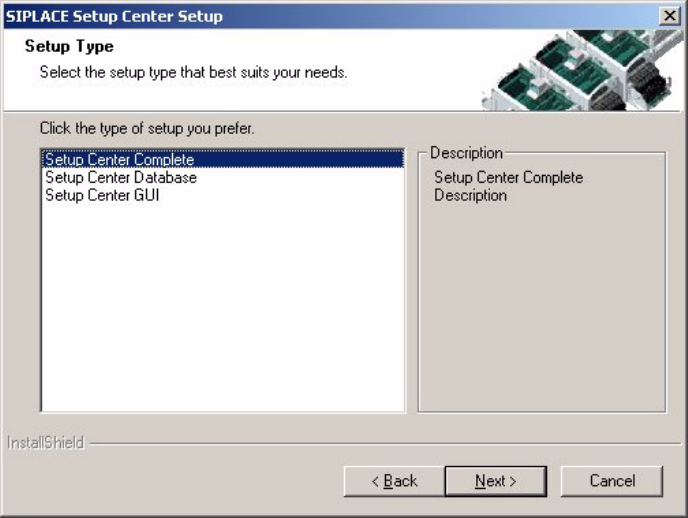
Fig. 3.3 - 19 "Setup Type" dialog box
→ Select the Setup Center Complete system setup type.
→ Click Next.
3