00194591_02.pdf - 第33页
Installation Manual SIPLACE Setup Center RF 2.1 3 Installation Edition 09/2005 EN 3.3 Installation of SIPLACE Setup Center and Possible Setup Types 33 Ste p 3 → In the Select SQL-Server dialog box you enter the informati…
3 Installation Installation Manual SIPLACE Setup Center RF 2.1
3.3 Installation of SIPLACE Setup Center and Possible Setup Types Edition 09/2005 EN
32
Step 2
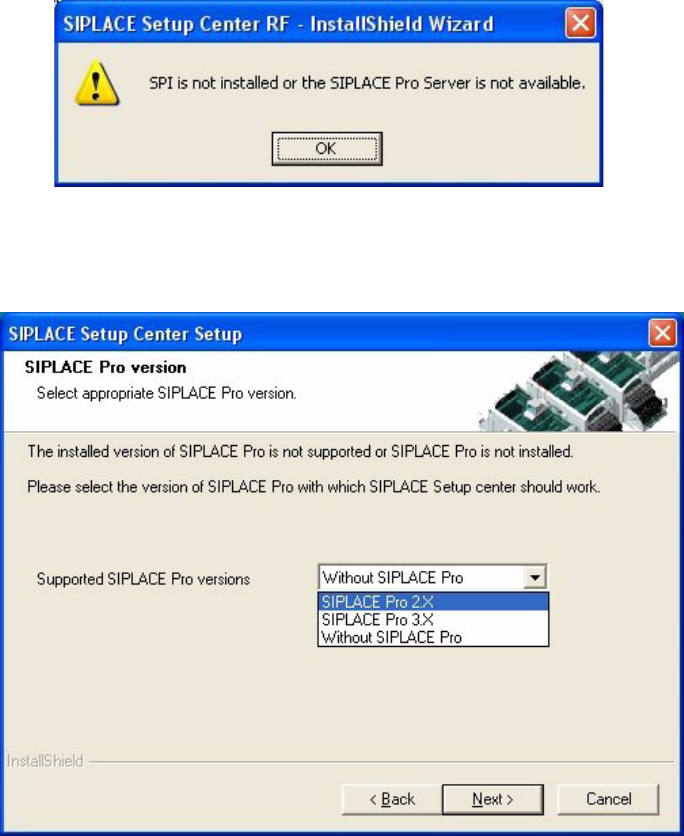
The installation detects the existing SPI version and installs the according SIPLACE Setup Center
files. 3
In case no SPI is detected, the installation displays a warning. 3
3
Fig. 3.3 - 20 "Setup Type" dialog box
After this the installation prompts you to select a SIPLACE Pro version. SIPLACE Setup Center
will be installed with the files to support the selected SIPLACE Pro version 3
3
Fig. 3.3 - 21 "Setup Type" dialog box
→ Select the SIPLACE Pro version and
→ Click Next.
Installation Manual SIPLACE Setup Center RF 2.1 3 Installation
Edition 09/2005 EN 3.3 Installation of SIPLACE Setup Center and Possible Setup Types
33
Step 3
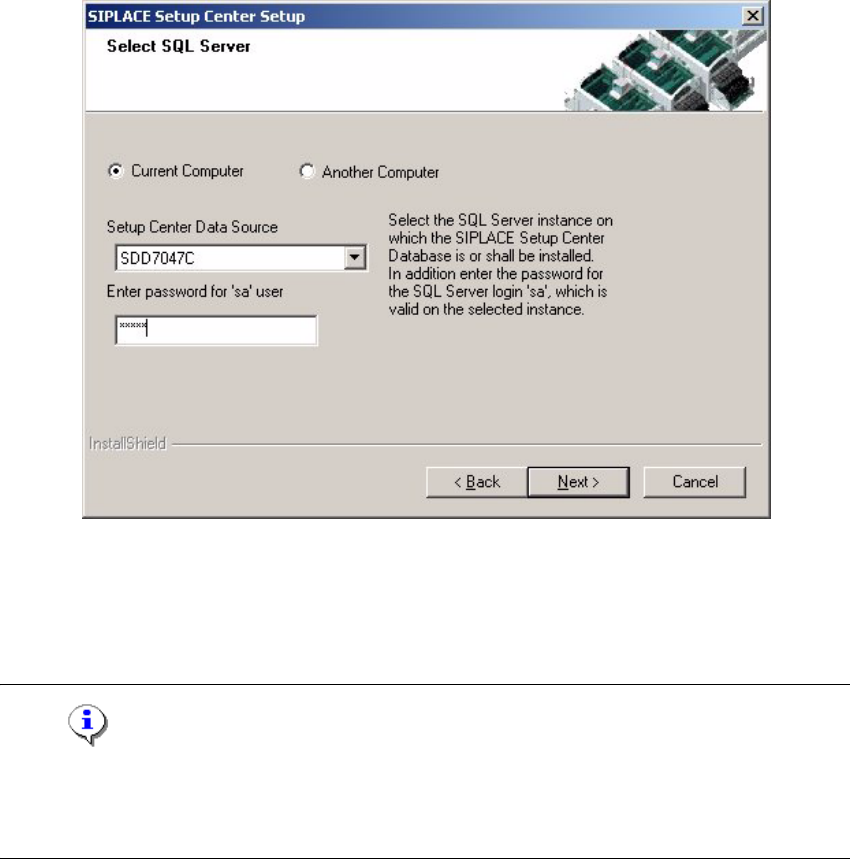
→ In the Select SQL-Server dialog box you enter the information required to be connected with
the SQL Server and database.
3
Fig. 3.3 - 22 "Select SQL Server" dialog box
→ Enter the Password for the SQL Server user ’sa’, i.e. the SQL server system administrator.
→ Selecting the radio button Another Computer will search computers with a database in the
network and will list them in the drop down box Setup Center Data Source.
Note
This password is empty if MSDE has been freshly installed. In this case, erase the displayed de-
fault password. Subsequently, a window will open, prompting you to change this password. You
may accept the Siemens Service default password or choose one of your own 3
→ Choose your SQL Server Instance from the pull-down menu.
→ Click Next.
3
3 Installation Installation Manual SIPLACE Setup Center RF 2.1
3.3 Installation of SIPLACE Setup Center and Possible Setup Types Edition 09/2005 EN
34
Step 3a
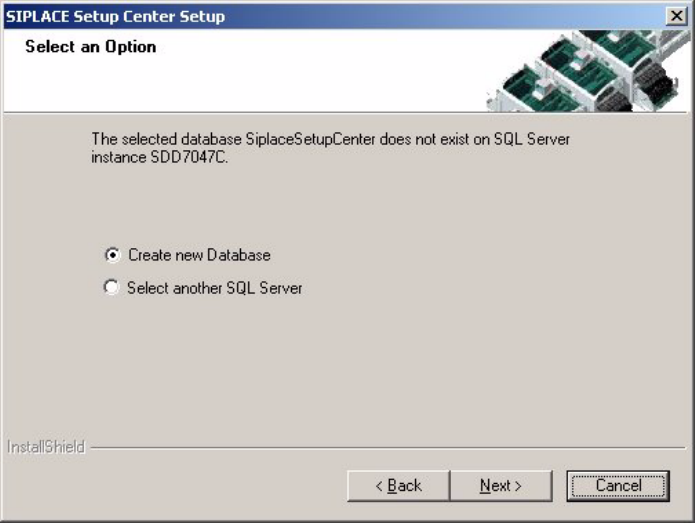
→ In case no database with the name SiplaceSetupCenter and the correct version exists, the
following dialog will appear:
3
Fig. 3.3 - 23 "Select an Option" dialog box
→ If you choose Select another SQL Server instance you will be returned to the previous dialog.
→ Click Next to create a new database.
3