00194591_02.pdf - 第37页
Installation Manual SIPLACE Setup Center RF 2.1 3 Installation Edition 09/2005 EN 3.3 Installation of SIPLACE Setup Center and Possible Setup Types 37 Ste p 6 → The installation routine is now st arted. The Setup Complet…
3 Installation Installation Manual SIPLACE Setup Center RF 2.1
3.3 Installation of SIPLACE Setup Center and Possible Setup Types Edition 09/2005 EN
36
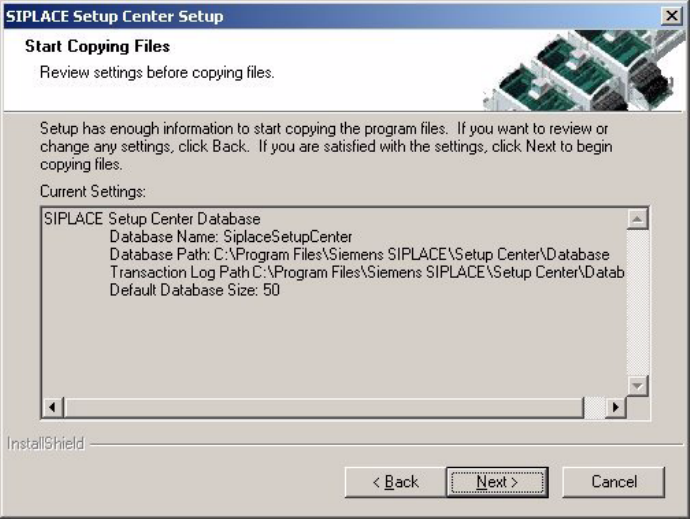
Step 5
→ The Start Copying Files dialog box gives you a last chance to check the information you have
entered during the previous steps.
3
Fig. 3.3 - 25 "Start Copying Files" dialog box
→ Click Next if you accept all the information entered so far.
→ If you want to alter one or more details, click the Back button until you get back to the dialog
box in question.
→ There, enter your changes and click Next to continue as usual.
3
Installation Manual SIPLACE Setup Center RF 2.1 3 Installation
Edition 09/2005 EN 3.3 Installation of SIPLACE Setup Center and Possible Setup Types
37
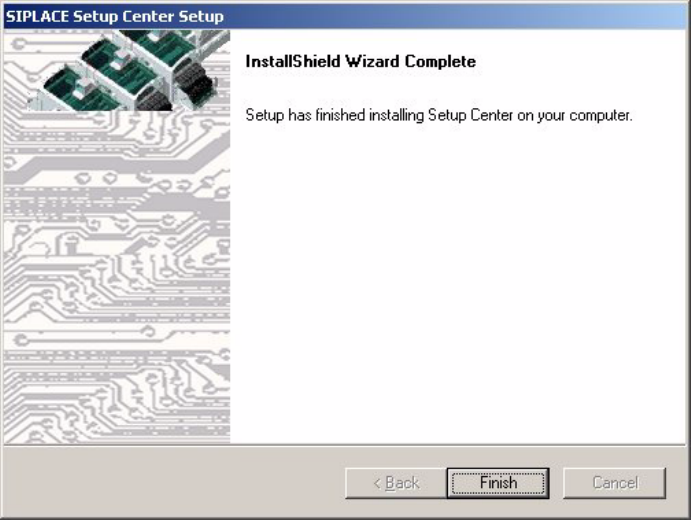
Step 6
→ The installation routine is now started.
The Setup Complete dialog box confirms that the installation has been completed success-
fully. 3
3
Fig. 3.3 - 26 "InstallShield Wizard Complete" dialog box
→ Click Finish.

3 Installation Installation Manual SIPLACE Setup Center RF 2.1
3.3 Installation of SIPLACE Setup Center and Possible Setup Types Edition 09/2005 EN
38
3.3.3 Steps to Perform after Installation
3.3.3.1 SIPLACE Setup Center Database and Windows XP SP2
When installing Windows XP Service Pack 2 (SP2), the Windows Firewall, formerly ICF (Internet
Connection Firewall), is enabled by default. The default configuration in SP2 blocks incoming traf-
fic for the most TCP ports. 3
If you are running the SIPLACE Setup Center GUI on a Windows XP SP2 host and the SIPLACE
Setup Center database on another host, you have to open the port 1433 and 1434 for the data-
base connection. Furthermore, you have to open the port 445, because blocking will cause errors
when using mans MMC snap-ins like Event Viewer, Local Users & Groups, Services, Computer
Management, Disk Management, Device Manager, Group Policy, and others. 3
Please refer to Windows help to get further information how to open TCP ports. 3
3.3.3.2 SIPLACE Setup Center Configuration
Setup Center GUI requires to be configured before it can be used. The configuration can be found
via the main menu Options → Settings. Read "SIPLACE Setup Center - Getting Started" for
more information. 3
3.3.3.3 Dragon Scanner Configuration
New scanners and scanner base stations require the set-up once before the first use. 3
This doesn't necessarily need to happen after the Installation of SIPLACE Setup Center, but it is
recommended. The Scanner configuration is independent from the software installation. 3
Note
The scanner powers off after a period of inactivity. Pulling the trigger will power the scanner on.3