SYS-CP842-1.1E.pdf - 第71页
3.Machine System SYS-CP842-1.1E 62 CP-842E / CP-842ME System Reference 3.1.11 Changing the Con veyor Width On machines equipped with an automatic conveyor width changing mechanism, the conveyor width can be automatically…

SYS-CP842-1.1E 3.Machine System
CP-842E / CP-842ME System Reference 61
Note: When the CP-842ME has the optional double panel loading function, two panels can be loaded at one
time by selecting [Load Two Panels].
3. Press START to commence.
Loading/unloading is carried out, and the machine awaits further input when the
operation is finished. To return to the [Main] screen, press [Close].
Clearing All Panels from the Machine (Flush Out)
The [Flush Out] command allows users to unload all panels currently held in the machine,
and prevent new panels from being loaded.
Procedure
1. At the [Main] screen, press [Panel Loader] to display the [Panel Loader] screen.
2. Press [Flush Out] to enable the START button, and press START to start flush out.
The machine unloads all panels currently on the machine, and awaits input from the
operator when the operation is complete.
3.Machine System SYS-CP842-1.1E
62 CP-842E / CP-842ME System Reference
3.1.11 Changing the Conveyor Width
On machines equipped with an automatic conveyor width changing mechanism, the
conveyor width can be automatically changed in 0.1 mm increments by commands
executed from the machine.
Automatic Conveyor Width Change Function
The automatic conveyor width change function is used to facilitate changeovers. To use
this function, enter the panel width (for the post-changeover production program) at the
[Conveyor Width] screen shown below. The conveyor then automatically moves to that
width.
Note: Be sure to remove the backup pins before performing width changes.
Procedure
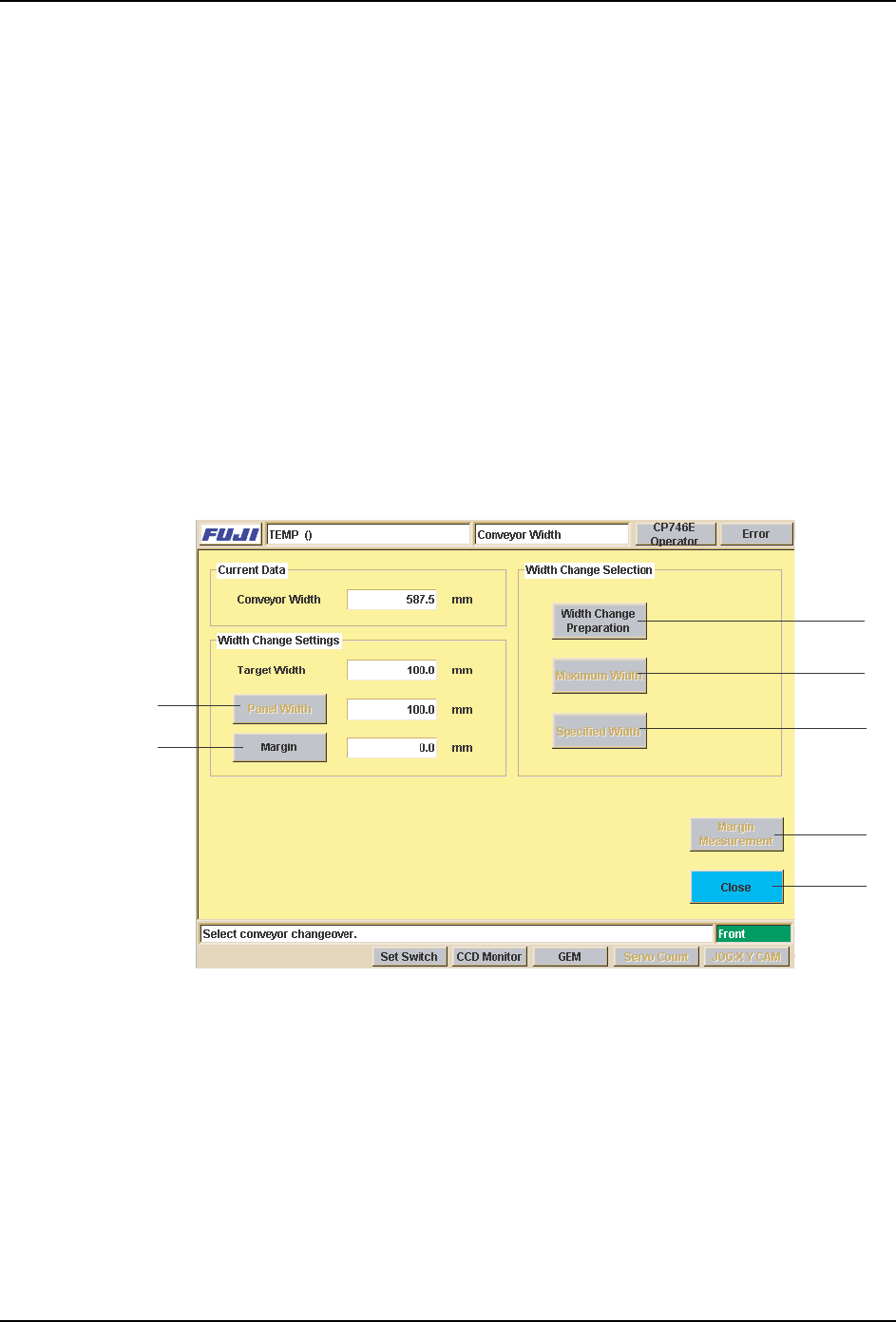
1. At the [Main] screen’s “Changeover” area, select the [Conveyor] item to display the
[Conveyor Width Select] screen, then press the [Conveyor Width] button to display the
[Conveyor Width] screen shown below.
A
B
C
D
E
F
G

SYS-CP842-1.1E 3.Machine System
CP-842E / CP-842ME System Reference 63
Screen Button Explanations
2. When the [Style] button is pressed, the START button becomes enabled. If the START
button is then pressed, all panels are unloaded from the machine.
Note: When set so that panels are not being transferred to a next stage, the last unloaded panel remains on
the conveyor. In this case, be sure to remove the panel from the conveyor by hand before using inching
or conveyor width change commands.
3. Press the [Panel Width] or [Margin] button to display a numeric keypad, then entire the
desired setting values. The total of the “Panel Width” + “Margin” values displays as the
“Target Width”.
4. The START button is enabled when either the [Specified Width] or [Maximum Width]
button is pressed.
5. Press the START button to perform the conveyor width change.
A. [Panel Width]: Specifies the Y-direction size of the production program panel.
B. [Margin]: Specifies the clearance between the conveyor and panel.
C. [Style]: Prepares for a conveyor width change (panel unloading, conveyor rail
linkage, etc.).
D. [Maximum Width]: Adjusts the conveyor to its maximum width minus 1 mm.
E. [Specified Width]: Adjusts the conveyor to the specified width.
F. [Margin Measurement]: Oeasures the margin (clearance between conveyor and
panel).
G. [Close]: Returns to the [Main] screen.