00198051-01_IM_SetupCenter_8.0_EN.pdf - 第51页
Barcode-Scanner Installation Safety Instructions Installation Manual SIPLACE Setup Center 8.0 51 6 6 B a r c o d e - S c a n n e r I n s t a lla t io n Barcode-Scanner Installation 6.1 6 . 1 S a f e t y I n s t r u c t i…
Setup Center Application Installation
Setup Verification and Traceability Activation 5.3.1 Installing
50 Installation Manual SIPLACE Setup Center 8.0
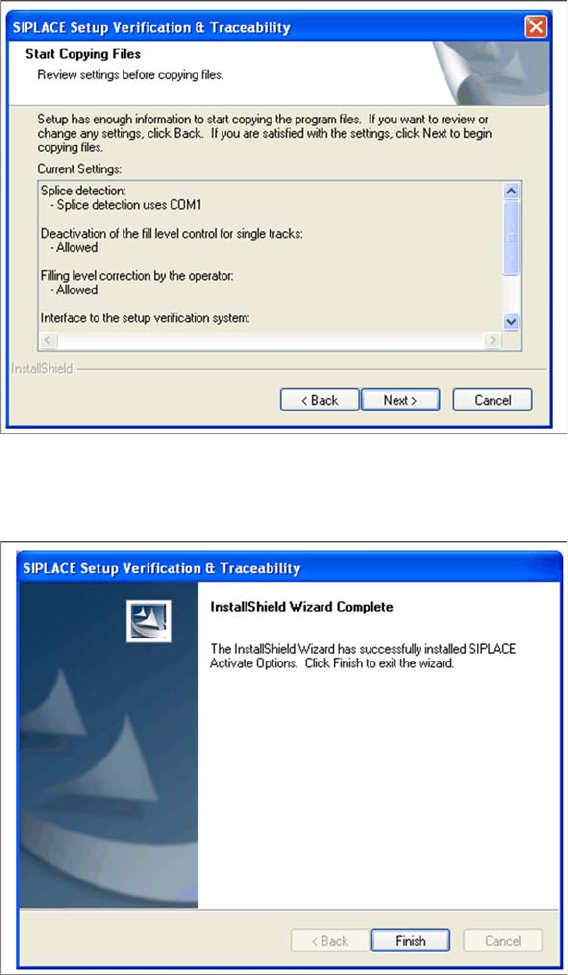
Step 7 Overview of the settings
► Here you will see the overview of the settings.
► Click Back to review or change the settings.
► Click Next to continue the installation.
Step 8 Finishing the installation
► Click Finish to end the installation.
Barcode-Scanner Installation
Safety Instructions
Installation Manual SIPLACE Setup Center 8.0 51
6
6 Barcode-Scanner Installation
Barcode-Scanner Installation
6.1
6.1 Safety Instructions
Safety Instructions
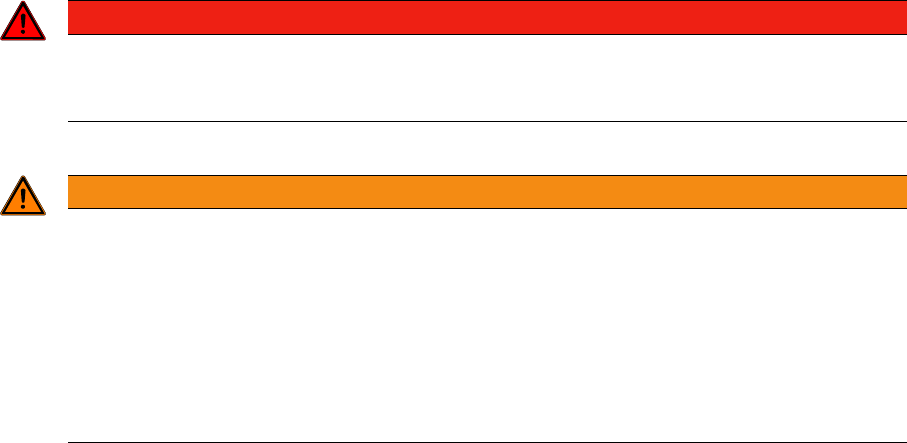
The Datalogic barcode scanners conforms to laser class 2.
Warning label W216 (shown above) is displayed on the Datalogic barcode scanner.
DANGER
LASER RADIATION!
Do not look into beam.
Laser class 2
WARNING
CAUTION:
Before using the Datalogic barcode scanner, inform all operating personnel about the laser reg
-
ulations.
While operating the Datalogic barcode scanner, observe the respective regulations in line with
VDE 0837 "Protection from radiation emitted by laser devices" and the "Laser radiation" acci
-
dent prevention regulations (VBG93), applicable in Germany.
Also observe the accident prevention regulations applicable in your country.
Despite the low laser power, avoid looking directly at the laser beam. The natural closure reflex
of your eyelids will protect your eyes from the visible beam.
Barcode-Scanner Installation
Datalogic Scanner 6.2.1 Datalogic Scanner’s Cradle BC-8030 (Narrowband)
52 Installation Manual SIPLACE Setup Center 8.0
6.2
6.2 Datalogic Scanner
Datalogic Scanner
6.2.1
6.2.1 Datalogic Scanner’s Cradle BC-8030 (Narrowband)
Datalogic Scanner’s Cradle BC-8030 (Narrowband)
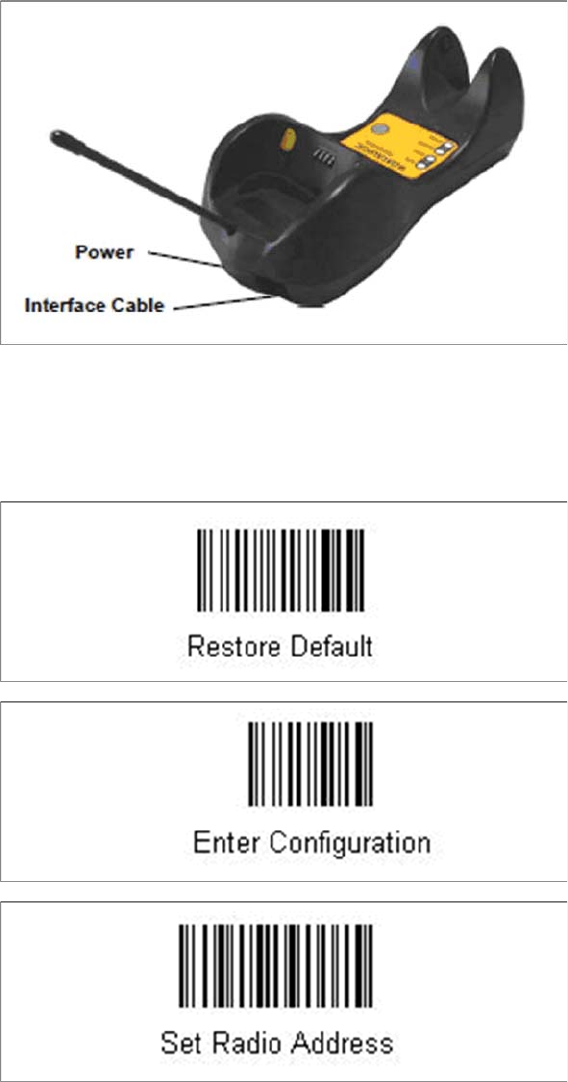
The Datalogic scanner’s cradle BC-8030 needs to be connected to the Setup Center PC. The cradle in
-
corporates a multi-standard interface, which can be connected via USB or RS-232 to a PC.
6.2.1.1
6.2.1.1 Connect cradle via RS-232
Connect cradle via RS-232
The device may be configured to a different interface ex factory, the following steps switch to RS-232
port.
► Please scan the following barcodes in the order they are printed: