00198051-01_IM_SetupCenter_8.0_EN.pdf - 第53页
Barcode-Scanner Installation 6.2.1 Datalogic Scanner’s Cradl e BC-8030 (Narrowband) Datalogic Scanner Installation Manual SIPLACE Setup Center 8.0 53 ► Scan the barcode “0” four times. The scan ner must have an a ddress …
Barcode-Scanner Installation
Datalogic Scanner 6.2.1 Datalogic Scanner’s Cradle BC-8030 (Narrowband)
52 Installation Manual SIPLACE Setup Center 8.0
6.2
6.2 Datalogic Scanner
Datalogic Scanner
6.2.1
6.2.1 Datalogic Scanner’s Cradle BC-8030 (Narrowband)
Datalogic Scanner’s Cradle BC-8030 (Narrowband)
The Datalogic scanner’s cradle BC-8030 needs to be connected to the Setup Center PC. The cradle in
-
corporates a multi-standard interface, which can be connected via USB or RS-232 to a PC.
6.2.1.1
6.2.1.1 Connect cradle via RS-232
Connect cradle via RS-232
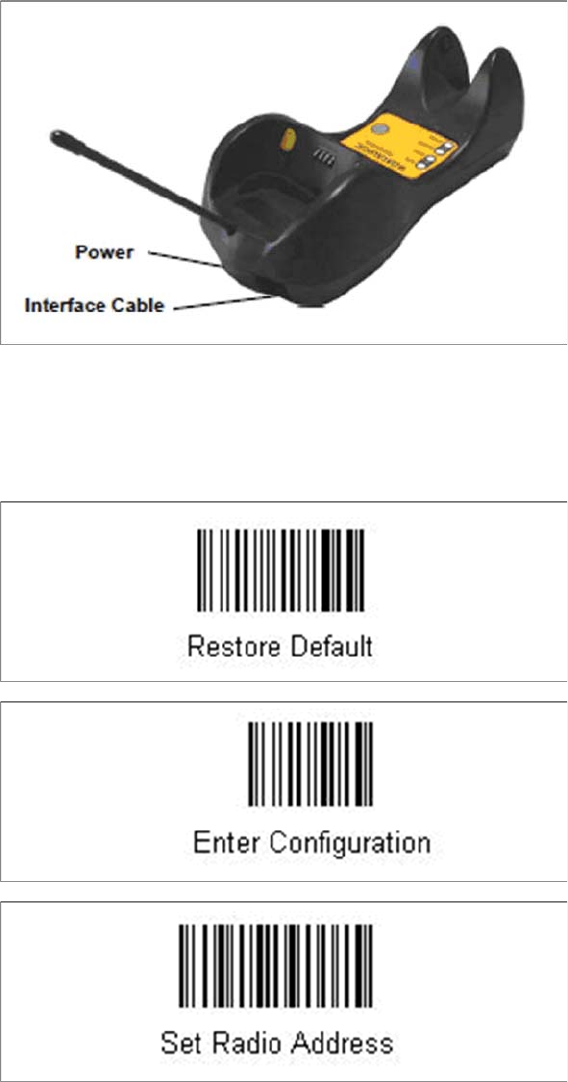
The device may be configured to a different interface ex factory, the following steps switch to RS-232
port.
► Please scan the following barcodes in the order they are printed:
Barcode-Scanner Installation
6.2.1 Datalogic Scanner’s Cradle BC-8030 (Narrowband) Datalogic Scanner
Installation Manual SIPLACE Setup Center 8.0 53
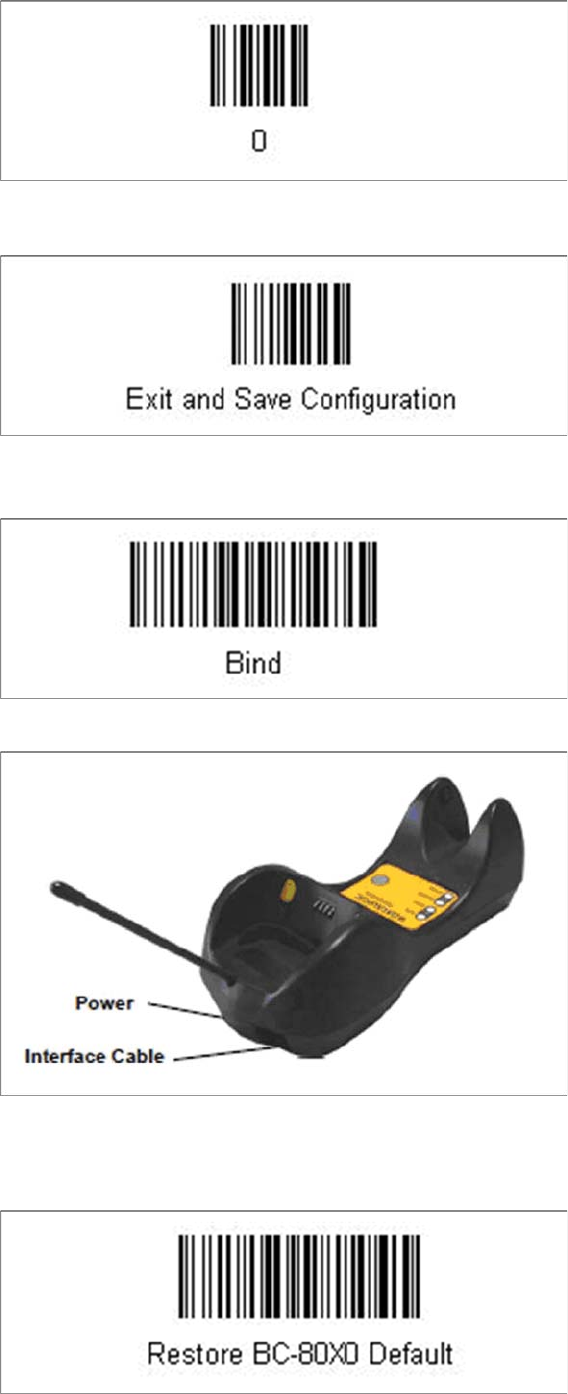
► Scan the barcode “0” four times.
The scanner must have an address (temporary "0000"), so that it can get connected to the cradle. This
address will be changed / set again later by Setup Center with the automatic configuration.
In order to configure the cradle a scanner needs to be bound to the cradle with the barcode "Bind".
► Scan the barcode "Bind" now.
► If the green LED of the scanner blinks, put the scanner into the cradle.
► The green LED is now switched off and the scanner is already registered on the cradle.
The interface of the cradle can be set up now with the following barcodes.
► Scan the barcode "Restore BC-80X0 Default" to restore the standard configuration of the cradle.
Barcode-Scanner Installation
Datalogic Scanner 6.2.1 Datalogic Scanner’s Cradle BC-8030 (Narrowband)
54 Installation Manual SIPLACE Setup Center 8.0
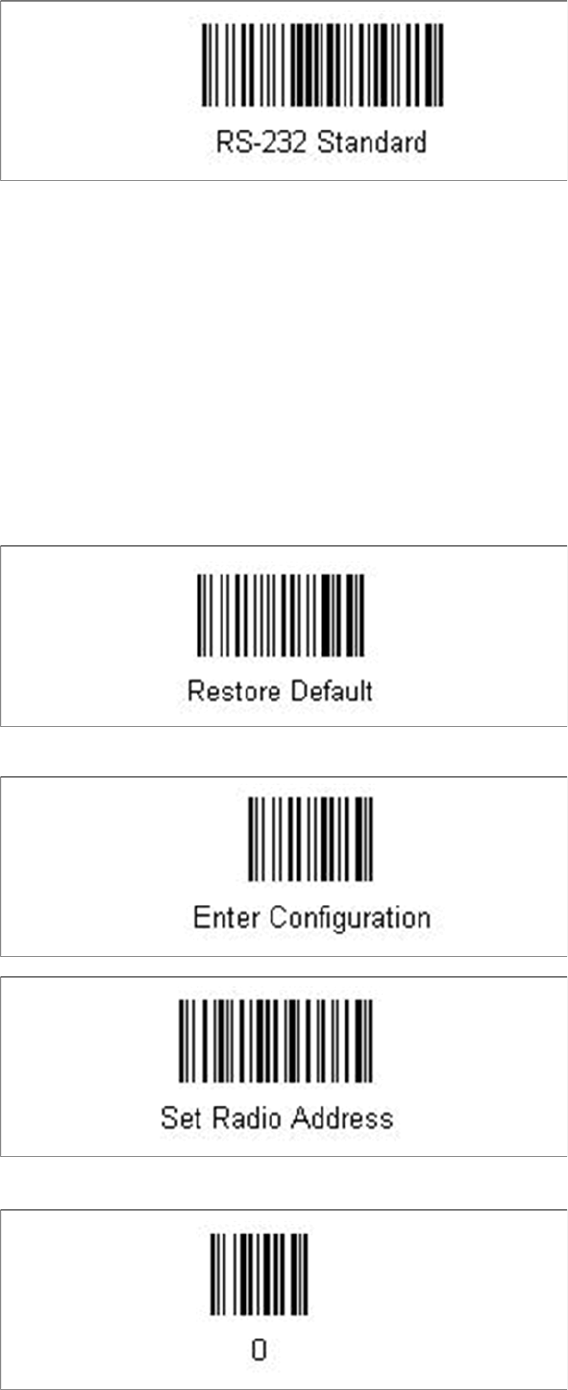
► Scan the barcode "RS-232 Standard" to set the interface to RS-232.
The cradle is now ready for use with Setup Center.
6.2.1.2
6.2.1.2 Connect cradle via USB
Connect cradle via USB
Installation of the USB-COM driver
For connection via USB, you must install the USB-COM driver first.
The installation packages for 32 bit and 64 bit operating systems are located in the “\3rdparty install
-
er\Datalogic\USB-COM Driver” directory of the Setup Center installation CD. For installation please refer
to "6.2.6 Installation of the USB-COM driver" [ ➙ 67].
Steps to configure the cradle to the USB-COM interface
The device may be configured to a different interface ex factory, the following steps switch to USB-COM
port.
► Please scan the following barcodes in the order they are printed:
The standard configuration of the scanner is restored.
► Scan the barcode “0” four times.