00198051-01_IM_SetupCenter_8.0_EN.pdf - 第60页
Barcode-Scanner Installation Datalogic Scanner 6.2.3 Datalogic Scanner’s Cradle BC-8030-BT (B luetooth ) 60 Installation Manual SIPLACE Setup Center 8.0 6.2.3.2 6 . 2 . 3 . 2 C o n n e c t c r a d le v ia U S B Connect c…
Barcode-Scanner Installation
6.2.3 Datalogic Scanner’s Cradle BC-8030-BT (Bluetooth) Datalogic Scanner
Installation Manual SIPLACE Setup Center 8.0 59
6.2.3
6.2.3 Datalogic Scanner’s Cradle BC-8030-BT (Bluetooth)
Datalogic Scanner’s Cradle BC-8030-BT (Bluetooth)
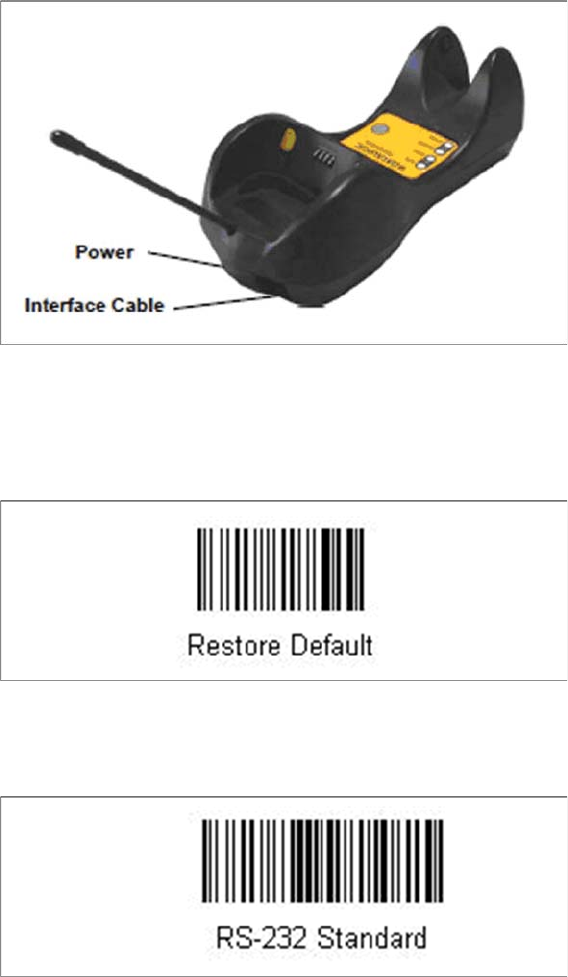
The Datalogic scanner’s cradle BC-8030-BT needs to be connected to the Setup Center PC. The cradle
incorporates a multi-standard interface, which can be connected via USB or RS-232 to a PC.
6.2.3.1
6.2.3.1 Connect cradle via RS-232
Connect cradle via RS-232
The device may be configured to a different interface ex factory, the following steps switch to RS-232
port.
► Please scan the following barcodes in the order they are printed:
► Scan the “Link by Contact” – Barcode from the cradle and put the scanner into the cradle.
⇨ The scanner is now registered on the cradle.
► Scan the barcode "RS-232 Standard" to set the interface to RS-232.
The cradle is now ready for use with Setup Center.
Barcode-Scanner Installation
Datalogic Scanner 6.2.3 Datalogic Scanner’s Cradle BC-8030-BT (Bluetooth)
60 Installation Manual SIPLACE Setup Center 8.0
6.2.3.2
6.2.3.2 Connect cradle via USB
Connect cradle via USB
Installation of the USB-COM driver
For connection via USB, you must install the USB-COM driver first.
The installation packages for 32 bit and 64 bit operating systems are located in the “\3rdparty install
-
er\Datalogic\USB-COM Driver” directory of the Setup Center installation CD. For installation please refer
to "6.2.6 Installation of the USB-COM driver" [ ➙ 67].
Steps to configure the cradle to the USB-COM interface
The device may be configured to a different interface ex factory, the following steps switch to USB-COM
port.
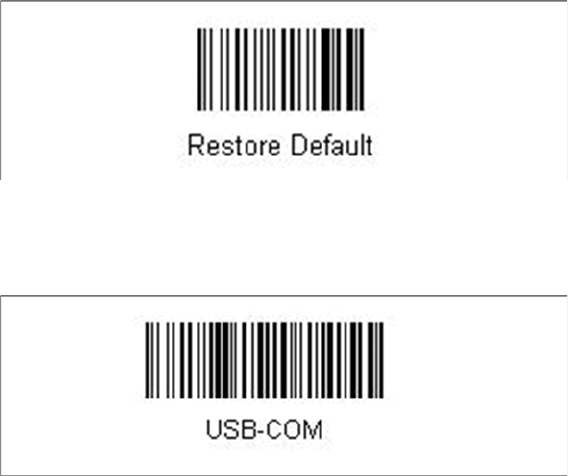
► Please scan the following barcodes in the order they are printed:
► Scan the “Link by Contact” – Barcode from the cradle and put the scanner into the cradle.
⇨ The scanner is now registered on the cradle.
► Scan the barcode "USB-COM" to set the interface to USB.
The cradle is now ready for use with Setup Center.
Barcode-Scanner Installation
6.2.4 Datalogic Scanner Configuration Datalogic Scanner
Installation Manual SIPLACE Setup Center 8.0 61
6.2.4
6.2.4 Datalogic Scanner Configuration
Datalogic Scanner Configuration
6.2.4.1
6.2.4.1 Verify the Firmware Status for the Datalogic Scanner
Verify the Firmware Status for the Datalogic Scanner
In case of problems with the Datalogic scanner, please check the Firmware version. If necessary, install
the current version with the "Datalogic Aladdin" tool.
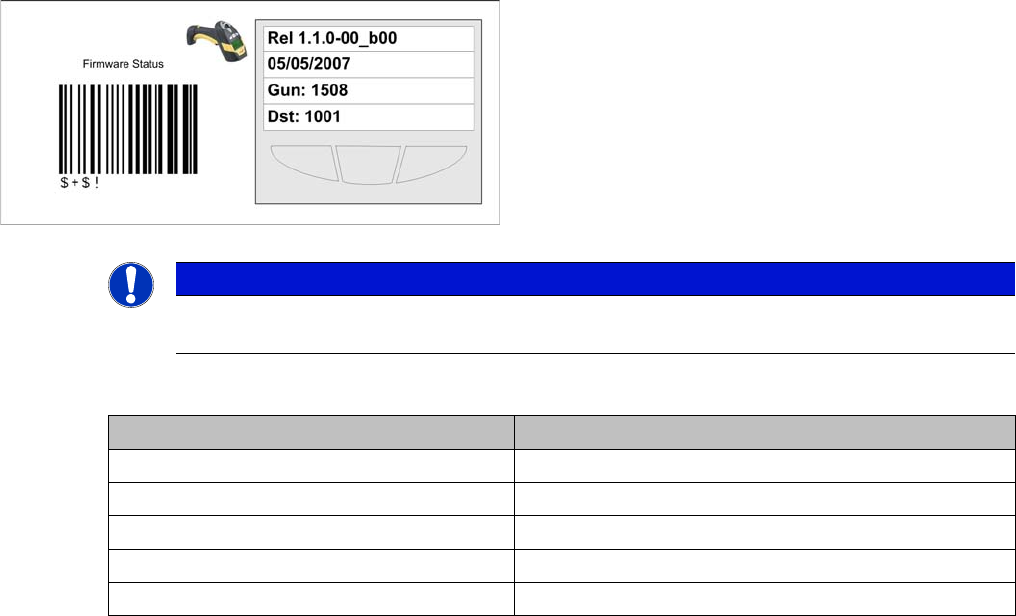
The actual firmware versions are:
Key:
1. Line: Firmware version
2. Line: Release Date of firmware
3. Line: Address of the Scanner
4. Line: Address of the cradle
NOTICE
Please verify whether the actual firmware version is displayed on the Barcode Scanner. If not,
you should upgrade the firmware version for the Barcode Scanner.
Barcode Scanner Actual Firmware
Datalogic M131 1.1.0-00_b00
Datalogic M8300 2.0.1.00
Datalogic M8500 SS5403 1.00
Datalogic M8300BT SS5193 1.0.6
Datalogic M9500 Was not yet available at press date.