00198051-01_IM_SetupCenter_8.0_EN.pdf - 第68页
Barcode-Scanner Installation Datalogic Scanner 6.2.6 Installation of the USB-COM driver 68 Installation Manual SIPLACE Setup Center 8.0 Step 4 ► Click Next . Step 5 ► Read the license ag reement relating to use of this s…
Barcode-Scanner Installation
6.2.5 Datalogic Scanner Connection Datalogic Scanner
Installation Manual SIPLACE Setup Center 8.0 67
6.2.5
6.2.5 Datalogic Scanner Connection
Datalogic Scanner Connection
New scanners and scanner base stations require the setup once before the first use.
This doesn’t necessarily need to happen after the Installation of SIPLACE Setup Center, but it is recom
-
mended. The Scanner configuration is independent from the software installation.
For detailed information, please refer to User Guide SIPLACE Setup Center.
See also
6.2.6 Installation of the USB-COM driver [ ➙ 67]
6.2.6
6.2.6 Installation of the USB-COM driver
Installation of the USB-COM driver
Step 1
The installation packages for 32 bit and 64 bit operating systems are located in the “\3rdparty install
-
er\Datalogic\USB-COM Driver” directory of the Setup Center installation CD.
► Choose the appropriate installation package for your operating system.
Step 2
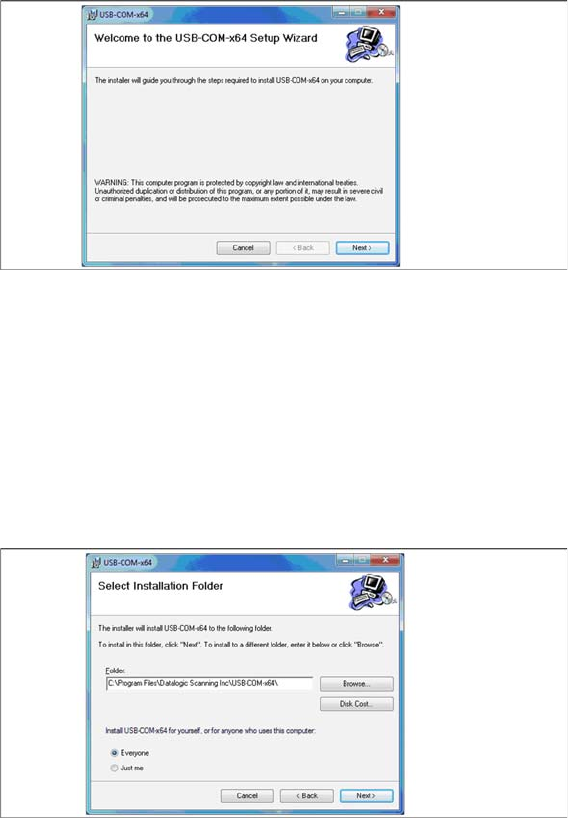
► Click Next.
Step 3
► The Select Installation Folder dialog box prompts you to enter the name of the folder in which the
software should be installed. The system suggests a default destination folder for you.
► However, you can click the Browse button to open a dialog box in which you can enter or select the
path you want to use. If the folder you specify does not exist, it is created after having accepted a
confirmation dialog.
► Select the option Everyone.
► Click Next.
Barcode-Scanner Installation
Datalogic Scanner 6.2.6 Installation of the USB-COM driver
68 Installation Manual SIPLACE Setup Center 8.0
Step 4
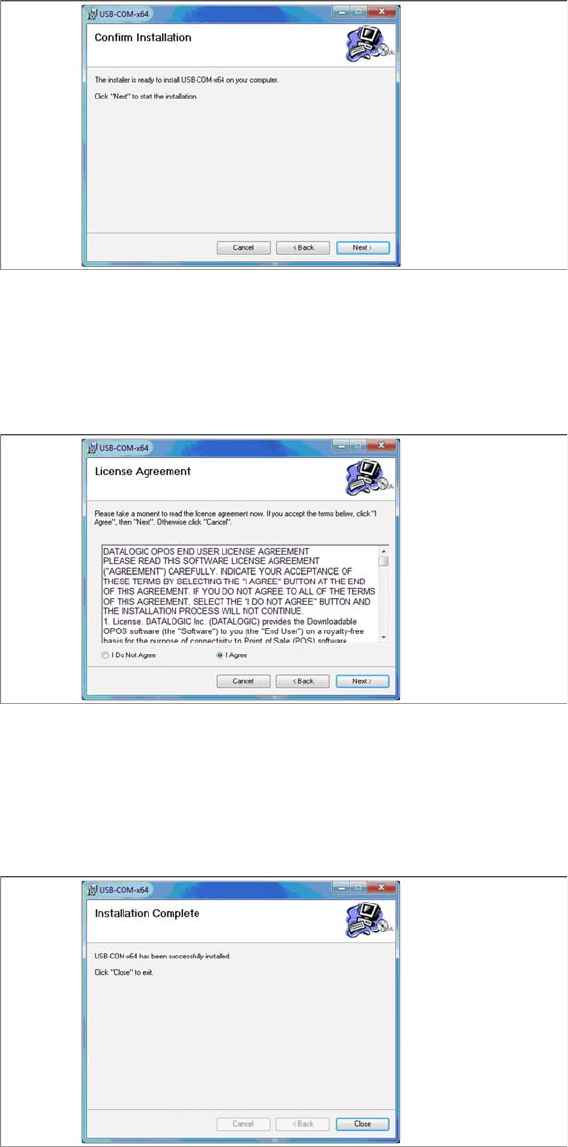
► Click Next.
Step 5
► Read the license agreement relating to use of this software and select I Agree to accept the license
agreement.
► Click Next.
Step 6
► The installation of the driver software starts.
► The "Installation Complete" window appears if the installation has been completed successfully.
► Click Close.

Barcode-Scanner Installation
6.3.1 System Requirements Motorola Scanner
Installation Manual SIPLACE Setup Center 8.0 69
6.3
6.3 Motorola Scanner
Motorola Scanner
6.3.1
6.3.1 System Requirements
System Requirements
The following components are required for the operation of the scanner:
▪ WLAN-infrastructure (not included)
▪ Motorola scanner integrated in WLAN-infrastructure and accessible with "ping" windows-command.
▪ Required scanner firmware versions
– MC67: 03.46
– MC70: 05.43
– MC75: 02.37
– MC3090: 01.13
– MC3190: 03.26
6.3.2
6.3.2 Configurate WLAN on Scanner
Configurate WLAN on Scanner
Please configure the barcode scanner for the operation within WLAN network - as described in docu
-
ment Installation Manual WLAN Infrastructure for SIPLACE (item no. 00195606-xx).
NOTICE
The scanner might be delivered with a different firmware version. Please install the firmware
version listed above. It is located on the software DVD "SIPLACE Support Media DVD1” in the
section “SIPLACE Products” (See "6.3.3 Mobile Scanner Prerequisites Setup" [➙70]). Please
observe by all means the enclosed documentation.
NOTICE
Mobile scanner menus in Chinese
If you want the menus on the Motorola scanner to appear in Chinese, you first need to install a
localized (Simplified Chinese) operating system.