00198051-01_IM_SetupCenter_8.0_EN.pdf - 第76页
Barcode-Scanner Installation Motorola Scanner 6.3.4 Setup Center Client Installation 76 Installation Manual SIPLACE Setup Center 8.0 ► In case of a upgrade installation confirm the updat e of Setup Center C lient with &q…
Barcode-Scanner Installation
6.3.4 Setup Center Client Installation Motorola Scanner
Installation Manual SIPLACE Setup Center 8.0 75
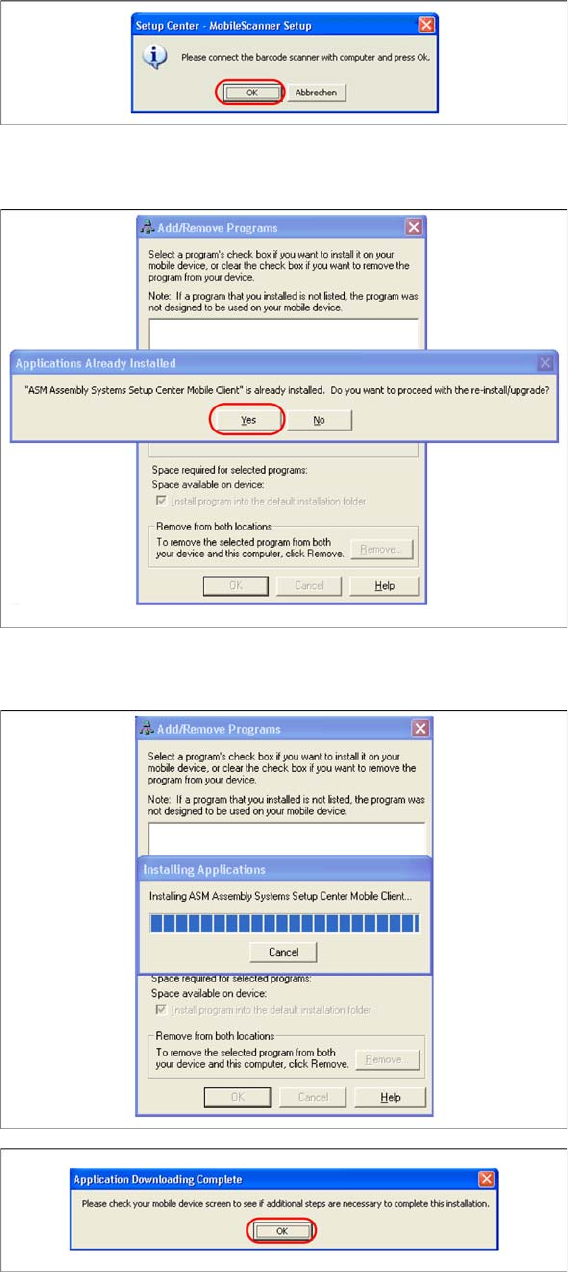
► Make sure that the scanner is placed in the basic station and connected to Setup Center.
► Select "OK" start the transfer of the software components to the scanner.
► In case of a upgrade installation confirm the upgrade of SSC Mobile Scanner with "Yes".
The transfer of the components to the scanner is beginning.
► After completion of the data transfer to the device click on "OK" to close the window.
The installation of the Setup Center Client is beginning.
Barcode-Scanner Installation
Motorola Scanner 6.3.4 Setup Center Client Installation
76 Installation Manual SIPLACE Setup Center 8.0
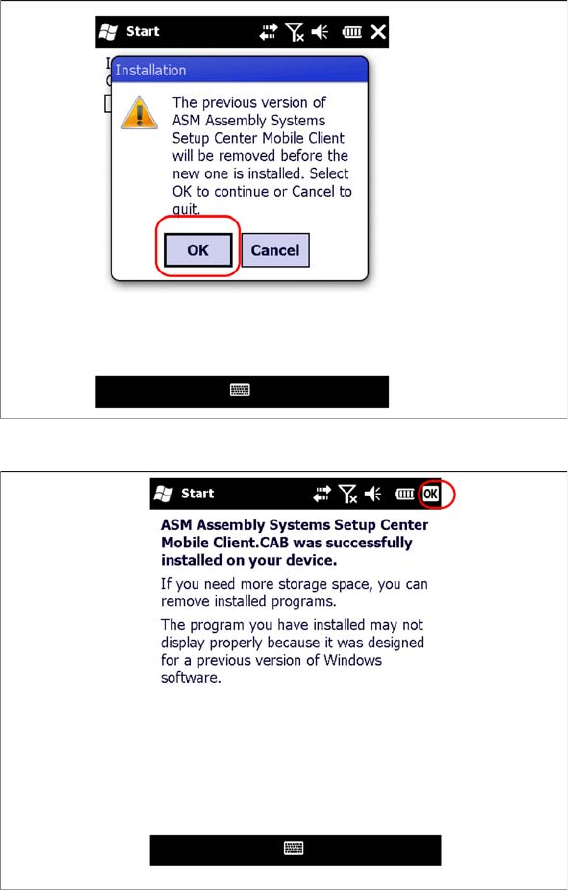
► In case of a upgrade installation confirm the update of Setup Center Client with "OK".
► Select "OK" to close the window. The installation is now completed. Please restart the device by
holding down the power key 5 seconds. After restart the Setup Center Client starts automatically and
you can start with the configuration of Setup Center and Client Software.
Barcode-Scanner Installation
6.3.5 Motorola / Symbol Scanner Configuration Motorola Scanner
Installation Manual SIPLACE Setup Center 8.0 77
6.3.5
6.3.5 Motorola / Symbol Scanner Configuration
Motorola / Symbol Scanner Configuration
6.3.5.1
6.3.5.1 Configurate WLAN network
Configurate WLAN network
The communication between Setup Center and scanner is achieved by network connection (socket).
Setup Center takes the role of the server and the scanner that one of the client.
6.3.5.2
6.3.5.2 Configure Setup Center Client
Configure Setup Center Client
Starting MC67 / MC70 / MC75
After the installation routine has restarted the scanner the Setup Center Client is started automatically
and the Mobile Scanner dialog appears.
MC3090 / MC3190
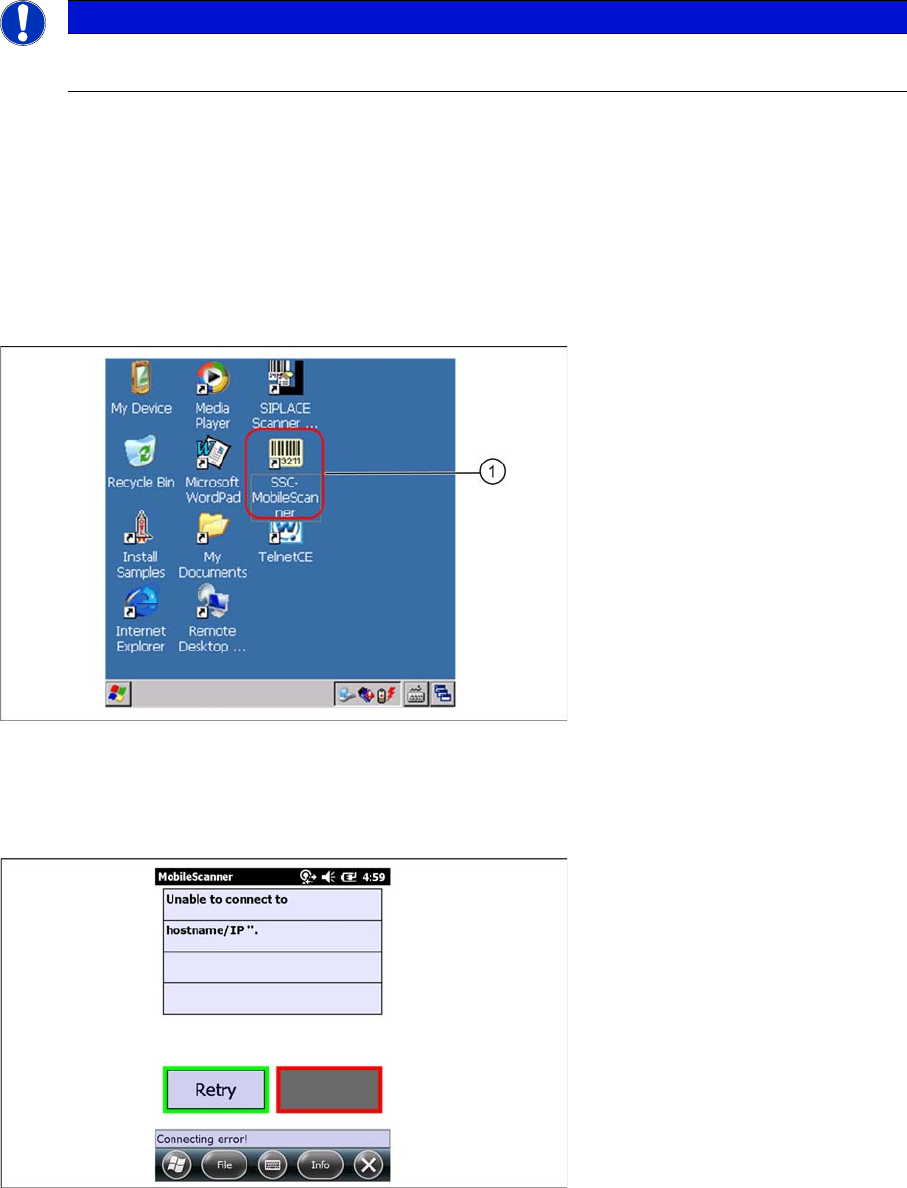
For MC3090 / MC 31090 you must start the installation manually.
► Select SSC MobileScanner icon (1) to start installation.
⇨ The Mobile Scanner dialog appears.
Mobile Scanner dialog
NOTICE
Please configurate the barcode scanner for the operation within WLAN network - as described
in document Installation Manual WLAN Infrastructure for SIPLACE (item no. 00197199-xx).