00198051-01_IM_SetupCenter_8.0_EN.pdf - 第81页
Barcode-Scanner Installation 6.3.5 Motorola / Symbol Scanner Con figuration Motorola Scanner Installation Manual SIPLACE Setup Center 8.0 81 SIPLACE Scanner Config Tool You can change the following scan para meters here:…
Barcode-Scanner Installation
Motorola Scanner 6.3.5 Motorola / Symbol Scanner Configuration
80 Installation Manual SIPLACE Setup Center 8.0
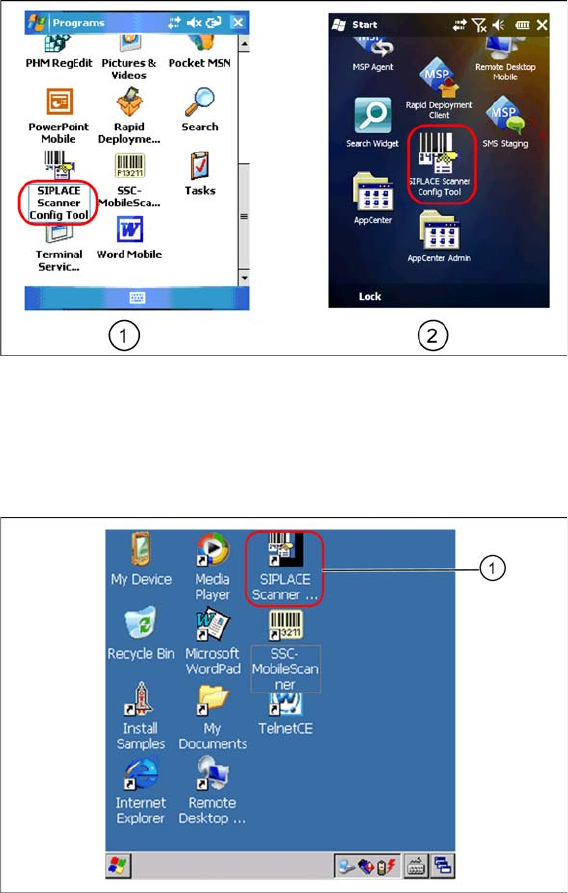
► Select SIPLACE Scanner Config Tool to continue (select icon (1) for MC70 or icon (2) for MC67 /
MC75).
⇨ The SIPLACE Scanner Config Tool dialog appears.
Starting MC3090 / MC3190
► Select SIPLACE Scanner Config Tool icon (1) to continue.
⇨ The SIPLACE Scanner Config Tool dialog appears.
Barcode-Scanner Installation
6.3.5 Motorola / Symbol Scanner Configuration Motorola Scanner
Installation Manual SIPLACE Setup Center 8.0 81
SIPLACE Scanner Config Tool
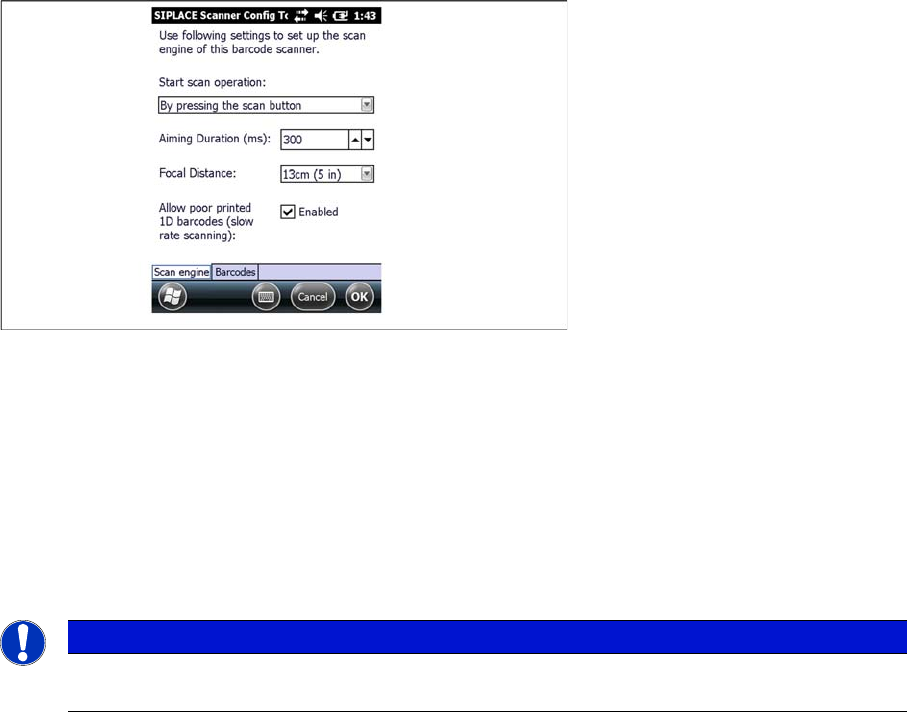
You can change the following scan parameters here:
▪ Start scan operation:
– By pressing the scan button
– By releasing the scan button (recommended)
▪ Aiming Duration (ms):
Sets the time, how long a user is able to target a barcode with target laser.
▪ Focus Position:
– Far: You have to focus a barcode in scan range of about 23 cm (9 inches).
– Near: You have to focus a barcode in scan range of about 13 cm (5 inches).
▪ Allow poor printed 1D barcodes (slow rate scanning):
Use this setting, if most of your barcodes cannot be read in case of light damage.
► Press Ok or Apply to save the settings.
NOTICE
This setting is depending on barcode size. If you have problems to read your 1D barcodes with
small size, change the setting to “Near”.
Barcode-Scanner Installation
Motorola Scanner 6.3.5 Motorola / Symbol Scanner Configuration
82 Installation Manual SIPLACE Setup Center 8.0
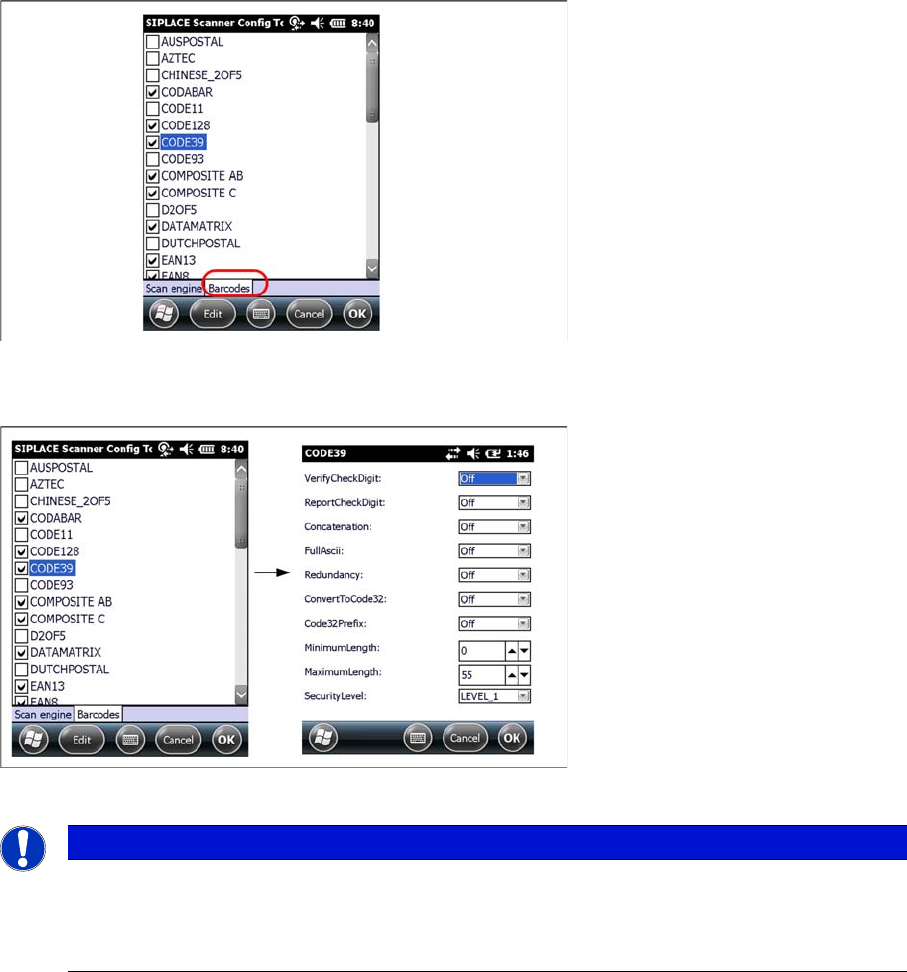
Setting 1D or 2D barcodes for Mobile Scanners
► Select the Barcode tab
► Choose the allowed 1D or 2D barcodes for your mobile scanner here.
► Select the barcode and press Edit to open the additional barcode settings.
► Press Ok to save the settings.
NOTICE
Context menu
Click and hold on a barcode to open the context menu:
All Off: Select none of the barcodes in the list
All On: Select all the barcodes in the list