00198051-01_IM_SetupCenter_8.0_EN.pdf - 第98页
Docking Station Installation Firmware Download for Feeder Contr ol Unit 7.4.4 Connection Examp les with CIN-Box 98 Installation Manual SIPLACE Setup Center 8.0 Connection Example 2 (Two CIN-Boxes) 1. Setup Center PC to D…
Docking Station Installation
7.4.4 Connection Examples with CIN-Box Data Connection with CIN-Box
Installation Manual SIPLACE Setup Center 8.0 97
7.4.4
7.4.4 Connection Examples with CIN-Box
Connection Examples with CIN-Box
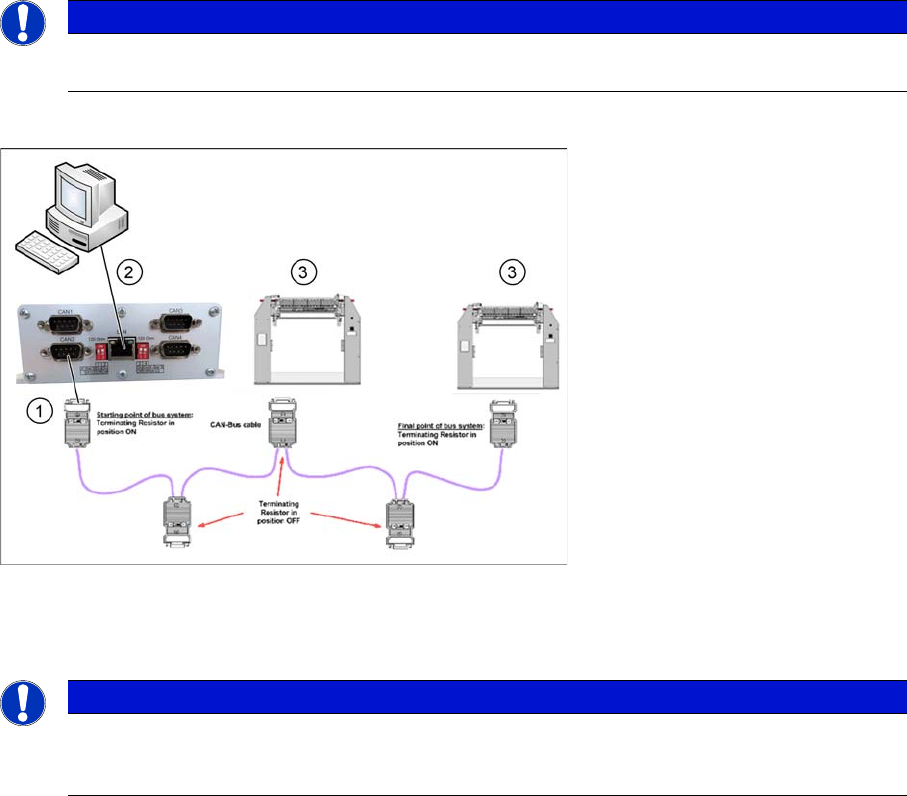
Connection Example 1 (One CIN-Box)
1. CAN Bus cable connection to CIN-BOX
2. Setup Center PC to CIN-Box LAN connection
3. Docking Station X or SX
NOTICE
The first and the last terminating resistor must always be switched ON and the other switched
OFF independent of the number of docking stations.
NOTICE
The integrated terminal resistor can be connected and simultaneously connects / disconnects
the outgoing bus cable when deactivating / activating. This allows an easy start up of the bus
system one segment at a time.
Docking Station Installation
Firmware Download for Feeder Control Unit 7.4.4 Connection Examples with CIN-Box
98 Installation Manual SIPLACE Setup Center 8.0
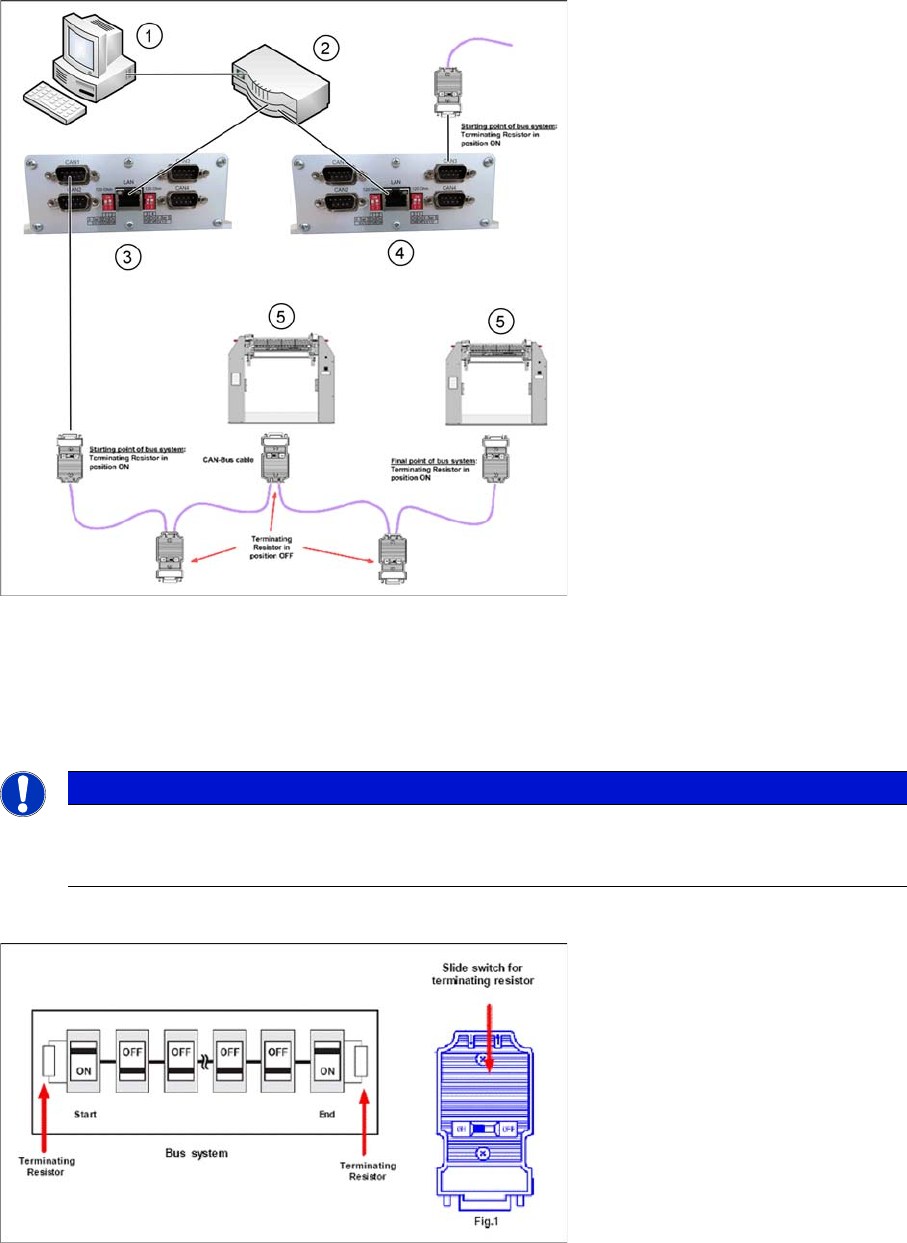
Connection Example 2 (Two CIN-Boxes)
1. Setup Center PC to DHCP-Router connection
2. Router with DHCP-Server
3. CIN-Box 1
4. CIN-Box 2
5. Docking Station X or SX
Termination Resistor
7.5
7.5 Firmware Download for Feeder Control Unit
Firmware Download for Feeder Control Unit
► Setup Center can update the firmware of your feeder control unit (docking station or feeder rack).
To learn how to update the firmware of your docking station, please refer to the chapter "Firmware
Download" in the Online Help Setup Center.
NOTICE
The integrated terminal resistor can be connected and simultaneously connects / disconnects
the outgoing bus cable when deactivating / activating. This allows an easy start up of the bus
system one segment at a time.
FillingStation Installation
Connections on the FillingStation
Installation Manual SIPLACE Setup Center 8.0 99
8
8 FillingStation Installation
FillingStation Installation
8.1
8.1 Connections on the FillingStation
Connections on the FillingStation
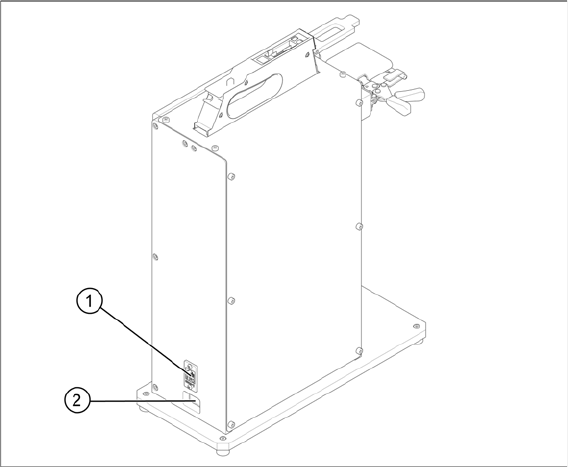
Establish a data connection between the FillingStation and the Setup Center PC. This data connection
is realized via LAN.
► Ensure that you have already installed the CIN Box Driver on the Setup Center PC. Please refer to
"7.4.2 Installing the CIN-Box driver" [ ➙ 95].
► Connect the LAN cable to the LAN connection at your FillingStation. This can be found on the back
of the FillingStation.
► Connect the power cable to the power connection at your FillingStation. This can be found on the
back of the FillingStation.
1. LAN connection
2. Power connection