00191297-02.pdf - 第108页
3 Introduction and Ba sic Concepts User Manual SIPLACE S-23 HM 3.3 User Interface - Views and Menus Software Version SR.405.xx 05/99 Issue 106 NOTE At "Operat or" a ccess level, i t is o nly pos sible to activ …
User Manual SIPLACE S-23 HM 3 Introduction and Basic Concepts
Software Version SR.405.xx 05/99 Issue 3.3 User Interface - Views and Menus
105
Machine options... 3
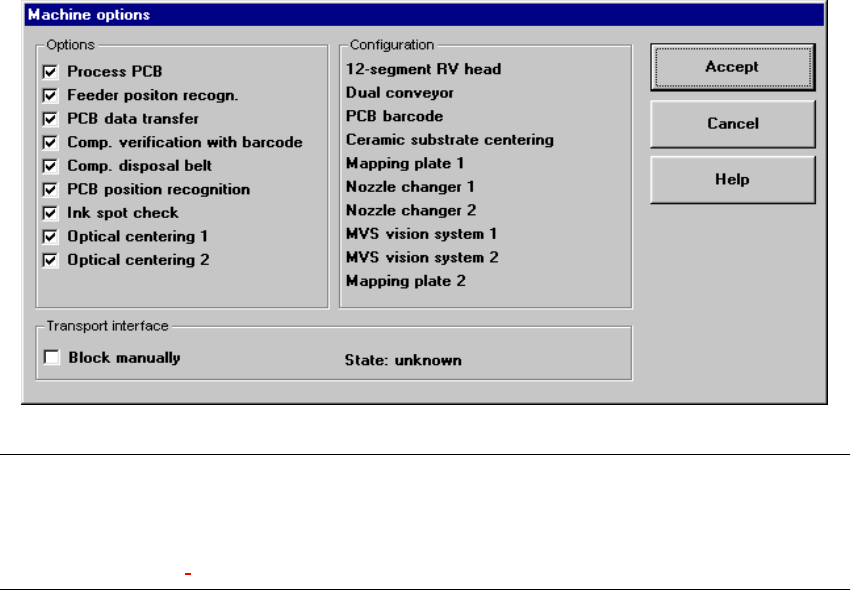
Depending on access level, you can obtain information about the station configuration
("Operator") or activate or deactivate the displayed machine options ("Line engineer", "Service").3
È Click the menu item Machine options...
The following window is displayed.
3
NOTE
Only those machine options are displayed which are configured at the current station.
The different machine options and the associated functions are described in Chapter 4 Placement
Functions, Chapter 6 Vision functions and chapter 12 Station Extensions - Software. 3
È Click the checkboxes corresponding to the machine options which you want to activate or
deactivate.
3 Introduction and Basic Concepts User Manual SIPLACE S-23 HM
3.3 User Interface - Views and Menus Software Version SR.405.xx 05/99 Issue
106
NOTE
At "Operator" access level, it is only possible to activate and deactivate the conveyor interface
options. 3
Access level... 3
It is possible to protect some user interface functions against unauthorized use by setting an
access level and allocating a password. Functions which are not accessible from a given access
level cannot be executed since the associated push-button, radio buttons and menu commands
are either inactive or not displayed. 3
You can choose between the access levels "Operator", "Line engineer" and "Service". Passwords
can be allocated for the access levels "Line engineer" and "Service". 3
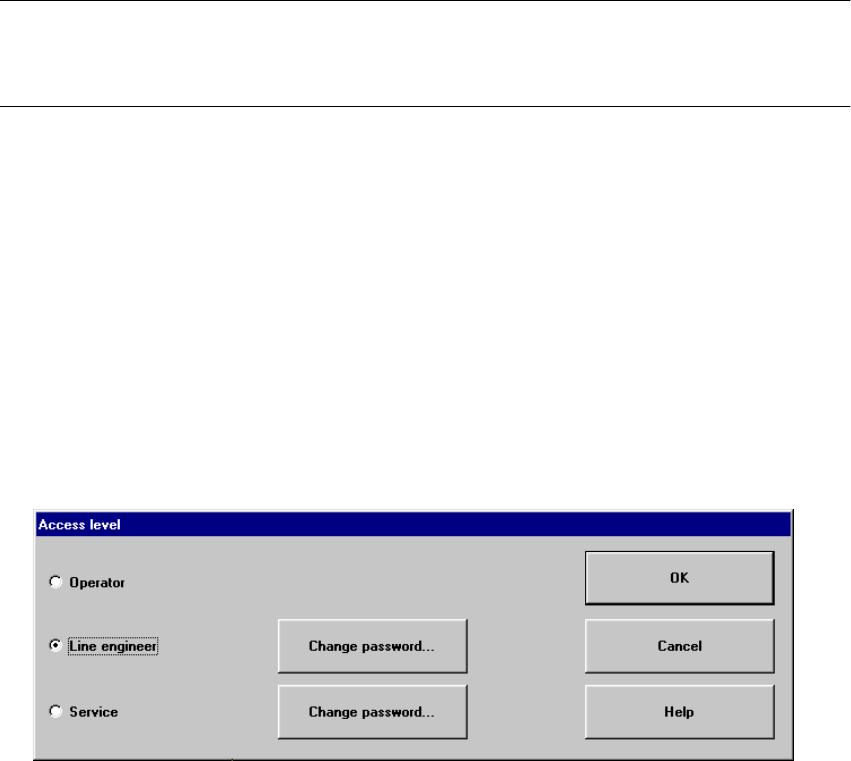
È Click the menu item Access level ...
The "Access level" dialog box is opened.
3
È Click the radio button for the required access level.
È Click the "Change password" button to the right of the access level if you want to allocate a
password or change an existing password.
The dialog box for password entry is now displayed.
3
User Manual SIPLACE S-23 HM 3 Introduction and Basic Concepts
Software Version SR.405.xx 05/99 Issue 3.3 User Interface - Views and Menus
107
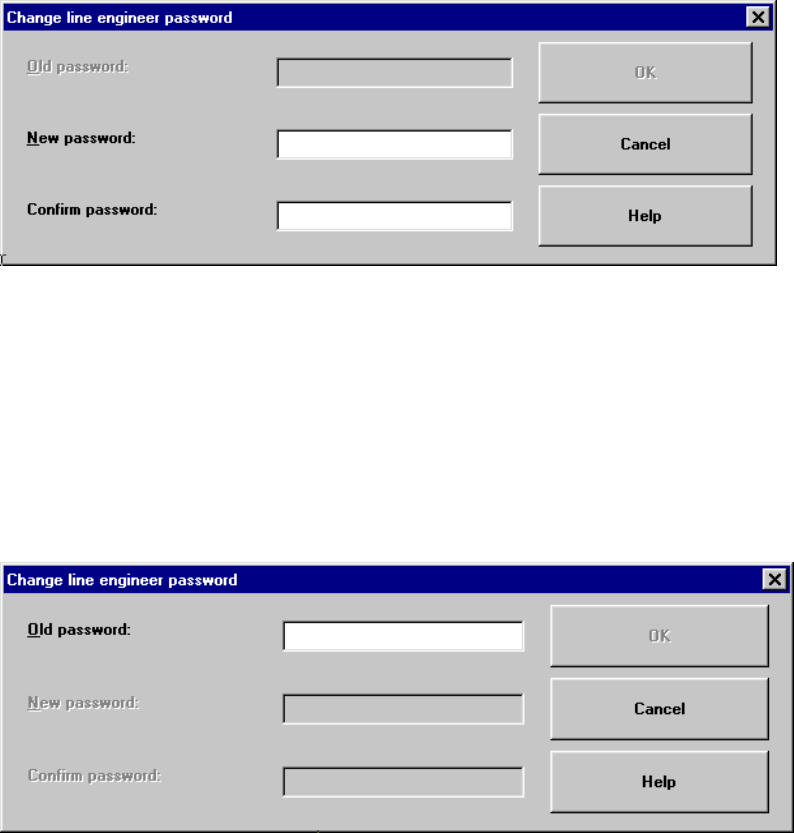
Example of initial password allocation 3
3
È Click the "New password" text box and enter the required password.
È Click the "Confirm password" text box and re-enter the password.
È Click the OK button to confirm the password.
3
Example for the modification of an existing password 3
3
È Click the "Old password" text box and enter the current password.
The other two text boxes now become active.
È Click the "New password" text box and enter the new password.
È Click the "Confirm password" text box and re-enter the new password.
È Click the OK button to confirm the password.
È Click OK to close the "Access level" dialog box.