00197962-01_2nd_HMI_and_Tower_Light_en - 第43页
Installing the 2 Tower Light Kit or the 3 Tower Light Kit Functional Verification After Installation Assembly Instructions SIPLACE E 43 ► On the next s creen, clic k the and the icons. ► Then click the icon to go to the …
Installing the 2 Tower Light Kit or the 3 Tower Light Kit
Functional Verification After Installation
42 Assembly Instructions SIPLACE E
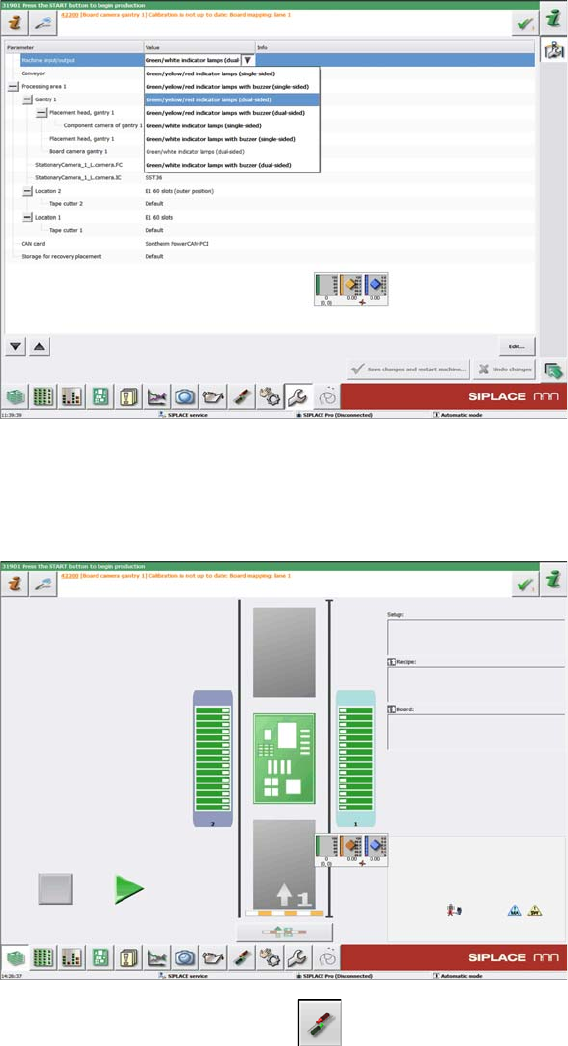
► On the Parameter page Machine input/output, select Green/yellow/red indicator lamps (dual sided)
for 3 tower light kit installation at location 2.
► Click Save changes and restart the machine.
► Power up the machine again.
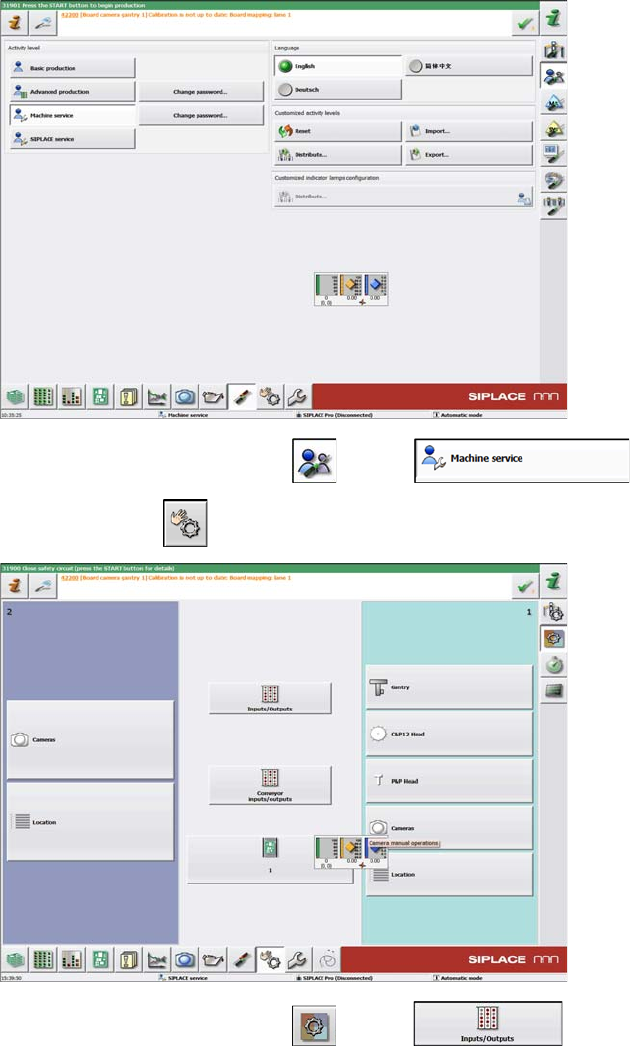
► On the main screen, click the icon.
Installing the 2 Tower Light Kit or the 3 Tower Light Kit
Functional Verification After Installation
Assembly Instructions SIPLACE E 43
► On the next screen, click the and the icons.
► Then click the icon to go to the next page.
► On the next screen, click the and the icons.
Installing the 2 Tower Light Kit or the 3 Tower Light Kit
Functional Verification After Installation
44 Assembly Instructions SIPLACE E
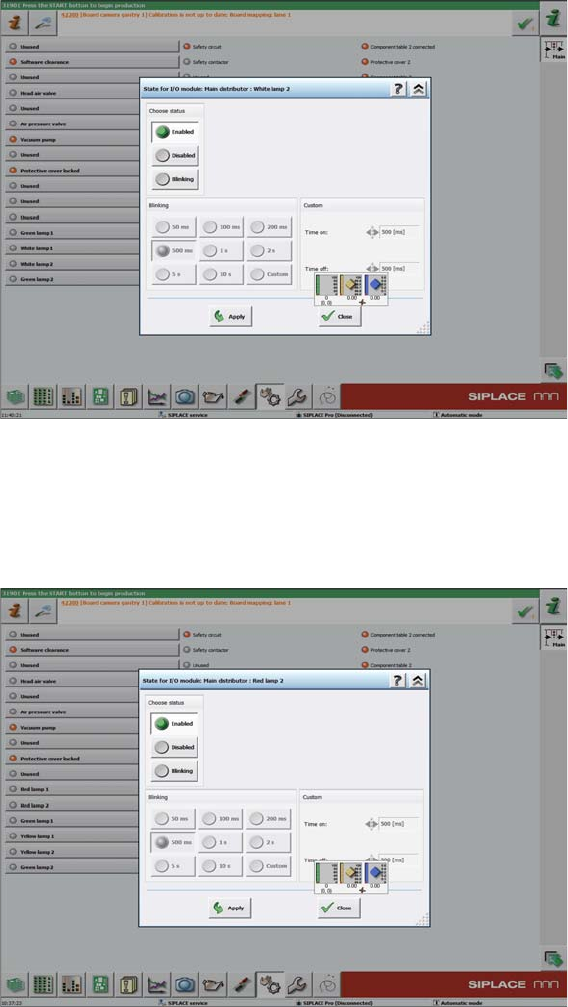
➢ For 2 tower light kit, the screen above will be seen.
► Click Green lamp 2 or White lamp 2 to test the two lights installed at location 2.
► Click the Enabled or Disabled icons, to manually turn the two lights on and off in order to verify if they
are working.
➢ For 3 tower light kit, the screen below will be seen.
► Click on Green lamp 2, Yellow lamp 2 or Red lamp 2 to test the three lights installed at location 2.
► Click the Enabled or Disabled icons, to manually turn the three lights on and off in order to verify if
they are working.