00900057-02_IM_Performance_Monitor_2.1_EN.pdf - 第35页
ASM Performance Monitor 2.1 / Installation Manual 01/2021 Edition 35 Now the setup explicitly chec ks the available, required an d recommended disk space again. If your free disk space does not match the recommended disk…
ASM Performance Monitor 2.1 / Installation Manual 01/2021 Edition
34
4.13 Ready to Install
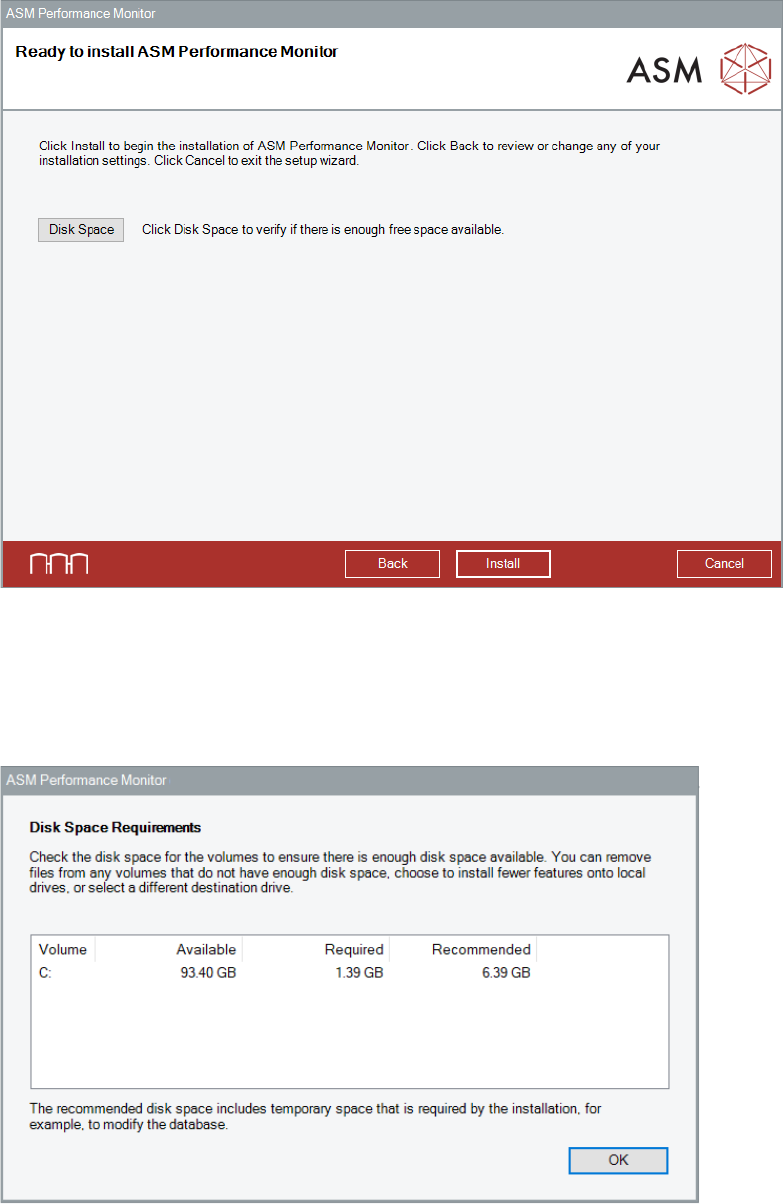
ASM Performance Monitor is now ready to be installed.
Figure 4-23: Ready to Install ASM Performance Monitor dialog
Before installing, you can check the available, required and recommended disk space (per drive) to
perform the installation.
► Click the Disk Space button.
The Disk Space Requirements dialog is displayed.
Figure 4-24: Disk Space Requirements dialog
► Click the OK button.
The Ready to install ASM Command Center dialog is displayed again.
► Click the Install button to start the installation.
ASM Performance Monitor 2.1 / Installation Manual 01/2021 Edition
35
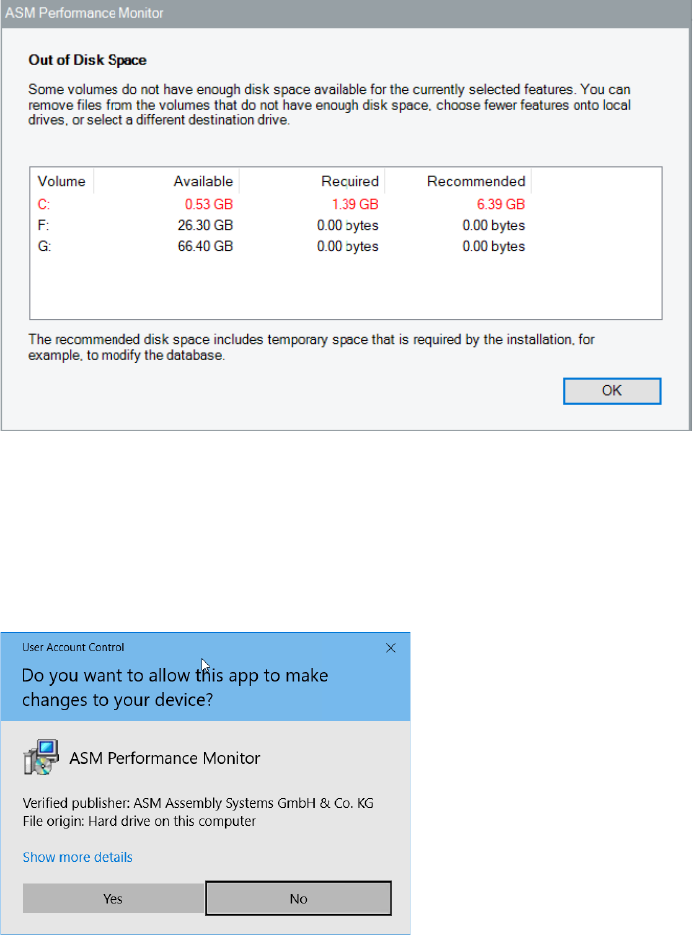
Now the setup explicitly checks the available, required and recommended disk space again. If your
free disk space does not match the recommended disk space the following dialog is displayed:
Figure 4-25: Out of Disk Space dialog
► Click the OK button and solve the problem.
The Ready to Install dialog will be automatically displayed as soon as the required disk space is
available.
If User Account Control is enabled on Windows, the following dialog is additionally displayed
before the installation starts:
Figure 4-26: User Account Control dialog
► Click the Yes button to allow the ASM software installation.
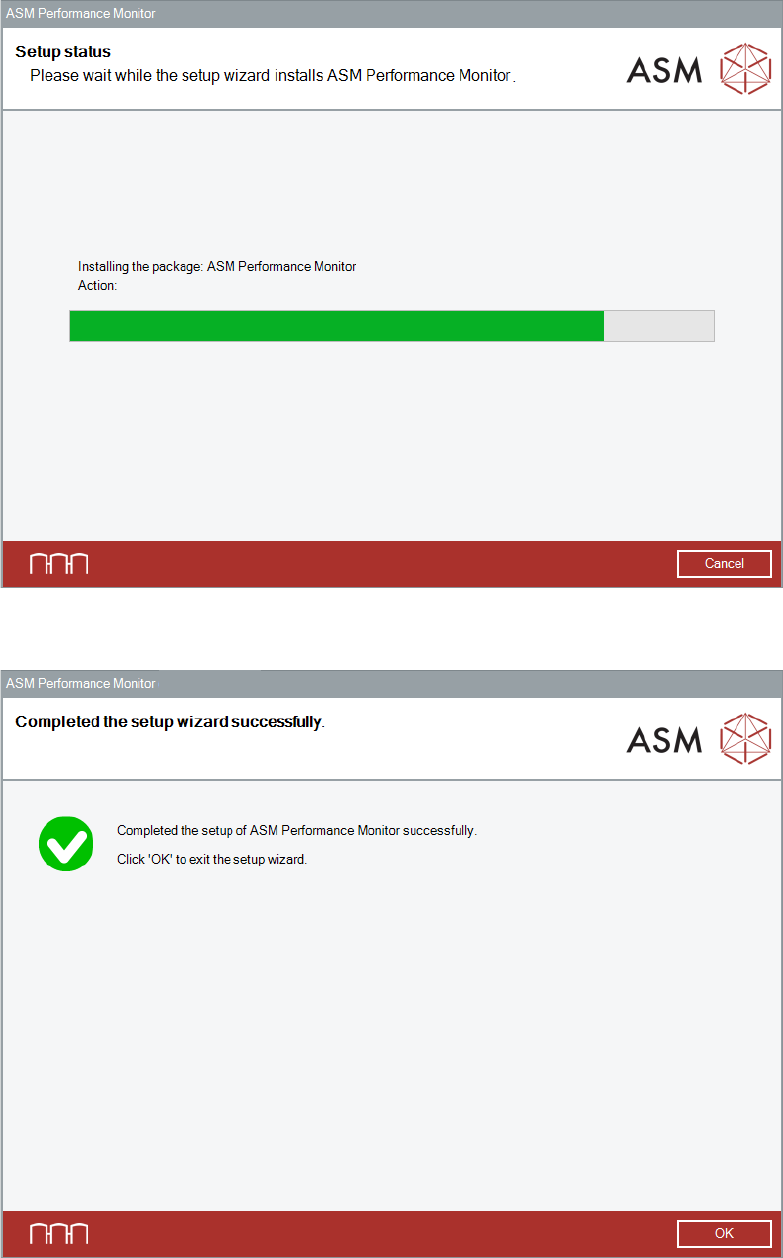
The setup status is displayed during installation.
ASM Performance Monitor 2.1 / Installation Manual 01/2021 Edition
36
Figure 4-27: Setup status dialog
After successful installation, the following dialog is displayed:
Figure 4-28: Setup successfully completed dialog
► Click the OK button to exit the setup wizard.