00900057-02_IM_Performance_Monitor_2.1_EN.pdf - 第37页
ASM Performance Monitor 2.1 / Installation Manual 01/2021 Edition 37 4.14 Changing Default Database Settings (Option) The default database settings can be changed in the Connect to SQL Server dialog, see section 4.6 . Fi…
ASM Performance Monitor 2.1 / Installation Manual 01/2021 Edition
36
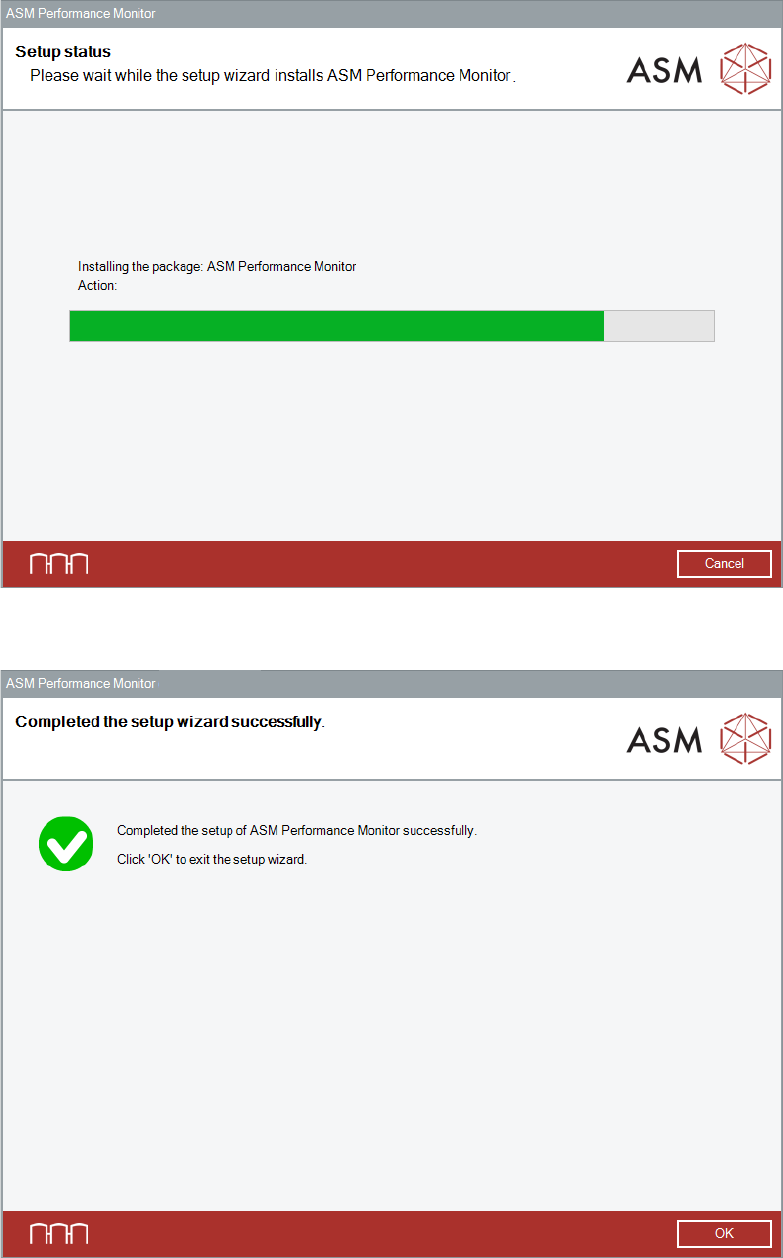
Figure 4-27: Setup status dialog
After successful installation, the following dialog is displayed:
Figure 4-28: Setup successfully completed dialog
► Click the OK button to exit the setup wizard.
ASM Performance Monitor 2.1 / Installation Manual 01/2021 Edition
37
4.14 Changing Default Database Settings (Option)
The default database settings can be changed in the Connect to SQL Server dialog, see section
4.6.
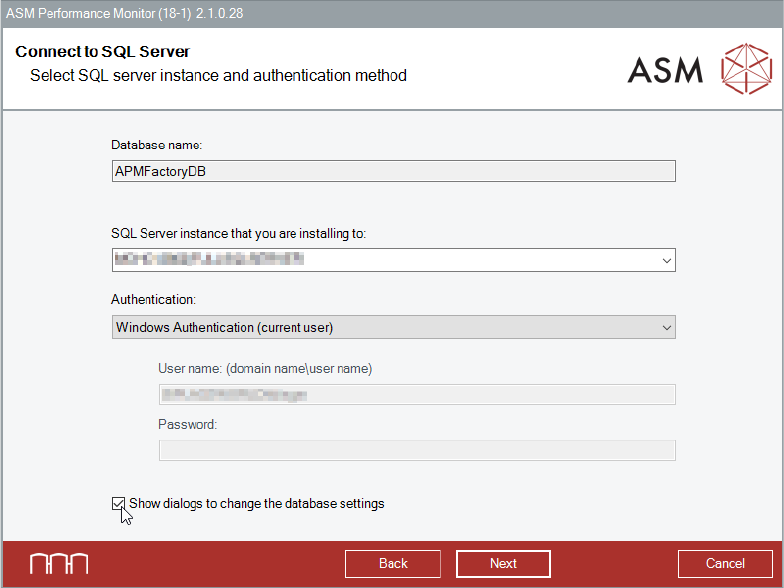
Figure 4-29: Changing default database settings
► Select the SQL Server instance that you are installing to.
► Select Show dialogs to change the default database settings if you want to change the
proposed default values for creating the database.
► Click the Next button.
The following checks are performed:
– Check for correctness of the entered login parameters and establishment of a connection.
– If the database already exists on the selected SQL server, check for the current version or a
possible update to the current version.
If the checks fail, an appropriate error message is displayed.
If the checks are passed, the next dialog is displayed. The next dialog depends on whether the
database already exists or not.
ASM Performance Monitor 2.1 / Installation Manual 01/2021 Edition
38
4.14.1 Creating ASM Performance Monitor Database
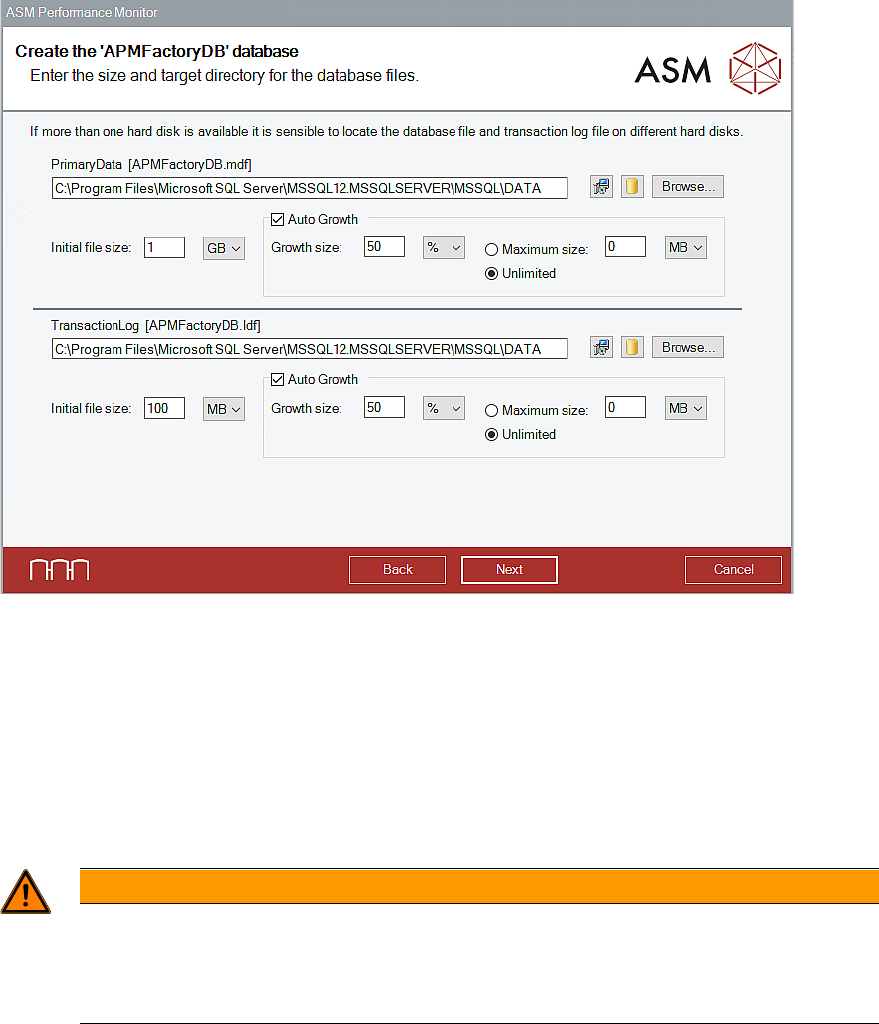
This dialog is only displayed if the Show dialogs to change the database settings option was
selected and if the APMFacotryDB database does not exist yet.
Figure 4-30: Create database dialog
► Define the database files. For each database file, you can set the following parameters:
Storage location of the database file
– Set the default value of the installation.
– Set the default value of the SQL server. (Recommended)
– Browse for the folder. (Only available on local SQL server instances)
WARNING
Installing on a remote SQL server instance
When installing on a remote SQL server instance the paths provided here are relative to
the file system target computer. Make sure the folders exist – otherwise the installation
may fail.
Initial file size
The initial file size when the database is created.
Auto Growth
The file size can increase if the initial file size is used up.
Growth size
The size by which the database file is automatically increased, if necessary.