00900057-02_IM_Performance_Monitor_2.1_EN.pdf - 第39页
ASM Performance Monitor 2.1 / Installation Manual 01/2021 Edition 39 Maximum size The size up to which the d atabase file is allowed to grow. ► Click the Next button. The Backup directory dialog is di splayed, see sectio…
ASM Performance Monitor 2.1 / Installation Manual 01/2021 Edition
38
4.14.1 Creating ASM Performance Monitor Database
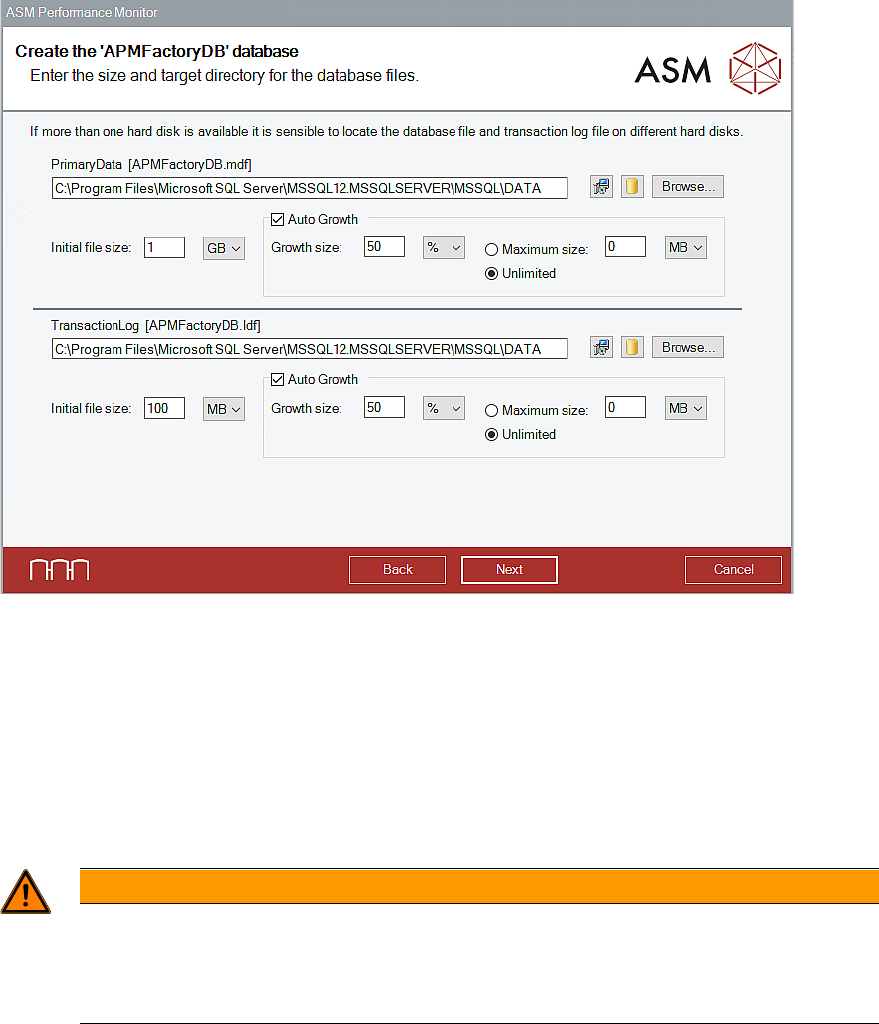
This dialog is only displayed if the Show dialogs to change the database settings option was
selected and if the APMFacotryDB database does not exist yet.
Figure 4-30: Create database dialog
► Define the database files. For each database file, you can set the following parameters:
Storage location of the database file
– Set the default value of the installation.
– Set the default value of the SQL server. (Recommended)
– Browse for the folder. (Only available on local SQL server instances)
WARNING
Installing on a remote SQL server instance
When installing on a remote SQL server instance the paths provided here are relative to
the file system target computer. Make sure the folders exist – otherwise the installation
may fail.
Initial file size
The initial file size when the database is created.
Auto Growth
The file size can increase if the initial file size is used up.
Growth size
The size by which the database file is automatically increased, if necessary.
ASM Performance Monitor 2.1 / Installation Manual 01/2021 Edition
39
Maximum size
The size up to which the database file is allowed to grow.
► Click the Next button.
The Backup directory dialog is displayed, see section 4.15.
4.14.2 Setting Up Database Users
If several database users are defined in an installation, the Assign a login to the database user
dialog is displayed for each SQL login. In ASM Performance Monitor, two database users are
available:
1) Name: APMDBA
Type: Database User
Databases: FactoryDB and line databases
Required For:
– APMDBA is an SQL server account and has sysadmin rights at DB Server level and is the
administrator (db_owner) of the "APMFactoryDB" database and has all the permissions to
change anything in the database.
– This user also has the same rights on all the line databases.
– All the queries on connections to FactoryDB and line databases also use this account.
– If this user already exists, then it gets updated. Otherwise, it will be created by the installer.
2) Name: APM_SSIS
Type: Windows Account
Databases: FactoryDB and SSISDB
Required For:
– This user is a Windows account and is required to execute the SSIS package. The access
rights this user require are db_datawriter and db_datareader for FactoryDB and
db_datawriter, db_datareader, ssis_logreader, ssis_admin, ssis_failover_monitoring_agent
for SSISDB for some operation. Currently, the APM_SSIS database user has the same
access rights as the APMDBA database user, so the before mentioned individual rights are
not specifically granted.
ASM Performance Monitor 2.1 / Installation Manual 01/2021 Edition
40
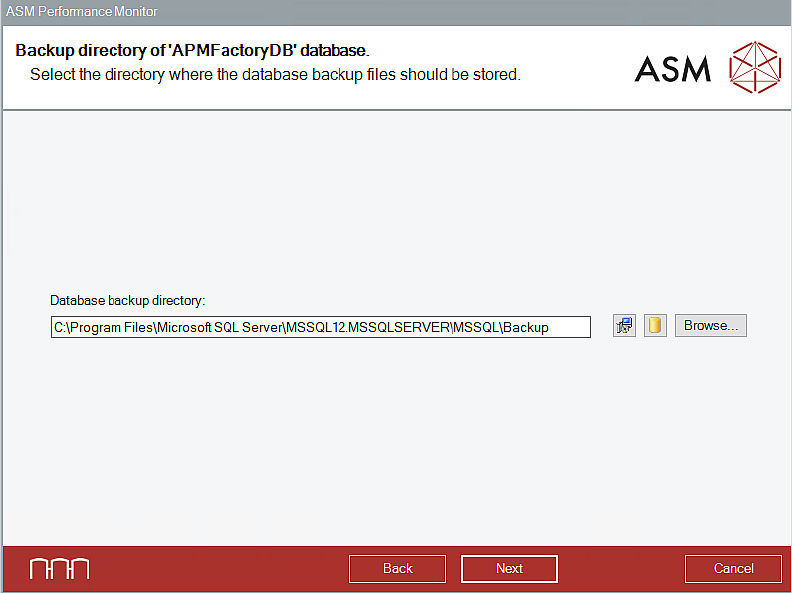
4.15 Selecting Backup Directory
This dialog is only displayed if the Show dialogs to change the database settings option was
selected in the Connect to SQL Server dialog, see section 4.14.
Figure 4-31: Selecting backup directory
► Click the Next button if the database backup files shall be stored in the currently set backup
directory.
Or
► Click the Browse button to search and set another directory in which the database backup files
shall be stored.
Or
► Switch between different suggestions for the directories of the database backups by clicking
one of the two buttons between the text field and the Browse button. The left button suggests
the default backup directory as given by the setup. The right button suggests the default
backup directory for databases as defined in your SQL installation.
► Click the Next button.
The Database Maintenance dialog is displayed in which you can change the execution time for
defined maintenance job(s) for the database, if necessary.
► Click the Next button.
The Ready to Install dialog is displayed. Please refer to section 4.13.