00900057-02_IM_Performance_Monitor_2.1_EN.pdf - 第50页
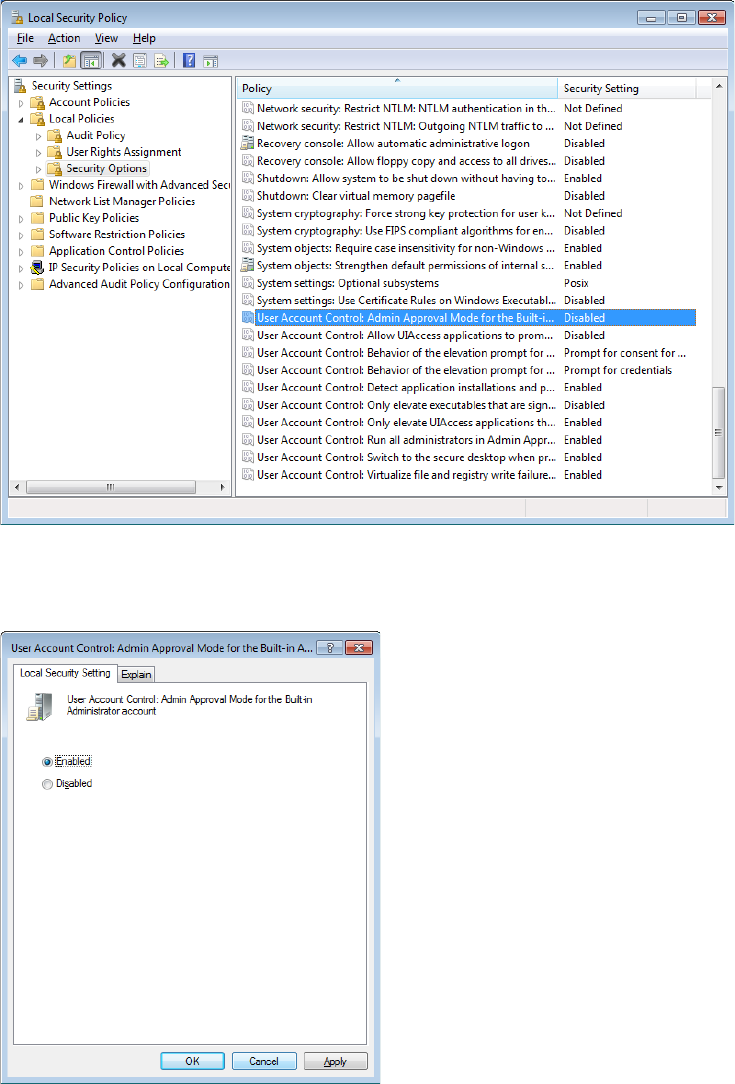
ASM Performance Monitor 2.1 / Installation Manual 01/2021 Edition 50 Figure 7-2: Local Security Pol icy 3. In the right window pane, double-cli ck the User Account Control : Admin Approval mode for the Built-in Administr…
ASM Performance Monitor 2.1 / Installation Manual 01/2021 Edition
49
7 Troubleshooting
This chapter describes general problems that may occur and provides troubleshooting to help you
solving them.
7.1 WebGUI Shortcut Cannot Be Opened Using Built-in Administrator
Account
Issue:
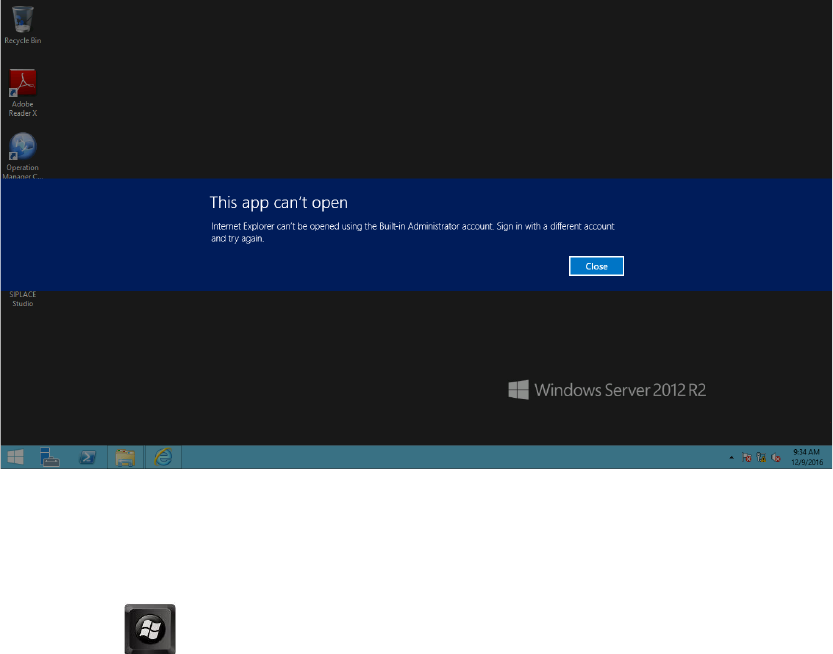
When you start the WebGUI from the start menu shortcut in Windows Server 2012, the following
prompt pops up:
Figure 7-1: WebGUI cannot be opened
Solution:
► Modify Windows security policy:
1. Press the key+ R to open the Run window, and then type "secpol.msc".
► Click the OK button.
2. In the Local Security Policy window, navigate to Security Settings – Local Policies –
Security Options.
ASM Performance Monitor 2.1 / Installation Manual 01/2021 Edition
50
Figure 7-2: Local Security Policy
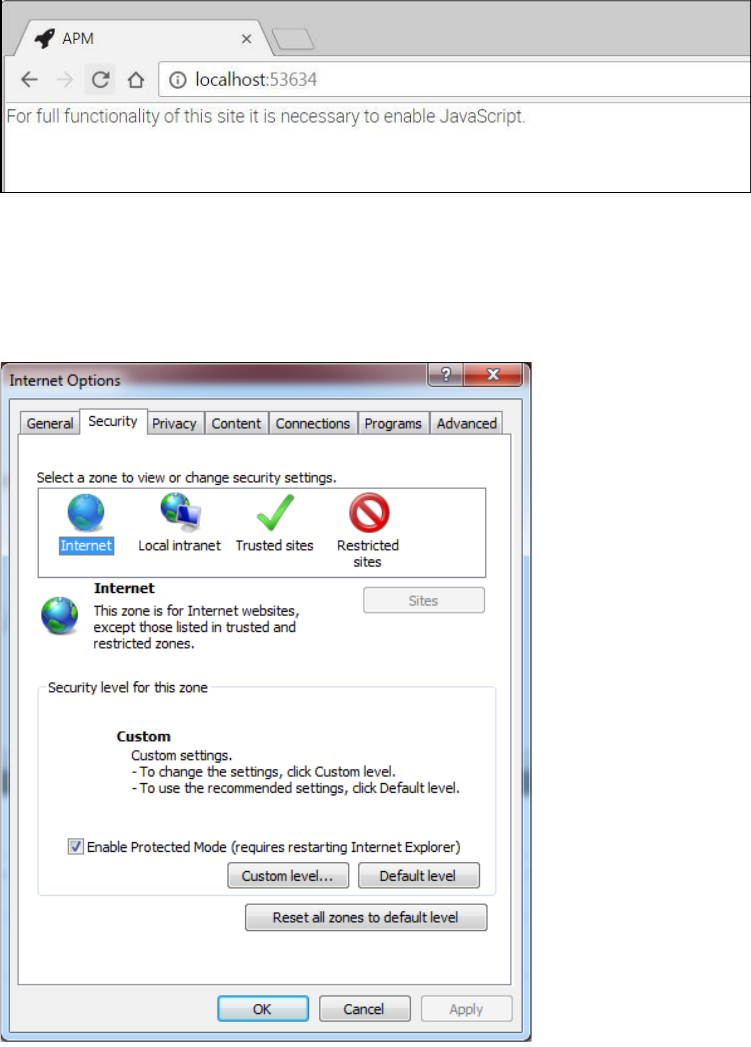
3. In the right window pane, double-click the User Account Control: Admin Approval mode for
the Built-in Administrators Account option and enable it.
Figure 7-3: Enabling Local Security Setting
4. Click Apply and OK.
Close the Local Security Policy window.
5. Restart the computer.
ASM Performance Monitor can now be started using the Built-in Administrator account.
ASM Performance Monitor 2.1 / Installation Manual 01/2021 Edition
51
7.2 IE 10 Fails to Load ASM Performance Monitor Application
Issue:
When you try to start ASM Performance Monitor in Internet Explorer 10, the following message is
displayed:
Figure 7-4: JavaScript has to be enabled
Solution:
1. Open Internet Explorer.
2. In the menu bar, select Tools – Internet Options – Security tab.
Figure 7-5: Internet Options - Security
3. Click the Custom level… button.
The Security Settings – Internet Zone dialog opens.