00900057-02_IM_Performance_Monitor_2.1_EN.pdf - 第51页
ASM Performance Monitor 2.1 / Installation Manual 01/2021 Edition 51 7.2 IE 10 Fails to Load ASM Performance Monitor Application Issue: When you try to start ASM Performance Monitor in Int ernet Explorer 10, the followin…
ASM Performance Monitor 2.1 / Installation Manual 01/2021 Edition
50
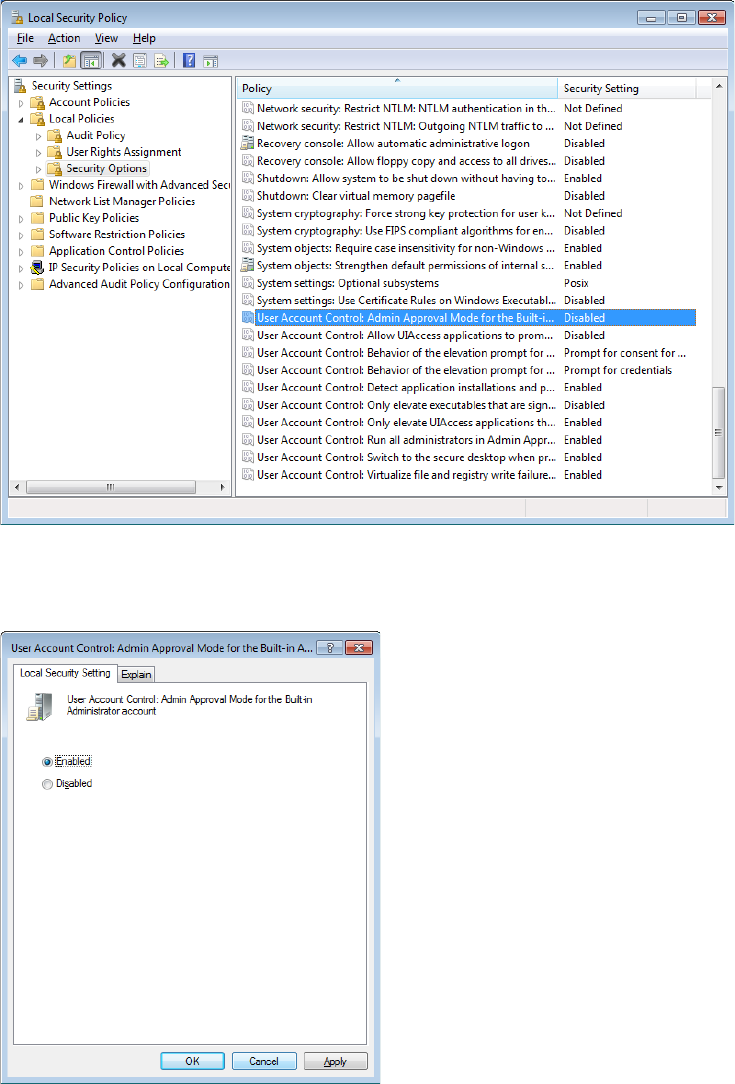
Figure 7-2: Local Security Policy
3. In the right window pane, double-click the User Account Control: Admin Approval mode for
the Built-in Administrators Account option and enable it.
Figure 7-3: Enabling Local Security Setting
4. Click Apply and OK.
Close the Local Security Policy window.
5. Restart the computer.
ASM Performance Monitor can now be started using the Built-in Administrator account.
ASM Performance Monitor 2.1 / Installation Manual 01/2021 Edition
51
7.2 IE 10 Fails to Load ASM Performance Monitor Application
Issue:
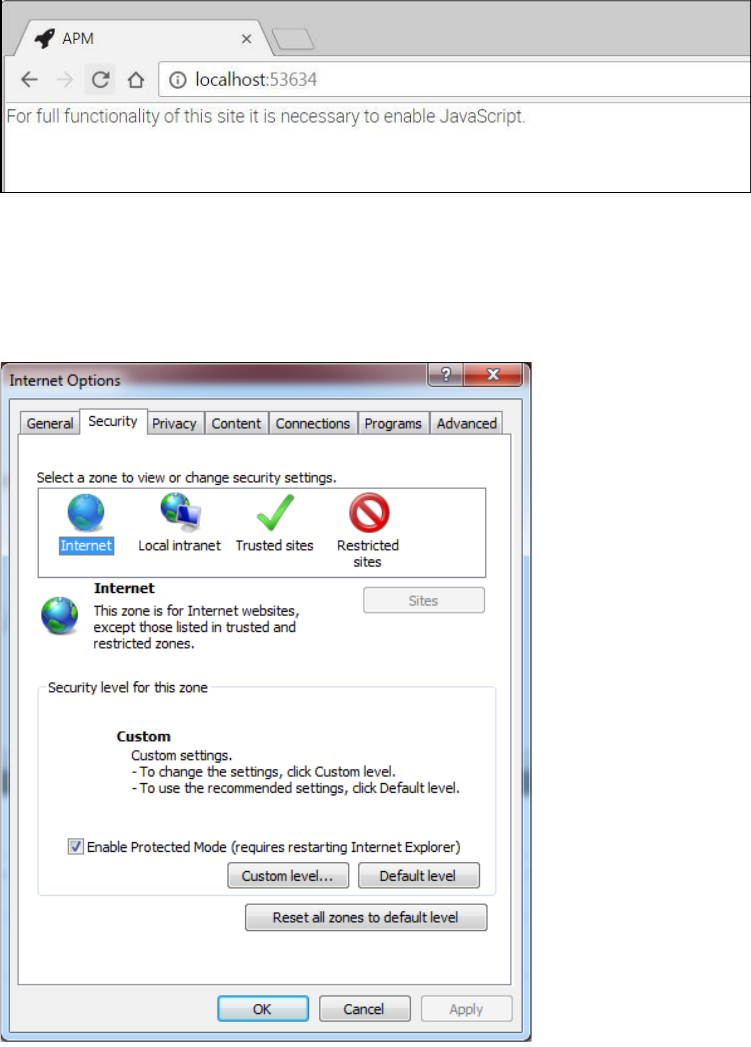
When you try to start ASM Performance Monitor in Internet Explorer 10, the following message is
displayed:
Figure 7-4: JavaScript has to be enabled
Solution:
1. Open Internet Explorer.
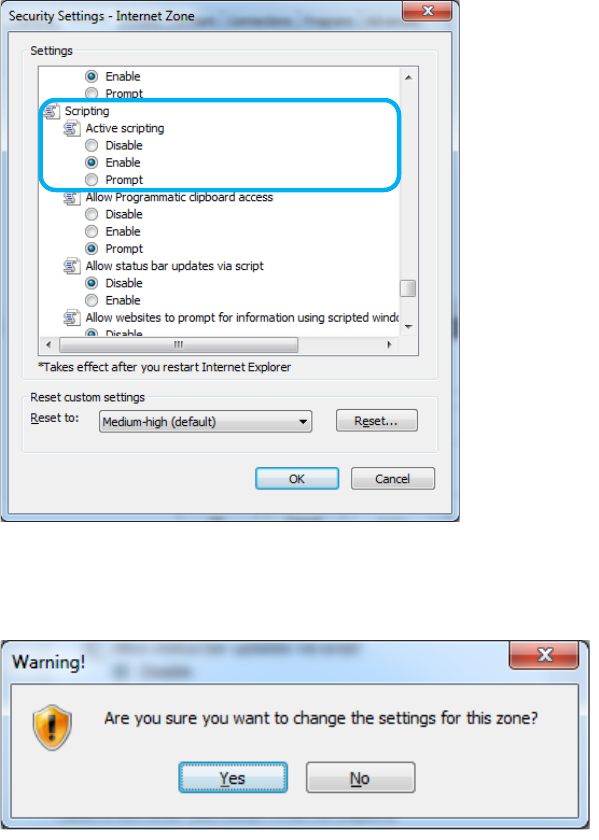
2. In the menu bar, select Tools – Internet Options – Security tab.
Figure 7-5: Internet Options - Security
3. Click the Custom level… button.
The Security Settings – Internet Zone dialog opens.
ASM Performance Monitor 2.1 / Installation Manual 01/2021 Edition
52
Figure 7-6: Security Settings – Internet Zone
4. In the Scripting section, select Enable for the Active Scripting item.
The following warning is displayed.
5. Click Yes.
6. Click the OK button in the Internet Options window to exit.
7. Refresh the web browser and proceed to start ASM Performance Monitor.