00900057-02_IM_Performance_Monitor_2.1_EN.pdf - 第54页
ASM Performance Monitor 2.1 / Installation Manual 01/2021 Edition 54 7.4 ASM Performance Monitor Applica tion Is Not Loaded Compl etely in IE 11 Issue: When you start ASM Perfor mance Monitor in Internet Explo rer 11, so…
ASM Performance Monitor 2.1 / Installation Manual 01/2021 Edition
53
7.3 IE 11 Fails to Download PDF and Excel Files
Issue:
Under IE Version 11, the user is unable to download the generated PDF and Excel files.
Solution:
In this case, File download and Font Download must be Enabled to download files in Internet
Explorer.
► Perform the steps described below:
1. Open Internet Explorer.
2. In the menu bar, select Tools – Internet Options – Security tab and select the Internet zone.
3. Click the Custom level… button.
The Security Settings – Internet Zone dialog opens.
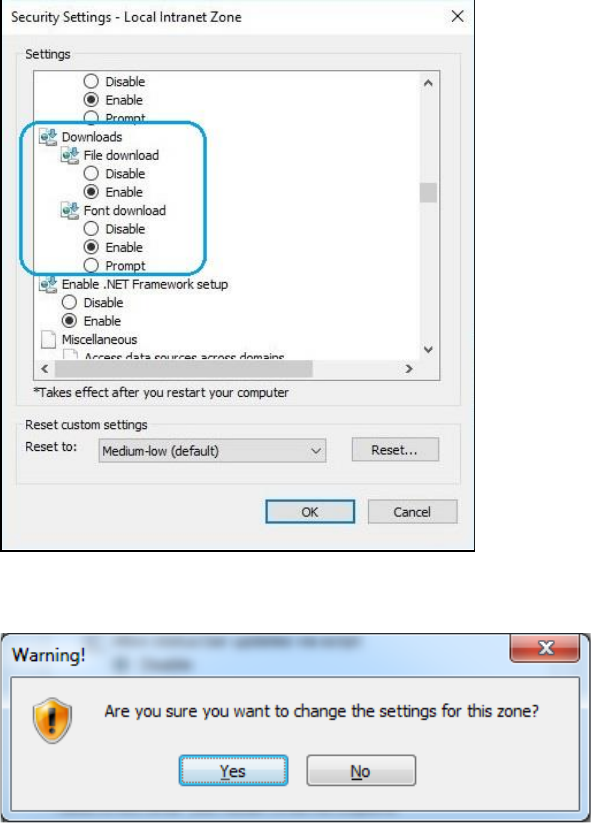
4. In the Downloads section, select Enable for the File download and Font download items.
Figure 7-7: Enabling File download and Font download
The following warning is displayed.
5. Click Yes.
6. Click the OK button in the Internet Options window to exit.
7. Refresh the web browser and proceed to start ASM Performance Monitor.
ASM Performance Monitor 2.1 / Installation Manual 01/2021 Edition
54
7.4 ASM Performance Monitor Application Is Not Loaded Completely
in IE 11
Issue:
When you start ASM Performance Monitor in Internet Explorer 11, some interface elements are not
visible, e.g. the Login button.
Solution:
In this case, Font download must be Enabled to download files in Internet Explorer.
► Perform the steps described below:
1. Open Internet Explorer.
2. In the menu bar, select Tools – Internet Options – Security tab and select the Internet zone.
3. Click the Custom level… button.
The Security Settings – Internet Zone dialog opens.
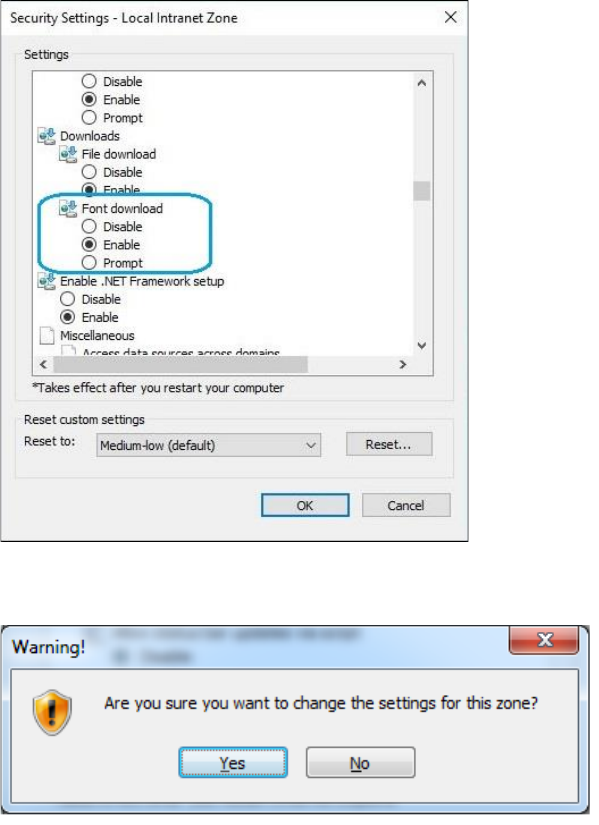
4. In the Downloads section, select Enable for the Font download item.
Figure 7-8: Enabling Font download
The following warning is displayed.
5. Click Yes.
6. Click the OK button in the Internet Options window to exit.
7. Refresh the web browser and proceed to start ASM Performance Monitor.
ASM Performance Monitor 2.1 / Installation Manual 01/2021 Edition
55
7.5 Login and Language Settings Lost When Closing Browser
Window
Issue:
When closing the browser window, the user gets logged out and the configured language settings
are lost.
Solution:
When closing, your browser deletes cookies needed for ASM Performance Monitor.
► Make sure your browser does not delete cookies for the ASM Performance Monitor web page.
7.6 Unable To Start ASM Performance Monitor Server Service
Issue:
ASM Performance Monitor uses Windows Performance Counter for its internal performance
measurement. If you cannot start the ASM Performance Monitor Server Service, this could be due
to the fact that ASM Performance Monitor cannot load the performance counter and therefore is not
able to collect or interpret the data from the Windows Performance Counter. This could happen if
the installation was not done properly or is done without the appropriate permissions.
► In this case, perform the steps below:
1. Select Control Panel, – Administrative Tools – Computer Management.
2. Expand the Computer Management – System Tools – Event Viewer – Windows Logs –
Application options.
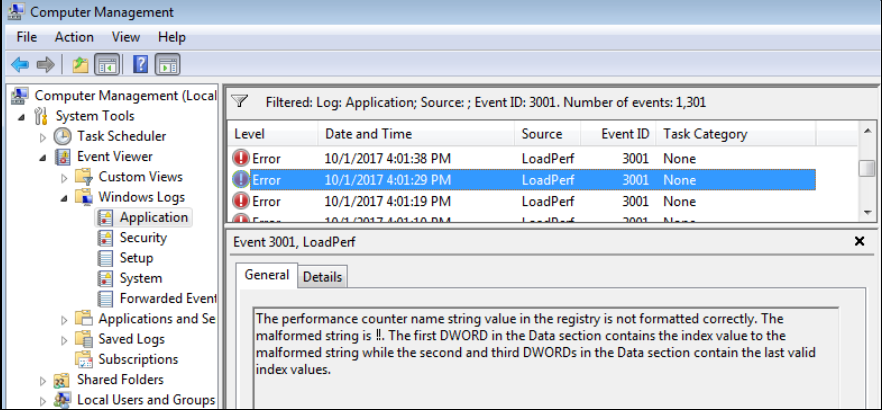
The Windows Performance Counter can be identified as the source of the issue from the error
event log as displayed in the following dialog.
Figure 7-9: Computer Management dialog
Solution:
This issue can be resolved by rebuilding the list of available counters.
► Proceed as follows to rebuild the list of counters in the registry.
1. Click Start, expand All Programs and expand Accessories.