AltaPail II Bulk Melters Product Manual.pdf - 第111页
Advanced Software Me lter Configuration 7 -25 Part 1121836_03 E 1 1/2014 Nordson Corporation Defining Dis play Settings The following ta ble details wh at you can define, a long with the d efault and available options. S…
Advanced Software Melter Configuration
7-24
Part 1121836_03
E 11/2014 Nordson Corporation
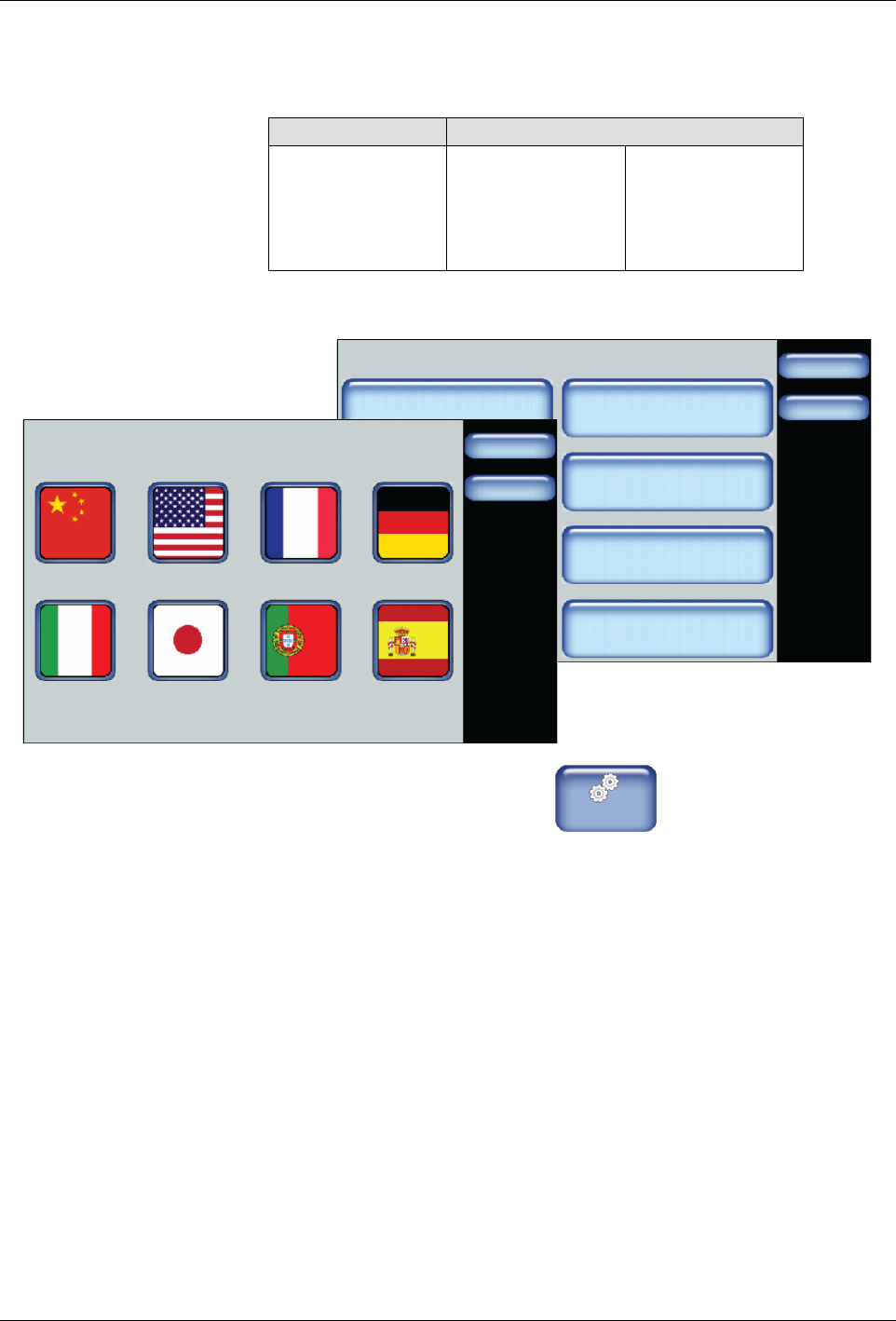
Defining Language Preference
Select the language you want to use.
Default Available Options
English
S
Chinese
S
English
S
Italian
S
German
S
French
S
Japanese
S
Portuguese
S
Spanish
System
Done
Home
Formats/Units
Date/Time
Password
Display
Service Interval Administration
Scheduler Language
03/20/2014 4:40PM
500 Hours
Language
Done
Home
1. From the Home Display touch
Master
Controls
2. Touch System, then Language.
3. Touch the flag representing the language you want to use.
4. Touch Done.
Advanced Software Melter Configuration
7-25
Part 1121836_03
E 11/2014 Nordson Corporation
Defining Display Settings
The following table details what you can define, along with the default and
available options.
Setting Default Minimum Maximum
Brightness/Contrast 75% | 75% 30% 100%
Screen Saver Delay 90 minutes 5 minutes 120 minutes
Calibrate Screen -- -- --
Wipe Display 30 seconds -- --
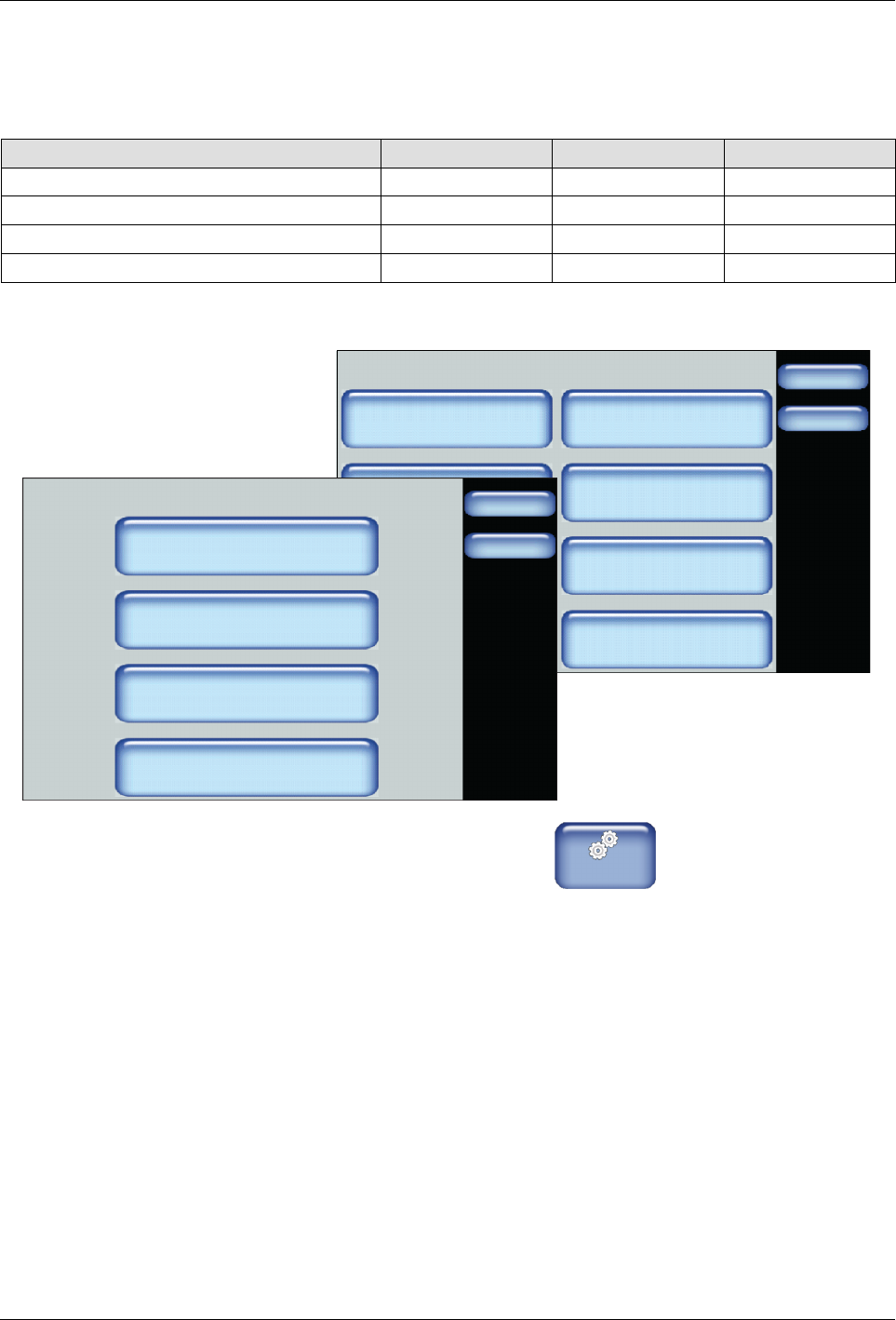
System
Done
Home
Formats/Units
Date/Time
Password
Display
Service Interval Administration
Scheduler Language
03/20/2014 4:40PM
500 Hours
Display
Done
Home
Brightness/Contrast
Screen Saver Delay
Calibrate Screen
Wipe Display
1. From the Home Display touch
Master
Controls
2. Touch System, then Display.
Advanced Software Melter Configuration
7-26
Part 1121836_03
E 11/2014 Nordson Corporation
3. Do the following to continue.
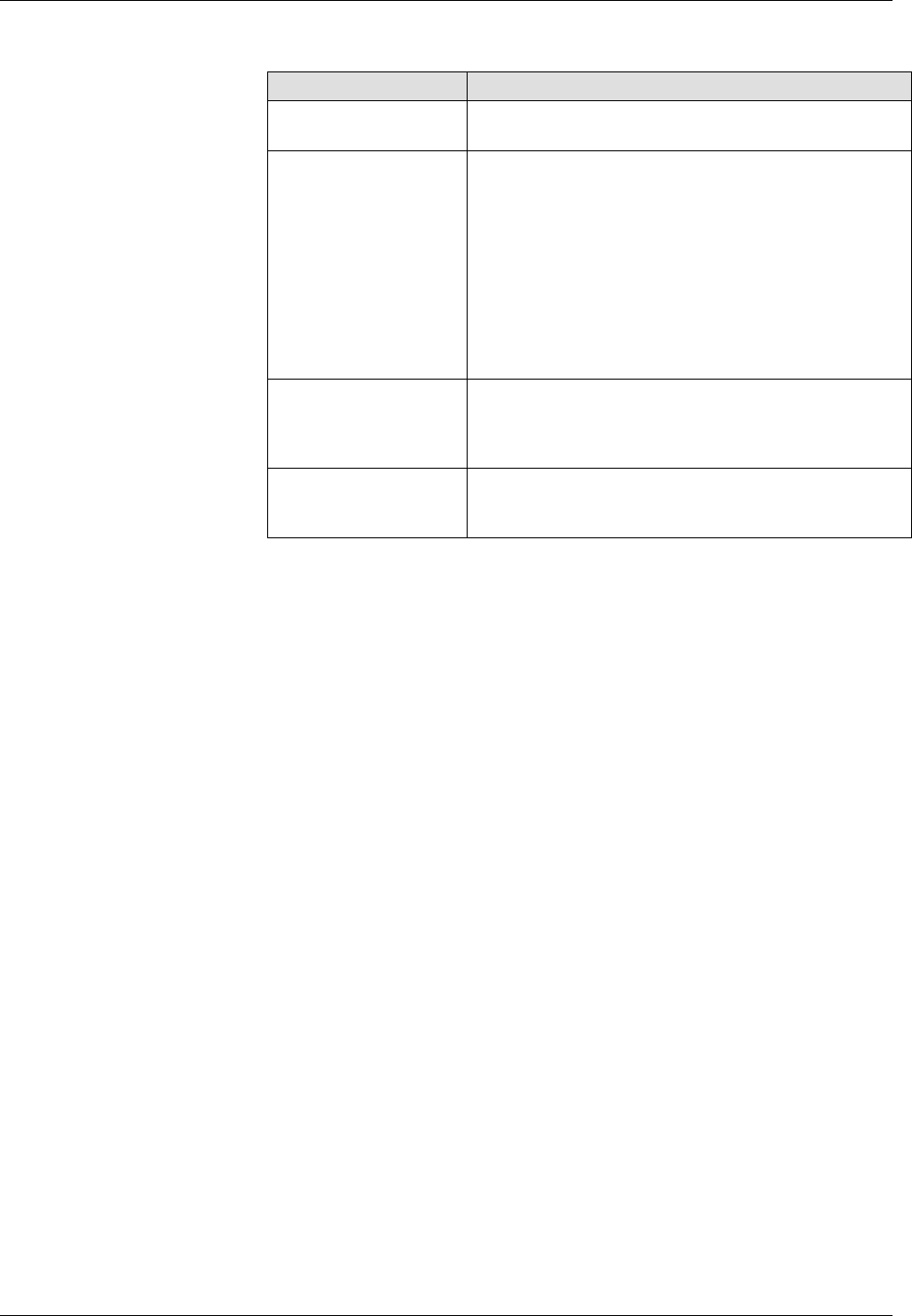
Touch Description
Brightness/Contrast Enhance the visibility and readability of the
touchscreen displays.
Screen Saver Delay The amount of time (default 5 minutes) of no user
interaction with the touchscreen before the screen
saver appears.
The screen saver only displays the melter status
and its corresponding color. To extend the lifespan
of the touchscreen itself, the brightness and
contrast are reduced from its current settings to
30%
Touch anywhere on the screen to access the
Operator Display.
Calibrate Screen Allows you to improve the accuracy of your
interaction with the touchscreen.
Touch the
+
symbol to calibrate the touchscreen.
Wipe Display Locks the screen for 30 seconds, allowing you to
clear dust from the touchscreen without touching a
button and accidentally changing a setting.
4. Touch Done.