GD450 说明书(中英文版) - 第28页
- 28 - Pix 3-4 (the printer enter the m ode of returning to zero) 4. 在图 3-4 中点击『退出』或者单击主菜单栏 [ ] 按钮,出现 3-5 画面 , 选择“三级权 限”用户,输入密码“ htgd ” ,点击确定。进入到“三级权限”用户环境。 Cl ick “ 退出 ” (exit) button in the pix 3-4 or click “ ” button …
- 27 -
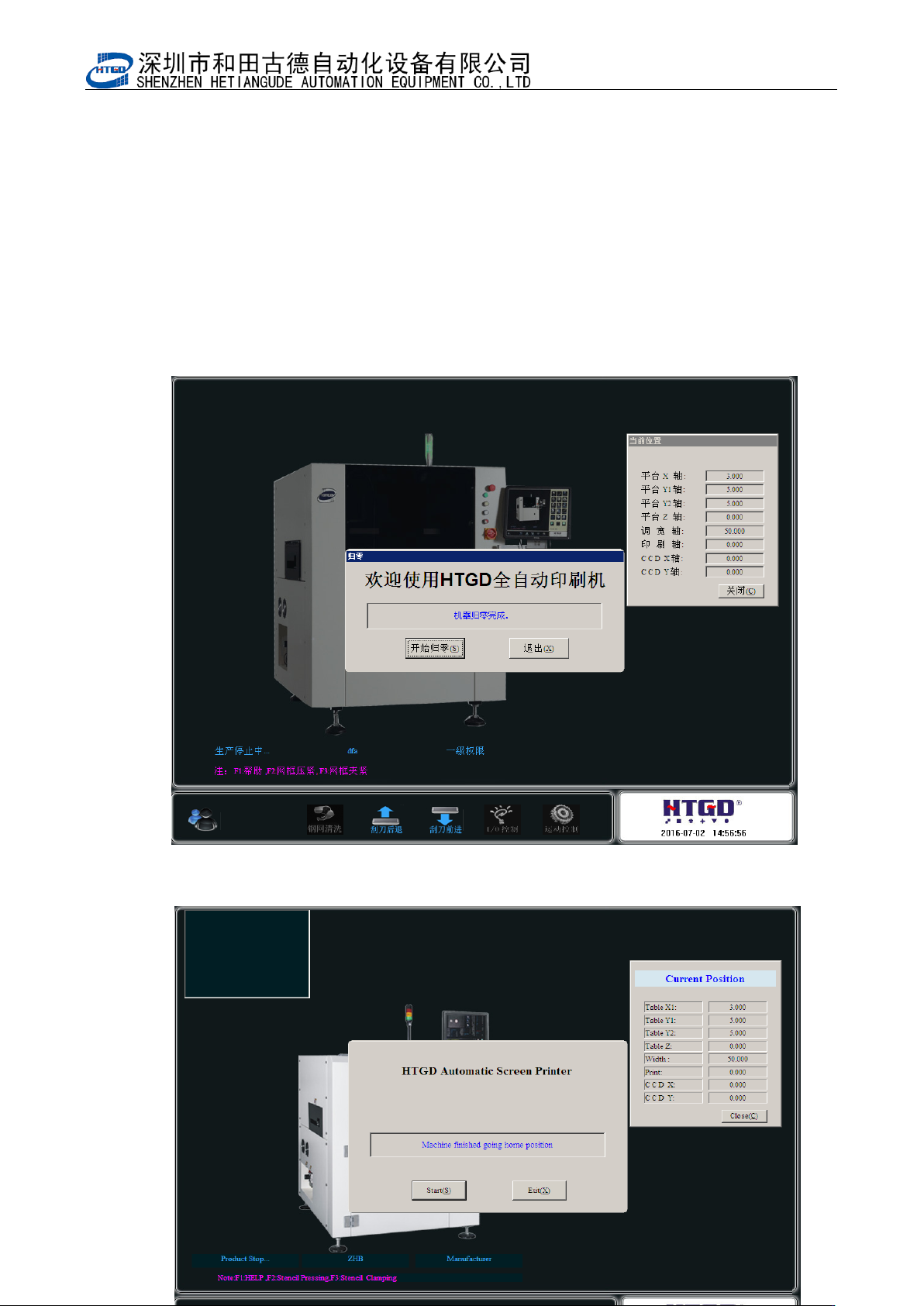
Pix 3-3 (take out the PCB when the indication comes out during the process of returning to zero)
图 3-4(机器进入归零状态)
- 28 -
Pix 3-4 (the printer enter the mode of returning to zero)
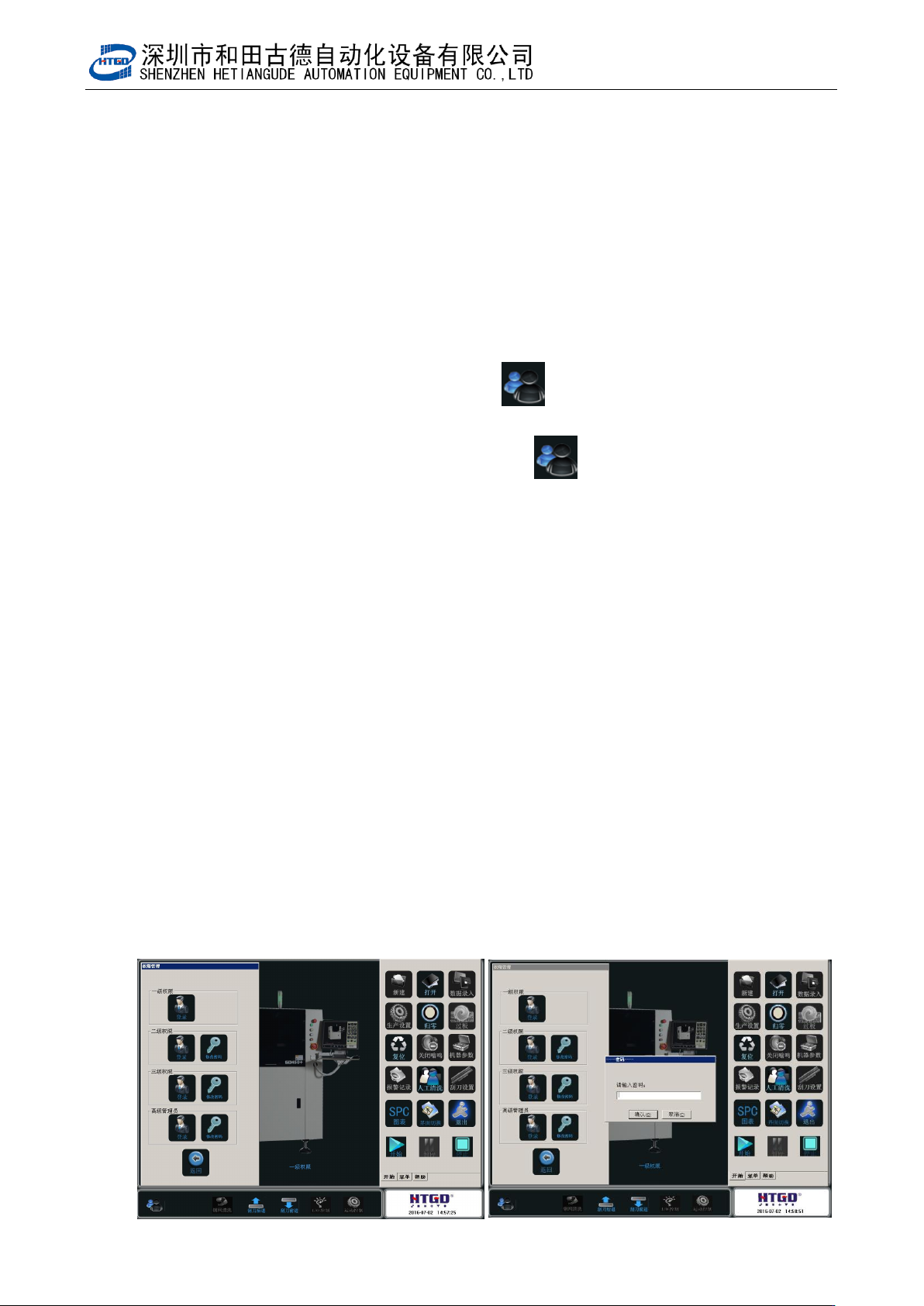
4. 在图 3-4 中点击『退出』或者单击主菜单栏[ ]按钮,出现 3-5 画面,选择“三级权
限”用户,输入密码“htgd”,点击确定。进入到“三级权限”用户环境。
Click “退出”(exit) button in the pix 3-4 or click “ ” button in the main menu bar.
See the interface in the pix 3-5. Select 三级权限(level 3 permission), input passport
htgd , click 确定 and go to the user environment of Level 3 permission
用户权限说明;一级权限为最低操作者使用,可以调用旧程序及生产操作。
二级权限有除机器参数与刮刀设置外所有权限 。
三级权限可以修改机器参数 3、4 与刮刀设置
Rights management explanation:
Level 1 permission(一级权限) is for the lowest-level operator. Operator can uses old program
and production operation.
In level 2 permission(二级权限), there are all permissions excluding the parameter setting of
equipment and scraper.
In level 3 permission(三级权限), operator can revise parameter 3,4 of the equipment and scraper
setting.
- 29 -
图 3-5(选择不同权限用户并输入对应的用户密码)
Pix 3-5(Select the permission and input the corresponding password)
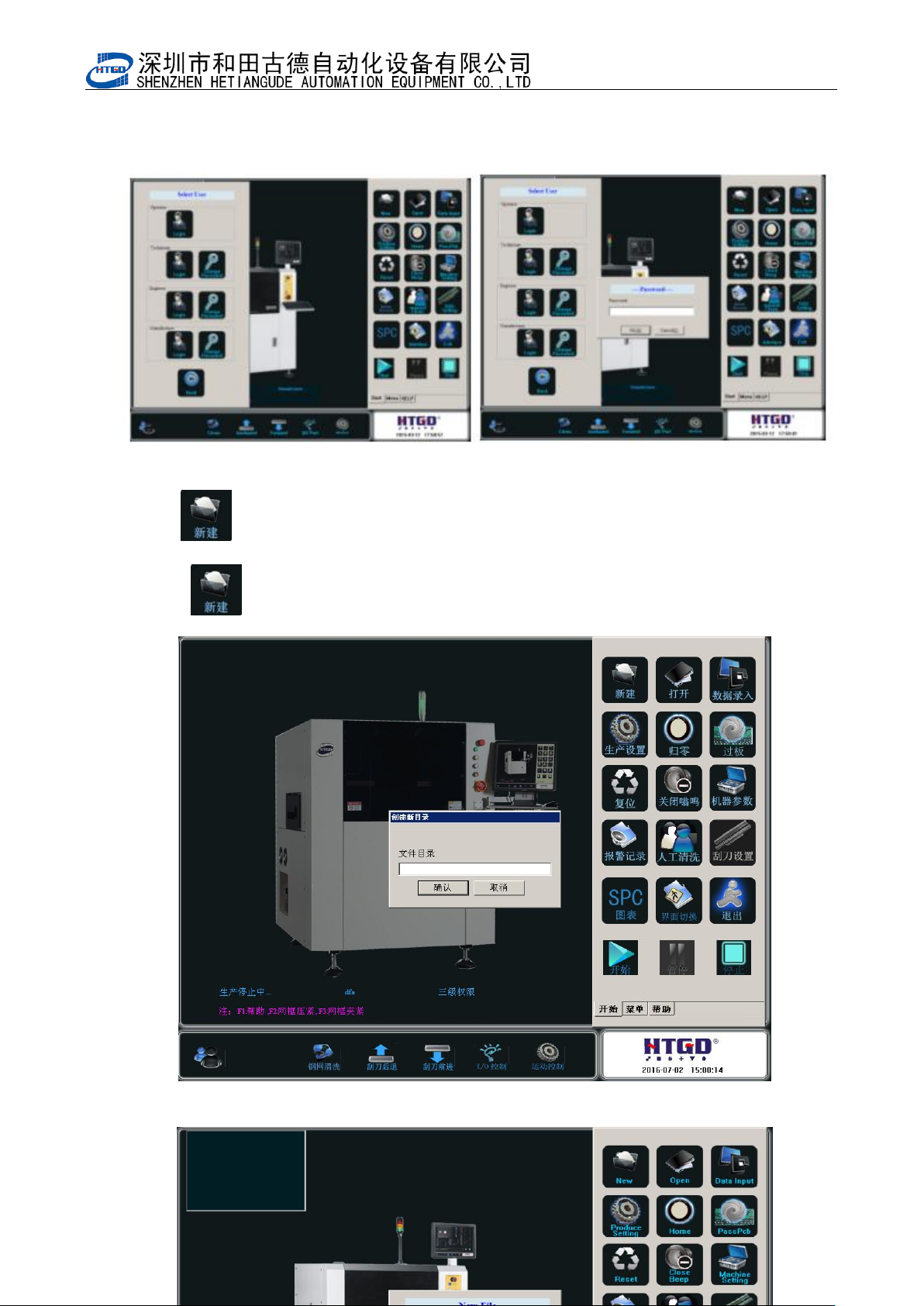
5. 单击[ ]按钮,如图 3-6,新建一个程序,如“test”,输完文件名后单击[确定]。进入 test
程序的设置。如图 3-7,3-8,3-9。
Click “ ” button to create a new application. See Pix 3-6. Name the application
test and click “确定”to go into the setting of the test application. See Pix 3-7, 3-8, 3-9.
图 3-6(要生产的 PCB 的名字)