GD450 说明书(中英文版) - 第43页
- 4 3 - and it can filter the useless identified mark point s. P , [ 设定模板 ] : 在视域中标示一个图像范围, 点击 『定制模板』 系统 将该范围中图形 识别为 Mark 点模板, (template setting): Mark a image scope in the f ield of vision. Click “ 定制模 板 ” (template cus…

- 42 -
vice versa.
F,[移动位置]:修改里面的参数后点[移动],CCD 会移动到对应的坐标上去;
(position change): Revise the parameter and click “移动”(move)button, the CCD
will move to the corresponding position.
G,[当前位置]:显示当前 CCD 的坐标;
(current position): Show the current position of CCD.
H,[CCD 回位]:点击后 CCD 回到原点位置;
(CCD comes back to the origin): CCD will come back to origin after clicking this
button.
I, [移动]:点击后 CCD 从[当前位置]移动到[移动位置];
(move): CCD will move from origin to the changed position after clicking this
button.
J,[标志点类型]:5 种选项供勾选;
(remark type):There are five options for selecting.
K,[自动查找]:系统自动识别选定类型 Mark 点;
(automatic searching): The system will automatic searching the selected mark
point.
L,[模板控制操作]:设定搜索范围,并当自动查找失败时手动设置 MARK 点;
(template control operation): Specify the searching scope. When the automatic
searching fails, operator sets the mark point manually.
M,[实时显示]:实时显示图像,手动设置 MARK 点使用;
(real-time display): Display the real-time image. Click this button when set the
mark point manually.
N,[采集图像]:采集当前图像,手动设置 MARK 点使用;
(image capture): Capture the current image. Click this button when set the mark
point manually.
O,[搜索范围]:在视域中划出一个区域后点击该按钮设定搜索范围,系统只在该范围
中识别 Mark 点,该功能用在视域中有 2 个以上相似 Mark 点时。用于过滤掉不需
要识别的 Mark 点;
(searching scope): Click this button to set the searching scope after drawing a
region in the field of vision. System only identifies mark point in this scope. This
function can be used when there are above 2 similar marks in the field of vision
- 43 -
and it can filter the useless identified mark points.
P,[设定模板]:在视域中标示一个图像范围,点击『定制模板』系统将该范围中图形
识别为 Mark 点模板,
(template setting): Mark a image scope in the field of vision. Click “定制模
板”(template customization) button and the system will identify the image in this
scope as the template of mark point.
Q,[定制模板]:将设定的图形范围作为 MARK 点模板;
(template customization): Setup the image in this scope as the template of
mark point.
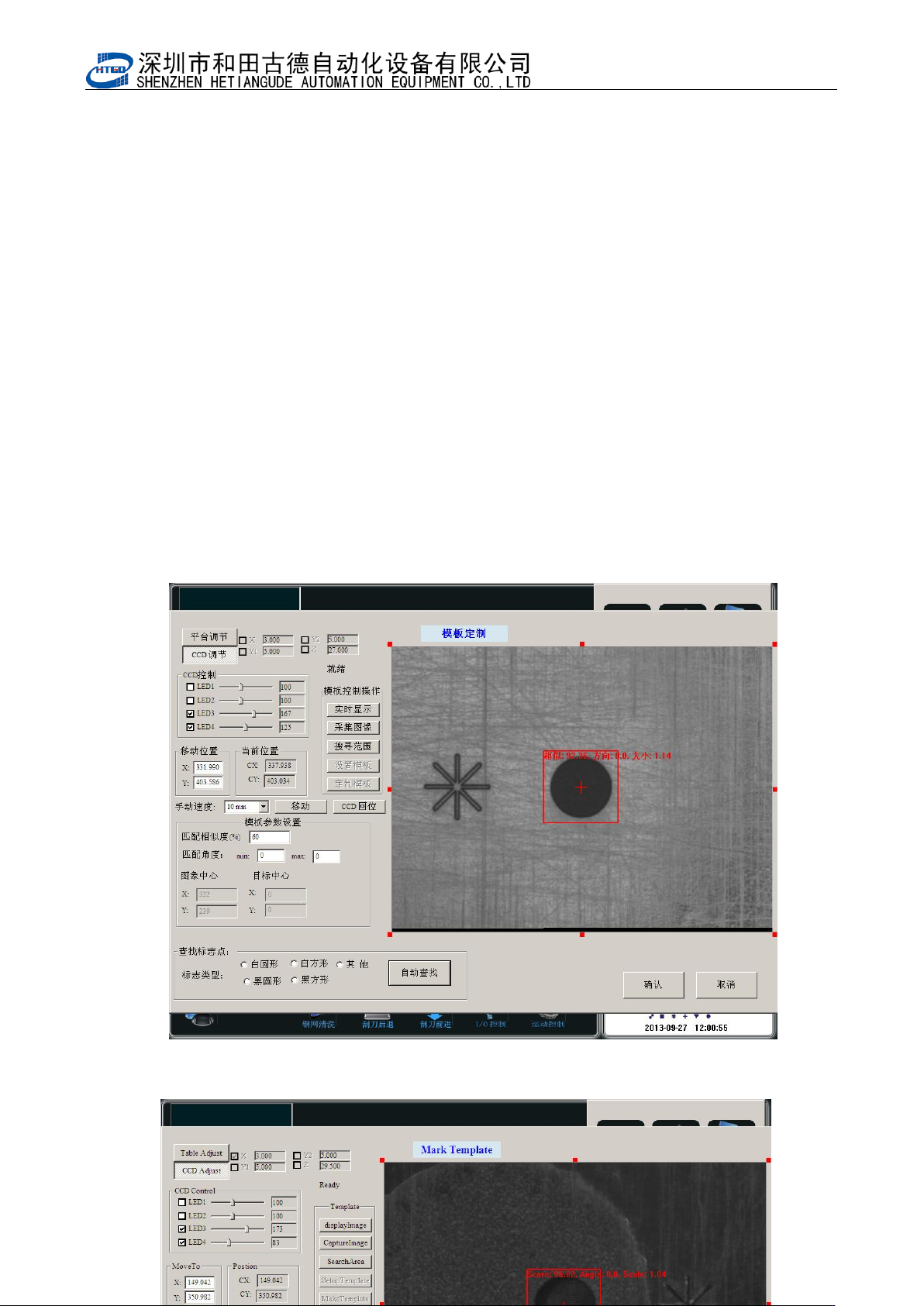
图 3-16 钢网 Mark 点的匹配,匹配完成后点击[确定]

- 44 -
Pix 3-16 the matching of stencil mark point. Click “确定”(ok)button after the matching
is finished.
9,在图 3-15 中调节 Led1、LED2 的亮度,使 Mark 和周围背景颜色区分开,一直调到 Mark
点轮廓清晰,黑白分明方可。然后点击[自动查找]按钮,系统会自动捕捉到 Mark 点,点击[确
定]完成 Mark 点的抓捕,回到图 3-13 界面。[钢网标志 1] [PCB 标志 2] [钢网标志 2]Mark 点
的捕捉跟[PCB 标志 1]一样方法。
Adjust the brightness of Led1 and LED2 in the interface of Pix 3-15. Distinguish the mark
point from the background color until the outline of mark point is clear, black and white.
Click “自动查找”(automatic searching )button, the system will automatically capture mark
point. Click “确定”(ok) button to finish the image capture and return to the interface in the
Pix 3-13. The method to capture mark point for “钢网标志 1”(stencil remark 1), “钢网标志
2”(stencil remark 2) ,“PCB 标志 1”(PCB remark 1), and “PCB 标志 2”(PCB remark 2) is the
same.
10.钢网和 PCB 的 Mark 点匹配完成后在图 3-13 界面上点击[ 确认 ]按钮进入图 3-14 界面,
再点击[ 是 ]按钮回到主界面,至此,完成 Mark 点的匹配。
Click “确定”(ok)button after the matching of stencil mark point and PCB mark point is
finished and it will enter into the interface in pix 3-14. Click “是”(yes)button to return to main
interface. Then the mark point matching is finished.
3.2.4 刮刀压力和速度的选择 Selection of the pressure and speed of the scraper