GD450 说明书(中英文版) - 第88页
- 88 - 图 6-4 (查找检测点) Pix 6-4(search the inspection spot) 5. 点击采集图像,然后点击设置模板,手动设置 6-5 图上绿色方框 Click “ 采集图像 ” (image capture) button and click “ 设置模板 ” (template setting) button. Setup the green square box manually in the p…
- 87 -
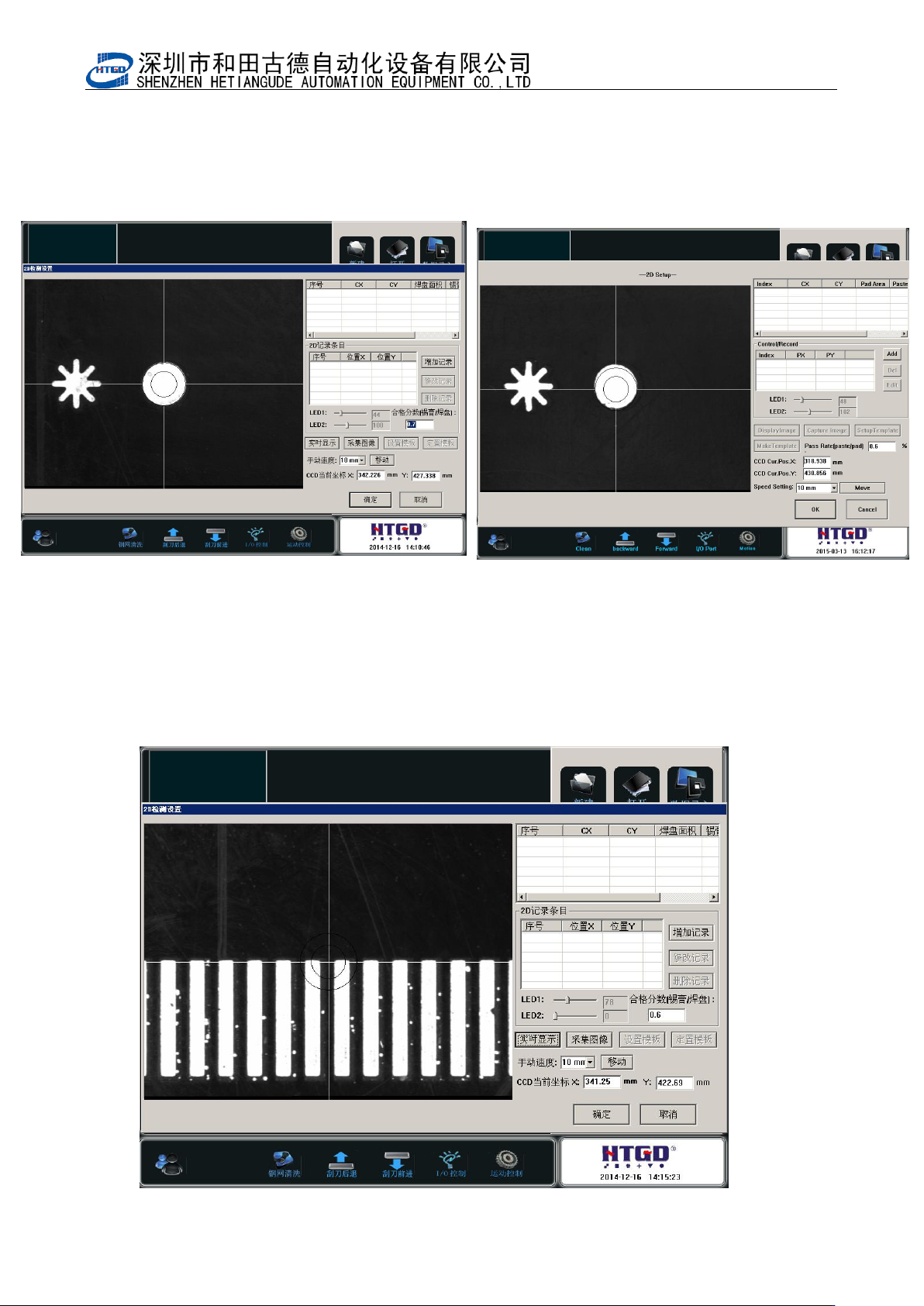
Click “ 增加 记 录”(add record) button and build inspection spot. Click “实时显
示”(real-time display) button. Adjust the light source of LED1 and LED2 and make the
image achieved the performance in the below pix.
图 6-3(实时显示界面)
Pix 6-3(real-time display interface)
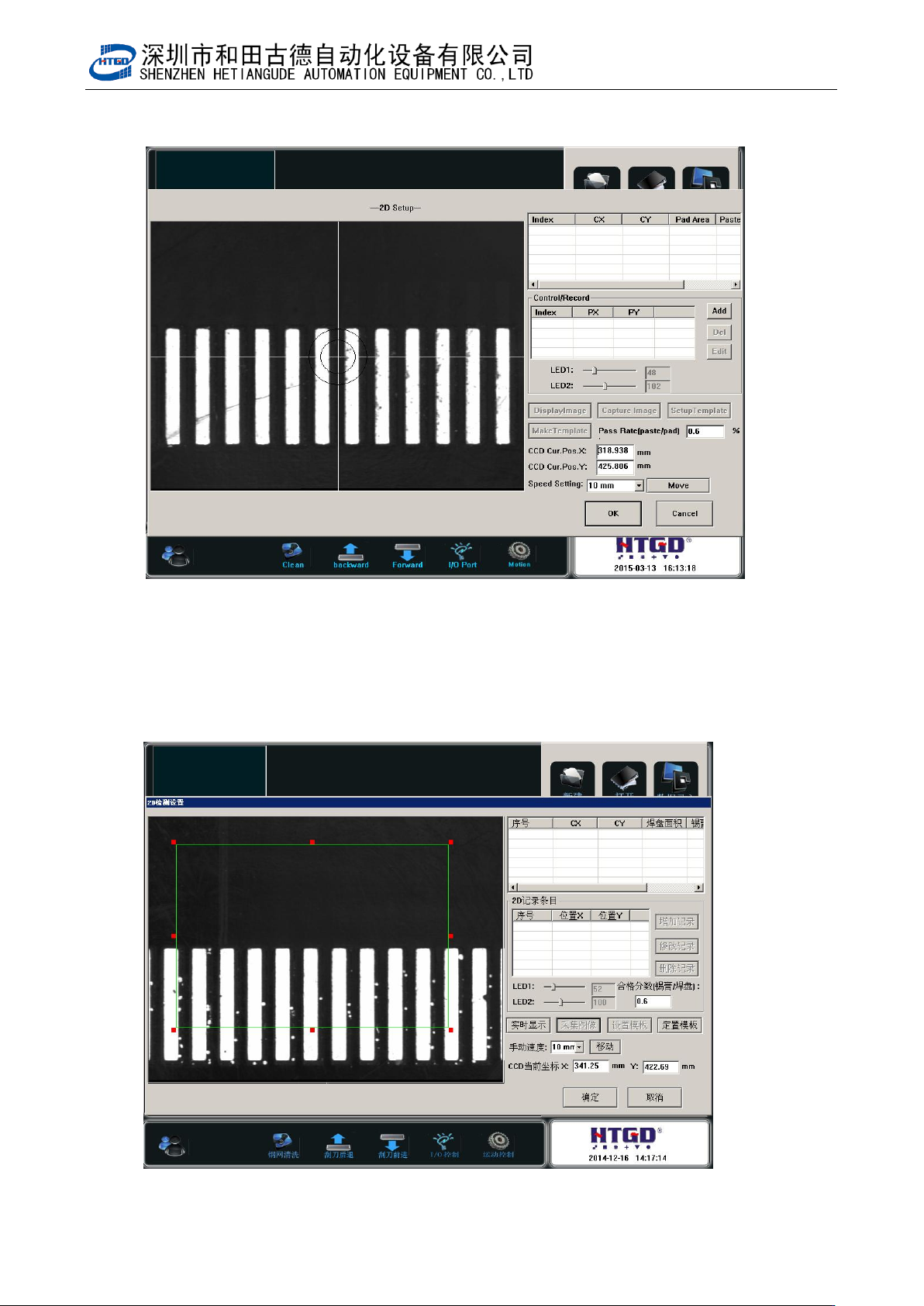
4. 点击移动,然后使用键盘上的方向键,移动到要检测的位置
Click “移动”(move) button and press the direction key on the keyboard. Move to the
inspection position.
- 88 -
图 6-4(查找检测点)
Pix 6-4(search the inspection spot)
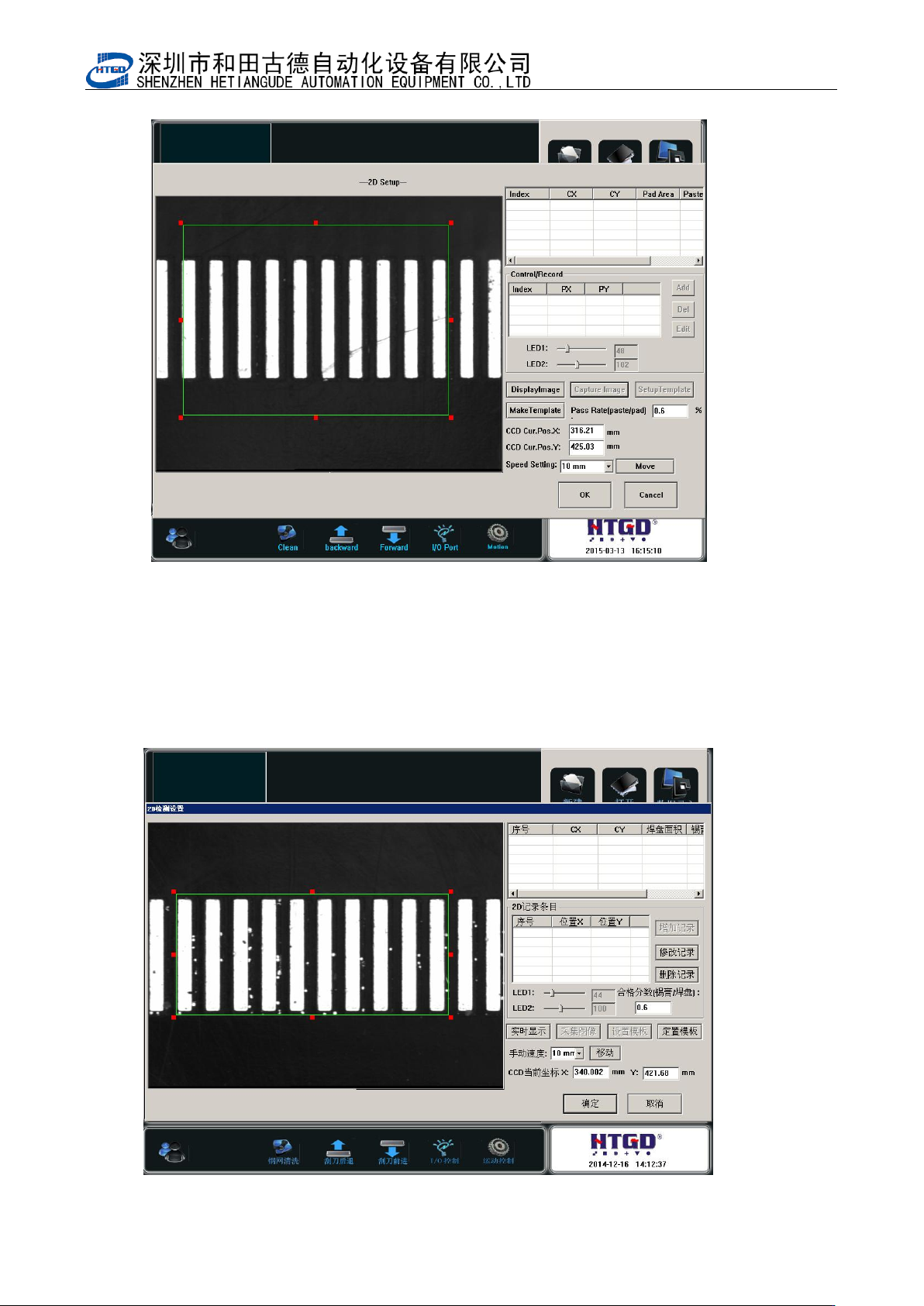
5. 点击采集图像,然后点击设置模板,手动设置 6-5 图上绿色方框
Click “采集图像”(image capture) button and click “设置模板”(template setting) button.
Setup the green square box manually in the pix 6-5.
图 6-5(设置模板)
- 89 -
Pix 6-5(template setting)
6. 如图 6-6,设置好检测点后,点击定置模板。
Click “定置模板”(template customization) button after setting the inspection spot. See
pix 6-6.