80S-2080F480F4-680F5 User’s Manual.pdf - 第119页
2 Introduction and Basic Concepts SIPLACE 80S-20/F4/F4-6/F5 User’s Manual 2.4 Brief Description and Principles of the User Interface Edition 03/98 from Software Version SR.404.xx 2 - 42 2.4.4.6 Cycle mode If you wis h to…
SIPLACE 80S-20/F4/F4-6/F5 User’s Manual 2 Introduction and Basic Concepts
Edition 03/98 from Software Version SR.404.xx 2.4 Brief Description and Principles of the User Interface
2 - 41
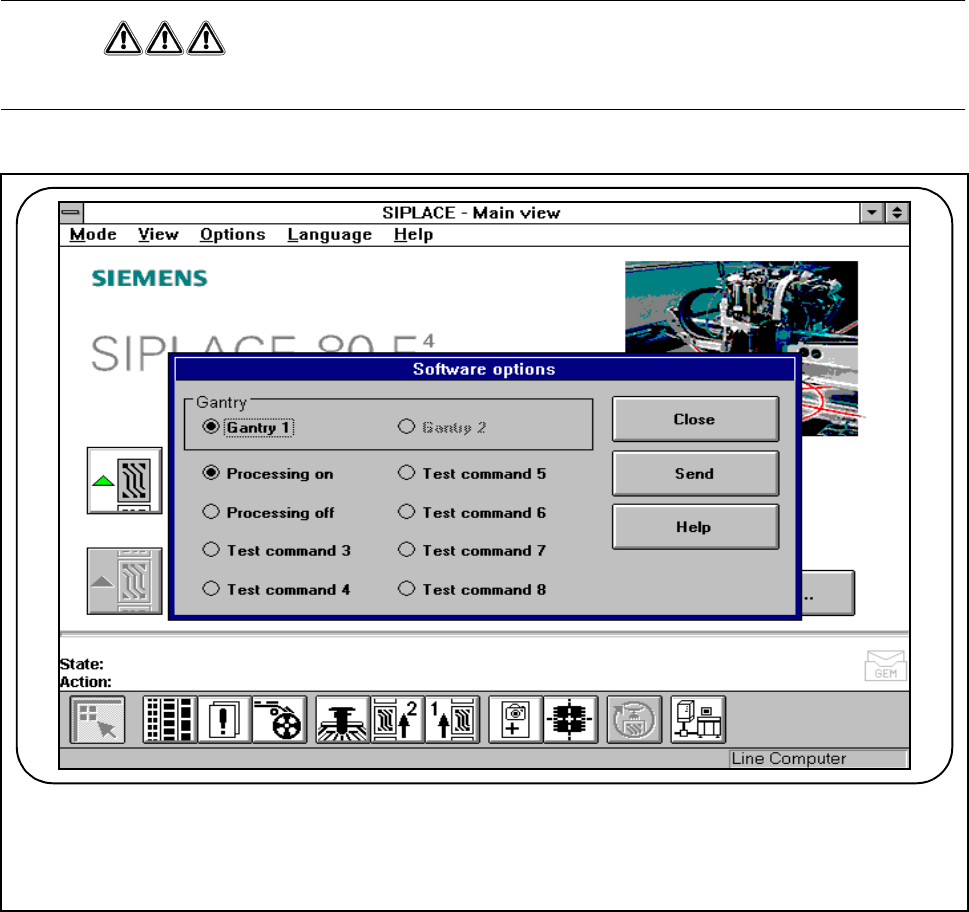
2.4.4.5 Software (Service Technicians Only)
DANGER
This option must only be used by service technicians.
Fig. 2.4.9 Software
2 Introduction and Basic Concepts SIPLACE 80S-20/F4/F4-6/F5 User’s Manual
2.4 Brief Description and Principles of the User Interface Edition 03/98 from Software Version SR.404.xx
2 - 42
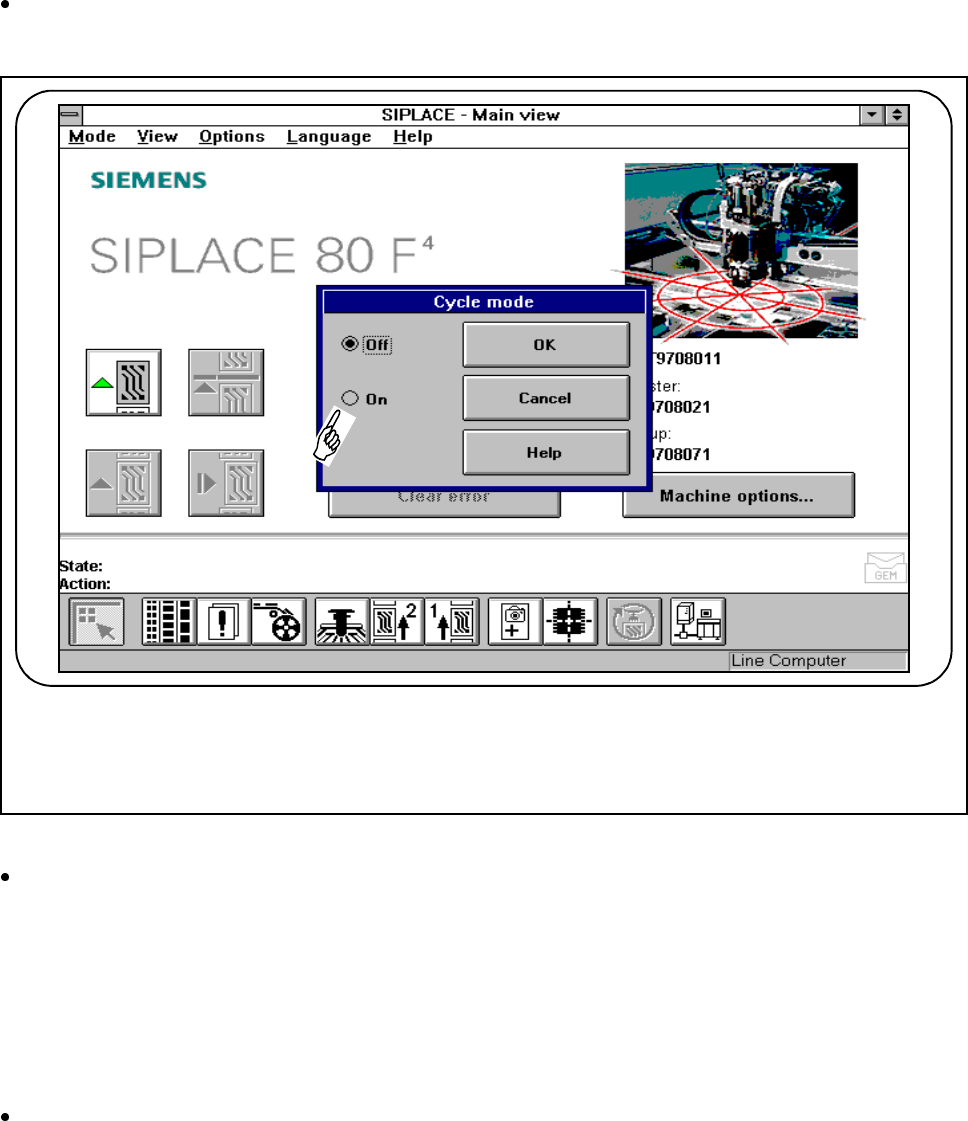
2.4.4.6 Cycle mode
If you wish to operate the station in cycle mode in order to minimize errors, select the "Cycle mode“ function
from the "Options“ menu. You will then have to press the start button on the automatic placement machine for
every step of the placement sequence.
Click on the Cycle mode option in the Options menu to open the Cycle mode menu on the station com-
puter.
Fig. 2.4.10 Cycle mode
Click on "On“ to switch to cycle mode.
2.4.4.7 Load Table Program (Line Engineer)
You can use the "Load table program“ function from the "Options" menu if a machine error is caused by loss
of the program at the component table. This will load the table program into the memory of the table program
control.
Click on the Load table program option in the Options menu to open the Load table program function on
the station computer.
SIPLACE 80S-20/F4/F4-6/F5 User’s Manual 2 Introduction and Basic Concepts
Edition 03/98 from Software Version SR.404.xx 2.4 Brief Description and Principles of the User Interface
2 - 43
PLEASE NOTE
This function can take a relatively long time.
2.4.4.8 Video Image
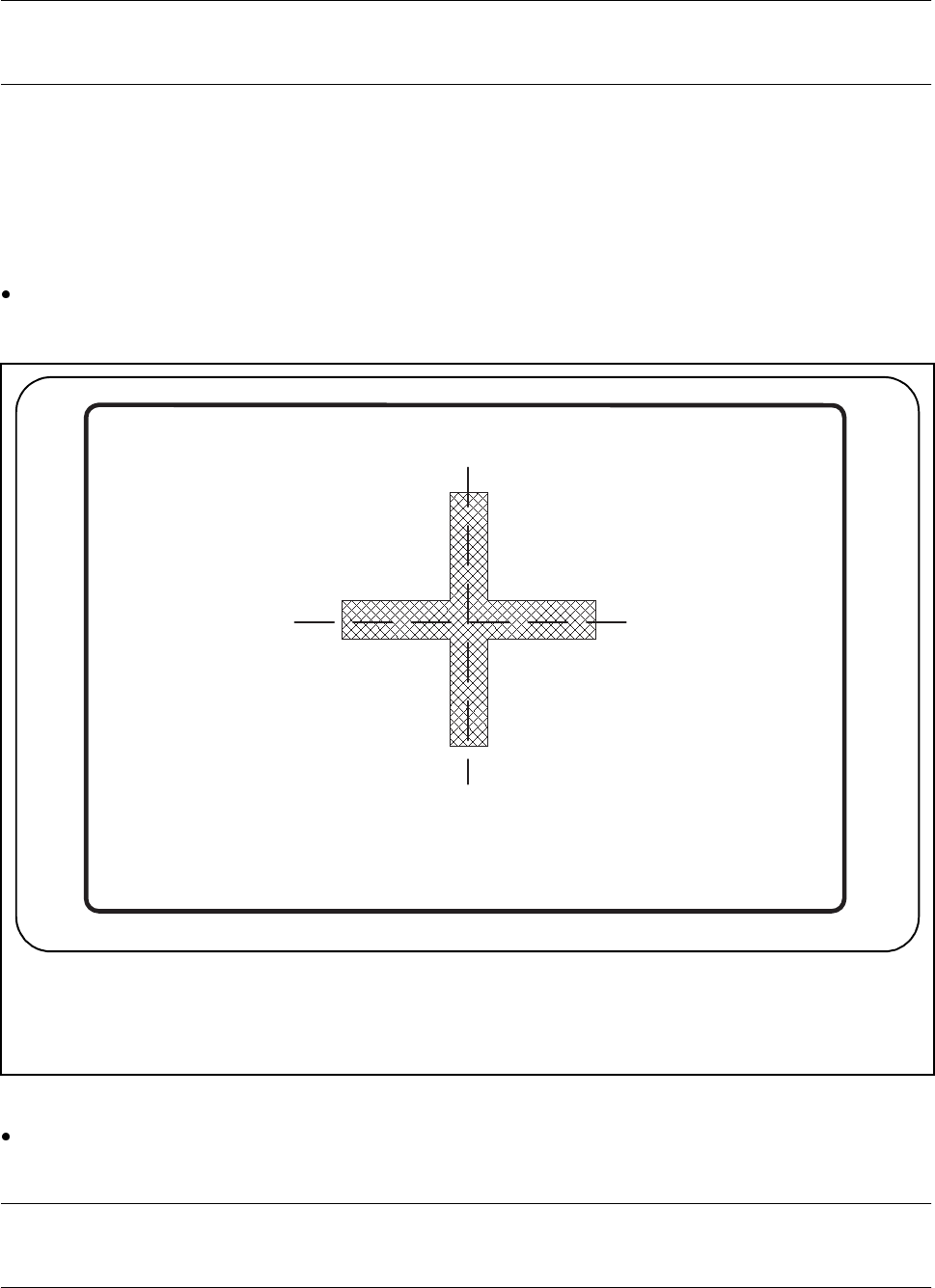
For certain actions, it may be necessary to overlay the camera image from the MVS system (vision evaluation
unit) on the screen of the station computer during placement.
Click on the Video image option in the Options menu to switch to the camera image of the MVS system
(vision evaluation unit).
Fig. 2.4.11 Example of a video image
Press the ’ESC’ key to leave the video image and return to the previously displayed menu window on the
user interface.
PLEASE NOTE
The complete range of functions is described in Chapter 5 of this User’s Manual.