80S-2080F480F4-680F5 User’s Manual.pdf - 第137页
3 Placement Functions SIPLACE 80S-20/F4/F4-6 User’s Manual 3.2 Set-Up Edition 07/97 from Software Version SR.403.xx 3 - 8 3.2. 1.1 Overview of Track/Div ision/ Tray Fig. 3.2.3 Overview of track / division / tray - Key to…

SIPLACE 80S-20/F4/F4-6 User’s Manual 3 Placement Functions
Edition 07/97 from Software Version SR.403.xx 3.2 Set-Up
3 - 7
3.2.1 Overview of the list names in the window
l Location (Loc.)
This column shows the location ( 1- 4) which has been specified by the set-up for the component feeder
system in question (linear feeders, trays, and so on). For an overview of the position of the locations see
Fig. 0.4.1 or Fig. 0.4.2 / Fig. 0.4.3 in Section 0.4 ’Overall View of Assemblies’.
l Track
This column indicates which track has been assigned to the component feeder system in question by the
set-up.
l Division (Div.)
This column shows to which division of the component feeder system the component has been allocated
by the set-up.
l Tray (for wafflepack changer)
This column shows to which levels (1-28) of the wafflepack changer the component has been allocated by
the set-up.
NOTE
For a flatpack magazine which is set up on a manual tray holder, the default level will be 1.
l Component name (CmpName)
The Component name column indicates which component name has been specified by the set-up.
l GF No.
The GF No. column indicates which package form number has been allocated to the component.
l Track bar code
The Track bar code column indicates which track bar code has been allocated to the track in question.
l Co BC
The Co BC column shows whether a component bar code has been assigned or not.
If a component bar code has been specified, an asterisk (*) will be displayed in this column. The Compo-
nent Verification with bar code button is active and the menu can be opened.
If a component bar code has not been specified, a double hyphen (--) will be displayed in this column. The
Component Verification with bar code button is inactive.
3 Placement Functions SIPLACE 80S-20/F4/F4-6 User’s Manual
3.2 Set-Up Edition 07/97 from Software Version SR.403.xx
3 - 8
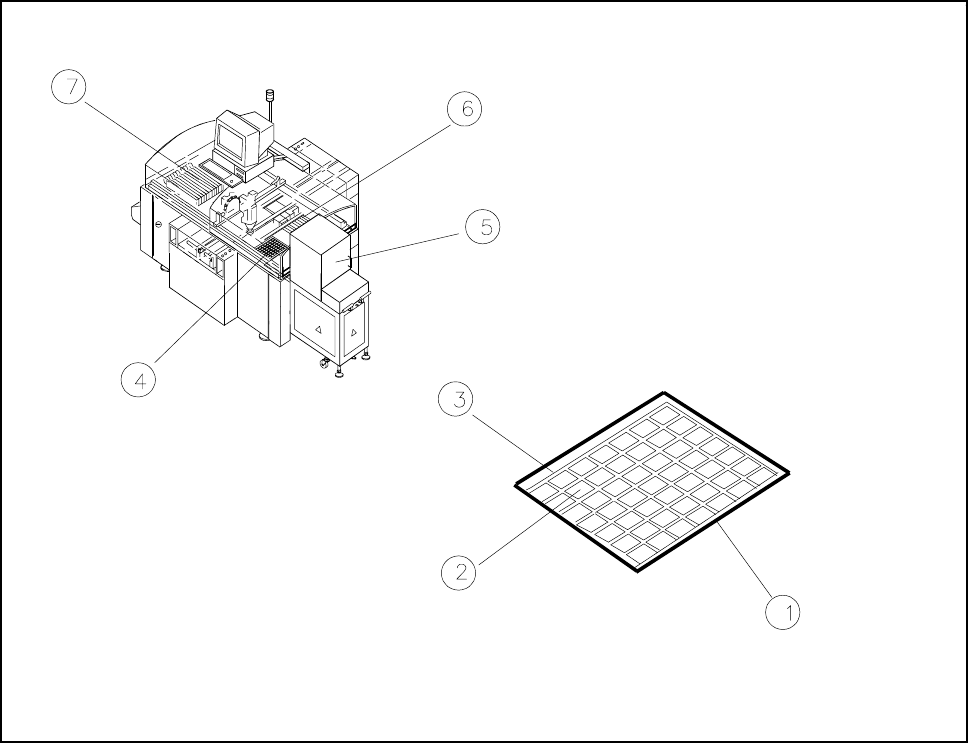
3.2.1.1 Overview of Track/Division/Tray
Fig. 3.2.3 Overview of track / division / tray
- Key to Fig. 3.2.3
1 Tray 2 Division
3 Track 4 Tray location 1
5 Trays 1 to 28 6 Location 2
7 Location 3
SIPLACE 80S-20/F4/F4-6 User’s Manual 3 Placement Functions
Edition 07/97 from Software Version SR.403.xx 3.2 Set-Up
3 - 9
3.2.2 Component Verification with Bar Code
NOTE
Only active when Component verification with bar code has been configured and bar codes have been
specified.
Select the track for which you wish to carry out a component verification or read the track bar code using a
hand-held bar code reader (see also Section 11.4 ). The selected track will be marked in light blue.
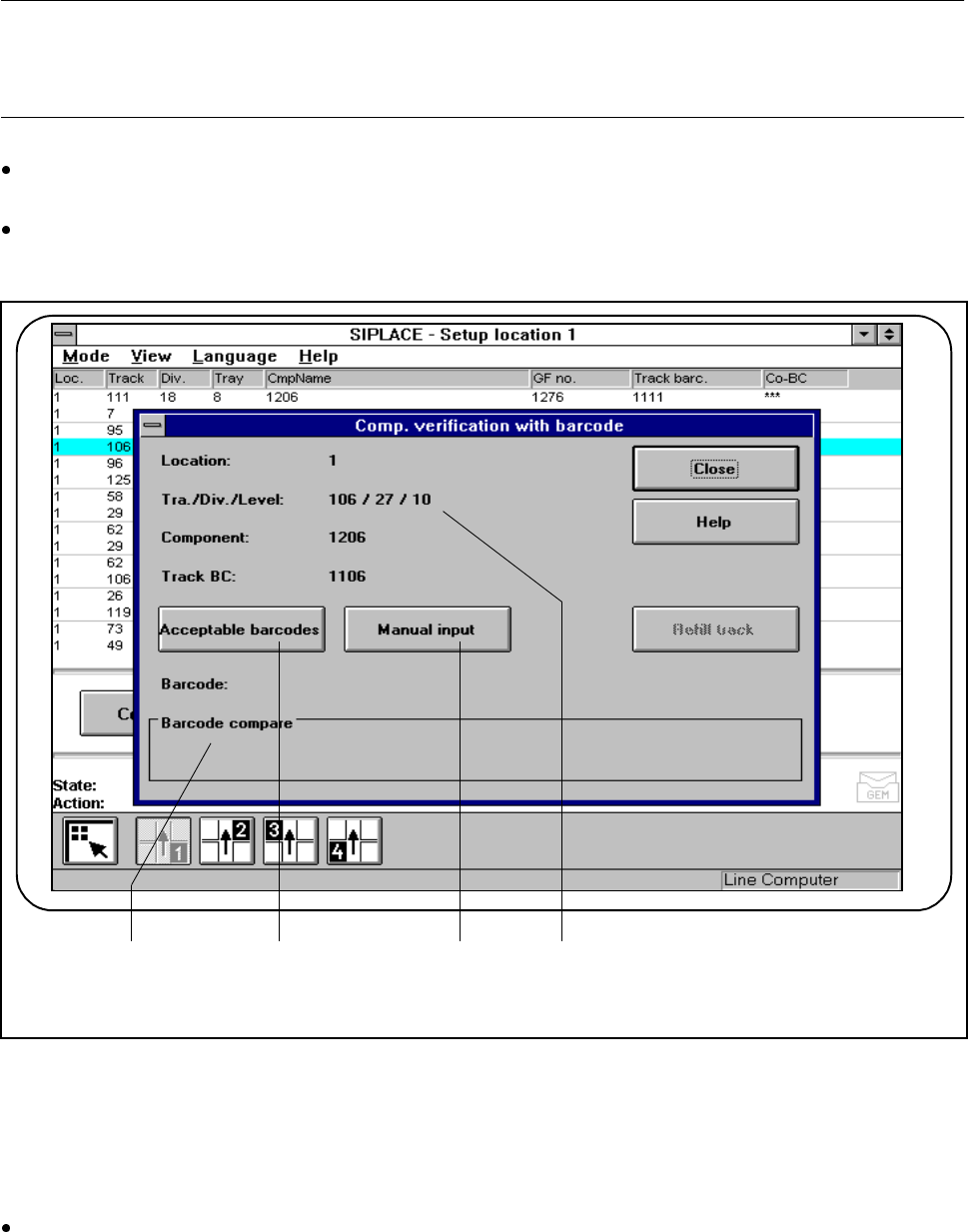
Click on the Component verification with bar code button. The data of the selected track will be dis-
played for checking.
Fig. 3.2.4 Component verification with bar code
- Key to Fig. 3.2.4
1 Display window for bar code comparison 2 Acceptable bar codes button
3 Manual input button 4 Data for the track displayed
Read the component bar code in from the reel.
You can also input the component bar code by hand.
1 2 3 4