80S-2080F480F4-680F5 User’s Manual.pdf - 第138页
SIPLACE 80S- 20/F4/F4-6 User’s Manual 3 Placement Functions Edition 07/97 from Software Version SR.403.xx 3.2 Set-Up 3 - 9 3.2.2 Co mponent Verification with Bar Co de NOTE Only activ e when Component verification wi th …
3 Placement Functions SIPLACE 80S-20/F4/F4-6 User’s Manual
3.2 Set-Up Edition 07/97 from Software Version SR.403.xx
3 - 8
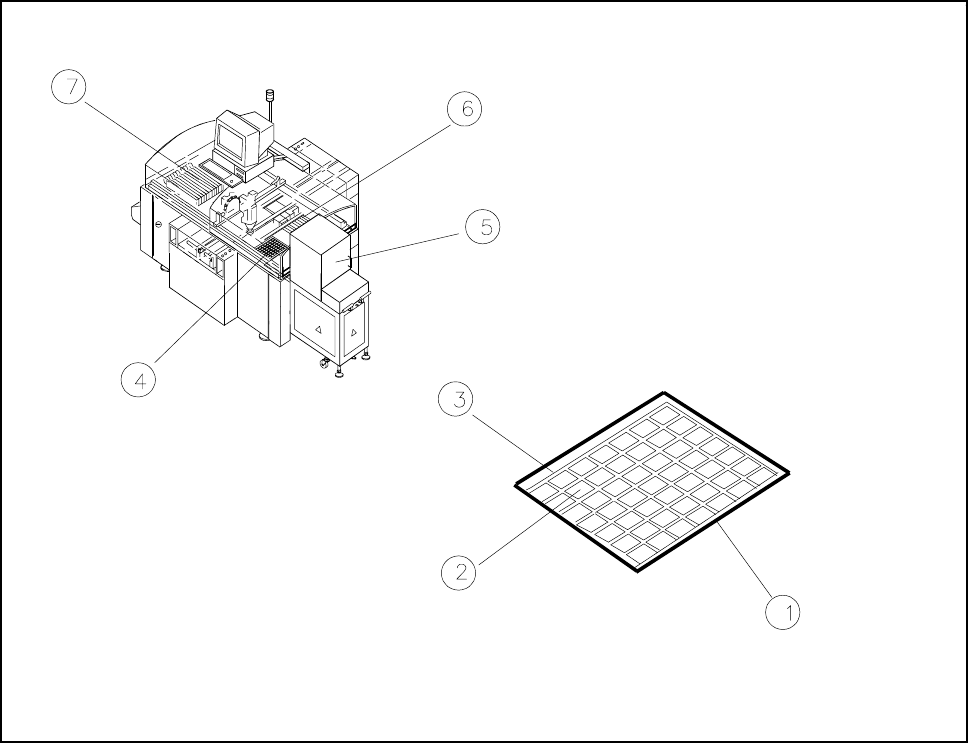
3.2.1.1 Overview of Track/Division/Tray
Fig. 3.2.3 Overview of track / division / tray
- Key to Fig. 3.2.3
1 Tray 2 Division
3 Track 4 Tray location 1
5 Trays 1 to 28 6 Location 2
7 Location 3
SIPLACE 80S-20/F4/F4-6 User’s Manual 3 Placement Functions
Edition 07/97 from Software Version SR.403.xx 3.2 Set-Up
3 - 9
3.2.2 Component Verification with Bar Code
NOTE
Only active when Component verification with bar code has been configured and bar codes have been
specified.
Select the track for which you wish to carry out a component verification or read the track bar code using a
hand-held bar code reader (see also Section 11.4 ). The selected track will be marked in light blue.
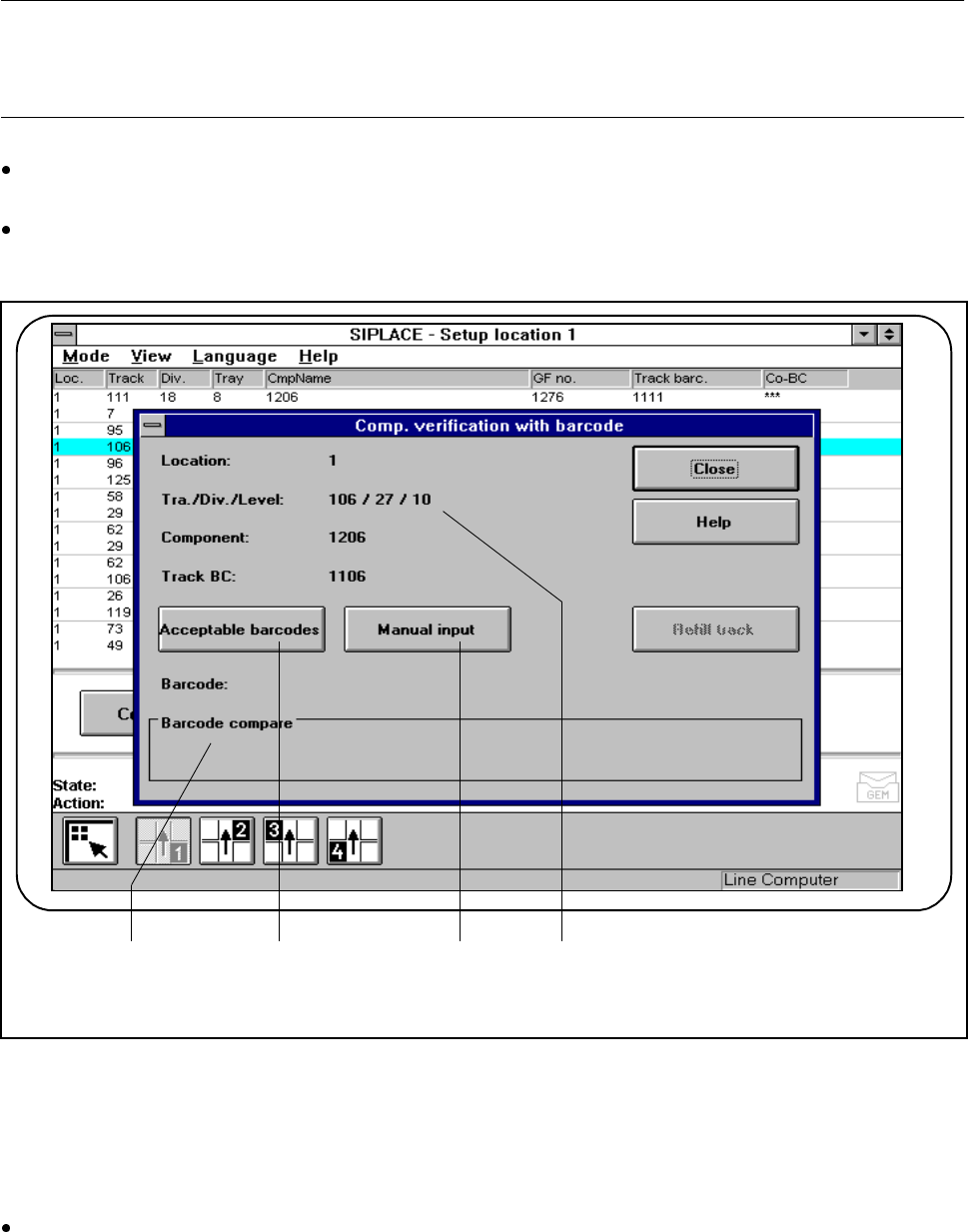
Click on the Component verification with bar code button. The data of the selected track will be dis-
played for checking.
Fig. 3.2.4 Component verification with bar code
- Key to Fig. 3.2.4
1 Display window for bar code comparison 2 Acceptable bar codes button
3 Manual input button 4 Data for the track displayed
Read the component bar code in from the reel.
You can also input the component bar code by hand.
1 2 3 4
3 Placement Functions SIPLACE 80S-20/F4/F4-6 User’s Manual
3.2 Set-Up Edition 07/97 from Software Version SR.403.xx
3 - 10
3.2.2.1 Acceptable bar codes
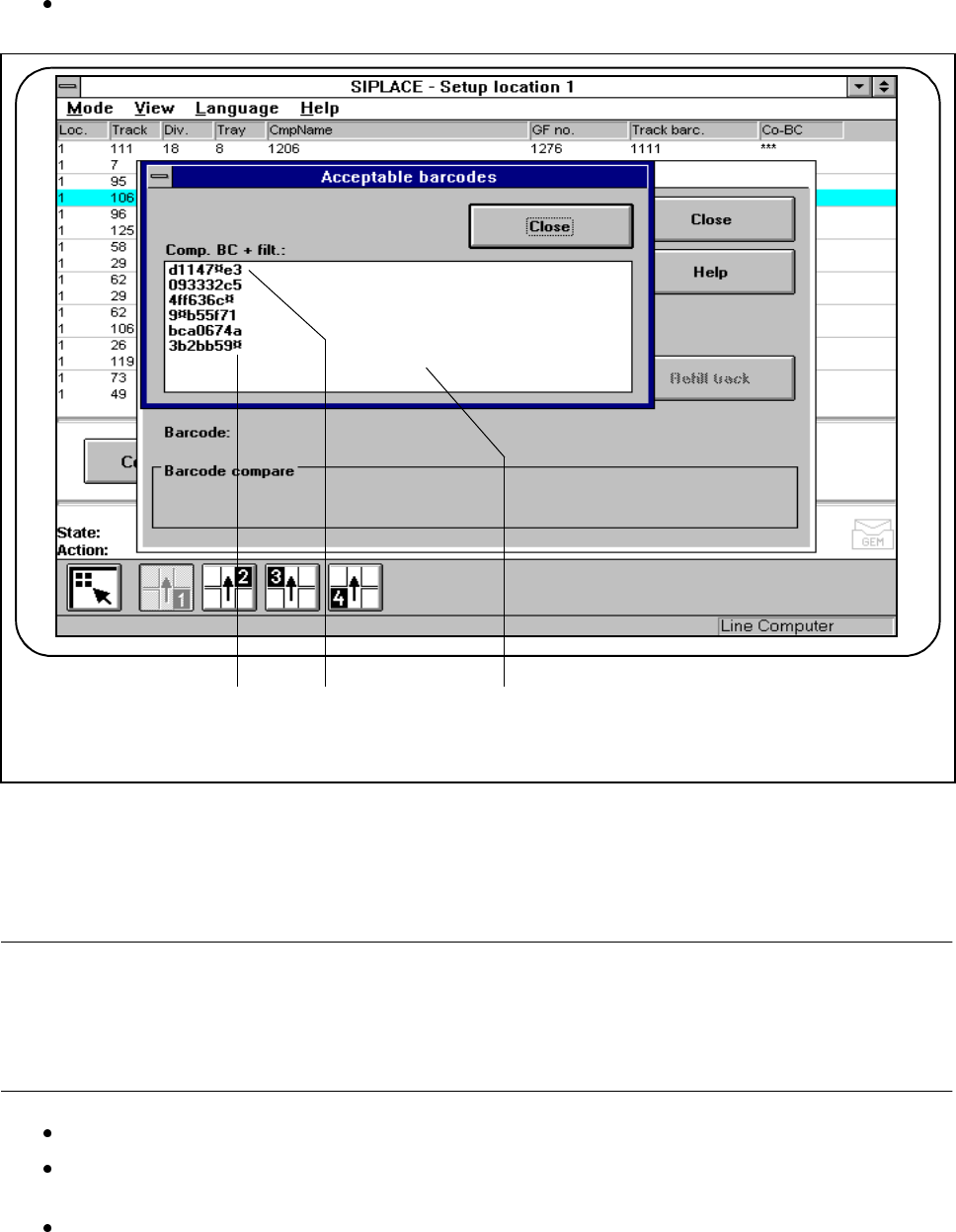
Click on the Acceptable bar codes button. A list of possible bar codes will be displayed in a selection
box. Currently a maximum of 6 different bar codes can be entered.
Fig. 3.2.5 Acceptable bar codes
- Key to Fig. 3.2.5
1 Marking for filter in the bar code 2 Acceptable bar code
3 Selection box with a maximum of 6 barcodes
NOTE :
If a position in the bar code is occupied by a filter (occupied with a star
¤), this position will not be included in
evaluation. This can be used for excluding data contained in the bar code (for example, date, company and so
on).
Read in the component bar code (see also Section 11.4).
The bar code which has been read is compared with the bar code required. Preset filters will not be
included in the comparison process.
The results of the bar code comparison will be displayed in the Bar code comparison display win-
dow.
Check the results:
Same: The bar codes are identical.
Not the same: The bar codes are not identical.
1 2 3