80S-2080F480F4-680F5 User’s Manual.pdf - 第143页
3 Placement Functions SIPLACE 80S-20/F4/F4-6 User’s Manual 3.3 Error Edition 07/97 from Software Version SR.403.xx 3 - 14 3.3.1 Track Errors NOTE Empty trac ks must be set to f ull. It is not pos sible for empt y tracks …
SIPLACE 80S-20/F4/F4-6 User’s Manual 3 Placement Functions
Edition 07/97 from Software Version SR.403.xx 3.3 Error
3 - 13
3.3 Error
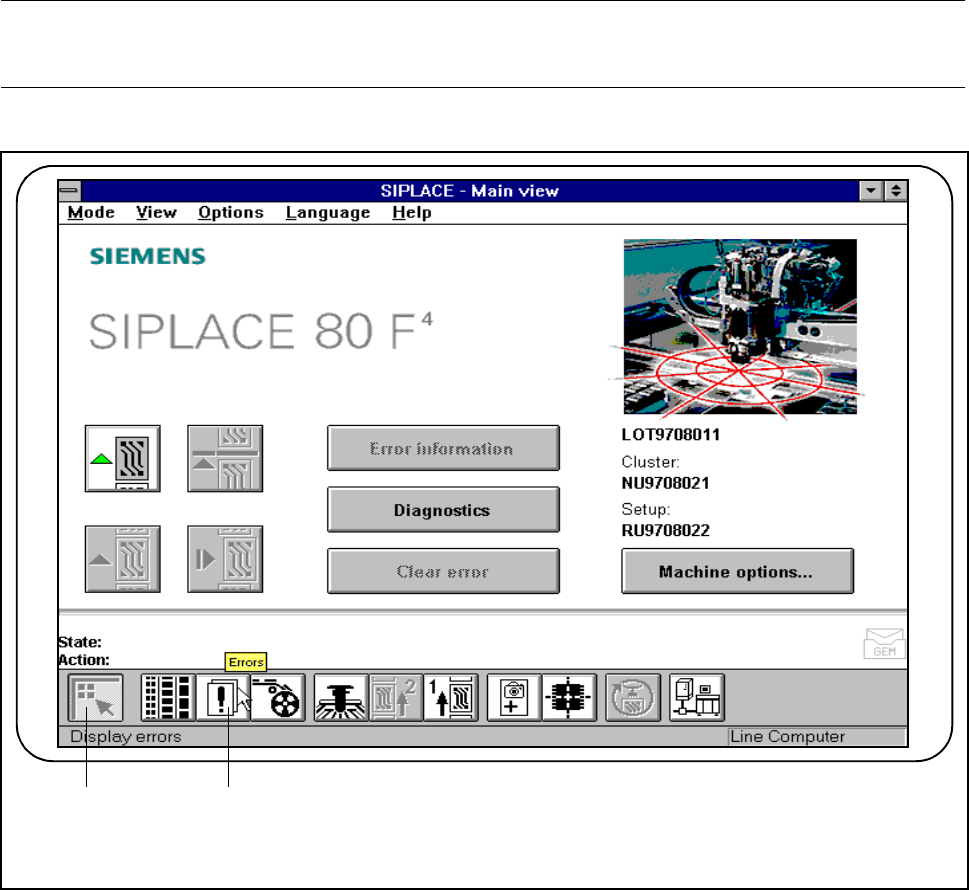
The "Error“ menu is used to display lists of various error types.
Error information and a fault diagnosis of the corresponding error type can be accessed.
NOTE
The error which occurred last will always appear at the top of the list.
Fig. 3.3.1 Errors
- Key to Fig. 3.3.1
1 Main view 2 Display errors
1 2
3 Placement Functions SIPLACE 80S-20/F4/F4-6 User’s Manual
3.3 Error Edition 07/97 from Software Version SR.403.xx
3 - 14
3.3.1 Track Errors
NOTE
Empty tracks must be set to full.
It is not possible for empty tracks to be cleared.
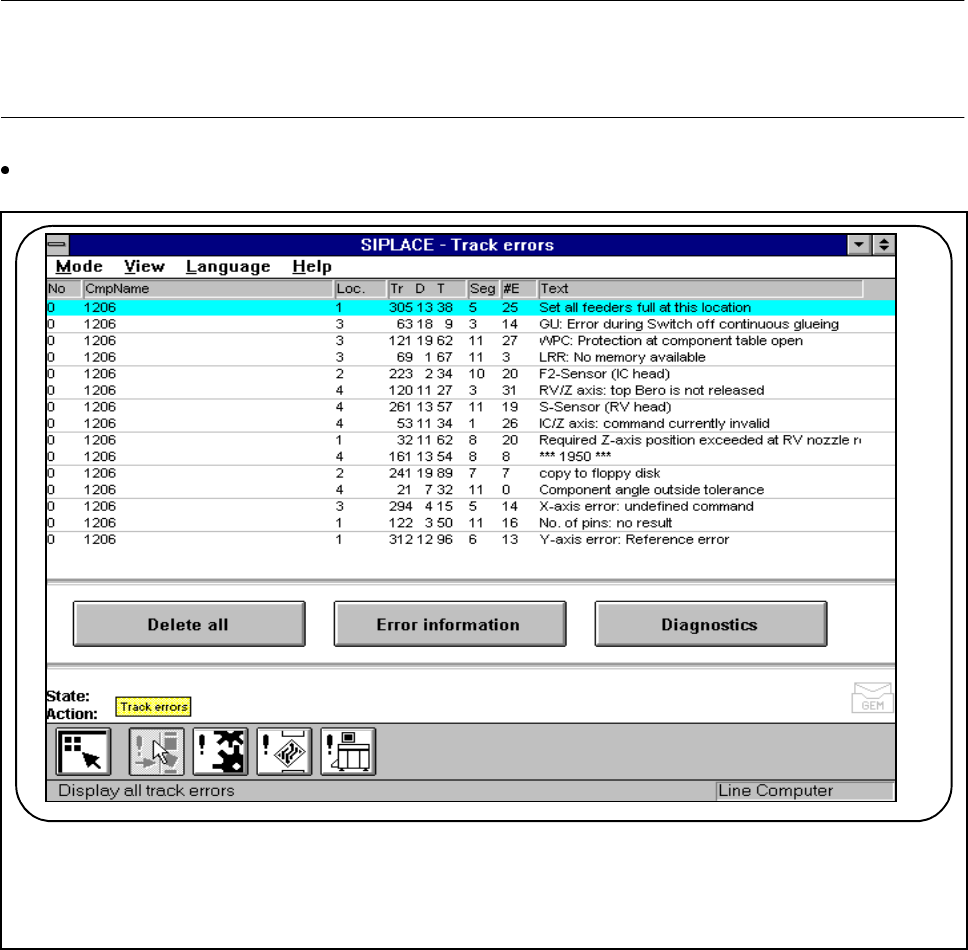
Click on the symbol button for Track errors in the Display all track errors menu.
Fig. 3.3.2 Track errors
l No.
The error numbers of the errors in question are displayed in this column.
l Component name (CmpName)
In this column the component name where the error occurred is displayed.
l Location (Loc.)
In this column the location corresponding to the component is displayed.
l Tr/D/T
This column displays the track, the division and the tray corresponding to the component.
F

SIPLACE 80S-20/F4/F4-6 User’s Manual 3 Placement Functions
Edition 07/97 from Software Version SR.403.xx 3.3 Error
3 - 15
l Seg.
In this column the segment which was used to insert the component is displayed.
l #E
This column indicates how often (cumulative) this error has already occurred.
l Text
In this column a description is given of the fault which occurred.
3.3.1.1 Error Information
Mark a single line (highlighted with a light blue bar) and click on the Error information button. Call up the on-
line help for information on the selected error.
3.3.1.2 Diagnostics
Select a single line (highlighted with a light blue bar) and click on the Diagnostics button. The diagnostics
procedure for the error selected is started.