80S-2080F480F4-680F5 User’s Manual.pdf - 第271页
5 Vision Functions SIPLACE 80S-20/F4/F4-6/F5 User’s Manual 5.5 Teach Fiducial Edition 03/98 from Software Version SR.404.xx 5 - 50 Line engine er 5.5. 3.2 Load Fiducial Option NOTE When you cal l the Load fiducial option…
SIPLACE 80S-20/F4/F4-6/F5 User’s Manual 5 Vision Functions
Edition 03/98 from Software Version SR.404.xx 5.5 Teach Fiducial
Line engineer 5 - 49
By selecting the Save fiducial option you cause the station computer to send the fiducial data to the line com-
puter, where they are saved, and to update the fiducial numbers list.
The station computer sends the fiducial data to the line computer. The fiducial numbers list is not sent to the
line computer due to the fact that it is itself correcting the list since the fiducial data have changed, after which
it updates the modified fiducial data in the remaining stations as well. The transformation tables are held
locally in the station computer.
5.5.3.1
Select Gantry
Option
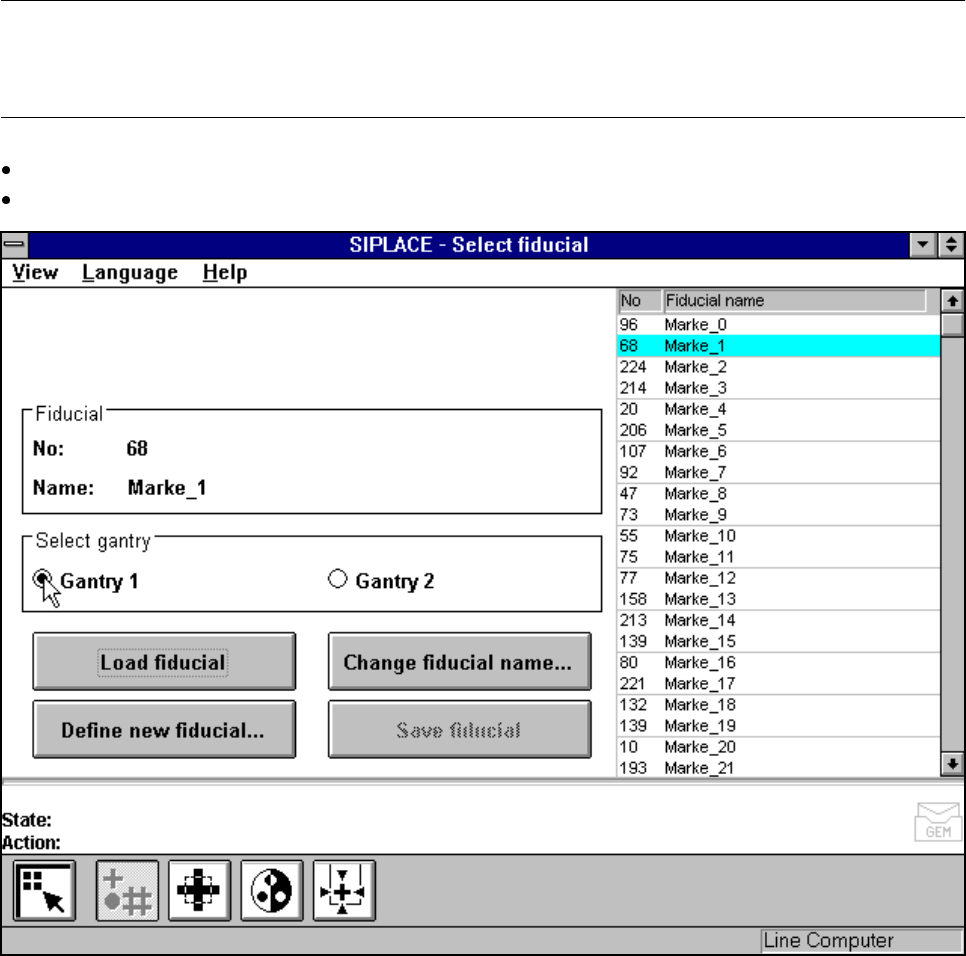
With the help of this option you can use the Gantry 1 oder Gantry 2 buttons to choose which gantry to use as
the teaching gantry. The default setting is Gantry 1.
NOTE
You can teach all fiducial shapes with the camera of Gantry 1. With the camera of Gantry 2 teaching is
restricted to rotationally symmetrical fiducials (such as a cross or a circle).
Position the mouse pointer over the desired gantry.
Click on the button. The button of the selected gantry will now turn black.
Fig. 5.5.4 Select fiducial menu, Select gantry option
5 Vision Functions SIPLACE 80S-20/F4/F4-6/F5 User’s Manual
5.5 Teach Fiducial Edition 03/98 from Software Version SR.404.xx
5 - 50 Line engineer
5.5.3.2
Load Fiducial
Option
NOTE
When you call the Load fiducial option the Save fiducial data option box will appear first of all if you had pre-
viously edited a fiducial (see Fig. 5.5.3, Page 5 - 48).
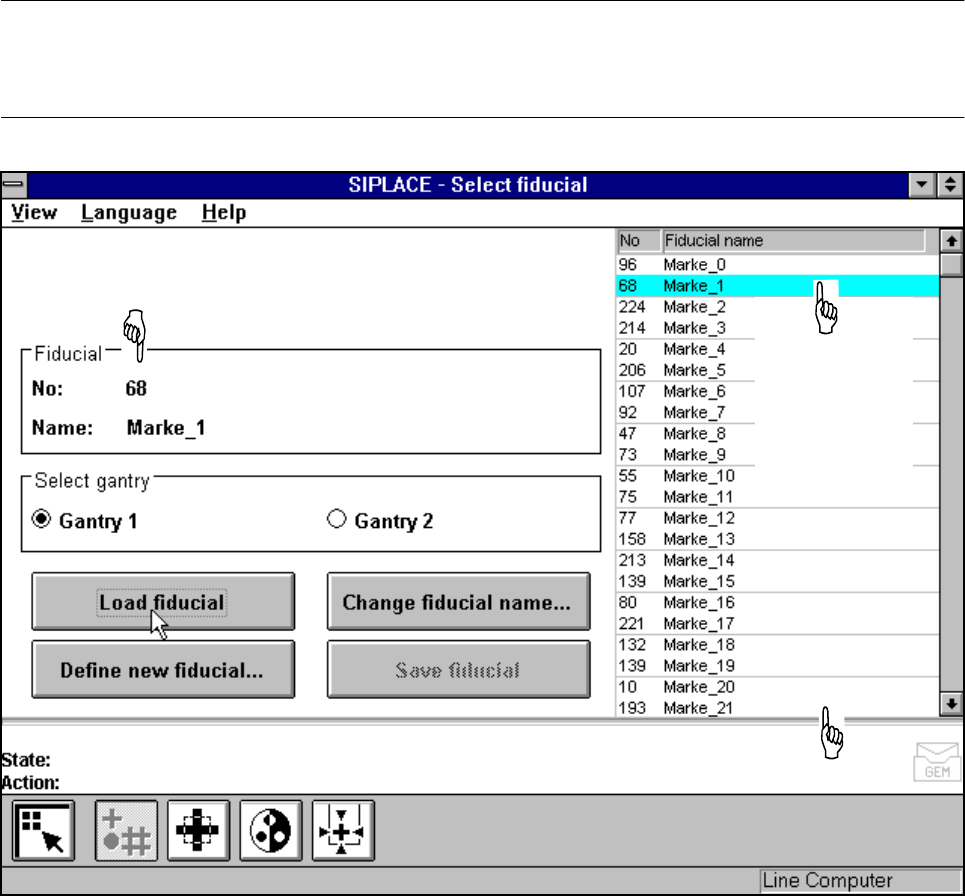
Fig. 5.5.5 Select fiducial menu, Load fiducial option
If you wish to save your data, the fiducial data will be transmitted to the line computer. The fiducial numbers
list will also be updated.
– From the list field use the mouse pointer to select a particular fiducial. The selected fiducial will appear
against a cyan-colored bar.
– Click on the Load fiducial button. In the Fiducial display field the fiducial name and the fiducial number
will be displayed.
The station computer will request from the line computer the fiducial data of the selected fiducial. The pattern
structure and search area will be transmitted to the machine controller which then downloads it into the mem-
ory of the MVS system. Following this the teaching parameters structure is initialized in the station computer
with the current values.
Display field for fiducial number and fiducial name
The selected
fiducial will be
shown against
a cyan-colored
bar.
List field
SIPLACE 80S-20/F4/F4-6/F5 User’s Manual 5 Vision Functions
Edition 03/98 from Software Version SR.404.xx 5.5 Teach Fiducial
Line engineer 5 - 51
5.5.3.3
Change Fiducial Name
Option
NOTE:
This option can only be activated if you have already loaded a fiducial. If this is not the case the Change fidu-
cial name button will be inactive. The grayed-out text on the button indicates this.
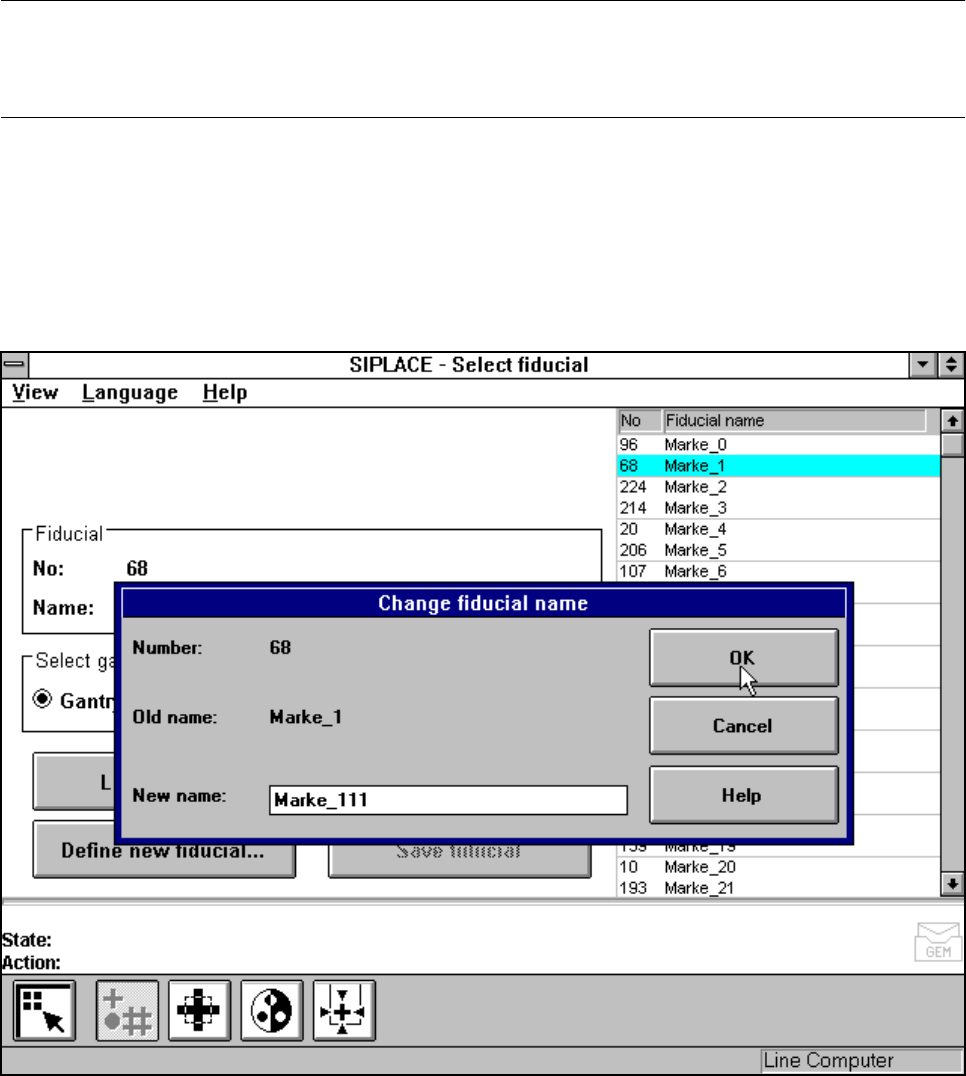
– Load the desired fiducial, as described in Section 5.5.3.2 from Page 5 - 50.
– Click on the Change fiducial name button.
The input box will appear on the screen.
– Input the new fiducial name into the New name field.
– Click on OK if you wish the change to go ahead. The fiducial list will now be updated.
– Click on Cancel if you wish to discard the change.
Fig. 5.5.6 Change fiducial name option, input box for new fiducial name