80S-2080F480F4-680F5 User’s Manual.pdf - 第306页
SIPLACE 80S-20/F4/F4-6/F5 User’s Manual 5 Vision Functi on s Edition 03/98 from S oftware Version SR.404.xx 5.6 Test Component Line engi neer 5 - 85 Fig. 5.6.11 Test component menu, Display component video image – Use Es…
5 Vision Functions SIPLACE 80S-20/F4/F4-6/F5 User’s Manual
5.6 Test Component Edition 03/98 from Software Version SR.404.xx
5 - 84 Line engineer
5.6.4.2
Display Component
Option
NOTE
Before you can activate this option you must have already loaded a package form number.
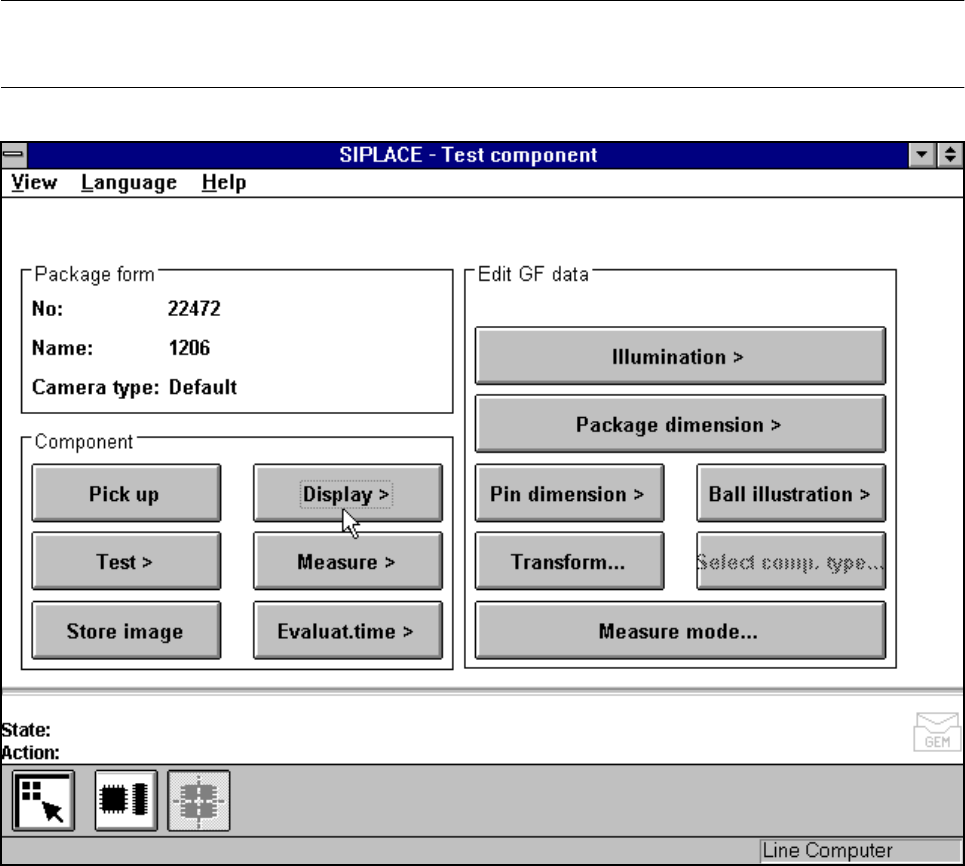
Fig. 5.6.10 Test component menu, Display component option
When this option is activated the following actions are started:
– The teach command will be given.
– The vision system generates the outside contours of the component from the synthetic description.
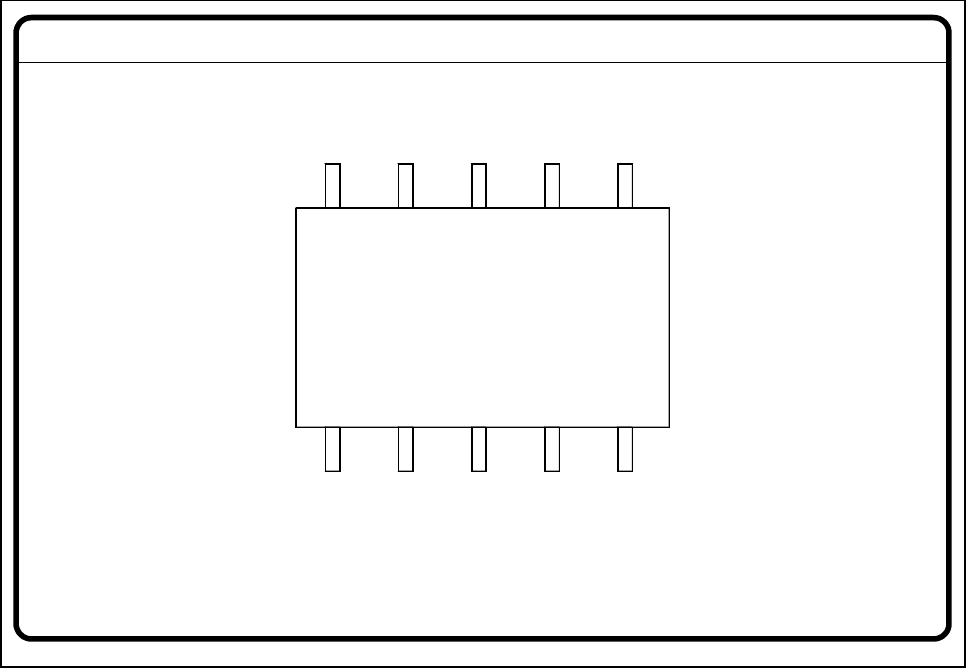
– The video image with the real camera image and the model displayed on it will be displayed on the screen.
– The header with commentaries is displayed.
The operator can now check the synthetic description visually against the real image.
SIPLACE 80S-20/F4/F4-6/F5 User’s Manual 5 Vision Functions
Edition 03/98 from Software Version SR.404.xx 5.6 Test Component
Line engineer 5 - 85
Fig. 5.6.11 Test component menu, Display component video image
– Use Esc to end the function. The video image disappears and the Test component menu is displayed
once more.
GF No. = 5Display component
5 Vision Functions SIPLACE 80S-20/F4/F4-6/F5 User’s Manual
5.6 Test Component Edition 03/98 from Software Version SR.404.xx
5 - 86 Line engineer
5.6.4.3
Test Component
Option
NOTE
This option can only be activated if you have already loaded a package form number and a component has
been picked up.
If a component is not optically centered you will have the possibility of checking the centering procedure with
this option. The measurement results are displayed on the screen but not saved.
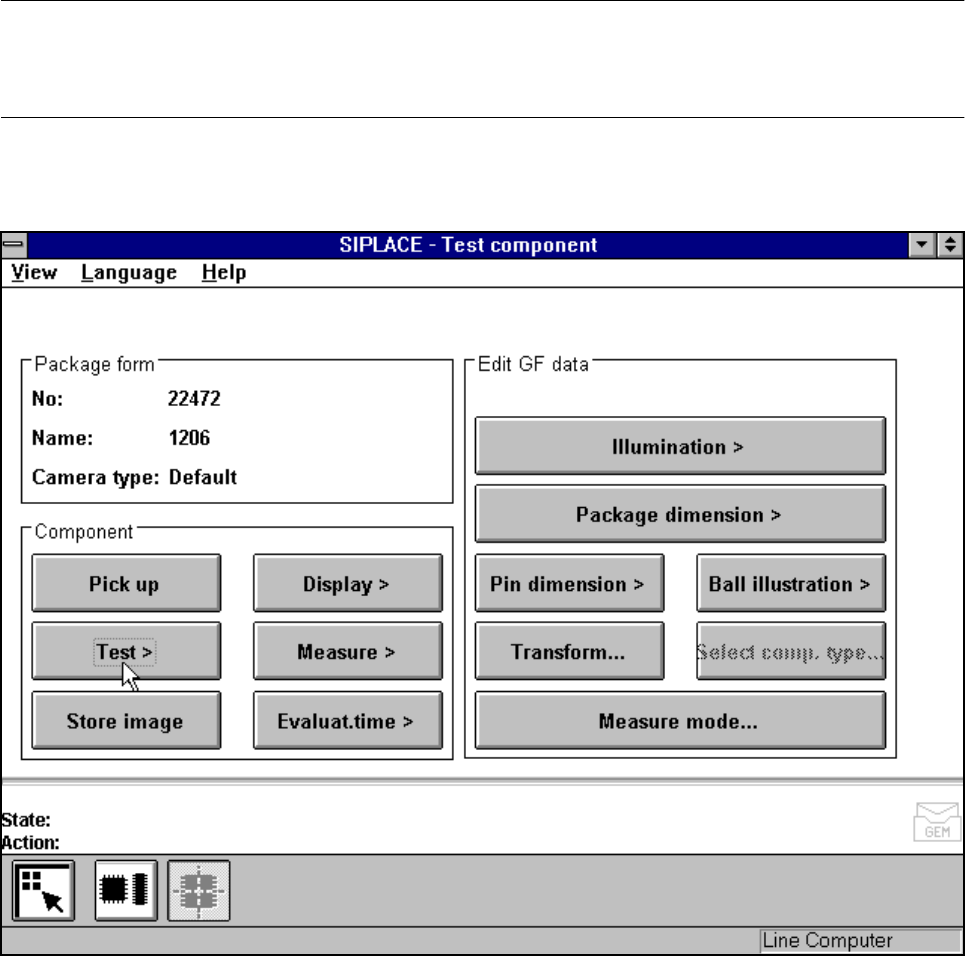
Fig. 5.6.12 Test component menu, Test component option
When this option is activated the following actions are started:
– The measurement procedure is activated.
– The video image appears on the screen.
– The header and footers are displayed.