80S-2080F480F4-680F5 User’s Manual.pdf - 第427页
7 Error Information & Diagnostics SIPLACE 80S-20/F4/F4-6 User’s Manual 7.2 Diagnostics Edition 03/98 from Software Version SR.403.xx 7 - 12 7.2. 2.1 Informati on Button ● If inform ation is av ailable o n certain m e…
SIPLACE 80S-20/F4/F4-6 User’s Manual 7 Error Information & Diagnostics
Edition 03/98 from Software Version SR.403.xx 7.2 Diagnostics
7 - 11
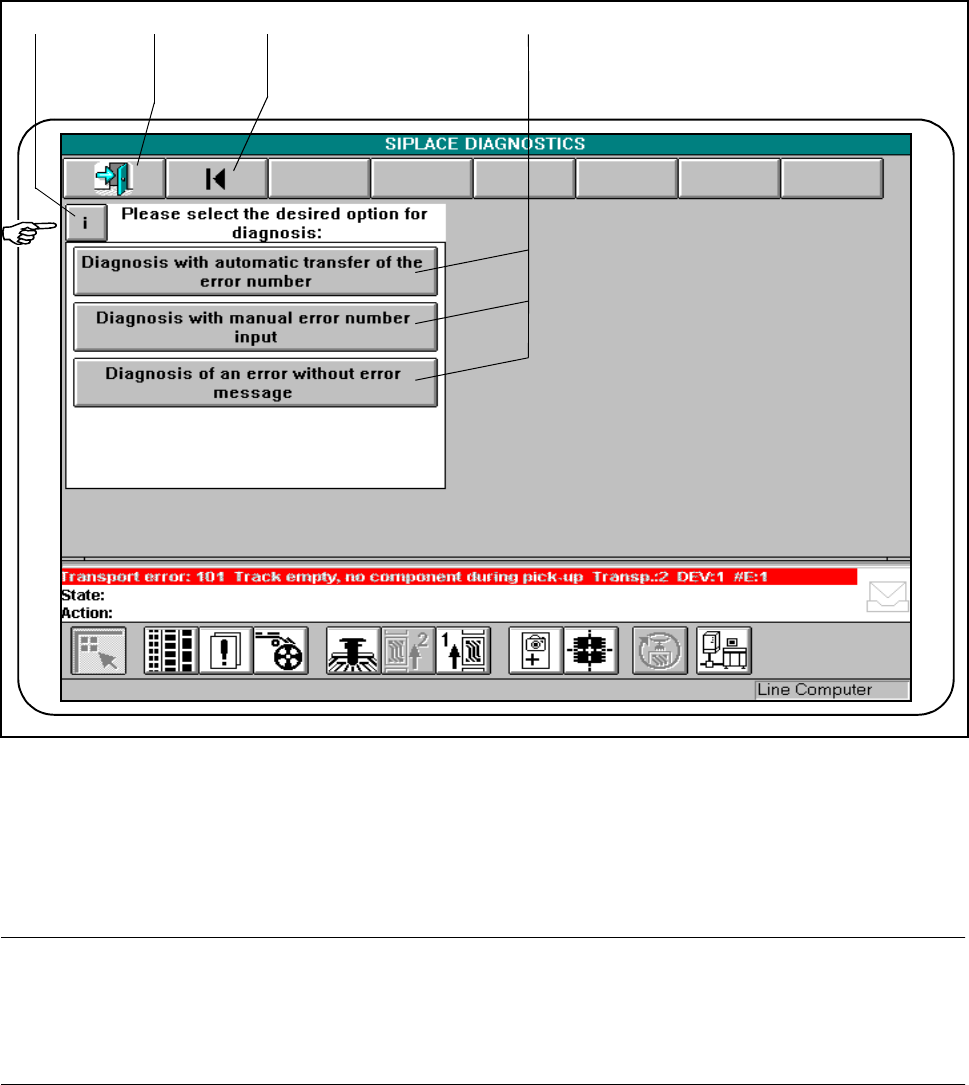
Fig. 7.2.2 Diagnostics main screen
- Key to Fig. 7.2.2
1 Information button 2 Finish diagnostics
3 Return to diagnostics main screen 4 Diagnostics buttons
NOTE
The symbol and status bars of the station software main menu remain displayed on the screen and you can
change to this view.
If you wish to return to diagnostics, press the Diagnostics button again.
1 2 3
4
7 Error Information & Diagnostics SIPLACE 80S-20/F4/F4-6 User’s Manual
7.2 Diagnostics Edition 03/98 from Software Version SR.403.xx
7 - 12
7.2.2.1 Information Button
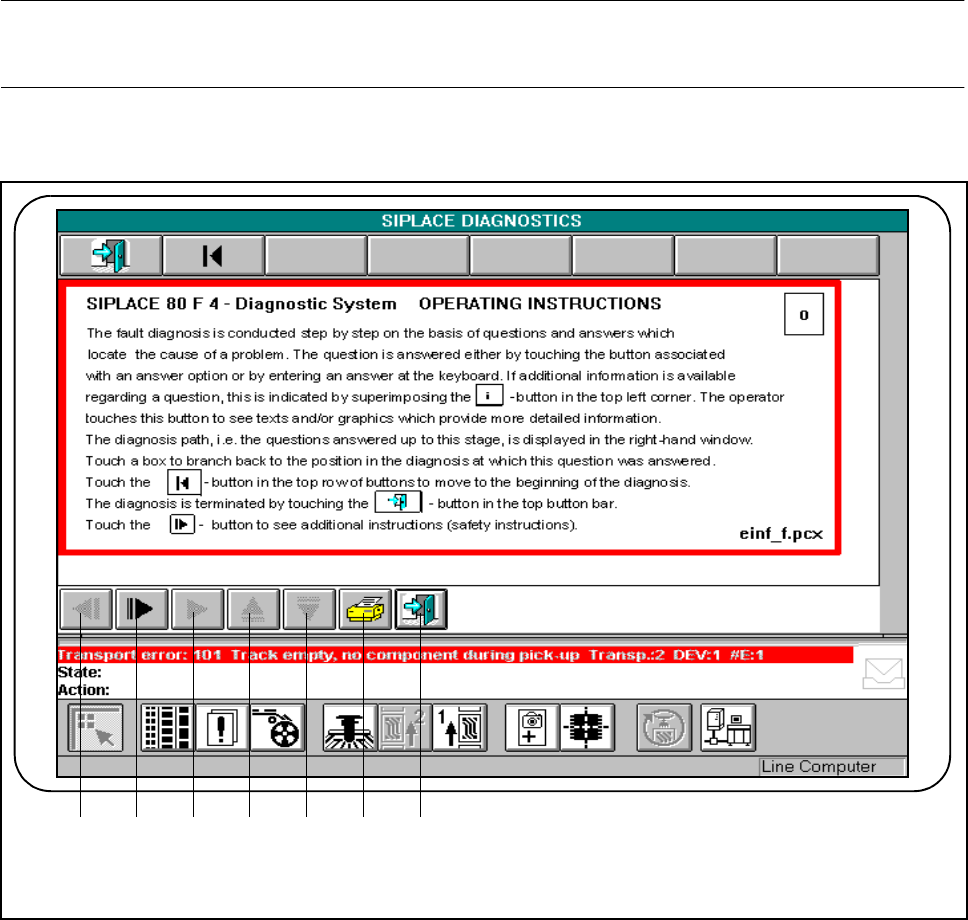
● If information is available on certain menus, the Information button will be displayed.
NOTE
This information must be complied with and can be displayed by pressing the information button.
● Click on the Information button.
Fig. 7.2.3 Example of information display
- Key to Fig. 7.2.3
1 Scroll back by window (if active) 2 Scroll down by window (if active)
3 Display additional information (if active) 4 Scroll up displayed window
5 Scroll down displayed window 6 Print displayed window
7 Return to previous window
1 2 3 4 5 6 7
SIPLACE 80S-20/F4/F4-6 User’s Manual 7 Error Information & Diagnostics
Edition 03/98 from Software Version SR.403.xx 7.2 Diagnostics
7 - 13
7.2.2.2 Diagnostics Buttons
You can select one of three different ways of starting the diagnostics facility.
● Diagnostics with automatic takeover of the error message
By clicking on this button you can start diagnostics for the errors displayed in the status line.
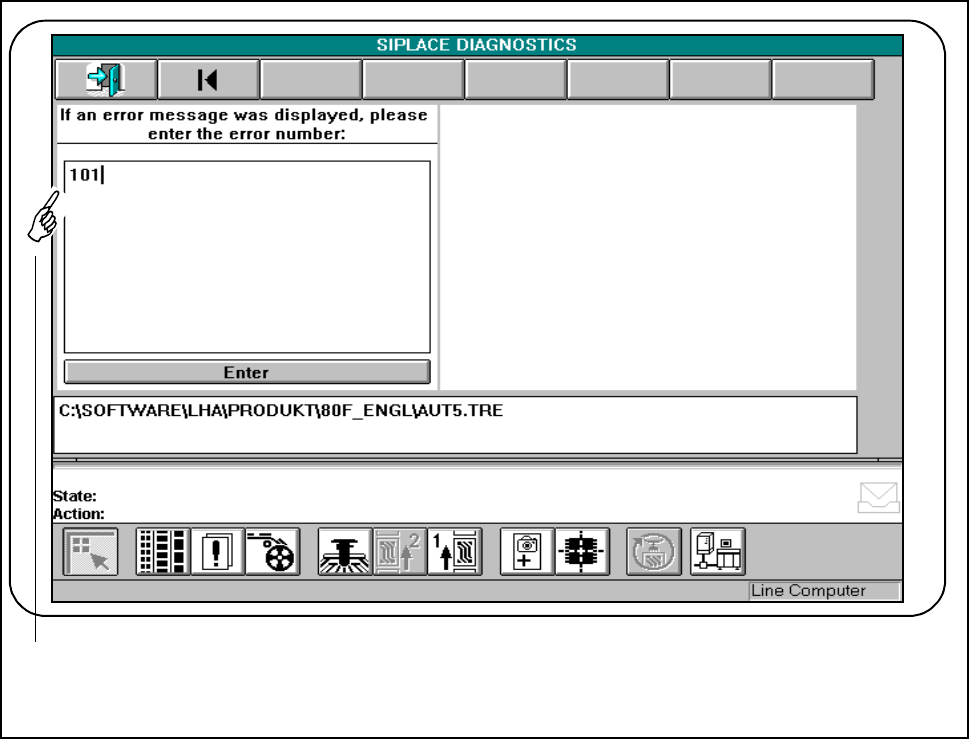
● Diagnostics with manual input of the error message
● Click on this button.
● Into the input field type the error number for which you wish to start diagnostics and confirm this with
Enter.
Fig. 7.2.4 Diagnostics with manual input of the error message
- Key to Fig. 7.2.4
1 Input field
1