80S-2080F480F4-680F5 User’s Manual.pdf - 第664页
SIPLACE 80S-20/F4/F4-6/F5 User’s Manual 11 Station Extensions/Options Edition 03/98 from Software Version SR.404.xx 11.9 GEM Interface 11 - 67 11.9.2.5 GEM Status Window In the sta tus window the user is kept informed of…
11 Station Extensions/Options SIPLACE 80S-20/F4/F4-6/F5 User’s Manual
11.9 GEM Interface Edition 03/98 from Software Version SR.404.xx
11 - 66
l MS: Memory Stall
- The SDR component of Siplace GEM tolerates the status that all internal buffers are full and that the
host is attempting to send further data packets for up to MS seconds. The TCP/IP connection is then
ended in order to prevent the network becoming overloaded.
l WS: Write Stall
- The SDR component of Siplace GEM tolerates the status that data packets to be sent are not
received by the TCP/IP connection for up to WS seconds. The TCP/IP link is then ended.
l IP address:
- for the connection to the customer’s LAN
l IP screen
- for the connection to the customer’s LAN
l Port:
- TCP/IP port number for the GEM connection to the host
SIPLACE 80S-20/F4/F4-6/F5 User’s Manual 11 Station Extensions/Options
Edition 03/98 from Software Version SR.404.xx 11.9 GEM Interface
11 - 67
11.9.2.5 GEM Status Window
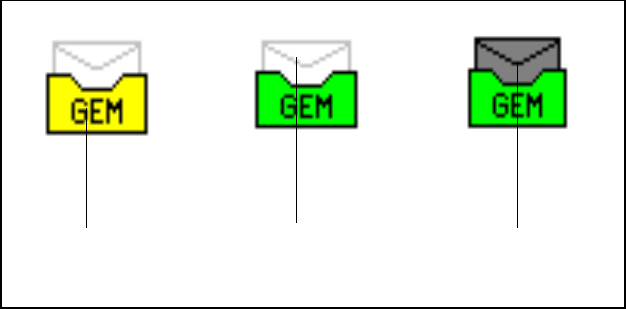
In the status window the user is kept informed of the status of the connection with the host. The various sta-
tuses are indicated by different background colors.
l Red
No connection
l Yellow
Setting up connection
l Green
Connection made
In addition to displaying the status of the host connection, the status window also shows the operator whether
messages have been received from the host. The envelope icon will either be lit or dark, depending on the
status. See Fig. 11.9.6
Fig. 11.9.6 GEM status window
- Key to Fig. 11.9.6
1 Status of the connection to the host (red, yellow, green) 2 No messages waiting (lit)
3 Messages waiting (dark)
1
2
3
11 Station Extensions/Options SIPLACE 80S-20/F4/F4-6/F5 User’s Manual
11.9 GEM Interface Edition 03/98 from Software Version SR.404.xx
11 - 68
11.9.2.6 Status Display
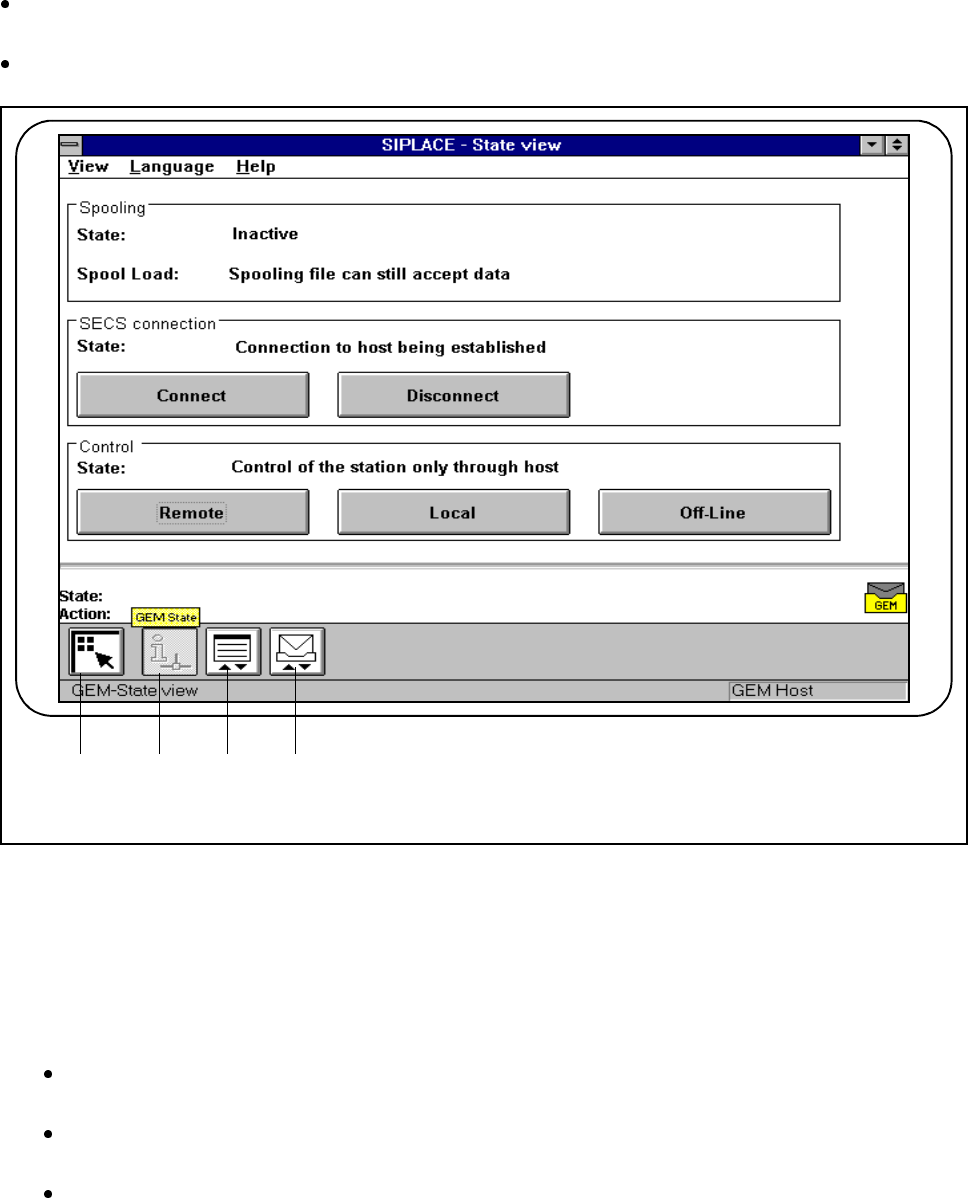
In the main view click on the icon for GEM (see Fig. 11.9.2). You can pick any one of three different menus
(see Fig. 11.9.7).
Click on the State display icon.
Fig. 11.9.7 Menu selection, GEM interface
- Key to Fig. 11.9.7
1 Main view 2 Status display
3 Load placement program 4 News
l SECS connection (see also Section 11.9.2.3 "GEM Default Settings")
Click on the Connect button. The connection between the SIPLACE station and the host will be set
up.
Click on the Disconnect button. The connection between the SIPLACE station and the host will be
terminated.
The current state of the action performed is shown in the State field.
1 3 4
F
2