00196851-02 OG SIPLACE Operation of X and SX-Series with SSC (SW70x) - 第149页
Option 703 MTC Refill - Refill a MTC tray : 149 Refill a MTC tr ay 1. Scan the control barcode Refill of the location to be verified. 2. Scan the Track barcode of the MTC tray be refilled. You find the track barcod e ins…
Option 703 MTC Refill - Refill the Trays :
148
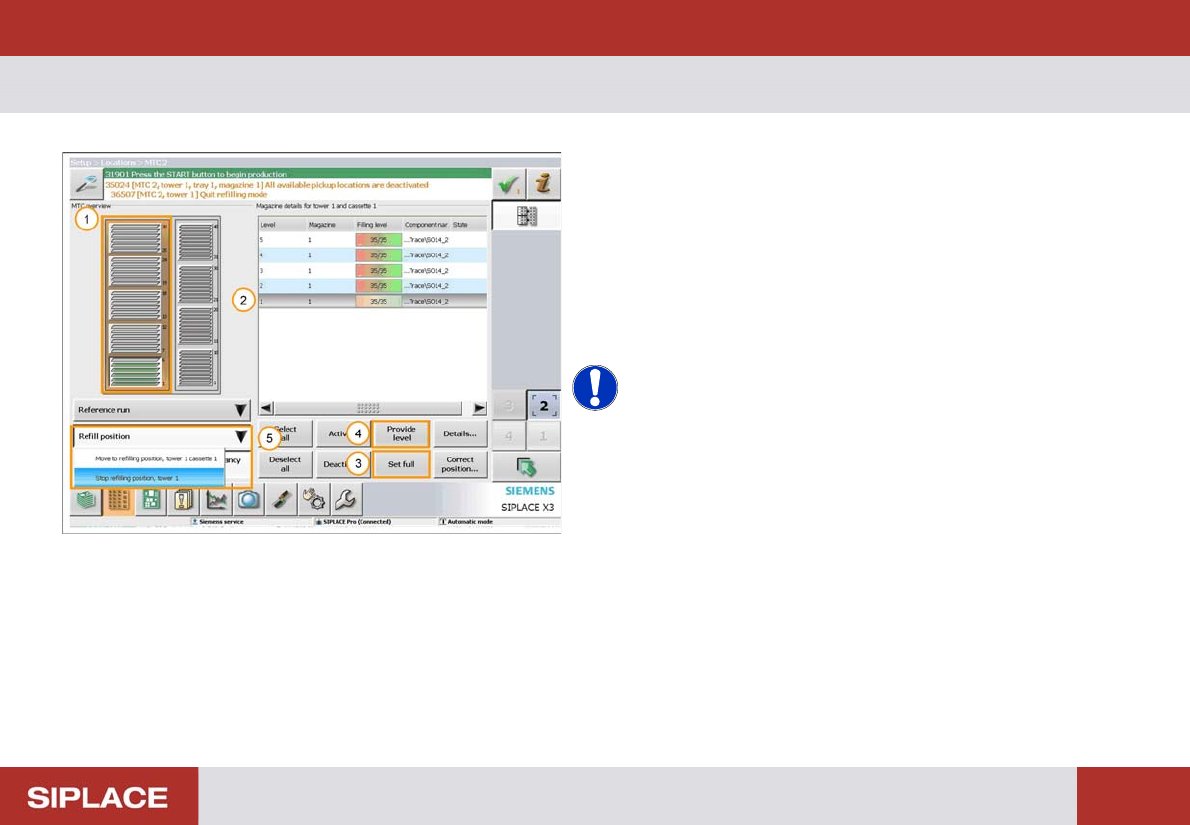
Refill the Tray s
1. The orange bar indicates that the Tower is at the
Refillposition.
2. Click on the tray that requires refilling
3. Select ‘Set full’ for a fully loaded tray.
4. Select ‘Provide level’ for a partially filled tray.
5. Once complete select ‘Refill position’ and then ‘Stop
refilling position’.
NOTICE! The MTC tower will now move back to
the feeding position and it will be ready to start production
again.
Option 703 MTC Refill - Refill a MTC tray :
149
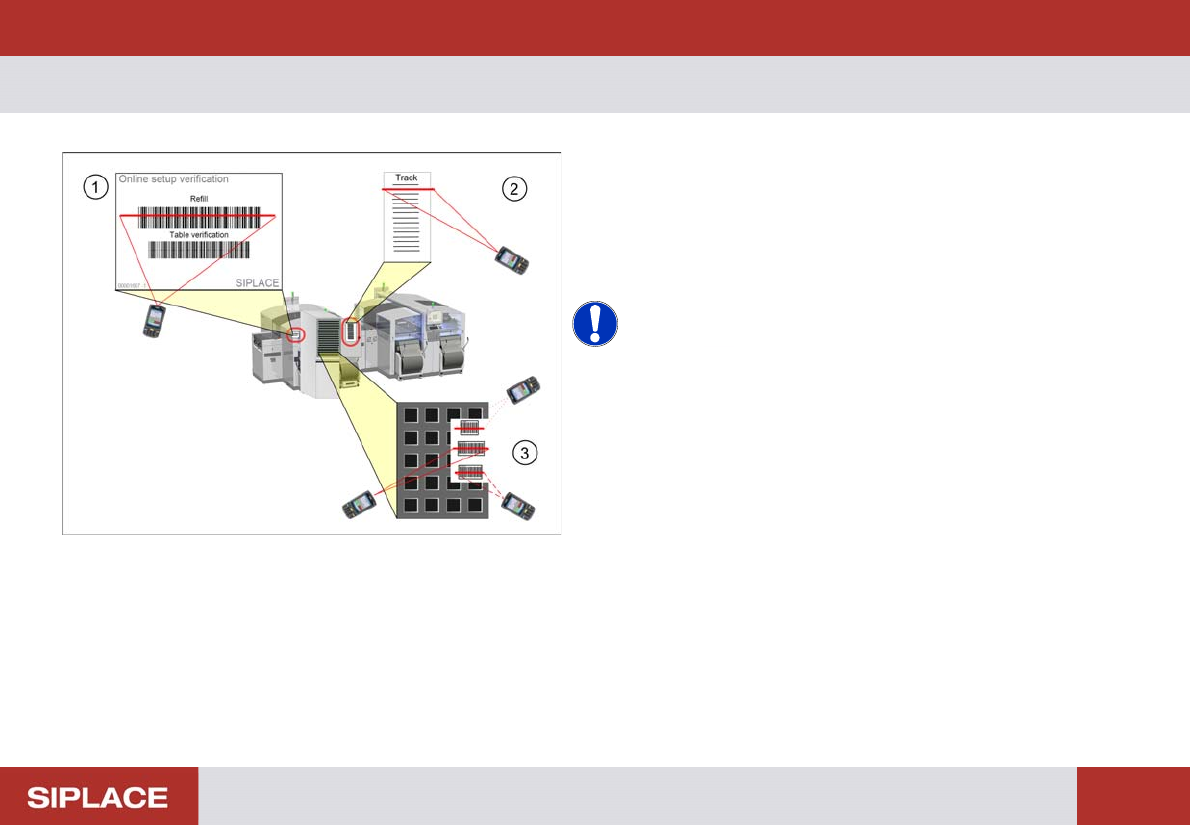
Refill a MTC tr ay
1. Scan the control barcode Refill of the location to be
verified.
2. Scan the Track barcode of the MTC tray be refilled.
You find the track barcode inside the MTC door.
3. Scan all configured barcodes of the packaging unit.
NOTICE! Depending on the configuration of
Setup Center further steps can be necessary during refill.
Therefore always watch the display of the barcode
reader.
e.g. scanning of user or reordering a packaging unit.
Option 703 MTC Refill - MTC Refill Completed :
150
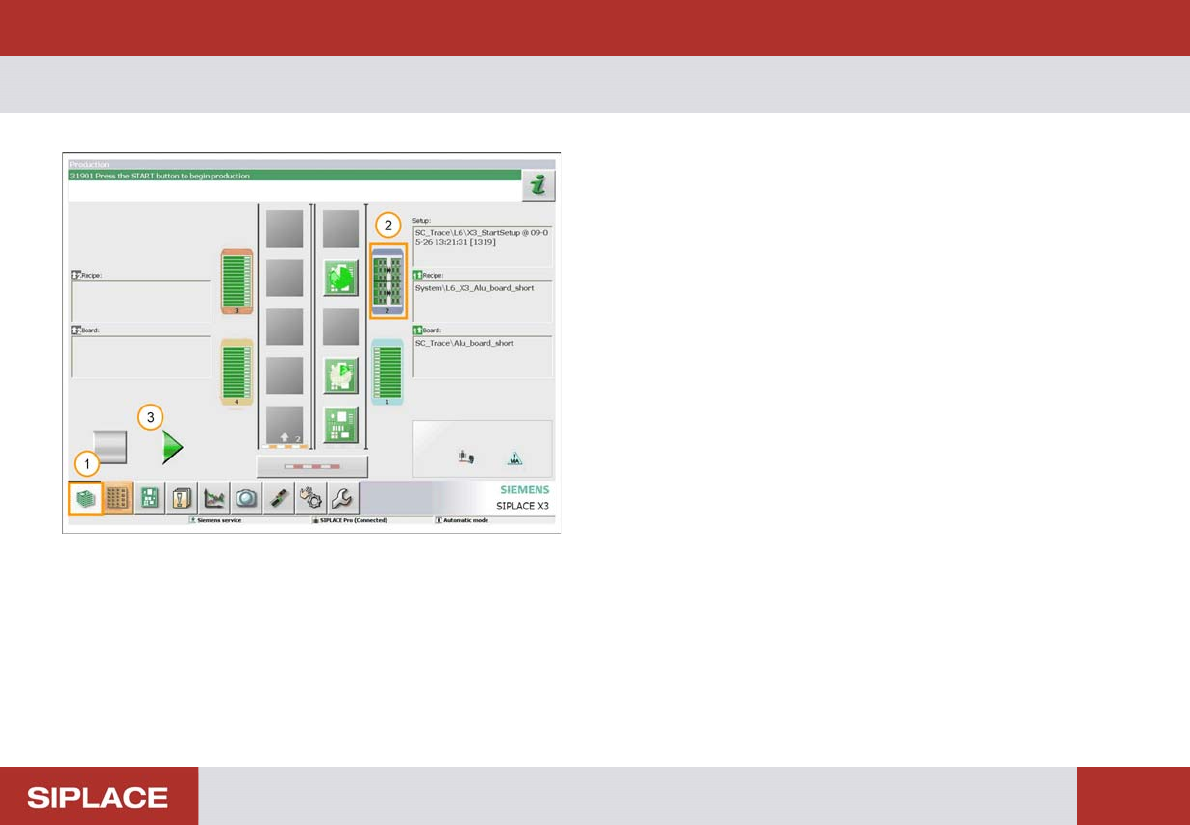
MTC Refill Completed
1. Click on the bottom left icon to return to the main
menu.
2. The indicators to the table should now go green,
showing that the MTC is refilled.
3. Click on the Processing Start / Stop icon or press the
machine start key to start production again.