00196851-02 OG SIPLACE Operation of X and SX-Series with SSC (SW70x) - 第48页
Setting Up X-Feeders - Preparing the Feeder - Inse rting the spacer (Tape Support) : 48 Preparin g the Feeder - Inserti ng the spac er (Tape Suppor t) NOTICE! A spacer (tape support only for paper tapes) should be inst a…
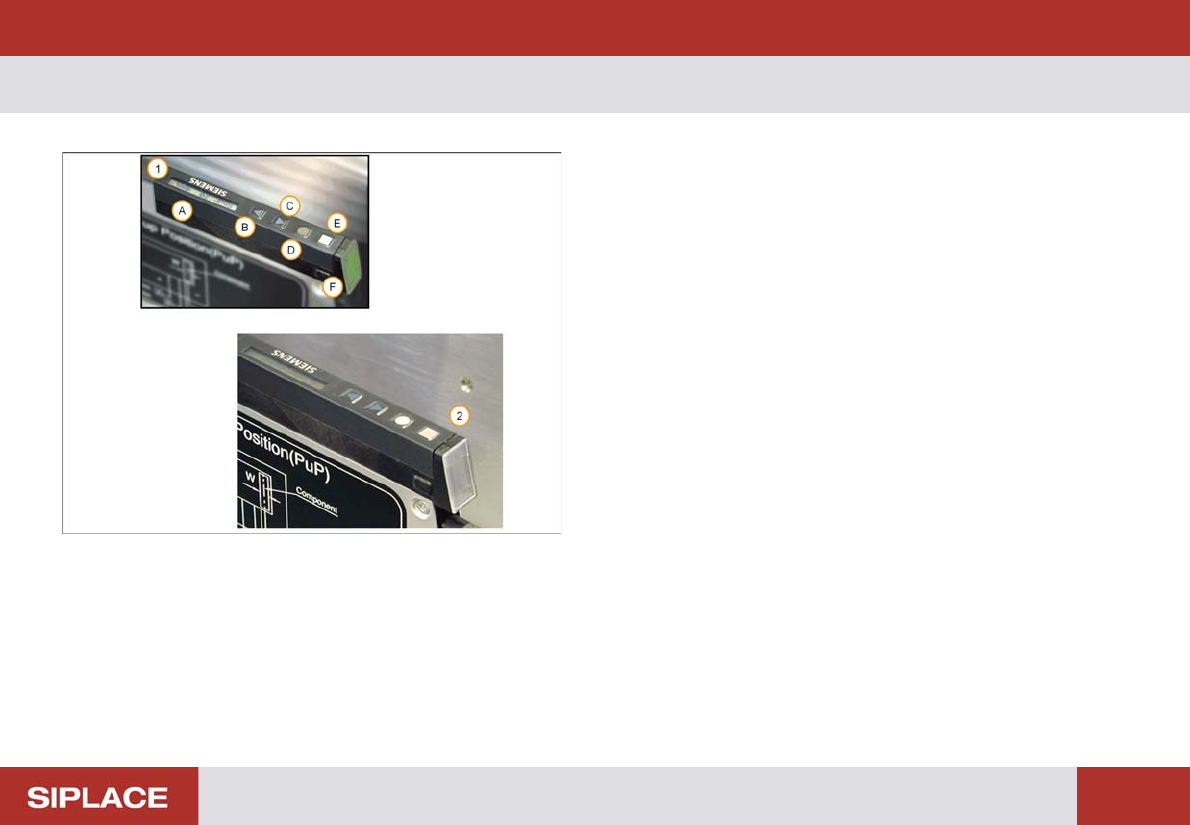
Setting Up X-Feeders - Overview - Features and Controls :
47
Overview - Features and C ontrols
1. Control Panel and status display
(A) Display
(B) Forwards button
(C) Backwards button
(D) Foil button
(E) Set button
(F) Status display
2. The status display panel color indicates the current
status
No light – feeder not in use
Green – feeder in use and loaded with correct
component.
Red – feeder deactivated by the machine
Orange – feeder requires a refill soon
Note – the orange display is only used when SIPLACE
verification software is installed at the line.
Setting Up X-Feeders - Preparing the Feeder - Inserting the spacer (Tape Support) :
48
Preparin g the Feeder - Inserti ng the spac er (Tape Suppor t)
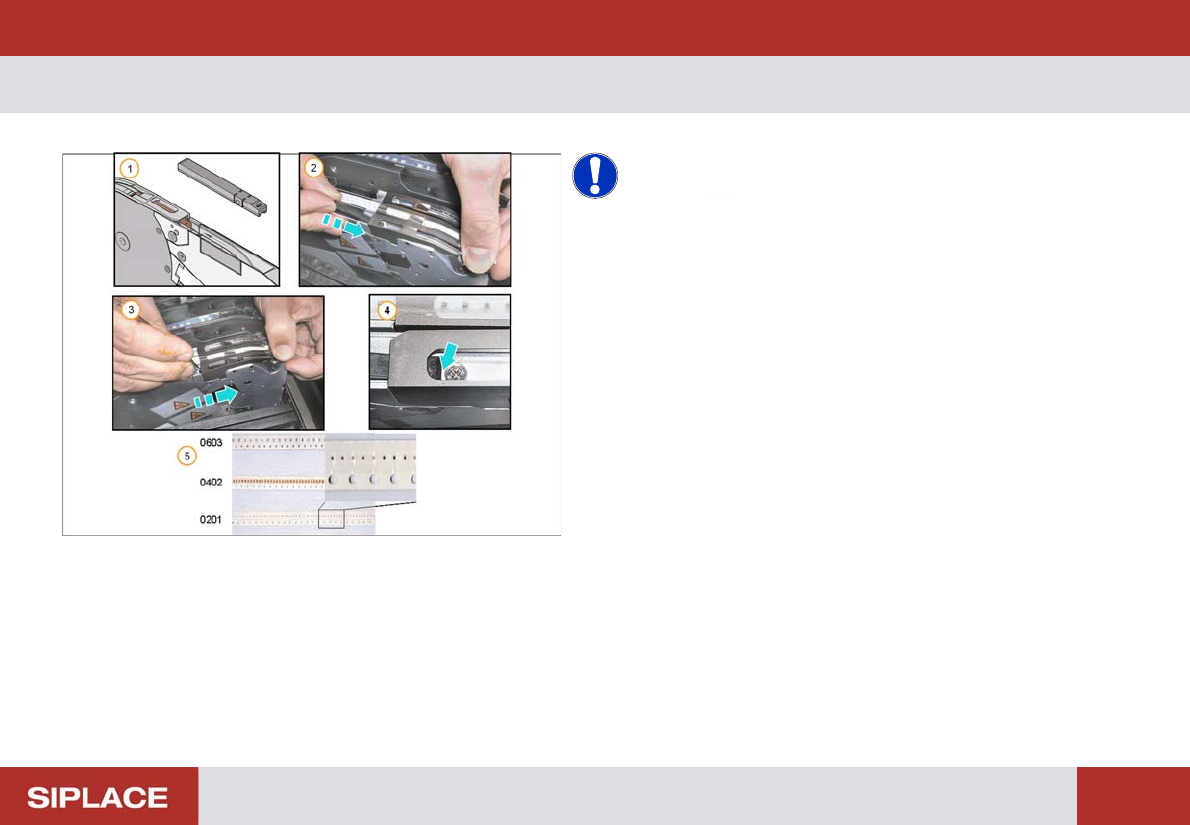
NOTICE! A spacer (tape support only for paper
tapes) should be installed below the pick-up position if
components of size 0402, or smaller, are processed. The
spacer should also be used if the components in a paper
tape are programmed to use non-contact pick-up.
1. X feeder spacer
2. Open the pick-up window and place the spacer in the
track
3. Push the spacer forward under the pick-up window
4. Ensure the locating pin on the bottom of the spacer
slots into the hole in the tape channel
5. Small Components –
0603 – no spacer needed.
0402 – spacer needed.
0201 – spacer needed.
Setting Up X-Feeders - Preparing the Feeder - Removing the spacer (Tape Support) :
49
Preparing the Feeder - Removing the spacer (Tape Support)
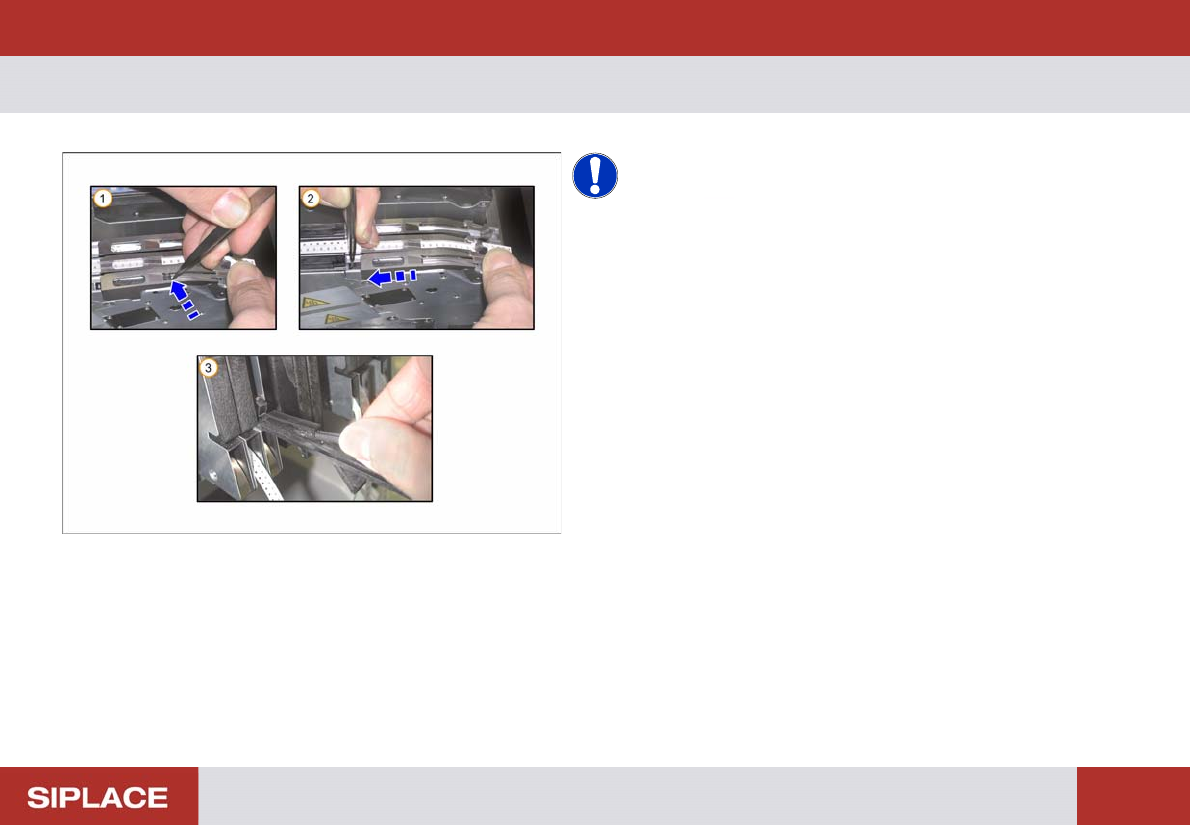
NOTICE! The lock mechanism prevents the
spacer from moving.
1. Open the pick-up window, use tweezers or a
screwdriver to lift the spacer locating pin out of the
hole.
2. Push the spacer backwards
3. The spacer can be stored in the foil disposal flap
when not in use