182050 User manual.pdf - 第112页
semi automatic 6(735()(5(1 &(6 35()(5(1&(6 2.2 User Manual Software Version 07SP02 PREFERENCES Machine Unit s Sets the uni t of measurement , options ar e: T ooling Hardware Sets which type of tooling is fitted,…
semi automatic
6(735()(5(1&(6
,1752'8&7,21
Software Version 07SP02 User Manual 2.1
CHAPTER 2 SET PREFERENCES
INTRODUCTION
The Set Preferences function allows for the setting of preferred machine control
options.
To access the set preferences window proceed as follows:
1. Select Maint. (F8).
2. Select Set Prefs (F5).
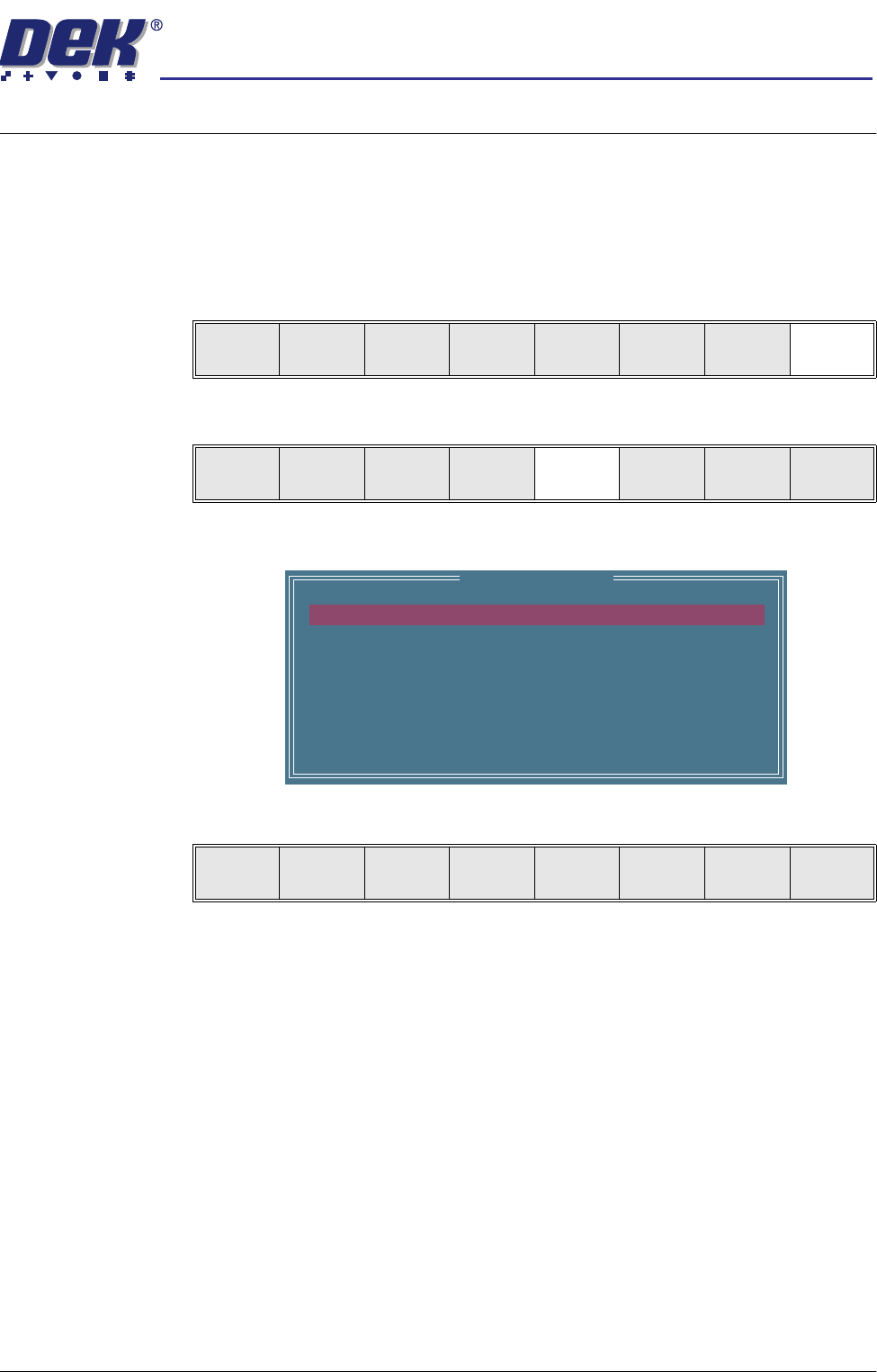
The set preferences window is displayed:
The menu bar changes to give the following options:
Next and Previous move the highlight between the various parameters.
Incr. and Decr. alter the value of the highlighted parameter.
Run
Open
Cover
Paste
Load
Clean
Screen
Setup Monitor Maint.
Calibrat
Pressure
Calibrat
Offset
Calibrat
Vision
House
Keeping
Set
Prefs
Diagnost
Te st
Cycles
Exit
Set Preferences
MACHINE UNITS
TOOLING HARDWARE
PRESSURE H/W
SCREEN SIZE
2D INSPECTION
IMAGE RECORDING
BOARD STOP X OFFSET
MACHINE LOCATION
UNDER SCREEN CLNR
Metric
PLAIN
NOT FITTED
265
DISABLED
OFF
28.0 mm
VACUUM
Next Previous Incr. Decr. Exit
semi automatic
6(735()(5(1&(6
35()(5(1&(6
2.2 User Manual Software Version 07SP02
PREFERENCES
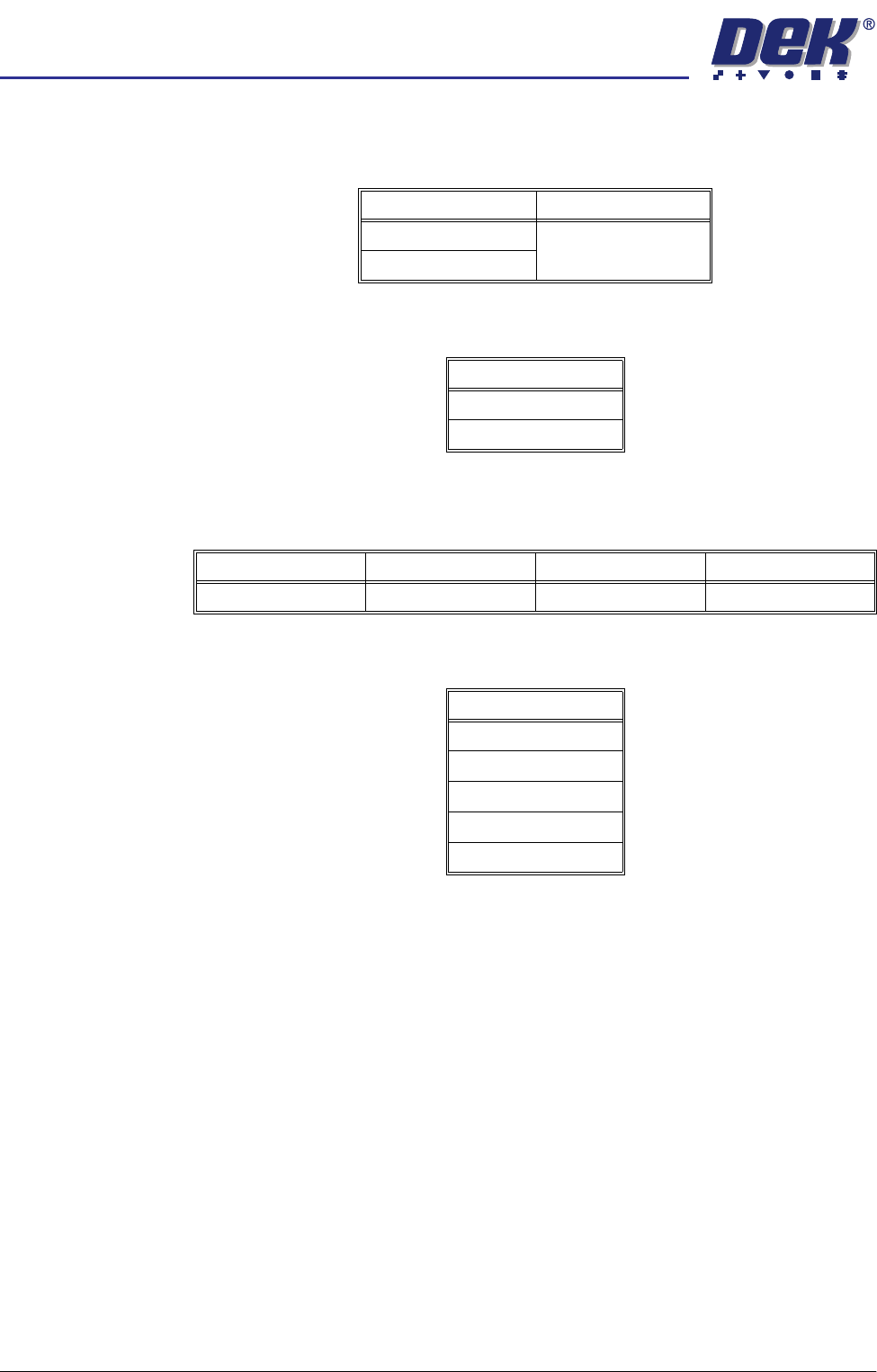
Machine Units Sets the unit of measurement, options are:
Tooling Hardware Sets which type of tooling is fitted, these options are:
ProFlow Contact
Position
This parameter sets the height of the ProFlow printhead so that it just touches
the stencil surface.
Screen Size Sets the screen size frame, these options are:
With Screen Library enabled the printer is provided with detailed screen dimen-
sional information from a ‘read only’ library. This information is stored within the
machine configuration and product files.
Once selected in Set Preferences, detailed frame dimensions are provided to
the printer. In Edit Current Process Parameters, the parameter Image Data
provides comprehensive location and mesh details to the printer.
To enable screen library files carry out the following:
1. Highlight Screen Size in the Set Prefs page.
2. Using Incr. or Decr. select Screen Library.
Edit Data is now available on the menu bar.
Options Default
Metric Metric
Imperial
Options
Vacuum
Plain
Minimum Maximum Increment Default
- 10mm +10mm 0.1mm 0.0mm
Options
265
Fuji
249
Sanyo
Library
semi automatic
6(735()(5(1&(6
35()(5(1&(6
Software Version 07SP02 User Manual 2.3
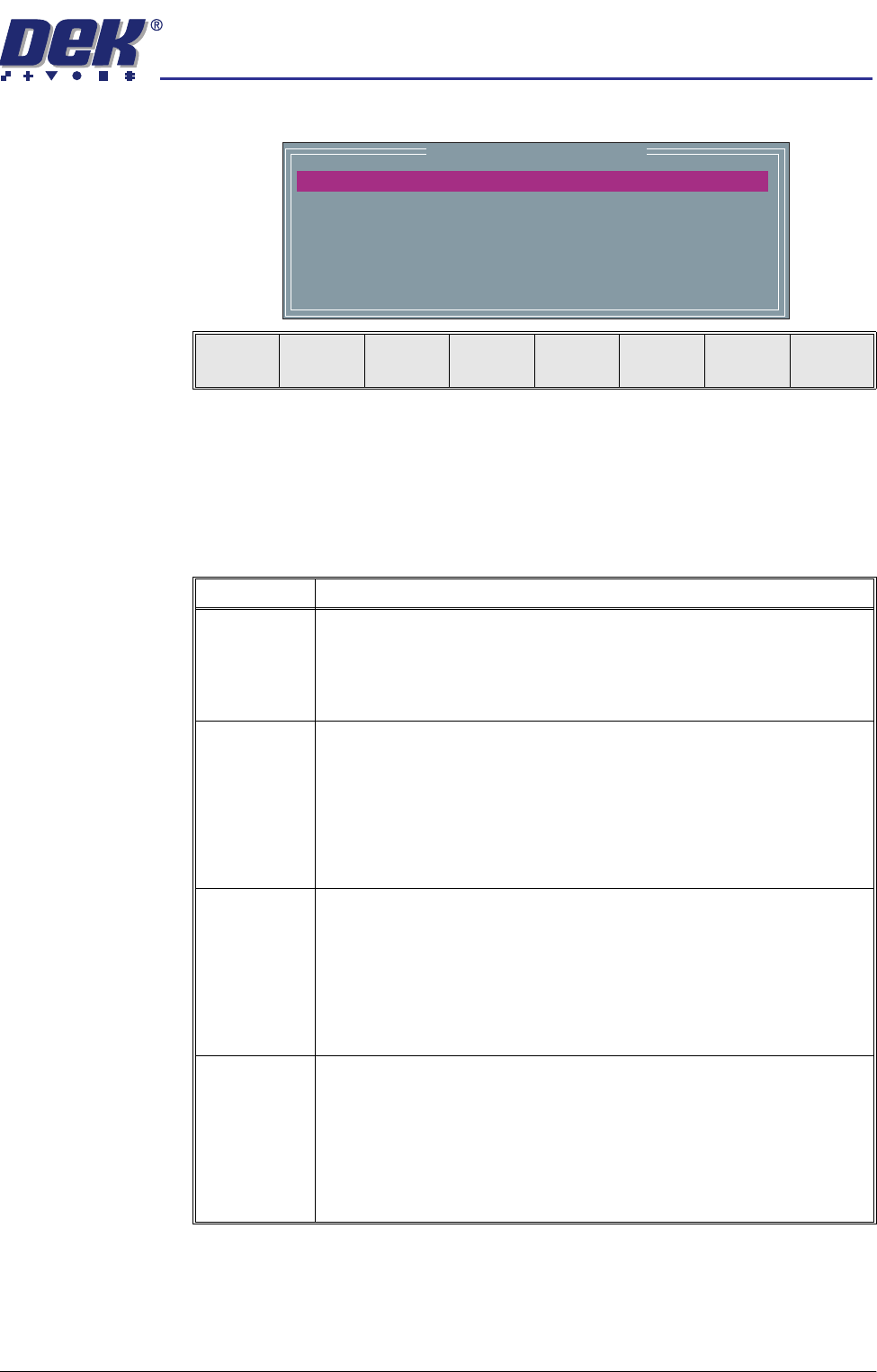
3. Select Edit Data, the following window and menu bar is displayed:
Use Incr. or Decr. to select the required Screen Type. If no valid screen
library files are found, the default file DEK 265 Central Image is displayed.
Use the Next or Previous to select and Incr. or Decr. to modify the screen
frame parameters as required.
The screen library menu parameters are defined in the following table:
mm
mm
mm
mm
mm
mm
Screen Frame Configuration
XXX
XXX
XXX
XXX
XXX
XXX
SCREEN TYPE
SCREEN LENGTH
SCREEN WIDTH
FRAME FRONT
FRAME REAR
FRAME LEFT
FRAME RIGHT
DEK 265 CENTRAL IMAGE
Next Previous Incr. Decr. Exit
Parameter Definition
Screen
Record ID
The identity of the screen type library record containing a text string that
matches the Screen Type selected.
Format Maximum 32 character text string
Default DEK 265 Central Image
Screen Length This parameter sets overall dimension front to rear of the screen frame or
adaptor.
Minimum 550mm
Maximum 860mm
Increment 0.1mm
Default 736.6mm
Screen Width This parameter sets the overall dimension left to right of the screen frame or
adaptor.
Minimum 580mm
Maximum 736.6mm
Increment 0.1mm
Default 736.6mm
Frame Front This parameter sets the distance between the outer edge of the screen frame
or adaptor and the inner edge of the frame, at the front of the frame.
Minimum 20mm
Maximum Screen Length - 250mm
Increment 0.1mm
Default 38.1mm