182050 User manual.pdf - 第115页
semi automatic 6(735()(5( 1&(6 35()(5(1& (6 Software Version 07SP02 User Manual 2.5 Blue Under Screen Cleaner T o enable the blue under screen cl eaner carry out the followin g: 1. Press the f unction key F10 on…
semi automatic
6(735()(5(1&(6
35()(5(1&(6
2.4 User Manual Software Version 07SP02
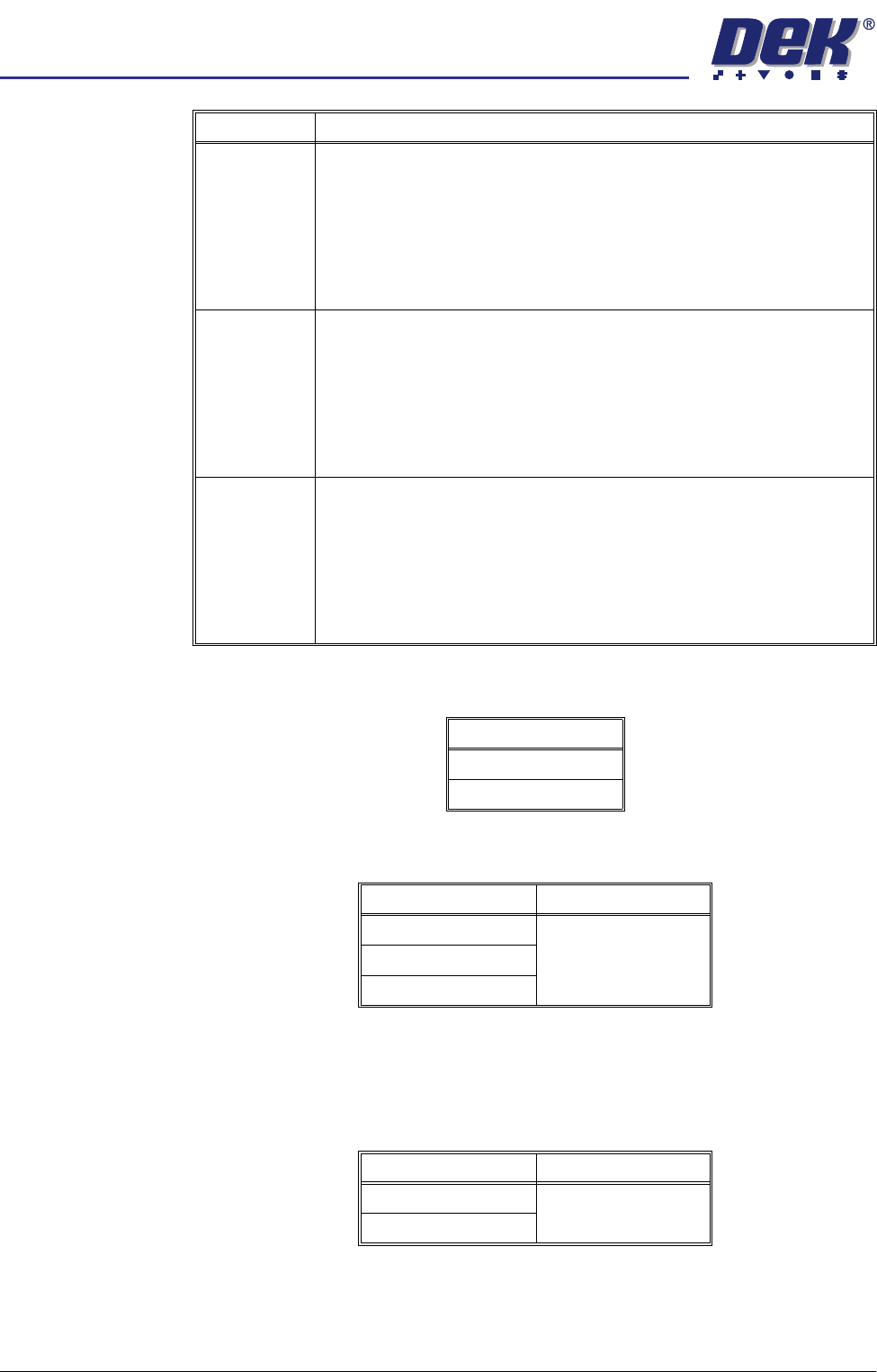
2D Inspection Sets whether the 2D Inspection facility is to be used, options are:
Image Recording Sets whether video images can be recorded, options are:
NOTE
PC disk requires the PC to have 8Mb ram and VP disk requires a SCSI disk to
be attached to the VP.
Under Screen
Cleaner
Sets whether or not the vacuum option is fitted to the machine, options are:
If standard is selected the vacuum options are removed from the screen clean
mode parameters.
Frame Rear This parameter sets the distance between the outer edge of the screen frame
or adaptor and the inner edge of the frame, at the rear of the frame.
Minimum 20mm
Maximum Screen Length - 250mm
Increment 0.1mm
Default 38.1mm
Frame Left This parameter sets the distance between the outer edge of the screen frame
or adaptor and the inner edge of the frame, at the left of the frame.
Minimum 20mm
Maximum Screen Length - 250mm
Increment 0.1mm
Default 38.1mm
Frame Right This parameter sets the distance between the outer edge of the screen frame
or adaptor and the inner edge of the frame, at the right of the frame.
Minimum 20mm
Maximum Screen Length - 250mm
Increment 0.1mm
Default 38.1mm
Parameter Definition
Options
Enabled
Disabled
Options Default
OFF OFF
PC Disk
VP Disk
Options Default
Vacuum Standard
Standard

semi automatic
6(735()(5(1&(6
35()(5(1&(6
Software Version 07SP02 User Manual 2.5
Blue Under Screen
Cleaner
To enable the blue under screen cleaner carry out the following:
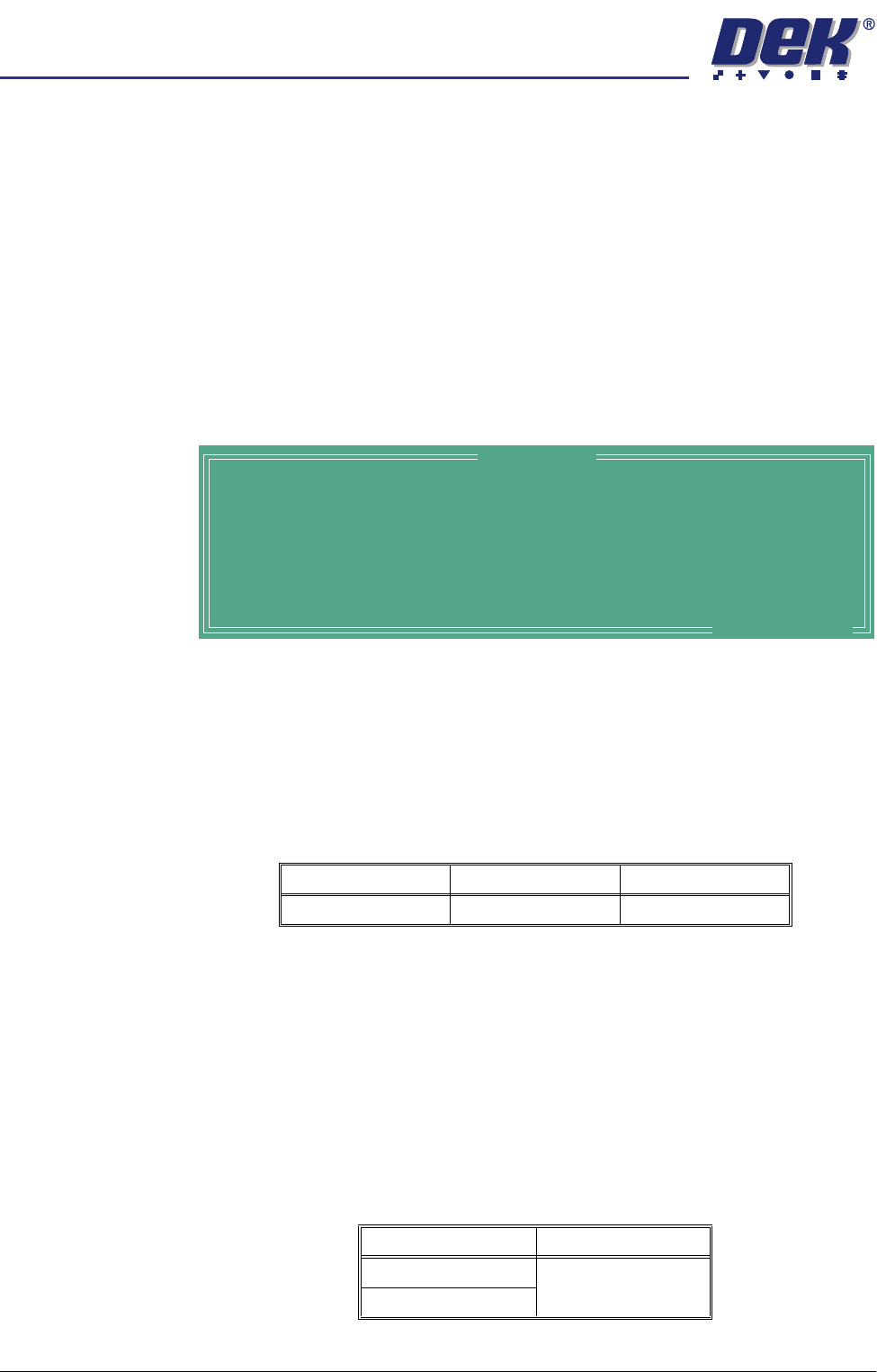
1. Press the function key F10 on the keyboard, the following window is
displayed:
2. Type bluon using the keyboard.
3. Press Enter, the message ‘Blue Under-Screen Cleaner Enabled’ is dis-
played in the message prompt bar.
4. Press Exit.
To disable the blue under screen cleaner carry out the following:
1. Press the function key F10 on the keyboard, the following window is
displayed:
2. Type bluoff using the keyboard.
3. Press Enter, the message ‘Blue Under-Screen Cleaner Disabled’ is
displayed in the message prompt bar.
4. Press Exit.
Vortex Under
Screen Cleaner
To enable the Vortex under screen cleaner carry out the following:
1. Press the function key F10 on the keyboard, a window of the following form
is displayed:
NOTE
If the blue under screen cleaner is currently enabled, carry out disabling the
blue under screen cleaner first.
Enter to Close ...
Serial Number
Executable date
Executable time
Executable name
Software Version
Options Enabled
:
:
:
:
:
:
276178
August 19 2002
10:57:38
RTX494.EXE
RTX494.00
BF
DEK VIKING
Enter to Close ...
Serial Number
Executable date
Executable time
Executable name
Software Version
Options Enabled
:
:
:
:
:
:
276178
August 19 2002
10:57:38
RTX494.EXE
RTX494.00
BF
DEK VIKING
Enter to Close ...
Serial Number
Executable date
Executable time
Executable name
Software Version
Options Enabled
:
:
:
:
:
:
276178
August 19 2002
10:57:38
RTX494.EXE
RTX494.00
BF
DEK VIKING
semi automatic
6(735()(5(1&(6
35()(5(1&(6
2.6 User Manual Software Version 07SP02
2. Type vorton using the keyboard.
3. Press Enter, the message ‘Vortex Under-Screen Cleaner Enabled ’is
displayed in the message prompt bar.
The Vortex under screen cleaner becomes the current cleaner and all
cleaner parameters become appropriate to the Vortex cleaner.
The value of the configuration parameter cleaner type is set to Vortex and
this parameter is written to the configuration file.
4. Press Exit.
To disable the Vortex under screen cleaner carry out the following:
1. Press the function key F10 on the keyboard, a window of the following form
is displayed:
2. Type vortoff using the keyboard.
3. Press Enter, the message Vortex Under-Screen Cleaner Disabled is
displayed in the message prompt bar.
4. Press Exit.
Board Stop X
Offset
This parameter allows a value to input which compensate for variations in the
focal lengths of the vision systems between machines.
Machine Location This allows the operator to enter text to uniquely identify the machine. Output
is via SPC.
On selecting Incr. with machine locations highlighted, the message ‘Please
type in the text, then press Return’ is displayed. The menu softkeys are
blanked out.
Generic Tooling This preference enables enhanced tooling setup, allowing the operator to step
between various elevations of the rising table between home height and contact
height. At contact height an operator can check that the setup of the tooling is
adequate for the current product. The options are:
Enter to Close ...
Serial Number
Executable date
Executable time
Executable name
Software Version
Options Enabled
:
:
:
:
:
:
276178
August 19 2002
10:57:38
RTX494.EXE
RTX494.00
BF
DEK VIKING
Minimum Maximum Default
20mm 40mm 28mm
Options Default
Enabled Enabled
Disabled