182050 User manual.pdf - 第190页
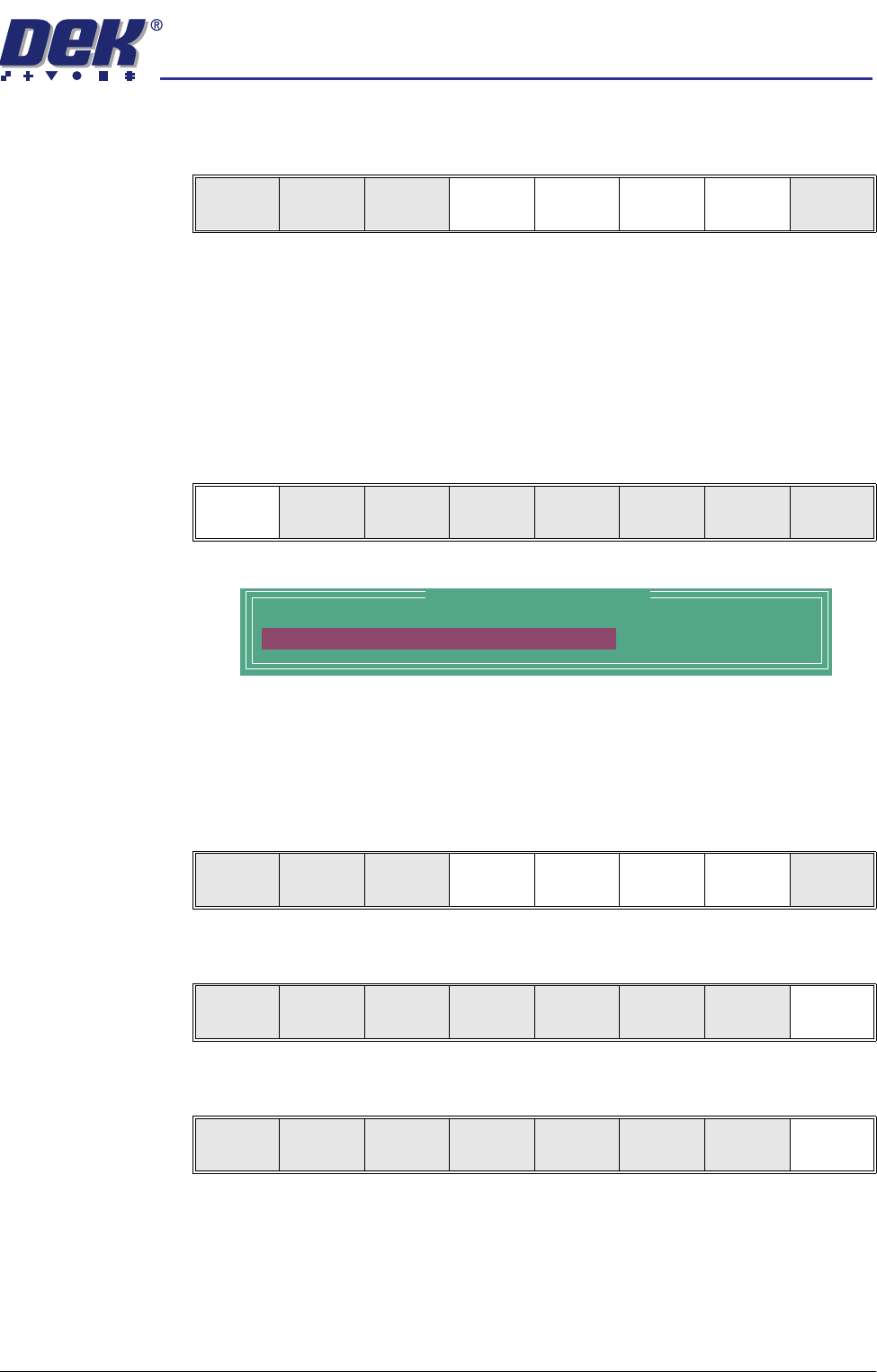
semi automatic ',163(&7,21 ',163(&7,21 6(78 3 7.16 User Manual Software Ve rsion 07SP02 Edit Limit Set 1. Select Edit Li mit s . NOTE Some buttons in the menu bar abov e may not be shown, depending…
semi automatic
',163(&7,21
',163(&7,216(783
Software Version 07SP02 User Manual 7.15
2. Enter the parameter values below using the Next, Previous, Incr. and Decr.
keys.
• Pre-images to Every
• Warning Limit to 20, this can be reduced later in ‘adjust inspect’
A definition of all 2Di parameters and their values is given at the end of this
chapter.
On completion of successful setup, parameters can be adjusted to suit the
product.
3. Select Limit Options.
This is usually set to enabled. If the global limit option is disabled, the limit
set and parameter is greyed out. This is a global limit, therefore it is active
for the whole product. If paste inspection is not required for a specific type
of site, this can be achieved later in limit set options for the site.
4. Enter global limit options using Next, Previous, Incr. and Decr. keys.
5. Select Exit.
6. Select Exit.
Limit
Options
Next Previous Incr. Decr. Exit
Limit
Options
Next Previous Incr. Decr. Exit
Global Limit Set Options
Paste Enabled
Next Previous Incr. Decr. Exit
Next Previous Incr. Decr. Exit
Limit
Options
Next Previous Incr. Decr. Exit
semi automatic
',163(&7,21
',163(&7,216(783
7.16 User Manual Software Version 07SP02
Edit Limit Set 1. Select Edit Limits.
NOTE
Some buttons in the menu bar above may not be shown, depending if sites
already exist.
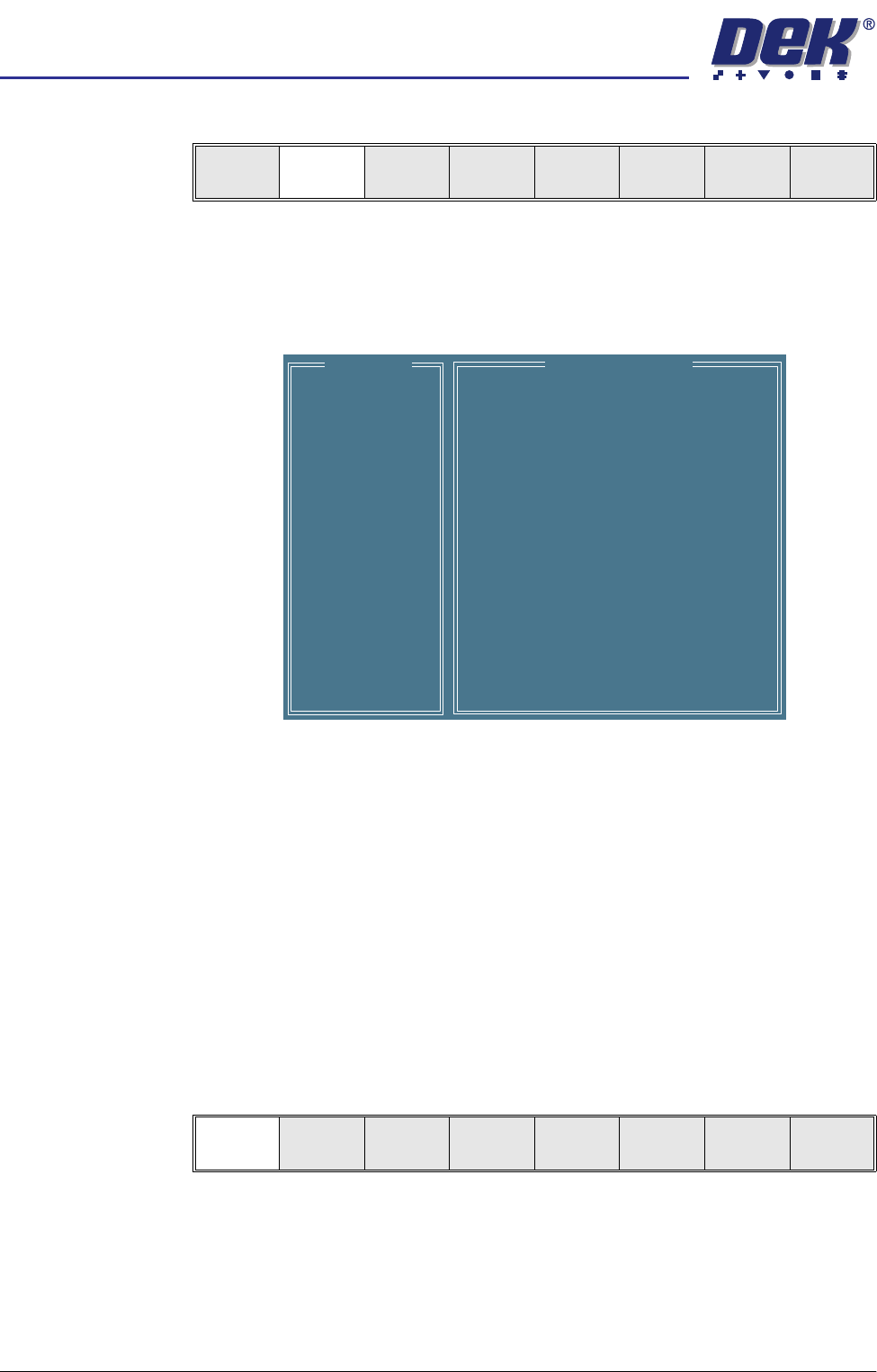
The following window is displayed:
Limit sets list the different sets of limit parameters that are available, initially
only default is available. Limit parameters list the current limits for the
highlighted limit set.
2. At this point either:
a. Add limits to create a new limit set, continue with Add Limits below.
or
b. Edit limits to edit an existing limit set, go to the Edit Limits section.
NOTE
It is recommended that during setup, parameters are set at a level that no
alarms occur (coarse). Once the inspection is correctly setup, the parame-
ters can be tightened during production in ‘adjust inspect’.
Add Limits 1. Select Add Limits.
NOTE
Next limit and previous limit are only available if at least one limit, plus the
default, exist already.
Edit
Global
Edit
Limits
Delete
Site
Edit
Site
Inspect
Site
Exit
Default
-
-
-
-
-
-
-
-
-
-
-
-
-
Default
90%
80%
Limit ID
Paste Warning
PasteAlarm
Limit Sets
Limit Parameters
Add
Limits
Edit
Limits
Next
Limit
Previous
Limit
Exit
semi automatic
',163(&7,21
',163(&7,216(783
Software Version 07SP02 User Manual 7.17
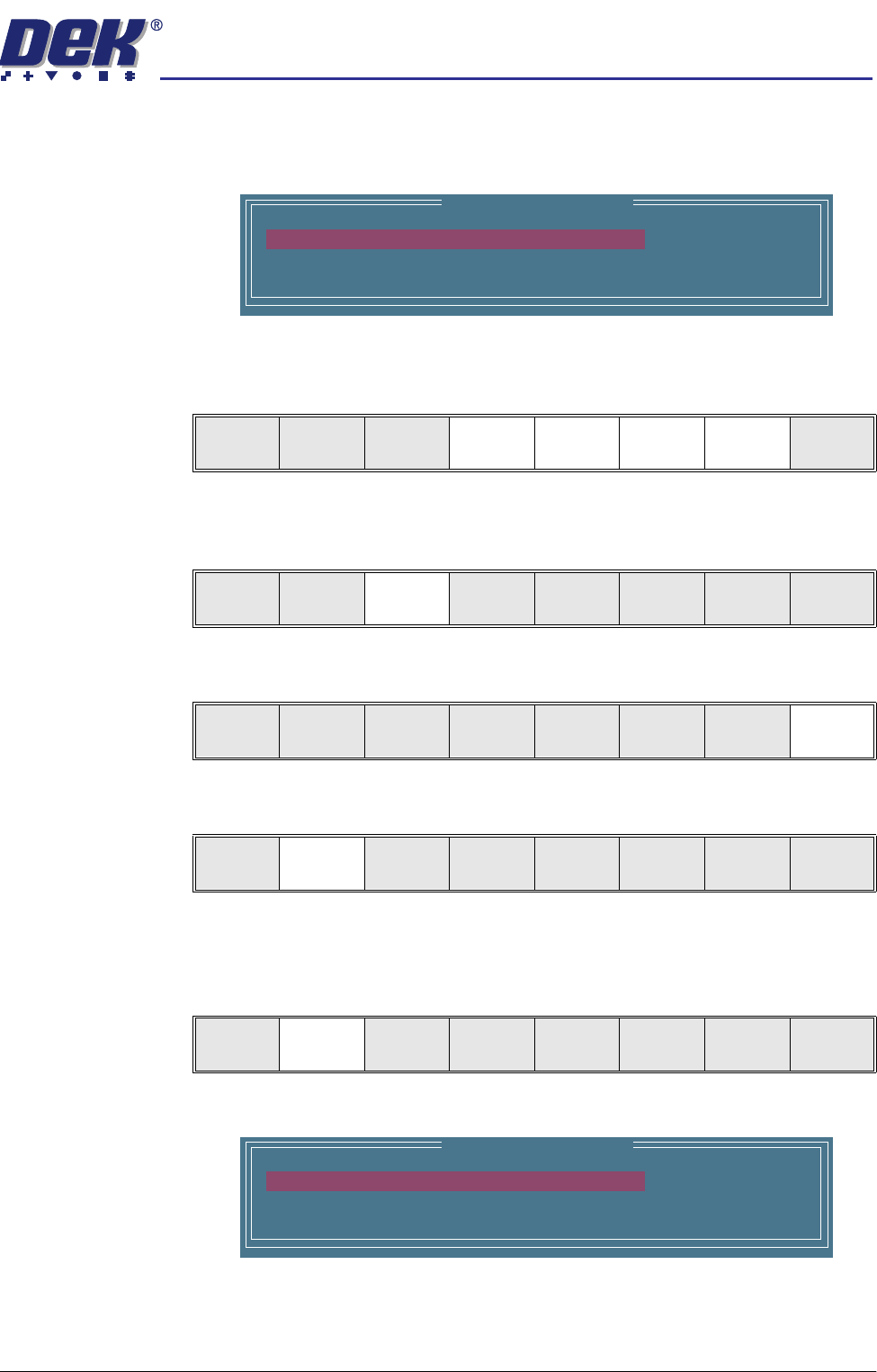
2. Use the keyboard to enter the ID of the new limit set and press Enter.
NOTE
Limit ID may be any name up to 20 characters in length including spaces.
3. Enter parameters using the Next, Previous, Incr. and Decr. keys. A coarse
set of values is shown above.
4. Select Save Limits. The message ‘Saving Fiducial Data - Please Wait
Board data file saved’ is displayed.
5. Select Exit.
6. Select Edit Limits.
7. Go to Step 3 of Edit Limits (below).
Edit Limits 1. Select Edit Limits.
The following window is displayed:
Edit Limit Parameters
Limit ID
Paste Warning
PasteAlarm
COARSE
90
80
Save
Limits
Next Previous Incr. Decr. Exit
Save
Limits
Next Previous Incr. Decr. Exit
Save
Limits
Next Previous Incr. Decr. Exit
Add
Limits
Edit
Limits
Next
Limit
Previous
Limit
Exit
Add
Limits
Edit
Limits
Next
Limit
Previous
Limit
Exit
Edit Limit Parameters
Limit ID
Paste Warning
PasteAlarm
COARSE
90
80