182050 User manual.pdf - 第198页
semi automatic ',163(&7,21 ',163(&7,21 6(78 3 7.24 User Manual Software Ve rsion 07SP02 Inspect 1. Select Exit . 2. Select Step until board i s printed. 3. Select Step until th e Inspect Se tup men…
semi automatic
',163(&7,21
',163(&7,216(783
Software Version 07SP02 User Manual 7.23
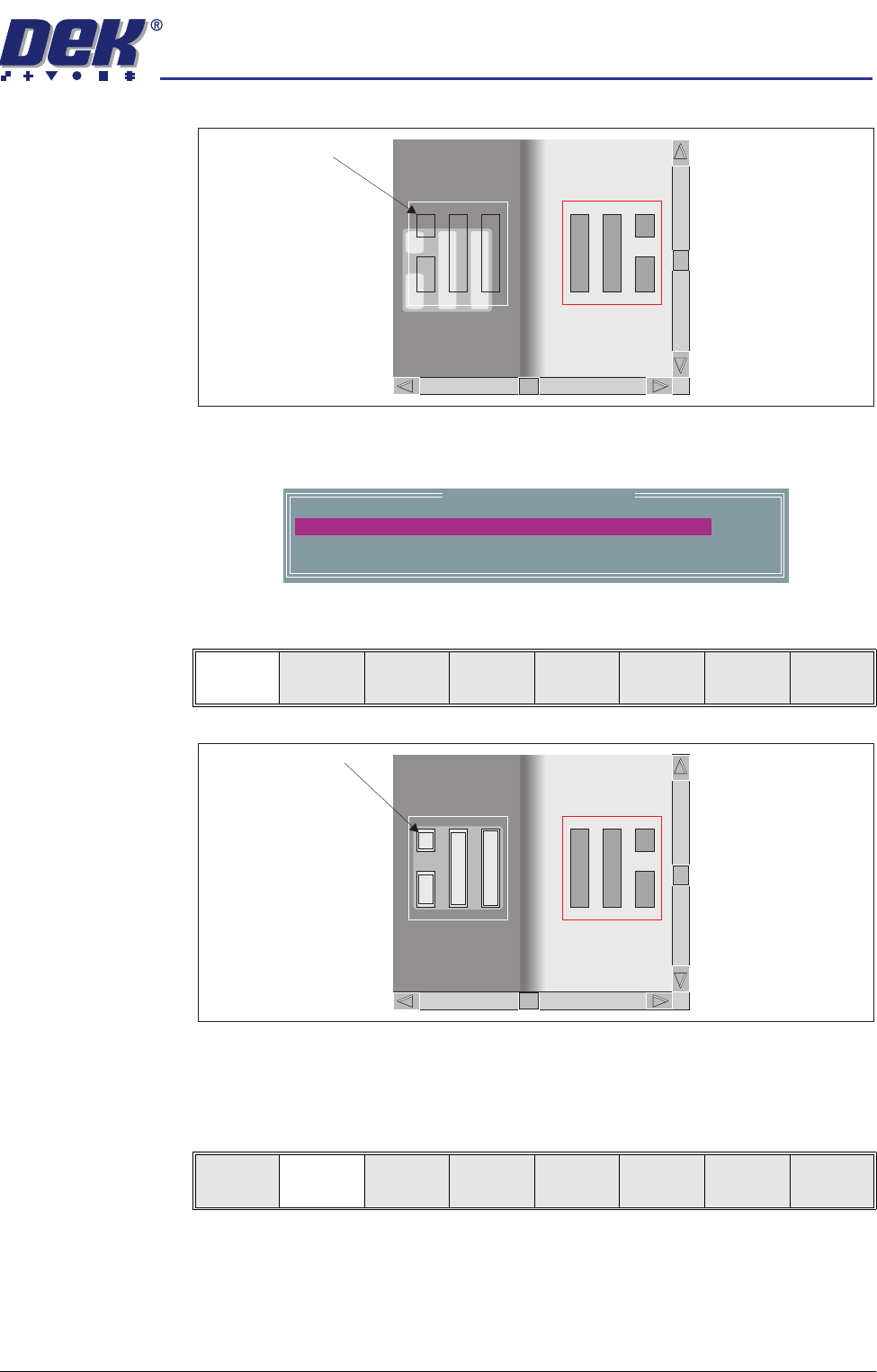
If the graphics on the board side requires adjusting, use the Incr. Decr. to
adjust the X and Y offsets to align the overlay onto the pads.
6. Select Learn Board.
The message ‘Board Learnt’ is displayed in the message prompt bar.
7. If ‘...Board Not Learnt’ is displayed, select Adjust Screen and return to
Step 4.
8. Select Exit.
9. Select Exit.
Image on board does
not coincide with
board pads
Learn Site Parameters
0.0
0.0
mm
mm
BOARD GRAPHIC X
BOARD GRAPHIC Y
Learn
Board
Adjust
Screen
Next Previous Incr. Decr. Exit
Outline of pads are
superimposed on the
board display
Learn
Board
Adjust
Screen
Next Previous Incr. Decr. Exit
semi automatic
',163(&7,21
',163(&7,216(783
7.24 User Manual Software Version 07SP02
Inspect 1. Select Exit.
2. Select Step until board is printed.
3. Select Step until the Inspect Setup menu button is displayed.
4. Select Inspect Setup.
5. Select Inspect Site.
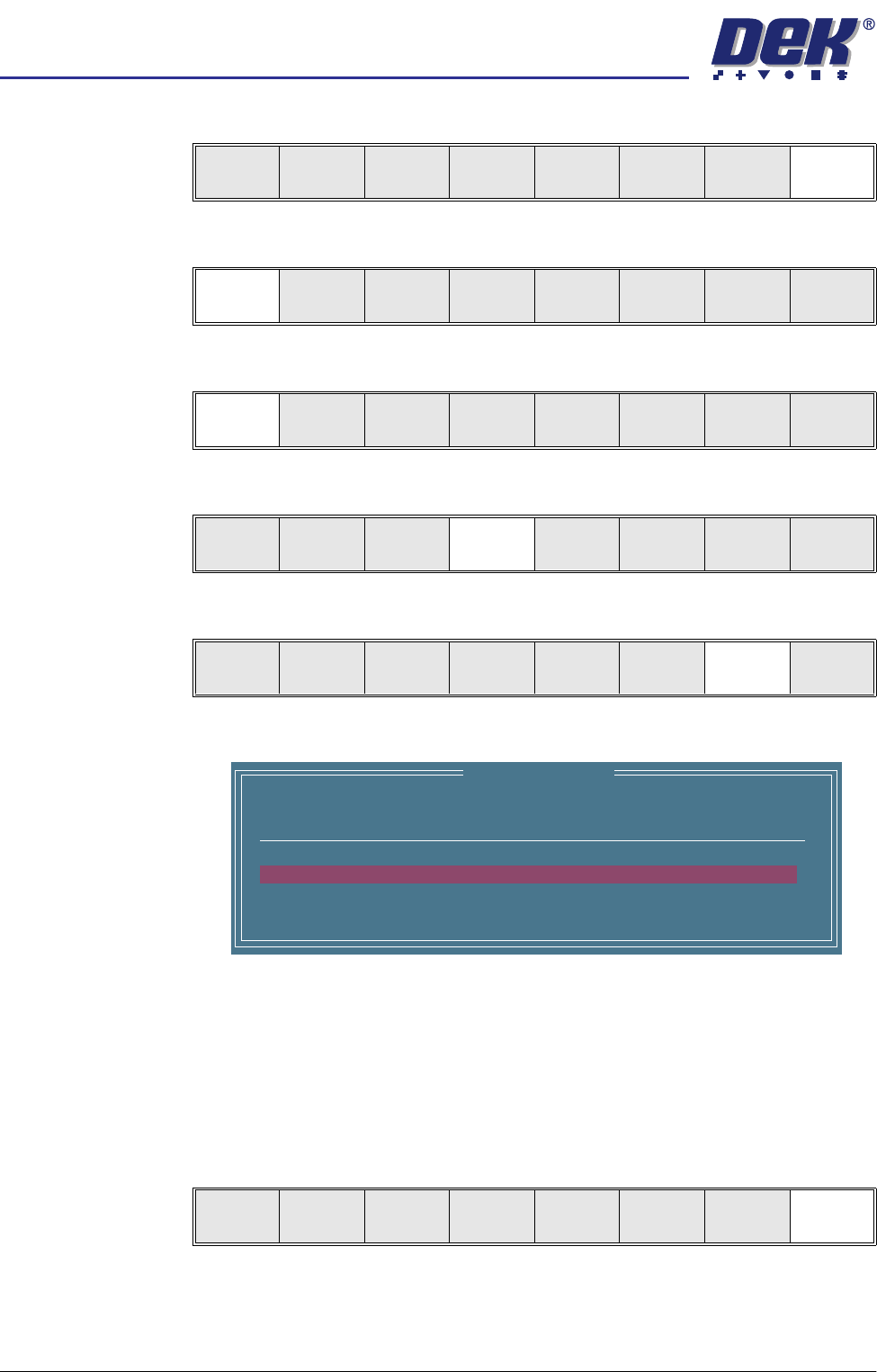
The following window is displayed:
NOTE
A reliable paste present reading is made only when the lighting is set
correctly.
6. Ensure that the inspection results are consistent with the amount of paste
on the pad. If this is correct go to Step 19. If this is incorrect continue with
Step 7.
7. Select Exit.
Edit
Global
Edit
Limits
Delete
Site
Edit
Site
Inspect
Site
Exit
Step
Inspect
Setup
Single Exit
Step Single Exit
Step
Inspect
Setup
Single Exit
Edit
Global
Edit
Limits
Delete
Site
Edit
Site
Inspect
Site
Exit
SITE NAME
Minimum Paste
SITE001
80%
Inspection Results
ALARM
No. Paste Present
1 94%
2 98%
Auto
Scale
Next Previous Exit
semi automatic
',163(&7,21
',163(&7,216(783
Software Version 07SP02 User Manual 7.25
8. Select Edit Site.
9. Select Light Setup.
10. Adjust the lighting parameters to improve the lighting conditions in the
suspect areas.
11. Select Exit.
NOTE
Record Image button is displayed if Image Recording is enabled in Set
Preferences.
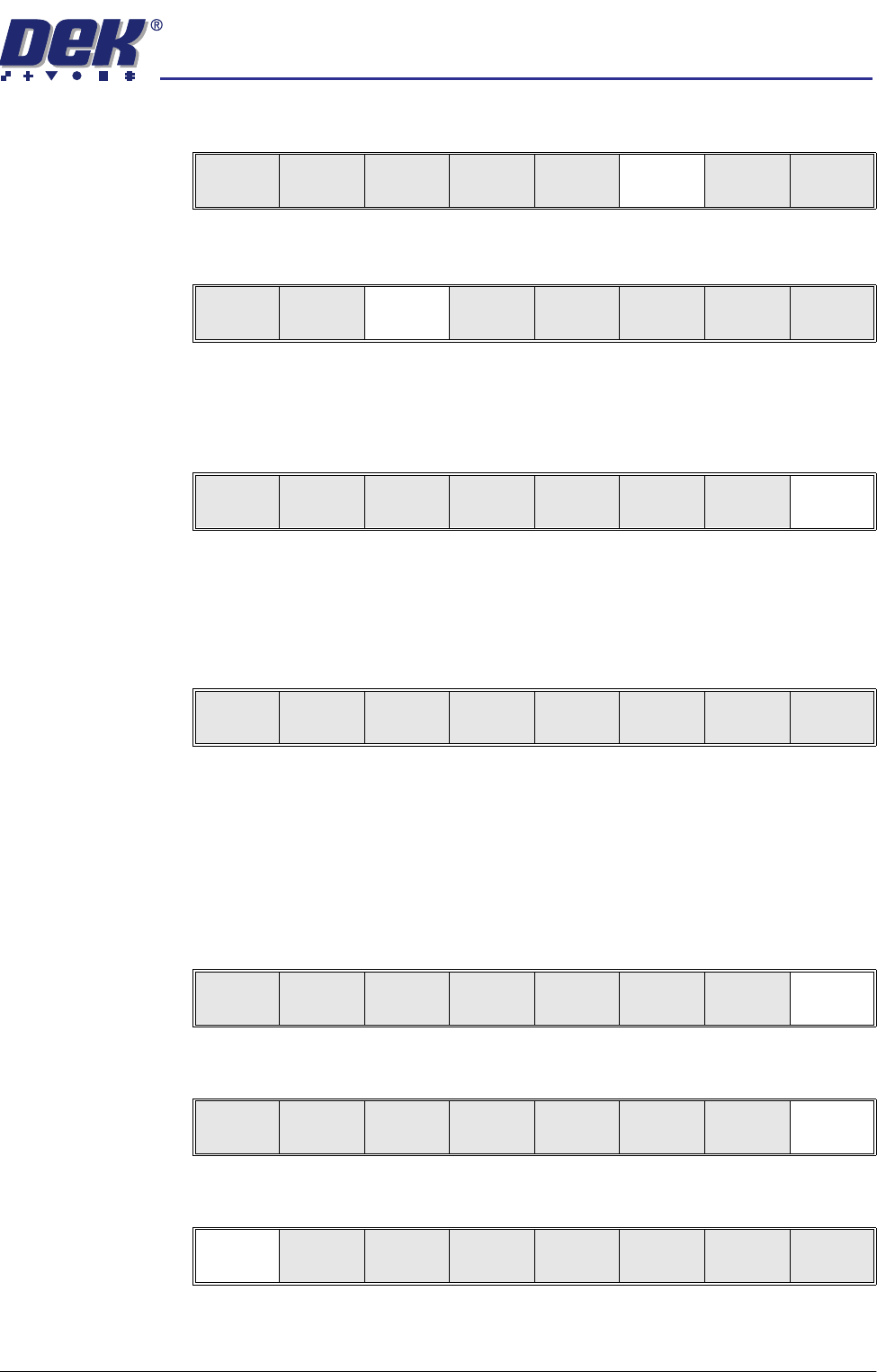
12. If lighting is changed the following menu bar is displayed:
Select the following button to adopt the changes to:
• ‘Apply to Full Set’ - to update only this device
• ‘Apply to All ’ - all learnt sites
• ‘Exit’ - just the current site
13. Select Exit.
14. Select Exit.
15. Select Step to step through inspection routine.
Edit
Global
Edit
Limits
Delete
Site
Edit
Site
Inspect
Site
Exit
Light
Setup
Next Previous Incr. Decr. Exit
Record
Image
Next Previous Incr. Decr. Exit
Apply to
Full Set
Apply to
All
Exit
Light
Setup
Next Previous Incr. Decr. Exit
Edit
Global
Edit
Limits
Delete
Site
Edit
Site
Inspect
Site
Exit
Step
Inspect
Setup
Single Exit