182050 User manual.pdf - 第214页
semi automatic &21680$ %/(5(3/ (1,6+0 (176 3$67(/2$ ',1* 8.6 User Manual Software Version 0 7SP02 2. Press Edit D ata (F3). 3. Using the Next and Previous key s (F4 - F5) select the Paste Dispense Rate. 4. Usi…
semi automatic
&21680$%/(5(3/(1,6+0(176
3$67(/2$',1*
Software Version 07SP02 User Manual 8.5
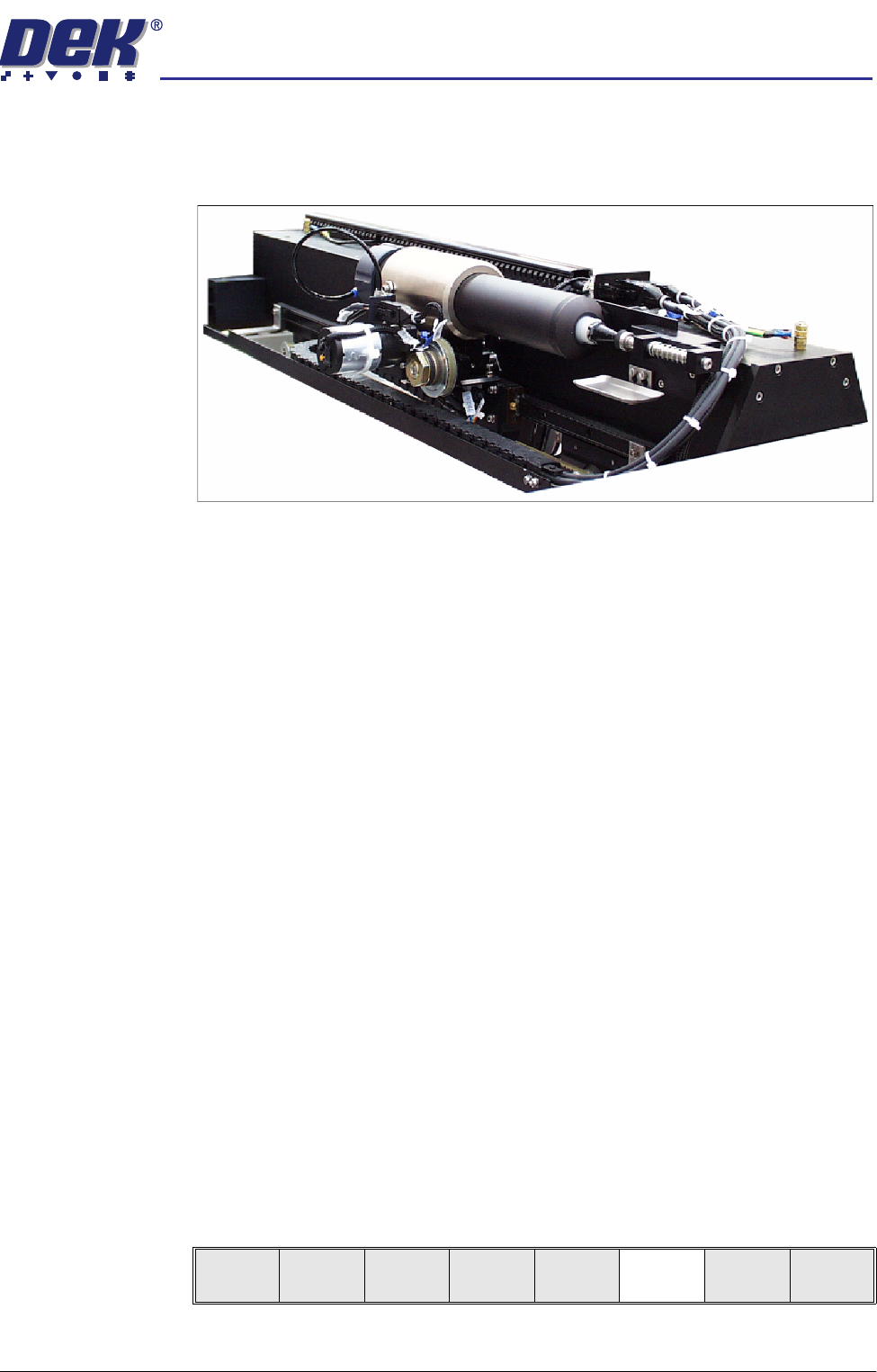
Auto Dispense An alternative to manual loading of solder paste to the screen is given with the
provision of an automatic paste dispenser. This is mounted to the rear of the
print carriage.
The paste dispenser uses either a 1 Kg or 500g cartridge. The 500g cartridge
requires the fitting of a sleeve which is an option. This enables any loading of
paste to be carried out without the need for the operator to handle the paste.
A slug inside the cartridge, travels down the cartridge as the paste is used. A
proximity sensor fitted to the side of the dispenser detects the metal content of
the paste. When the cartridge is empty the sensor initiates a ‘Print Medium
Low. Please Replenish’ warning window to the operator.
Programming into a
Product File
The paste dispense parameters can be setup when editing a product file for a
new product, although it may be more convenient to set these after the product
has been run for a while and paste requirements have been determined.
The parameters to be edited that affect the operation of the paste dispenser are:
Paste Dispense Rate:
• This determines the frequency of the cycling of the paste dispenser. The
setting is gauged by running the product and noting the number of prints
before paste replenishment is required. This can be set to any number
between 0 to 100 in increments of 1.
Paste Dispense Speed:
• This determines the speed at which the paste dispenser travels across the
screen and hence the amount of paste which is dispensed. This parameter
needs to be set in conjunction with the Paste Dispense Rate. This can be
set to any number between 10mm/s and 100mm/s in increments of 1mm/s.
To Enter Paste
Dispense
Parameters From
the Status Page
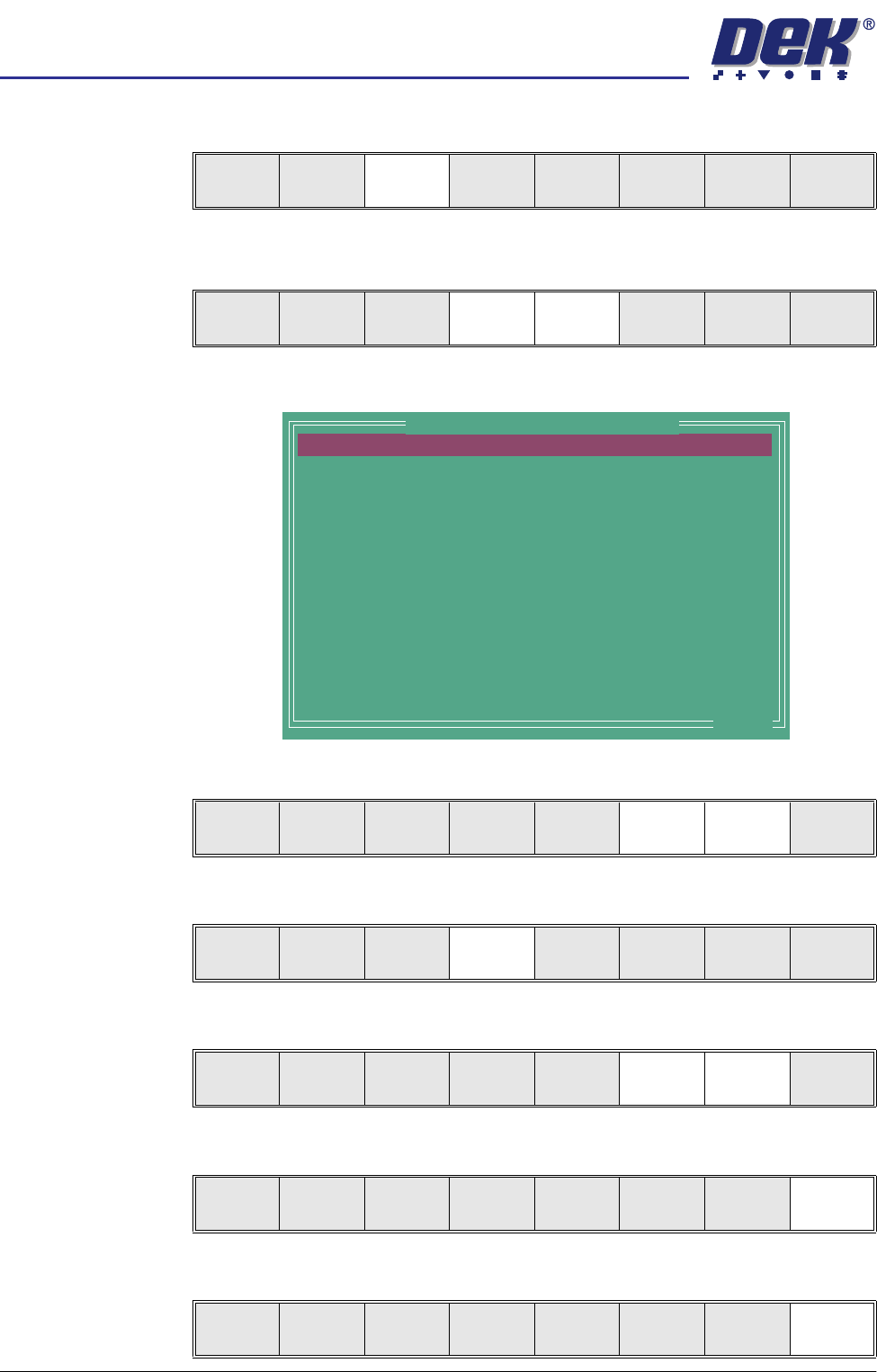
1. Press Setup (F6).
Run
Open
Cover
Paste
Load
Clean
Screen
Setup Monitor Maint.
semi automatic
&21680$%/(5(3/(1,6+0(176
3$67(/2$',1*
8.6 User Manual Software Version 07SP02
2. Press Edit Data (F3).
3. Using the Next and Previous keys (F4 - F5) select the Paste Dispense
Rate.
4. Using the Incr. and Decr. keys (F6 -F7) set the required rate.
5. Using the Next key (F4) select the Paste Dispense Speed.
6. Using the Incr. and Decr. keys (F6 - F7) set the required speed.
7. Press Exit (F8).
8. Press Exit (F8).
Mode
Load
Data
Edit
Data
Setup
Squeegee
Change
Screen
Change
Tooling
Change
Language
Exit
Save Next Previous Incr. Decr. Exit
PASTE DISPENSE RATE
PASTE DISPENSE SPEED
PASTE RECOVERY RATE
FRONT PASTE RECOVERY
REAR PASTE RECOVERY
SCREEN CLEAN MODE 1
SCREEN CLEAN RATE 1
DRY CLEAN SPEED
WET CLEAN SPEED
VAC CLEAN SPEED
VAC CLEAN START TIME
FRONT START OFFSET
REAR START OFFSET
FRONT KNEAD PRESSURE
0
30
0
0
0
NONE
0
40
40
10
1.0
30
30
0.0
Prts
mm/s
mm
mm
Prts
mm/s
mm/s
mm/s
secs
mm
mm
kg
.. more
Edit Current Process Parameters
Save Next Previous Incr. Decr. Exit
Save Next Previous Incr. Decr. Exit
Save Next Previous Incr. Decr. Exit
Save Next Previous Incr. Decr. Exit
Mode
Load
Data
Edit
Data
Setup
Squeegee
Change
Screen
Change
Tooling
Change
Language
Exit
semi automatic
&21680$%/(5(3/(1,6+0(176
3$67(/2$',1*
Software Version 07SP02 User Manual 8.7
Dispensing Paste at
Random Intervals
The operator can cycle the paste dispenser at random intervals and before a
print run in addition to any preprogrammed cycles.
To load paste prior to a print run:
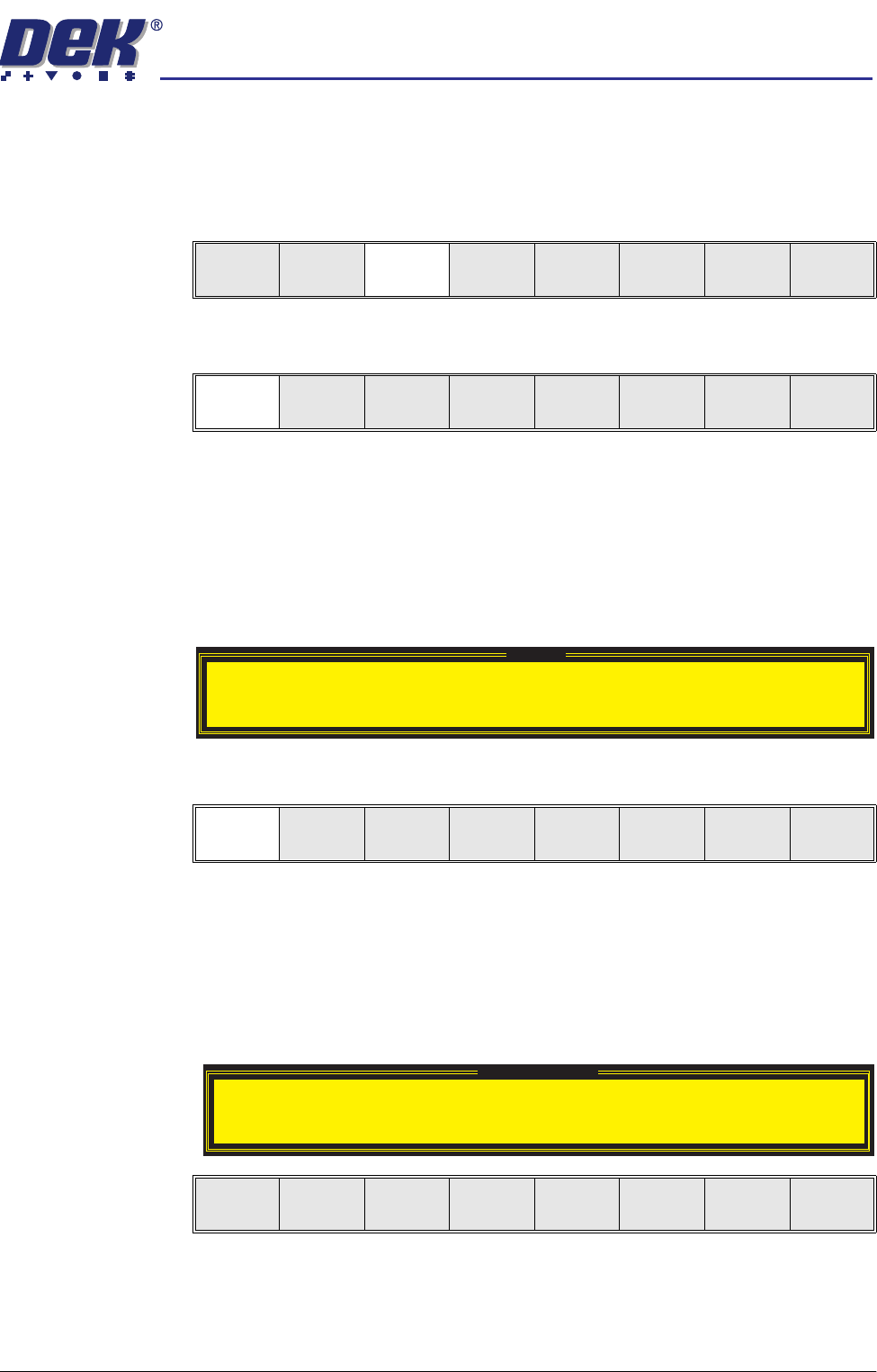
1. Press Paste Load (F3).
2. Press Auto Dispense (F1).
3. If the paste dispenser has sufficient paste the dispenser carries out an
automatic dispense, go to Step 13. If the paste dispenser is low on paste a
warning window is displayed. The warning window varies, depending on the
setting of the consumable action option in set preferences. If the set
preference is set to warn, continue with Step 4. If the set preference is set
to pause or suspend go to Step 8.
4. If the set preference is set to warn, the following window is displayed:
5. Select Confirm (F1).
6. To replace the paste cartridge carry out the Fitting a New Paste Cartridge
procedure, later in this section.
7. Repeat Steps 1, 2 and 13.
8. If the set preference is set to pause, see a. If the set preference is set to
suspend, see b.
a. The following window and menu bar is displayed.
Run
Open
Cover
Paste
Load
Clean
Screen
Setup Monitor Maint.
Auto
Dispense
Manual
Load
Load
Cart.
Print
Directn
Exit
Warning
Print Medium Low. Please replenish.
Confirm
Pause on Warning
Print Medium Low. Please replenish.
Refill
Paste
Cancel