182050 User manual.pdf - 第36页
semi automatic 0$&+,1( 352*5$ 00,1* 67$*(& '( ',&$7 ('722/ ,1* 1.26 User Manual Software Ve rsion 07SP02 7. Select Save (F2). The message ‘ Saving fiducial dat a - Please wait Board dat …
semi automatic
0$&+,1(352*5$00,1*
67$*(&'(',&$7('722/,1*
Software Version 07SP02 User Manual 1.25
STAGE 6C - DEDICATED TOOLING
WARNING
BOARD CLAMPS. EXTREME CARE MUST BE EXERCISED WHEN WORKING IN
THE TOOLING AREA OF THE MACHINE TO AVOID INJURY. THE FOILS ON THE
FRONT AND REAR BOARD CLAMPS ARE VERY SHARP.
CAUTION
BOARD CLAMPS.
Care must be taken to ensure that the board clamps are
not damaged when removing or replacing tooling.
NOTE
Ensure that Generic Tooling is set to Enabled in Set Prefs.
1. If there is a screen loaded return to Stage 5 to remove the screen.
2. Select Change Tooling (F6). The print carriage and the under screen
cleaner are moved to the rear.
The Change Tooling Parameters window is displayed:
3. Setting up the board stop position is automatically done using the board
dimensions previously set in the product file. If they need adjustment to re-
position the board stop for any reason, ie any routing on the board edge or
a badly positioned image on the stencil, this can be done now. If adjustment
is necessary continue with Step 4. If adjustment is not necessary go to Step
9.
4. Select Adjust (F1).
5. Use the Next and Previous keys (F4 - F5) to highlight each parameter.
6. Use the Incr. and Decr. keys (F6 - F7), or the forward slash key (/) on the
keyboard, to change the parameter value.
Mode
Load
Data
Edit
Data
Setup
Squeegee
Change
Screen
Change
Tooling
Change
Language
Exit
Change Tooling Parameters
BOARD WIDTH
BOARD STOP X
BOARD STOP Y
UNDER CLEARANCE
216.0
125.0
142.6
19.0
mm
mm
mm
mm
Adjust
Open
Cover
Home
Cleaner
Board
Stop
Full
Width
Load
Width
Generic
Tooling
Exit
Save Next Previous Incr. Decr. Exit
Save Next Previous Incr. Decr. Exit
semi automatic
0$&+,1(352*5$00,1*
67$*(&'(',&$7('722/,1*
1.26 User Manual Software Version 07SP02
7. Select Save (F2). The message ‘Saving fiducial data - Please wait Board
data file saved’ is displayed.
8. Select Exit (F8).
9. Select Full Width (F5). The message ‘Checking for a board on the belts’
is displayed. Whilst the rear rail is moving the message ‘Rail Moving...’ is
displayed.
10. Select Open Cover (F2).
11. Raise the printhead cover.
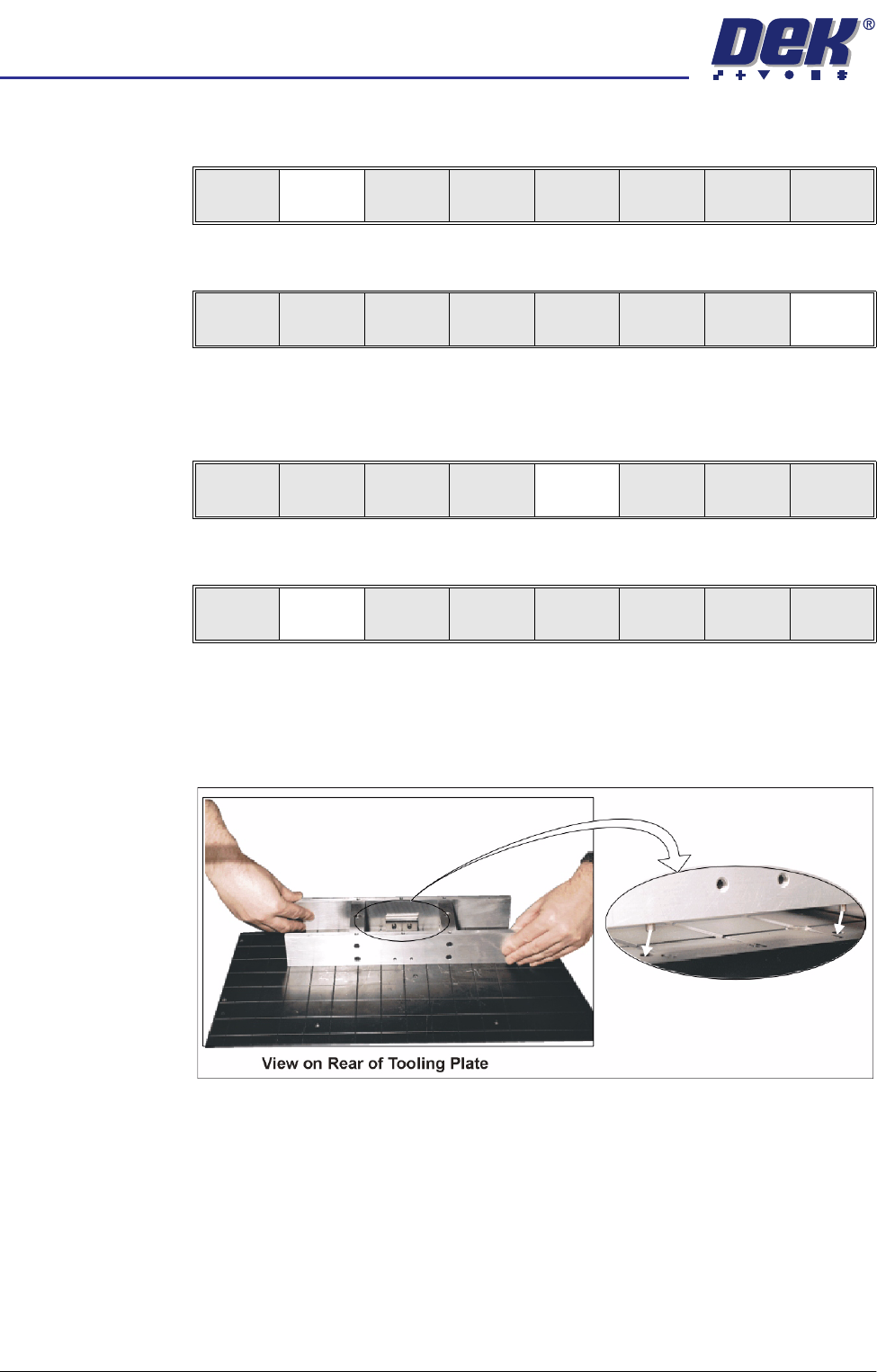
12. Fit the tooling tower to the manual tooling plate. Ensure the dowels on the
front edge of the tooling tower base are correctly seated in the holes in the
front edge of the manual tooling plate.
Save Next Previous Incr. Decr. Exit
Save Next Previous Incr. Decr. Exit
Adjust
Open
Cover
Home
Cleaner
Board
Stop
Full
Width
Load
Width
Generic
Tooling
Exit
Adjust
Open
Cover
Home
Cleaner
Board
Stop
Board
Width
Load
Width
Generic
Tooling
Exit
semi automatic
0$&+,1(352*5$00,1*
67$*(&'(',&$7('722/,1*
Software Version 07SP02 User Manual 1.27
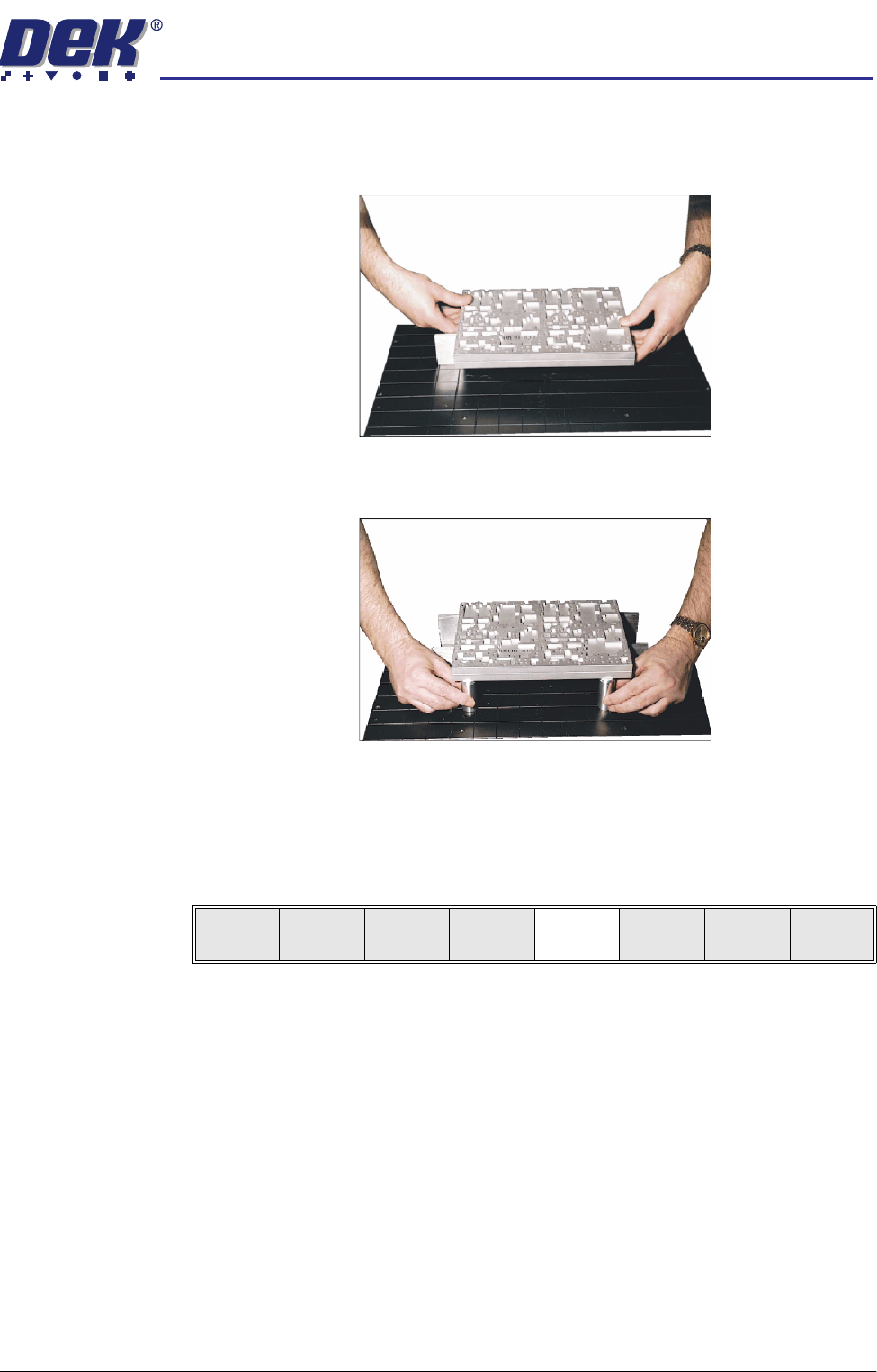
13. Verify the plate assembly orientation and fit the assembly to the tooling
tower. Ensure the dowels of the plate assembly are correctly seated in the
holes in the tooling tower.
14. If required, slide additional magnetic pins beneath the plate assembly to fully
support it when printing wide boards.
15. Lower the printhead cover.
16. Press the System button.
17. Select Board Width (F5). The message ‘Checking for a board on the
belts’ is displayed. Whilst the rear rail is moving the message ‘Rail
Moving...’ is displayed.
Adjust
Open
Cover
Home
Cleaner
Board
Stop
Board
Width
Load
Width
Generic
Tooling
Exit