182050 User manual.pdf - 第74页
semi automatic 0$&+,1( 352*5$ 00,1* 67$*( 9,6,21 6<67 (06 (783 1.64 User Manual Software Ve rsion 07SP02 On selecting Do n ’ t Apply th e alterations to t he fiducial positi ons become ef fective, but are …
semi automatic
0$&+,1(352*5$00,1*
67$*(9,6,216<67(06(783
Software Version 07SP02 User Manual 1.63
18. Select Locate Fiducial (F2).
A figure appears on the monitor indicating the score of the fit between the
synthetic fiducial and the actual fiducial. The synthetic fiducial parameters
may need resetting and re-learning to obtain a better figure if there are other
features in the camera window.
19. Select Exit (F8).
20. Select Exit (F8).
21. Select Step (F1).
The first stencil fiducial should now be displayed on the monitor.
22. Repeat Steps 9 - 20 for this fiducial.
23. Continue for other selected fiducials by selecting Step at the end of each
fiducial setup.
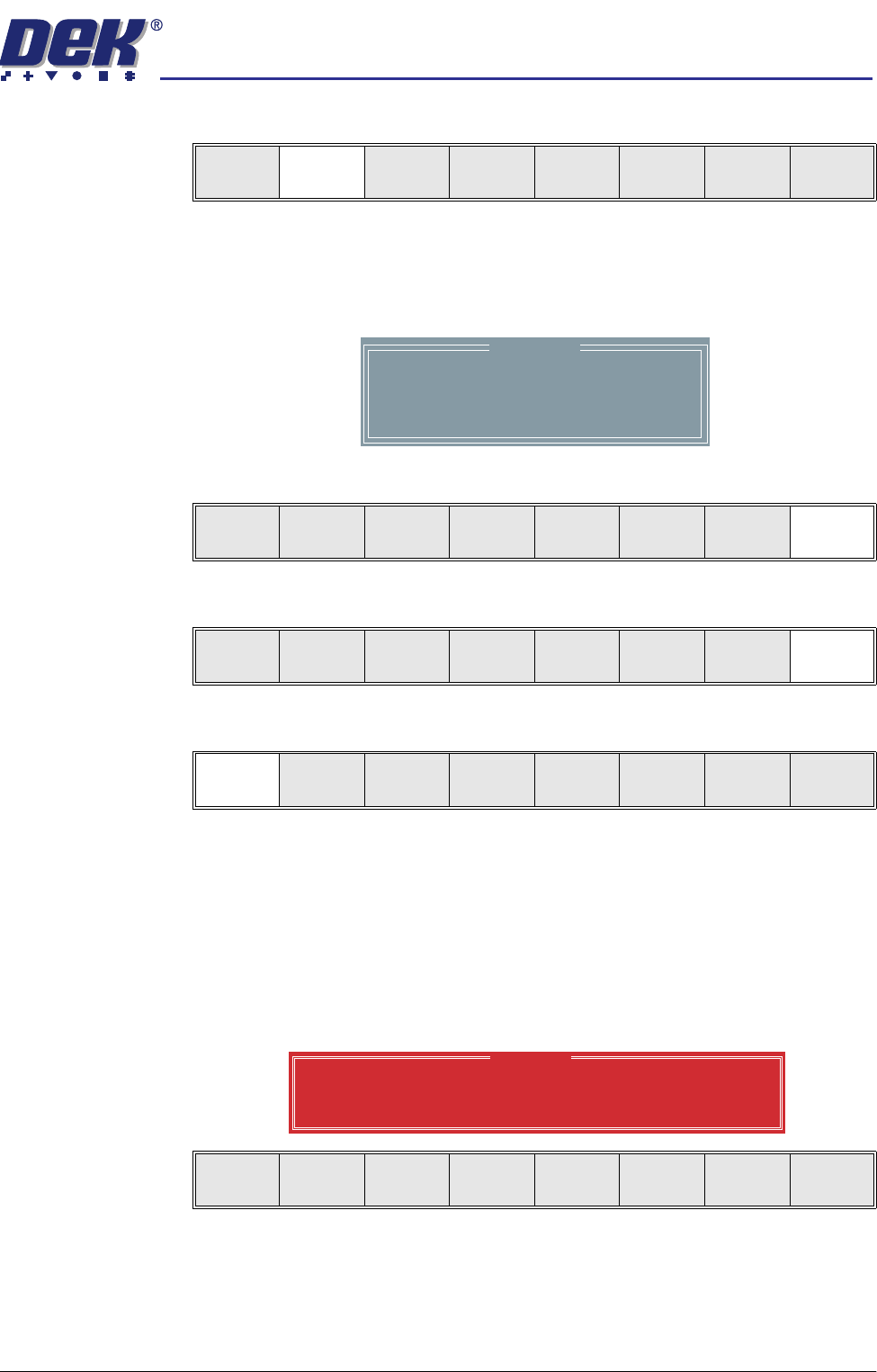
If the current product includes at least one inspection site, changing the
value of the parameter causes the following warning and menu bar to be
displayed:
On selecting Apply the alterations to the fiducial positions become effective
and are applied to all inspection sites.
On selecting Abandon Changes the alterations to the fiducial positions are
discarded, the positions of the inspection sites remain unaltered and control
is returned to the initiating sequence.
Learn
Fiducial
Locate
Fiducial
Set
Light
Next Previous Incr. Decr. Exit
Location
Fiducial
1
X
0.038
Y
-0.017
Score
984
Locate
Fiducial
Exit
Learn
Fiducial
Locate
Fiducial
Set
Light
Next Previous Incr. Decr. Exit
Step
Open
Cover
Fiducial
Setup
Adjust
Search
Step
Search
Reset
Single Exit
Warning
From the changes made to fiducial positions
do you want a correction to be applied to
all inspection sites?
Apply
Abandon
Changes
Don’t
Apply

semi automatic
0$&+,1(352*5$00,1*
67$*(9,6,216<67(06(783
1.64 User Manual Software Version 07SP02
On selecting Don’t Apply the alterations to the fiducial positions become
effective, but are not applied to the inspection sites.
24. After Step 24 for the second stencil fiducial the message ‘Saving Fiducial
Data - Please Wait Board data file saved’ is displayed.
After aligning stencil to board the camera checks all four fiducial positions.
25. Select Exit (F8).
26. Select Exit (F8).
Step Single Exit
Auto
Board
Manual
Board
Exit
semi automatic
0$&+,1(352*5$00,1*
67$*(35,17,167(302'(
Software Version 07SP02 User Manual 1.65
STAGE 9 - PRINT IN STEP MODE
If using squeegees with paste dispenser continue with Auto Paste Dispense. If
using squeegees without paste dispenser go to Manual Paste Load. If using
ProFlow go to Run a Product in Step Mode.
Auto Paste
Dispense
1. Select Paste Load (F3).
2. Select Auto Dispense (F1).
3. Select Exit (F8).
4. Go to Run a Product in Step Mode.
Manual Paste Load
WARNING
SOLDER PASTE AND SOLVENTS. WHEN USING OR HANDLING ANY SOLDER
PASTE OR SOLVENT FORMULATION THE MANUFACTURERS’ RECOMMEND
SAFETY PRECAUTIONS MUST BE STRICTLY ADHERED TO.
Paste
Replenishment Off
NOTE
With the Paste Dispenser not fitted, the paste dispense rate (in the product file)
pauses the machine after printing the amount of boards specified. This allows
the operator to open the printhead to load paste on to the stencil. The paste
dispense rate can be set from 1 to 100 boards. If 0 (zero) is entered, the
operator is not be reminded to replenish the paste.
1. Select Paste Load (F3).
2. Select Manual Load (F2).
3. Raise the printhead cover.
4. Load the solder paste onto the stencil.
Run
Open
Cover
Paste
Load
Clean
Screen
Setup Monitor Maint.
Auto
Dispense
Manual
Load
Load
Cart.
Print
Directn
Exit
Auto
Dispense
Manual
Load
Load
Cart.
Print
Directn
Exit
Run
Open
Cover
Paste
Load
Clean
Screen
Setup Monitor Maint.
Auto
Dispense
Manual
Load
Load
Cart.
Print
Directn
Exit