182050 User manual.pdf - 第80页
semi automatic 0$&+,1( 352*5$ 00,1* 67$*( 35,17,1 581 02'( 1.70 User Manual Software Ve rsion 07SP02 ST AGE 1 1 - PRINT IN RUN MODE 1. Select Setup (F6). 2. Select Mode (F1) until Aut o is indi cated i…

semi automatic
0$&+,1(352*5$00,1*
67$*(',6(783
Software Version 07SP02 User Manual 1.69
STAGE 10 - 2DI SETUP
For a complete explanation of 2D Inspection and its setup refer to the 2D
Inspection chapter of this manual.
semi automatic
0$&+,1(352*5$00,1*
67$*(35,17,158102'(
1.70 User Manual Software Version 07SP02
STAGE 11 - PRINT IN RUN MODE
1. Select Setup (F6).
2. Select Mode (F1) until Auto is indicated in the mode option on the monitor.
3. Select Exit (F8).
4. Place the board onto the rails.
5. Select Run (F1). If squeegees are being used continue with Step 6, if
ProFlow is being used go to Step 21.
6. During the first print stroke, when the squeegee is down printing on the
board, select Stop Cycle (F2). The print cycle stops and the printer lid bolt
releases allowing access to the print carriage.
7. Raise the printhead cover.
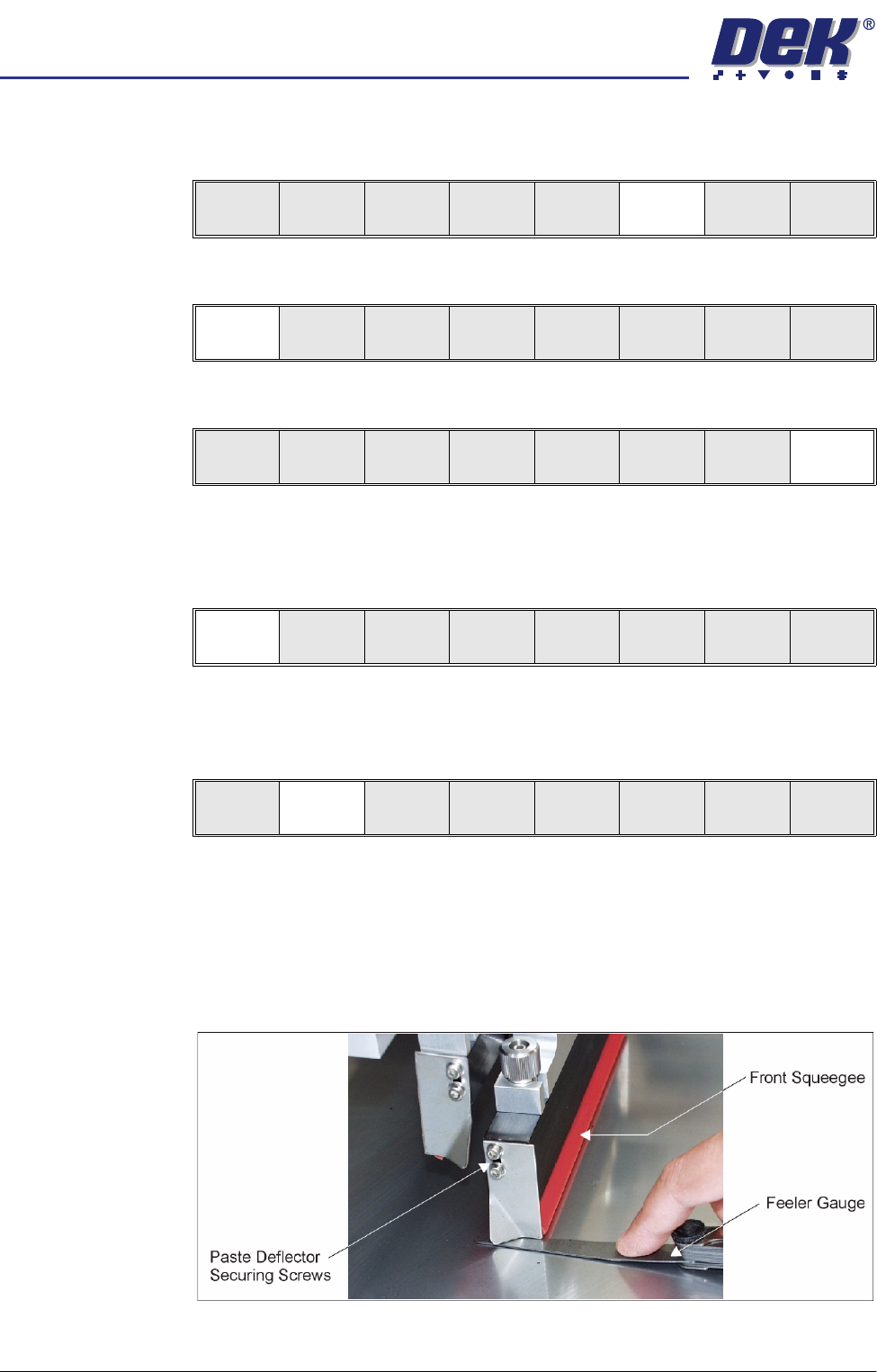
8. Release the screws holding one paste deflector allowing it to drop into
contact with the stencil.
9. Insert a 0.25mm feeler between the deflector and the stencil. Tighten the
screws checking that the 0.25mm gap remains.
Run
Open
Cover
Paste
Load
Clean
Screen
Setup Monitor Maint.
Mode
Load
Data
Edit
Data
Setup
Squeegee
Change
Screen
Change
Tooling
Change
Language
Exit
Mode
Load
Data
Edit
Data
Setup
Squeegee
Change
Screen
Change
Tooling
Change
Language
Exit
Run
Open
Cover
Paste
Load
Clean
Screen
Setup Monitor Maint.
End
Run
Stop
Cycle
semi automatic
0$&+,1(352*5$00,1*
67$*(35,17,158102'(
Software Version 07SP02 User Manual 1.71
10. Repeat Steps 8 and 9 for the other deflector.
11. Lower the printhead cover.
12. Press the System button.
13. Select Continue (F1).
14. After the squeegee has moved approximately 20mm, select Stop Cycle
(F2).
15. Raise the printhead cover.
16. Check the deflectors are not touching the stencil.
17. Lower the printhead cover.
18. Press the System button.
19. Select Continue (F1).
20. Repeat Steps 6-19 for the other squeegee.
21. The printer operates continuously. The menu bar displays the following
options, these may be selected at any time during a print run:
End Run Selecting this option stops the printer on completion of the current print cycle.
Stop Cycle Selecting this option stops the printer immediately, halting all actions.
Continue
End
Run
Stop
Cycle
Continue
End
Run
Stop
Cycle