00194798-01.pdf - 第29页
Installation Manual, Station Software Version 602.01 Edition 06/2006 → Check the Multiple Monitor Support box. → Click the Map Touch Screens button. The “Mapping” dialog box opens. Fig. 4-11: PenMount Control Panel – &qu…
Installation Manual, Station Software Version 602.01 Edition 06/2006
4.3.1.3 Calibrating the touchscreen for the D-Series
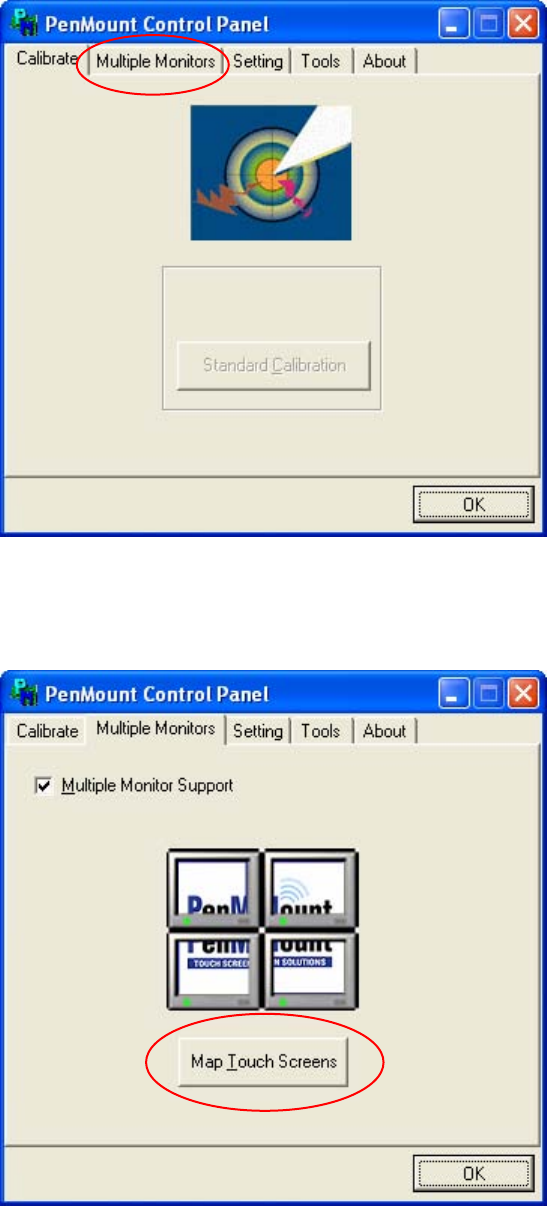
→ Select Start Æ Program Files Æ PenMount Utilities Æ PenMount Control Panel to start the
touchscreen calibration applet.
Fig. 4-9: PenMount Control Panel
→ Open the Multiple Monitors tab.
Fig. 4-10: PenMount Control Panel – Multiple Monitors tab
28 of 60
Installation Manual, Station Software Version 602.01 Edition 06/2006
→ Check the Multiple Monitor Support box.
→ Click the Map Touch Screens button.
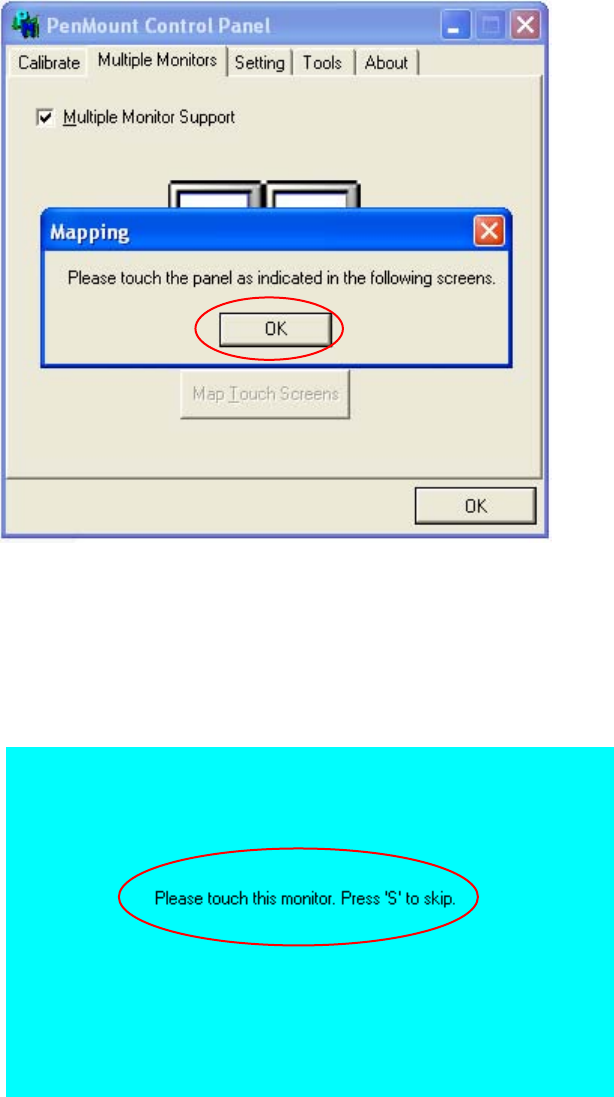
The “Mapping” dialog box opens.
Fig. 4-11: PenMount Control Panel – "Mapping" dialog box
→ Acknowledge the “Mapping” dialog box by clicking on OK.
→ Touch the monitor showing Please touch this monitor with your finger.
Fig. 4-12: Mapping the touchscreens
The touchscreens are now mapped and the PenMount Control Panel is displayed again.
29 of 60
Installation Manual, Station Software Version 602.01 Edition 06/2006
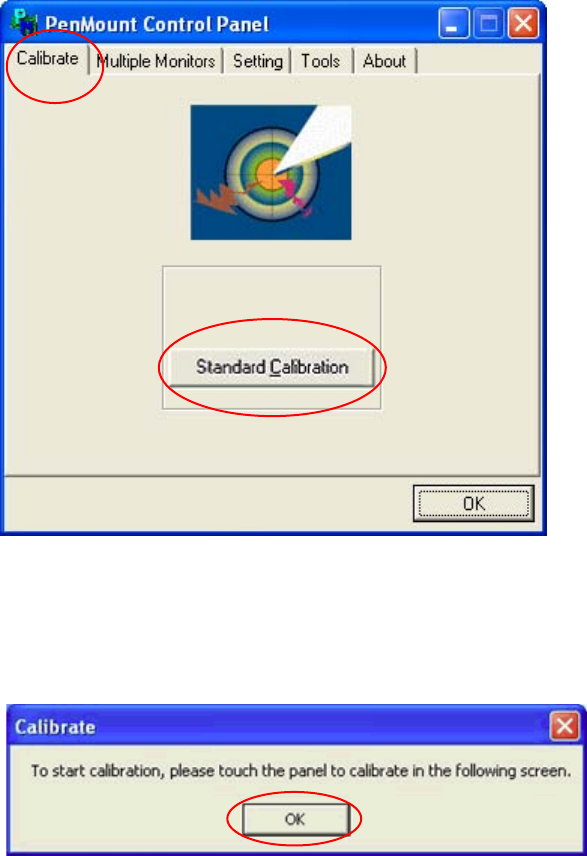
→ Open the Calibrate tab.
Fig. 4-13: PenMount Control Panel – Calibrate tab
→ Click the Standard Calibration button. The Calibrate dialog box opens.
Fig. 4-14: “Calibrate” dialog box
→ Acknowledge the dialog box by clicking on OK.
30 of 60