00194798-01.pdf - 第47页
Installation Manual, Station Software Version 602.01 Edition 06/2006 The installation is started. The following query appears: >>> >>> -----No -----Yes 1. WARNING installat ion of SIPL ACE operating sys…
Installation Manual, Station Software Version 602.01 Edition 06/2006
4.6.1.2 Installation procedure
→ Insert the "Rmos-1" floppy in the drive of the MC and switch the station on.
→ The following message will appear on screen
Starting MS-DOS...
DO YOU WANT TO CONTINUE INSTALLATION ?
[C] CONTINUE [R] REBOOT SYSTEM TO CHECK OR CHANGE SETUP
[T] TERMINATE BATCH PROCESS (Change to DOS)
PRESS KEY TO CONTINUE [C,R,T]
'C' continues the installation.
Note:
If the error message "INVALID MEDIA TYPE" appears, you must respond with
(f)ail (this occurs several times; generally when formatting new hard disks);
installation is then continued.
You can abort installation at this point by typing 'T'.
→ The installation program starts.
→ Press any key to continue or cancel with <Esc>.
The software version and the machine type are displayed.
→ Press any key to continue or cancel with <Esc>.
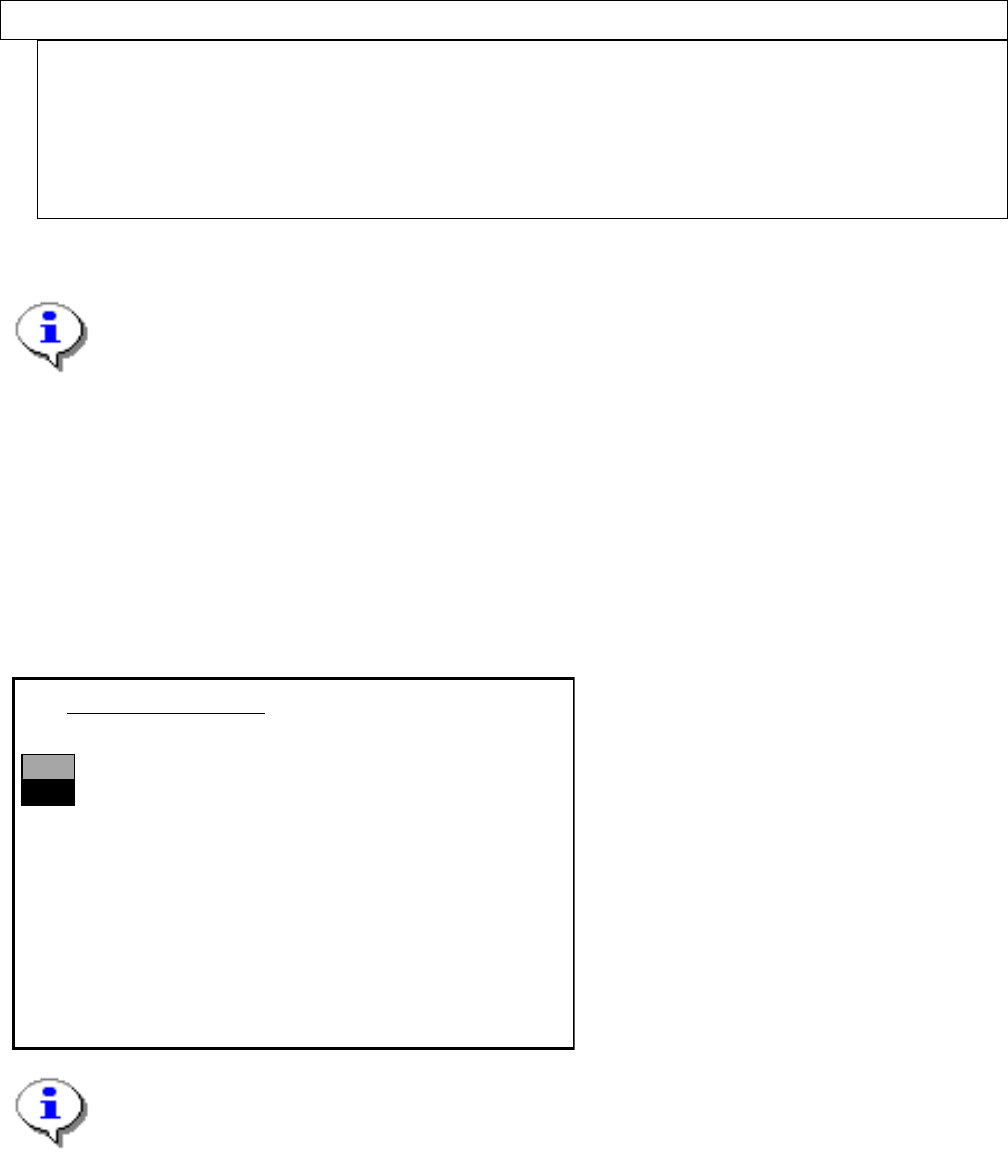
The main menu appears:
>>>
>>>
------------------
Install Revision of SIPLACE Operating System
------------------Terminate SIPLACE Installation Program
Main Menue of SIPLACE Installation MCRM3 40x.xx
Use the [Up Arrow] [Down Arrow] [Pg Up] [Pg Dn] keys to move the highlight bar to select the
button you prefer.
Press [Enter] to activate your selection
Note:
If a submenu or a function in the installation program is selected, the cursor
flashes gray.
→ Select the function "Install Revision of SIPLACE Operating System" and confirm with <RETURN>.
46 of 60
Installation Manual, Station Software Version 602.01 Edition 06/2006
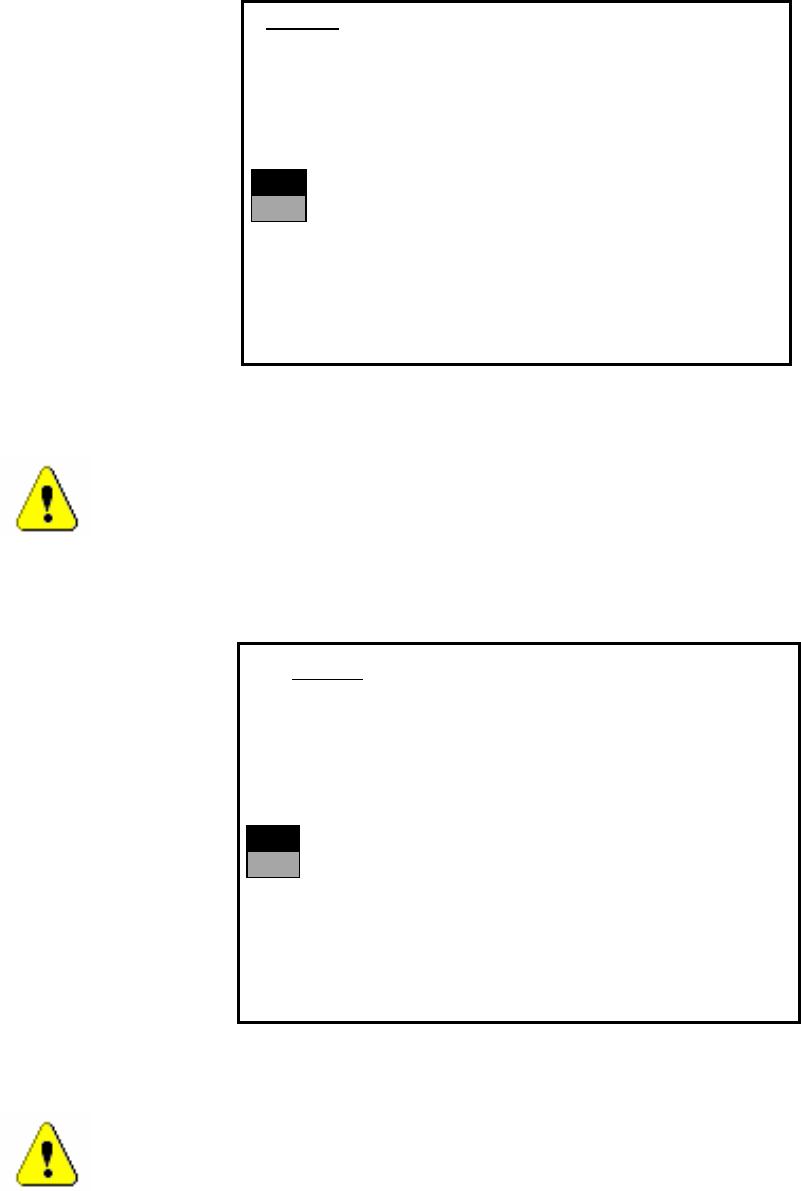
The installation is started. The following query appears:
>>>
>>>
-----No
-----Yes
1. WARNING
installation of SIPLACE operating system will only save files keeping machine data.
A
ll other files of user’s interrest have to be saved on floppy disc by user manually.
Otherwise these files will bedeleted.
Continue SIPLACE Installation Job?
Use the [Up Arrow] [Down Arrow] [Pg Up] [Pg Dn] keys to move the highlight bar to select the
button you prefer.
Press [Enter] to activate your selection
→ Use the cursor keys to select the option to continue.
Warning:
Only machine data is saved. All user data is deleted. If necessary, save your user data to
floppy.
→ Confirm your selection with <RETURN>.
→ If you have selected “Yes“, the installation is continued and the following screen display appears.
>>>
>>>
-----No
-----Yes
2. WARNING
Partition “C:“ of your hard disc will be formatted:
⇒
all files will be deleted.
Continue SIPLACE Installation Job?
Use the [Up Arrow] [Down Arrow] [Pg Up] [Pg Dn] keys to move the highlight bar to select the
button you prefer.
Press [Enter] to activate your selection
→ Use the cursor keys to select whether to continue ("Yes") or cancel ("No").
Warning:
The C: partition will be formatted. All data which has not been saved will now be deleted.
47 of 60

Installation Manual, Station Software Version 602.01 Edition 06/2006
→ Confirm your selection with <RETURN>. The installation is then continued.
→ You are now requested to insert the floppy MCRMOS Disk -1/2- into the drive.
→ After both floppies have been installed, the message "Installation finished" appears.
The operating system has been completely installed.
→ Now remove the floppy from the drive and switch the machine off and then on again.
4.6.2 Troubleshooting
→ If the installation program terminates prematurely due to an error, remove the floppy from the drive and
switch the machine off.
→ Insert floppy #1 into the drive and switch the machine on again.
→ Try installing the machine controller operating system again.
Note:
If the software can still not be installed on the second attempt, contact your
Service center.
4.7 Manual installation of the machine controller software
If it is necessary to install the machine controller software after installation has been completed, do so as
follows:
→ Open the Start menu and select Programs Æ Siplace Æ MC Distributor. The installation is started.
→ Follow the instructions on screen.
48 of 60