HS50_advance_level 1_20200522_221201 (1).pdf - 第196页
06/2002 E dition Studen t Guide H S-50 Advance d I 6 Operati ng the S IT ES T Softwa r e 12 Opens a d ial og wind ow for copyi ng the s elec te d firm ware fi le to the dire ctory C:\ SRProgr am me\ CanFW . Tabl e select…
Student Guide HS-50 Advanced I 06/2002 Edition
6 Operating the SITEST Software
11
6.3.6.1 Firmware Download
6
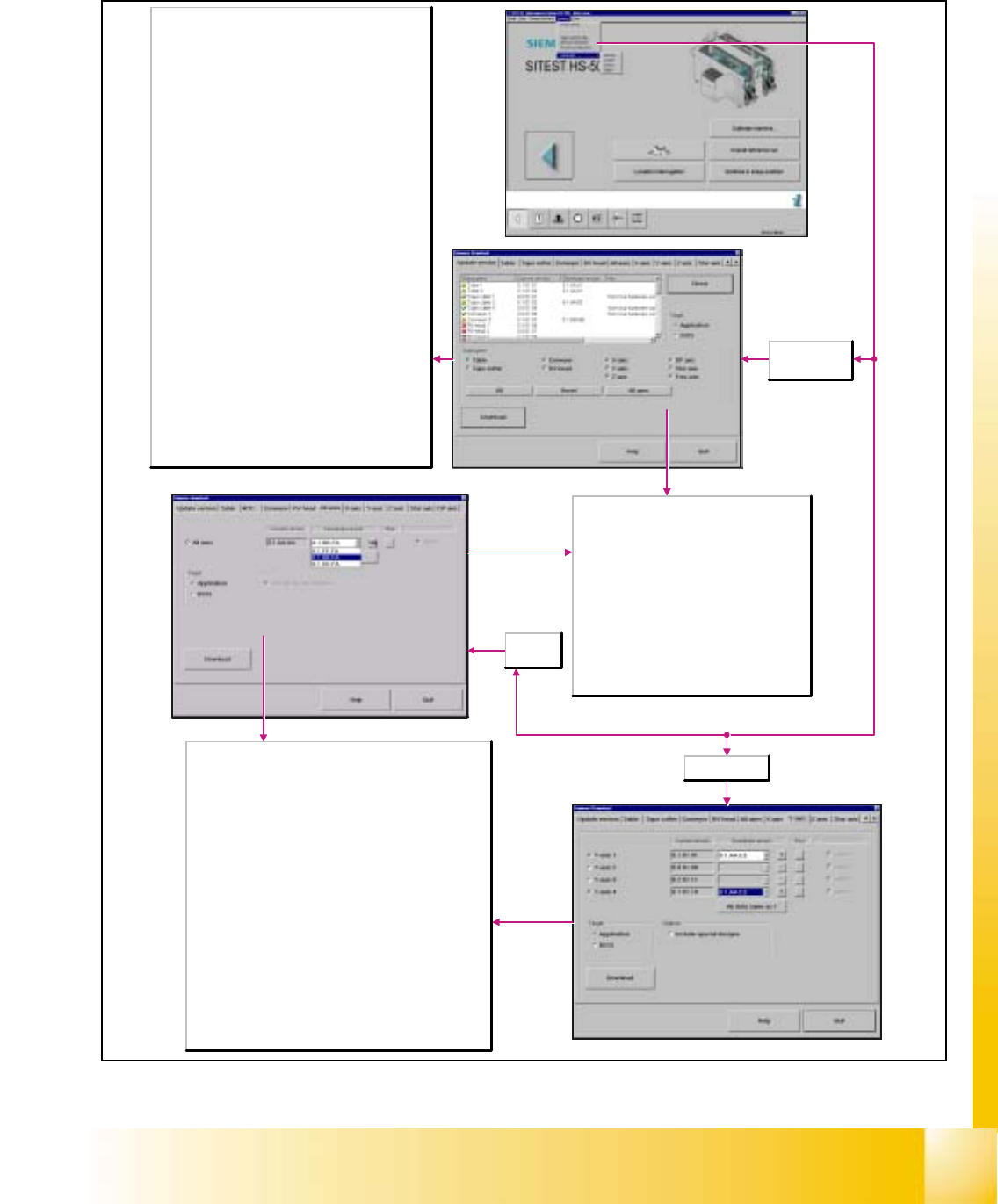
Here, it is possible to perform an update of new axis firmware for
all axes simultaneously.
All axes
Activate/deactivate
Current version
Firmware version installed in the individual machine options.
Download version
Version that may be loaded and which is located in the directory
C:\SRProgramme\CanFW.
Auto Download
Active: When this function is activated, the automatic download is
performed.
All data same as under 1
The same download version is used for individual subsystems
with the same hardware revision level.
Options
Include special designs
Activating the special design solutions will increase your choice of
download versions.
All axes
selected
Y-axis selected
Download
The download is started with all selected settings.
The old firmware files are moved to the directory
C:\SRProgramme\CanFWPool; the firmware files
that are currently loaded are now located in the
directory C:\SRProgramme\CanFW.
Target
Application
When this function is activated, the firmware
controlling the actions of the subsystems will be
loaded.
BIOS
When this function is activated, the operating
system for the subsystems will be loaded.
Update version
selected
Subsystem
Machine options
Current version
Firmware version installed in the individual machine
options.
Download version
Version that can be loaded; it is stored in the directory
C:\SRProgramme\CanFW.
Info
Additional information, e.g. on the hardware revision level of
the relevant machine option.
Check
Reads the current firmware version from the subsystems.
These versions are stored in the directory
C:\SRProgramme\CanFW. This directory is allowed to
contain only one version per subsystem. If there are several
versions for one and the same subsystem, one version
must be moved to the directory
C:\SRProgramme\CanFWPool, as otherwise a version
conflict error message will be displayed, and the download
cannot be performed.
Subsystem
Here, you can select the subsystems. Select the desired
subsystems for which the download is to be performed.
All
All subsystems are activated.
Reset
All machine options are deactivated.
All axes
All axes are activated.
06/2002 Edition Student Guide HS-50 Advanced I
6 Operating the SITEST Software
12
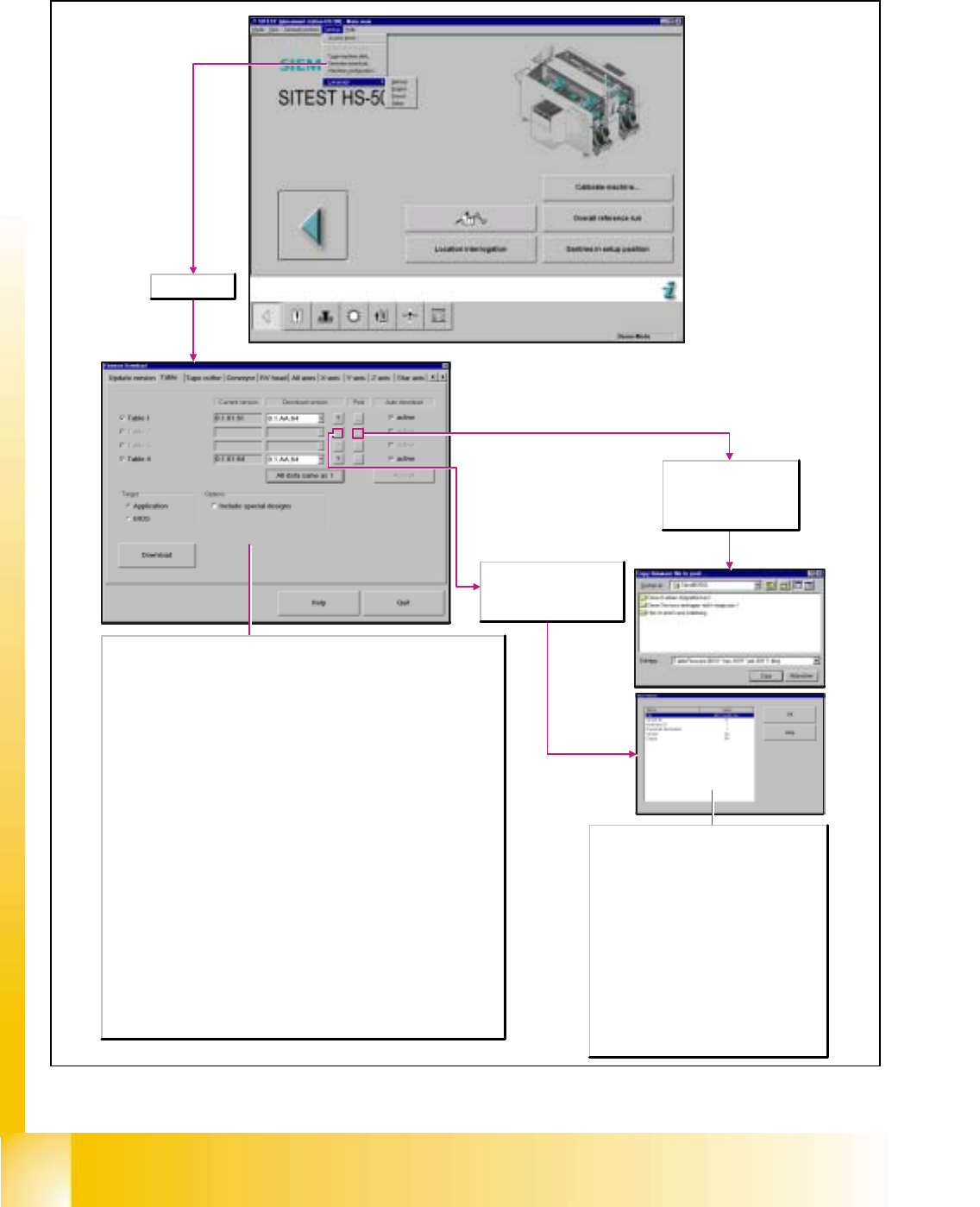
Opens a dialog window for
copying the selected
firmware file to the directory
C:\SRProgramme\CanFW.
Table selected
Current version
Firmware version installed in the individual machine options.
Download version
Version that may be loaded and which is located in the directory
C:\SRProgramme\CanFW.
Auto Download
Note:This function can only be selected for the subsystems 'component feeder tables'
and MTC.
Active
When this function is activated, the automatic download is performed.
All data same as under 1
The same download version is used for individual subsystems with the same hardware
revision level.
Target
Application
When this function is activated, the firmware is loaded that controls the actions of the
subsystems.
BIOS
When this function is activated, the operating system for the subsystems is loaded.
Options
Include special designs
Activating the special design solutions will increase your choice of download versions.
Download
The download is started with all selected settings. The old firmware files are moved to
the directory C:\SRProgramme\CanFWPool, the firmware files that are currently loaded
are now located in the directory C:\SRProgramme\CanFW.
File
The file extensions hex, jed and bhx are possible.
However, they do not influence the firmware in
any way.
Variant ID
Provides information on the type of firmware
version.
O: Series status
A-Z: Special design solution
Hardware ID
Provides information on the hardware revision
level of the subsystems.
1-3: Conveyor
Download destination
1:Application
0:BIOS
Opens the Firmware Info
dialog window for the display
of information on the current
download version.
Student Guide HS-50 Advanced I 06/2002 Edition
6 Operating the SITEST Software
13
6.3.6.2 Machine Configuration
6
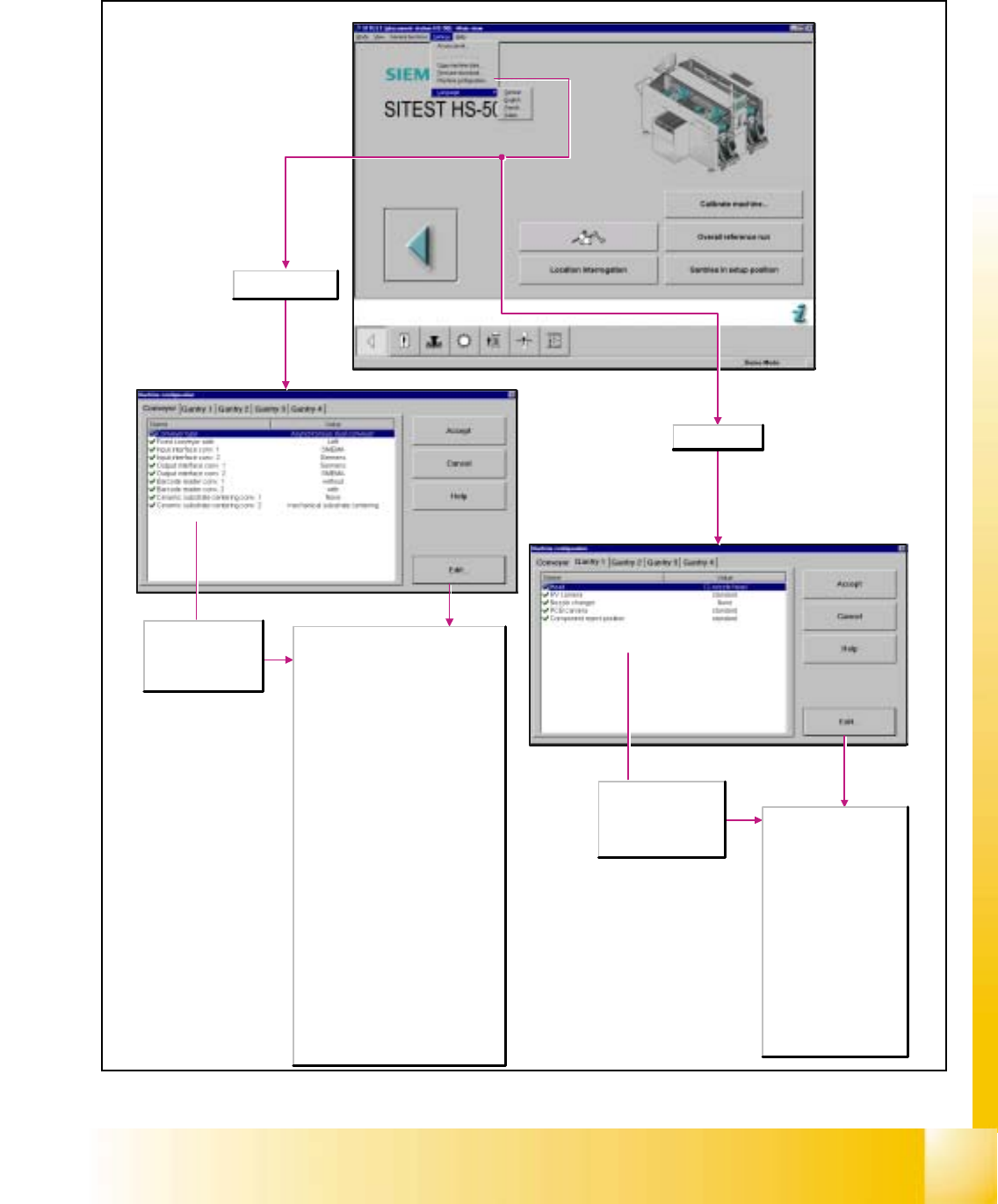
Displays the current
machine configuration
for the conveyor and
may be changed, if
required.
Displays the current
machine configuration
for gantry 1 to 4 and
may be changed, if
required.
Conveyor selected
Conveyor type
- Single conveyor
- Synchronous dual conveyor
- Asynchronous dual conveyor
Fixed conveyor side
- left: The fixed side of the conveyor is
located on the left (viewing into the
direction of travel).
- right: The fixed side of the conveyor is
located on the right (viewing into the
direction of travel).
Input interface conv. 1/2
Here you can select the input interface
type for conveyor 1/2.
- SMEMA
- Siemens
Output interface conv. 1/2
Here you can select the output interface
type for conveyor 1/2.
- SMEMA
- Siemens
Barcode reader conv. 1/2
- without
- with
Ceramic substrate centering conv. 1/2
- None
- Mechanical substrate centering
- Oblique lighting
- Mechanical and oblique lighting
Gantry selected
Head
- 12-nozzle head: Revolver
head with 12 sleeves.
RV camera
- standard
- DCA camera
Nozzle changer
- None
- RV12 standard
- RV12 2-row
PCB camera
- Standard
- Multicolor
Component reject position
- Standard