HS50_advance_level 1_20200522_221201 (1).pdf - 第241页
Studen t Guide HS-50 A dvanced I 06/200 2 Edition 7 Calibration 11 0 fi g 7. 3 - 12 Di sp lay: " Con vey or fun c tions " 0 fi g 7.3 - 13 D i spla y: "C onve y or width " NOTE Using the functions of t…
06/2002 Edition Student Guide HS-50 Advanced I
7 Calibration
10
0
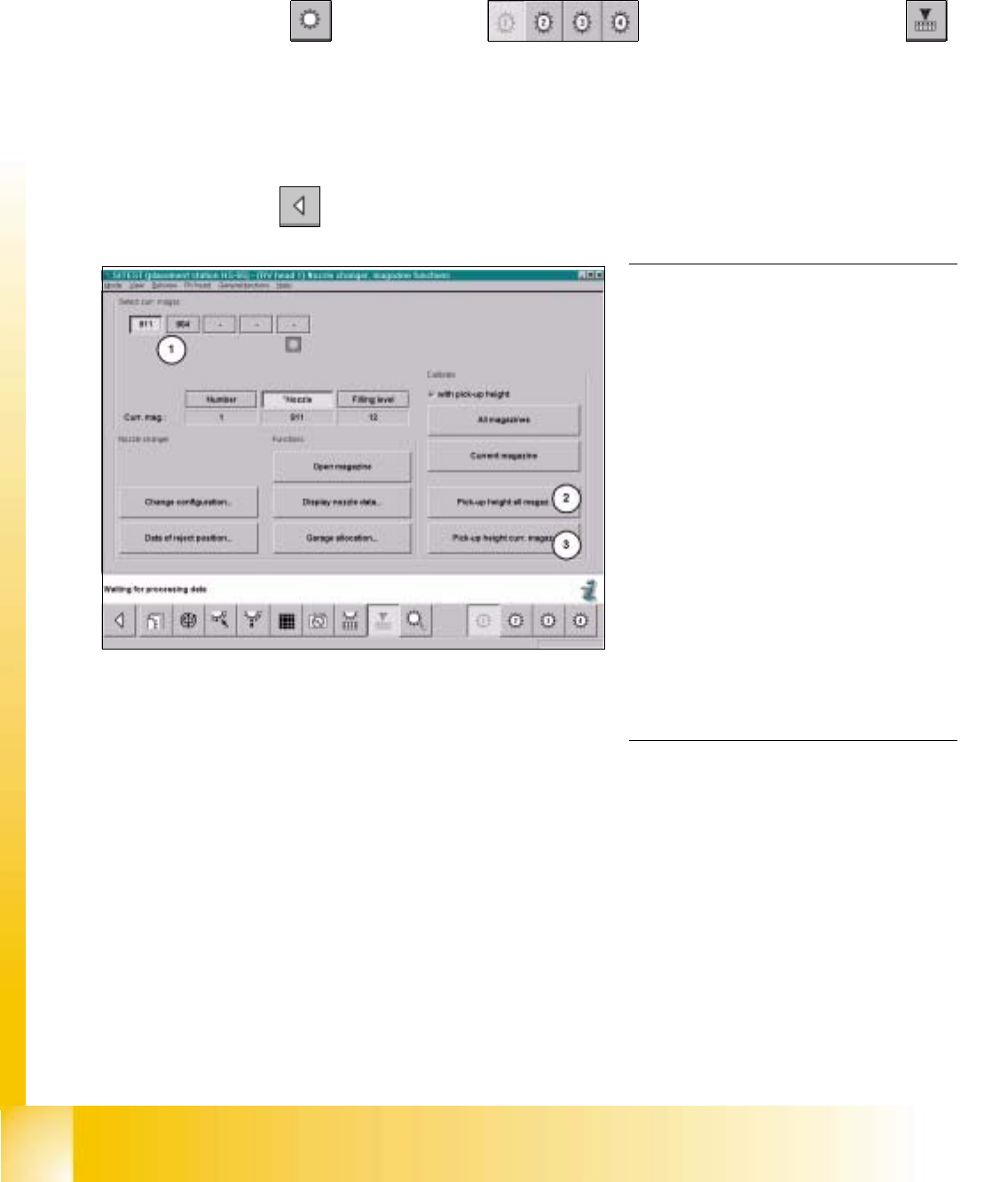
fig 7.3 - 11 Display "C&P Head nozzle changer"
0
0
0
0
0
0
0
0
0
0
0
0
0
0
0
0
7.3.5.3 Calibration of Pick-Up Height
à Ascertain, that there is a nozzle on the lower segment, and that all garages selected below, are empty.
SITEST: 7
à Select "C&P Heads" ==> "C&P Head 1" ==> "C&P Head nozzle changer"
==> select the current "Magazine number...(1)" ==>Calibrate "Pick-up height current magazine (3) " or
"Pick-up height all magazines (2) ".
à Repeat this procedure for all magazines, if it necessary.
à Select "Main View" ==> "Settings" ==> "Save machine data".
NOTE
Each individually determined pick-up
height (z-position) will be displayed in a di-
alogue box, after the calibration.
The z-position of the reject container will
be calculated from the pick-up height
determined for the last magazine.
If you want to test if the calibration was
successful, you should always FIRST
save the determined calibration data
("Main view" ==> "Settings" ==> "Save
machine data"). After saving the data,
return to the display "C&P Head nozzle
changer".
With the help of the functions "Place / Pick-
up" you can test the calibration result. 0
Student Guide HS-50 Advanced I 06/2002 Edition
7 Calibration
11
0
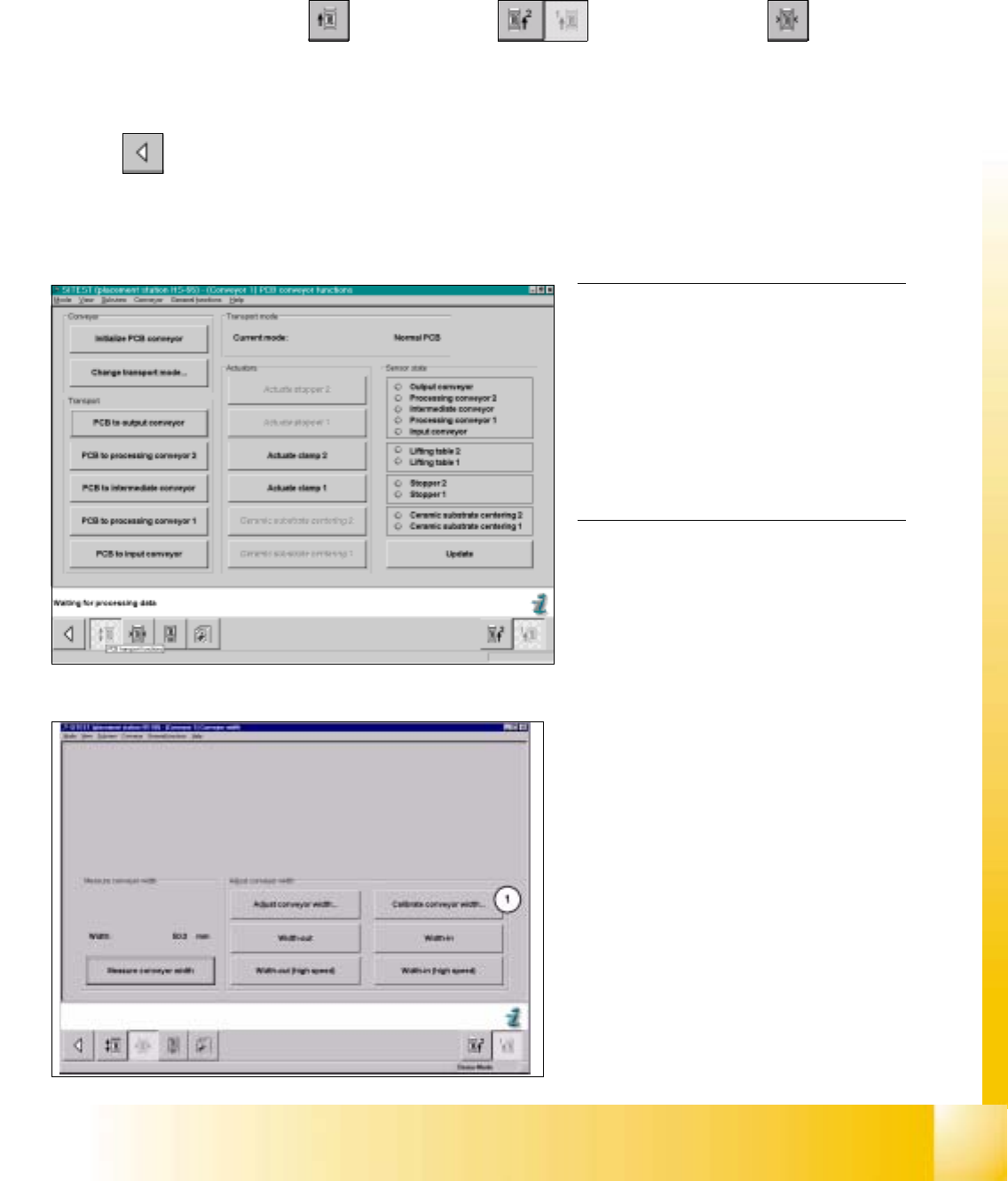
fig 7.3 - 12 Display: "Conveyor functions"
0
fig 7.3 - 13 Display: "Conveyor width"
NOTE
Using the functions of the width adjust-
ment, no PCB may be in the conveyor and
the lifting tables must be down.
If the system has a dual conveyor in-
stalled, the conveyor width for conveyor 2
(left - hand conveyor) must get calibrated
as described above. 0
7.3.6 Calibration of Conveyor Width
Example: Conveyor 1 (= right hand conveyor). 7
SITEST: 7
à Select "Placement conveyor" ==> "Conveyor 1" ==> "Conveyor width" ==>
"Calibrate conveyor width (1) " ==> "Insert a PCB with 100 mm of width into conveyor 1" ==> "With the help
of the functions "wider" / "narrower" (in the dialogue box), adjust to the width of the PCB" ==> "OK" ==>"Main
view" ==> "Settings" ==> "Save machine data".
06/2002 Edition Student Guide HS-50 Advanced I
7 Calibration
12
0
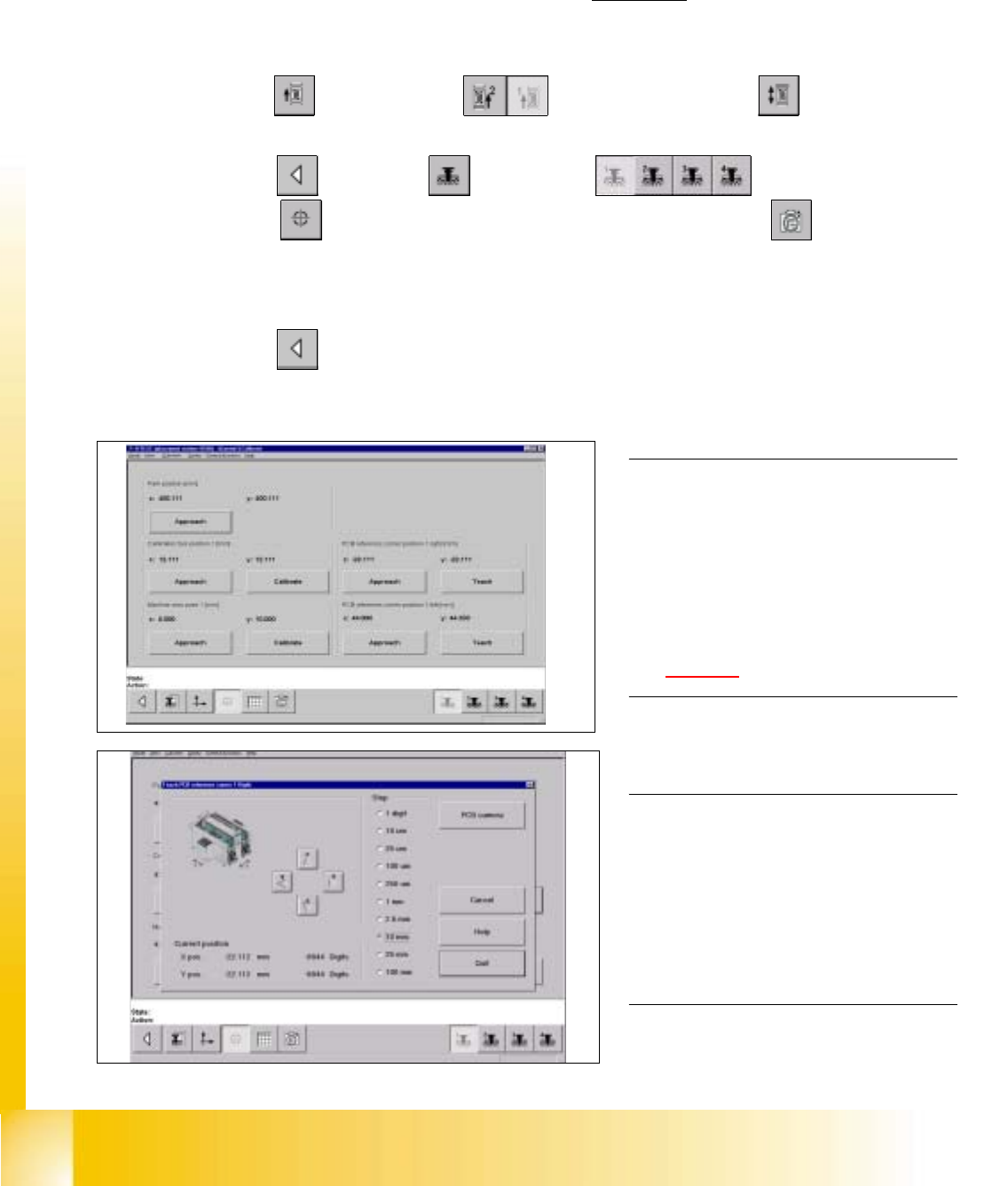
fig 7.3 - 14 Fixed PCB corner
fig 7.3 - 15 Fixed PCB corner, PCB camera
7.3.7 Measuring the Fixed PCB corner
Example: Placement area 1 , conveyor of the right hand side (conveyor 1). 7
7
à With the help of the conveyor functions, move a PCB with a light surface into the processing conveyor 1, in
which you wish to measure the position of the fixed PCB corner.
SITEST: 7
à Select "Conveyor" ==> "Conveyor 1" ==> "Conveyor functions" .
à With the help of the conveyor functions, move the PCB into placement area 1.
à Select "Main view" ==> "Gantry" ==> "Gantry 1" ==>
"Calibrate position" ==> "Teach (field 1, right hand side)" ==> "PCB camera" .
à With the help of the cursor buttons, teach the position of the fixed PCB corner.
à Select ESC accept the position with "End".
à Select "Main view" ==> "Settings" ==> "Save machine data".
NOTE
Make sure that the calibration data for the
PCB camera, the segment offset II (C&P -
PCB camera offset) and the machine zero
point have been determined already.
The position of the fixed PCB corners
varies according to conveyor model.
See fig 7.1 - 1. 0
0
0
NOTE
To measure the placement position in
placement area 2, follow the instructions
as detailed above, for gantry 2 as well.
If a dual conveyor is installed, the fixed
PCB corners of the left hand conveyor
(conveyor 2) must be measured as well. 0