3OM-1751-002w_G5S.pdf - 第121页
3OM-1751 1-67 1303-001 5.16 "Support pin Pos" Window This window enables the operator to perform the teaching operation on the PCB support pin position. [2] [1] [3] [4] F3A47 [1] Display Area Operation Button U…

3OM-1751
1-661303-001
•
Nozzle Position Teaching Procedure
Procedure
(1) Select the head and nozzle (from Head 1 or 2 and Nozzle 1 to 15) for which
the nozzle level offset teaching is performed.
(2) Press the [Teach Start] button.
(The designated head (No. 1 or 2) is moved to the specied position and the
nozzle position offset teaching is executed.)
•
When the teaching is started, the start conditions are checked.
•
The teaching results are displayed in the "After" section in the "Noz Pos
Offset" Display Area.
•
During this temporary stop mode, the selection of any other menu item is
unavailable.
When the teaching is completed, the designated head is returned to the home
position automatically.
(3) Press the [Save] button.
(When this button is pressed, the teaching results are saved.)
•
Error Condition
When a nozzle recognition error occurs during the nozzle position offset
teaching, the machine is not stopped, but the teaching is continued to the end.
The nozzle where an error occurred, is skipped.
The error existence can be conrmed in the "Recall" function.
5.15 "Noz Lv./Pos." Window
3OM-1751
1-671303-001
5.16 "Support pin Pos" Window
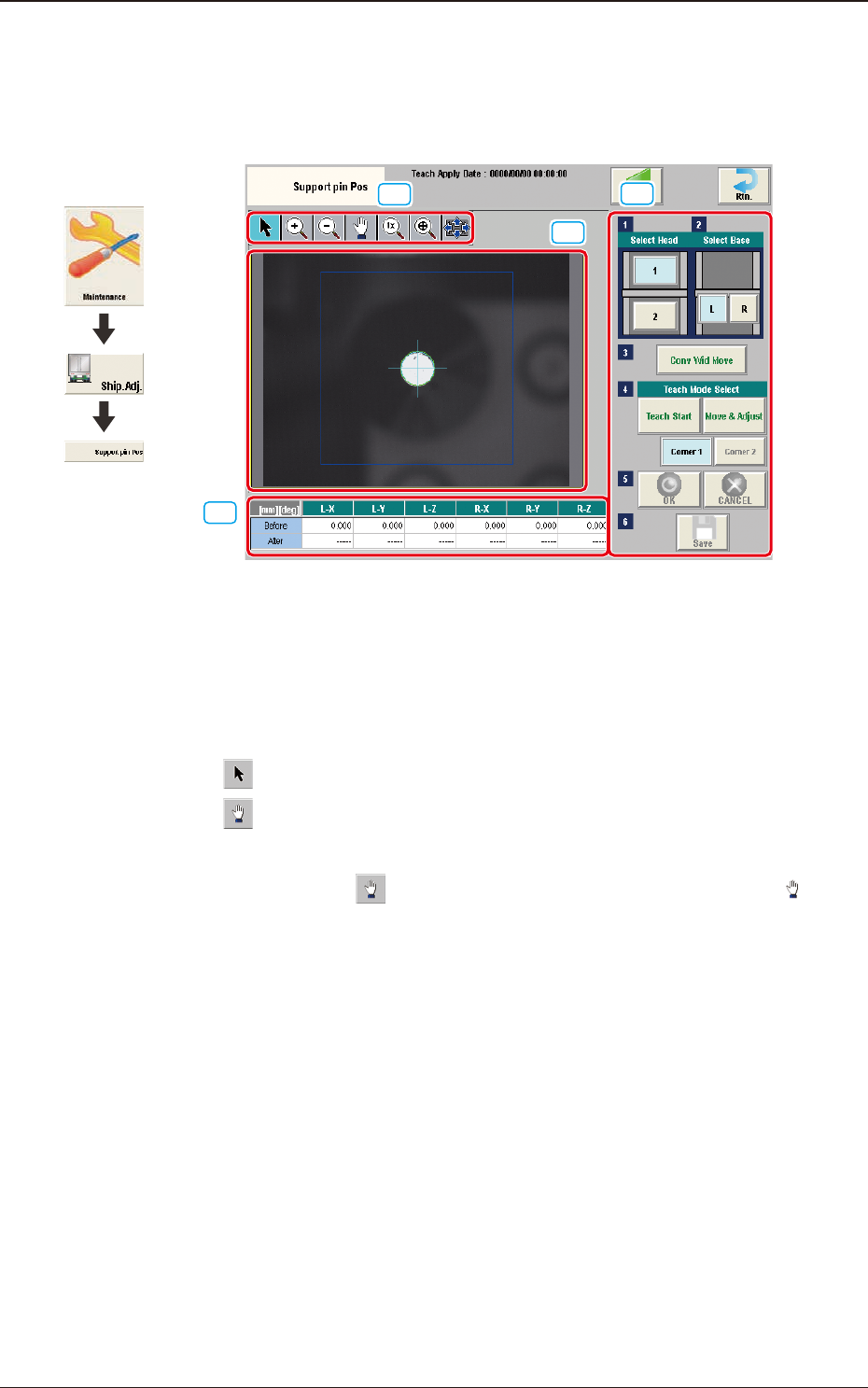
This window enables the operator to perform the teaching operation on the PCB
support pin position.
[2]
[1]
[3]
[4]
F3A47
[1] Display Area Operation Button
Using the following buttons, the mode is changed to enlarge or move the
image displayed in the recognition image display area [2].
[
] button
: Normal Operation Mode
[
] button
: Image Movement Mode
After changing to the image movement mode using the
[
] button (the shape of the pointer is changed to
mark), drag the image to be moved (pressing the left button
of the mouse, turn the ball to move the image).
Graphic
Development
5.16 "Support pin Pos" Window
3OM-1751
1-681303-001
[
] button
: Image Enlargement Mode
After changing to the image enlargement mode using the
[
] button (the shape of the pointer is changed to ),
when the image to be enlarged is touched, or the left button
of the mouse is clicked on the image, the image is enlarged
from the pointer position as the center.
When the image is to be enlarged with its position xed,
place the pointer on the center of the image before the
enlargement operation.
[
] button
: Image Reduction Mode
After changing to the image reduction mode using the
[
] button (the shape of the pointer is changed to )
when the image to be reduced is touched, or the left button
of the mouse is clicked on the image, the image is reduced
from the pointer position as the center.
When the image is to be reduced with its position xed,
place the pointer on the center of the image before the
reduction operation.
[
] button
: Image Fitting Mode (the image is displayed fully using the
recognition image display domain).
After changing to the image tting mode using the [
]
button (the shape of the pointer is changed to
), when
the image to be t is touched, or the left button of the
mouse is clicked on the image, the image is displayed
fully using the recognition image display domain, from the
pointer position as the center.
When the image is to be displayed in the image tting mode
with its position xed, place the pointer on the center of the
image before the image tting operation.
[
] button
: Image Real-Size Display Mode (Captured image is
displayed in real-size).
After changing to the image real-size display mode using
the [
] button (the shape of the pointer is changed to ),
when the image to be displayed in real-size is touched, or
the left button of the mouse is clicked on the image, the
image is displayed in real-seize from the pointer position as
the center.
When the image is to be displayed in real-size with its
position xed, place the pointer on the center of the image
before the image real-size display operation.
5.16 "Support pin Pos" Window