3OM-1751-002w_G5S.pdf - 第150页
3OM-1751 1-96 1303-001 6.3.3.2 "PEC Recog" T ab Sheet When the [PEC Recog] tab sheet is pressed on the "Capture Img." tab, the following tab sheet appears. [1] [2] F3A78 [1] Select camera Displayed ar…
3OM-1751
1-95
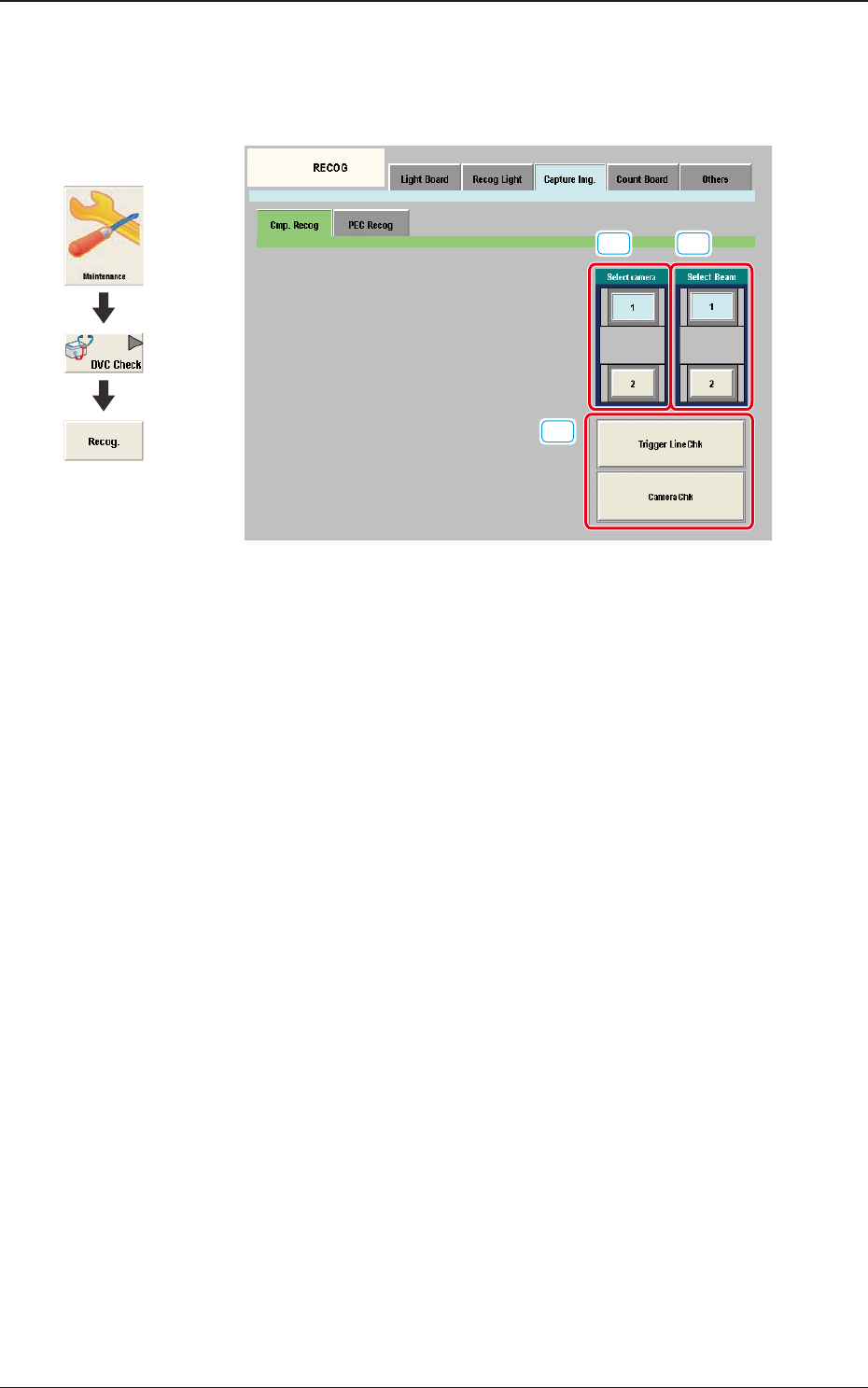
6.3.3.1 "Cmp. Recog" Tab Sheet
When the [Cmp. Recog] tab sheet is pressed on the "Capture Img." tab, the
following tab sheet appears.
[1]
[3]
[2]
F3A77
[1] Select camera
Displayed are the button showing the positions of the component recognition
cameras.
In this section the component recognition camera for capturing the
component image is selected.
[2] Select Beam
In this section the beam to be checked is selected.
[3] Trigger Line Chk
Using this button the trigger line for capturing the component image is
checked.
Camera Chk
Using this button the camera is checked.
1303-001
6.3 "RECOG" Window
Graphic
Development
3OM-1751
1-961303-001
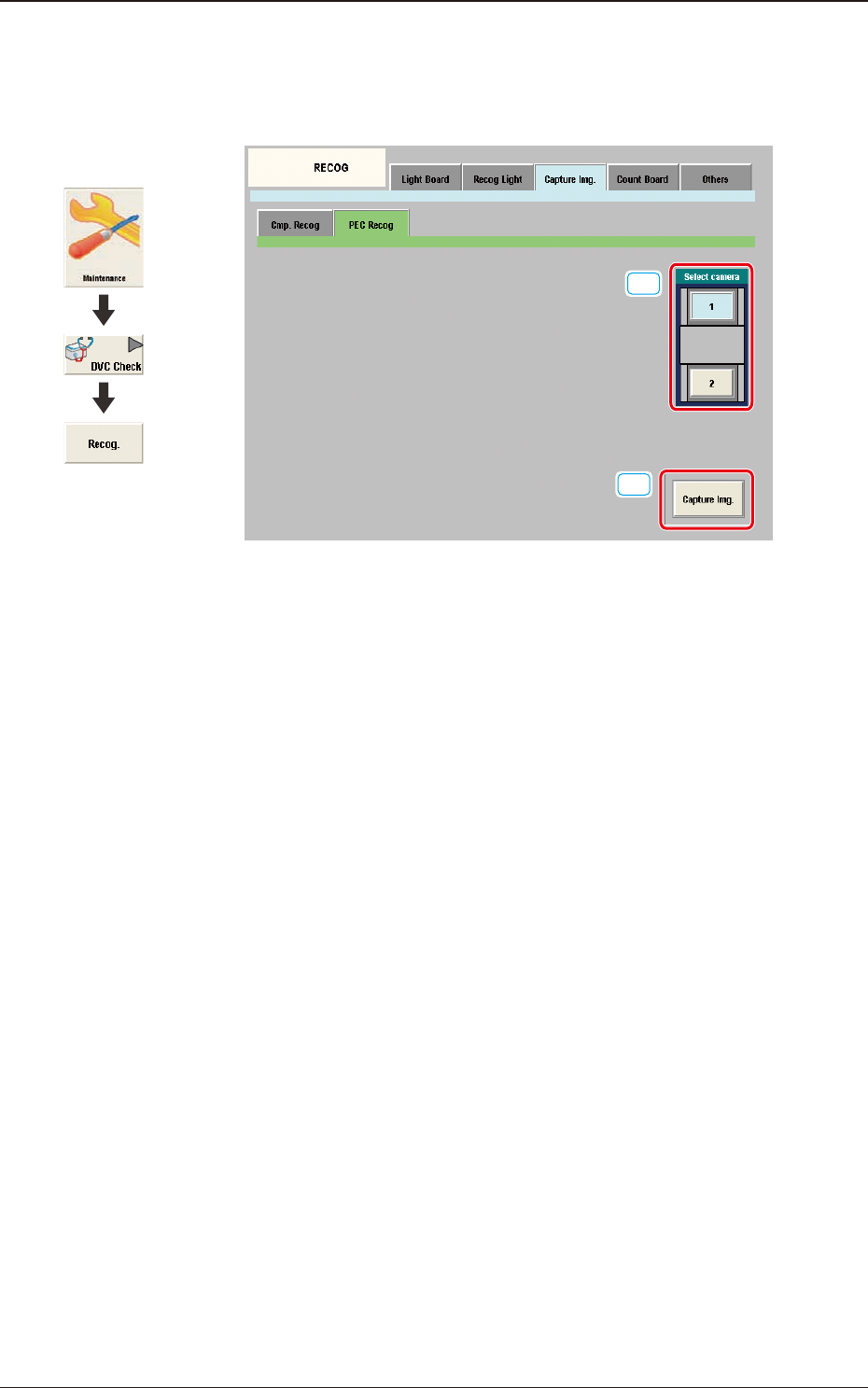
6.3.3.2 "PEC Recog" Tab Sheet
When the [PEC Recog] tab sheet is pressed on the "Capture Img." tab, the
following tab sheet appears.
[1]
[2]
F3A78
[1] Select camera
Displayed are the button showing the positions of the PEC recognition
cameras.
In this section the PEC recognition camera for capturing the component
image is selected.
[2] [Capture Img.] Button
Using this button the image is captured using the selected camera.
6.3 "RECOG" Window
Graphic
Development
3OM-1751
1-97
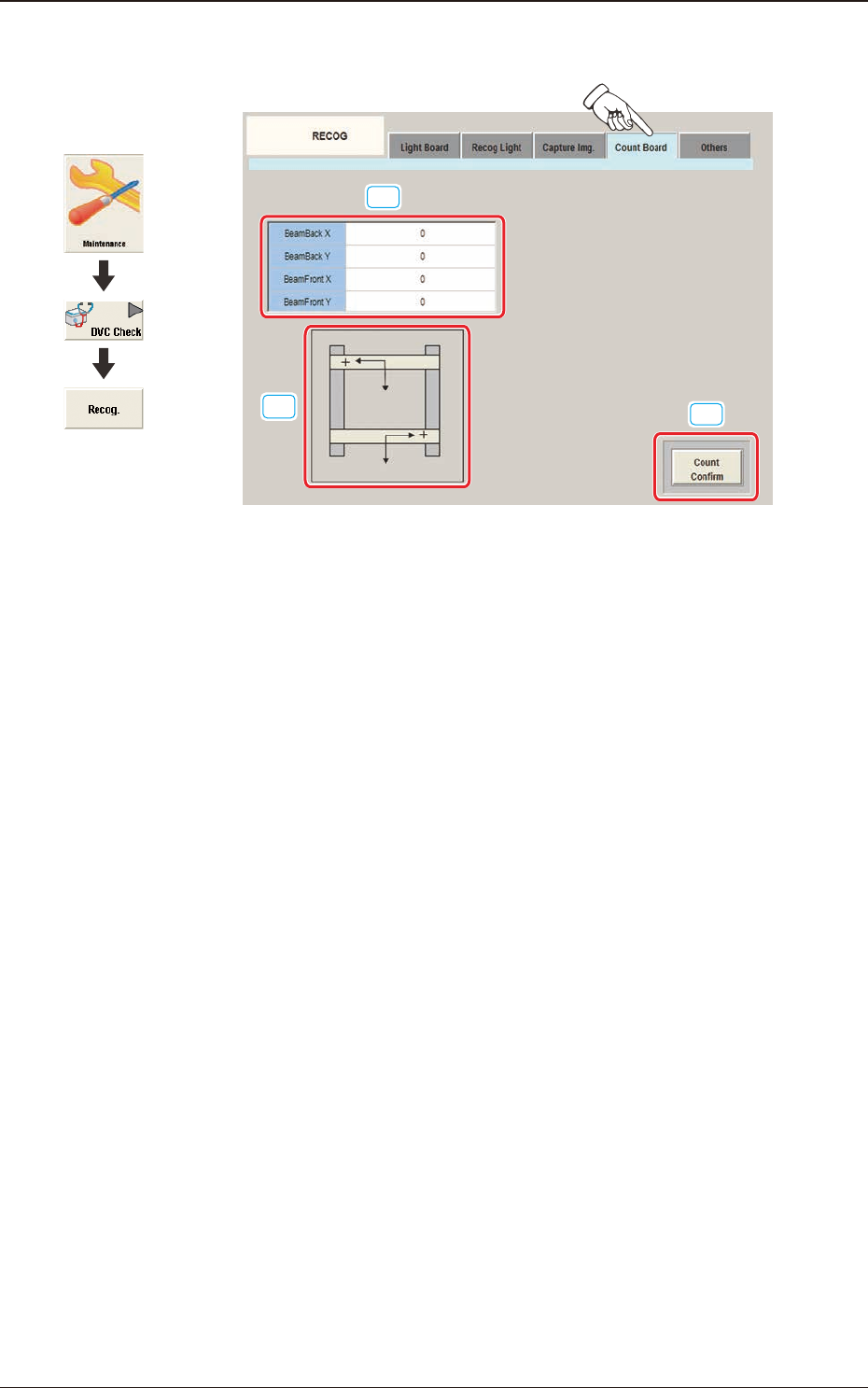
6.3.4 "Count Board" Tab
[1]
[2]
[3]
F3A79
[1] BeamBack X, Y
BeamFront X, Y
In these data boxes the X, Y count values are displayed for each beam.
[2] XY Beam Image
Displayed are the X and Y beam images.
[3] [Count Conrm] Button
When this button is pressed, the current counter value is checked.
The change position and increase/decrease direction of the count value
displayed by means of pressing the beam manually and pressing the [Count
Conrm] button, are conrmed.
1303-001
6.3 "RECOG" Window
Graphic
Development