3OM-1751-002w_G5S.pdf - 第64页
3OM-1751 1-10 1303-001 3.2 Nozzle Stocker [2] High-speed stocker The high-speed stocker type is selected in this selection box. [High] Button : When pressed, the unit with high-speed nozzle stocker is selected. [High12] …
3OM-1751
1-9
3.2 Nozzle Stocker
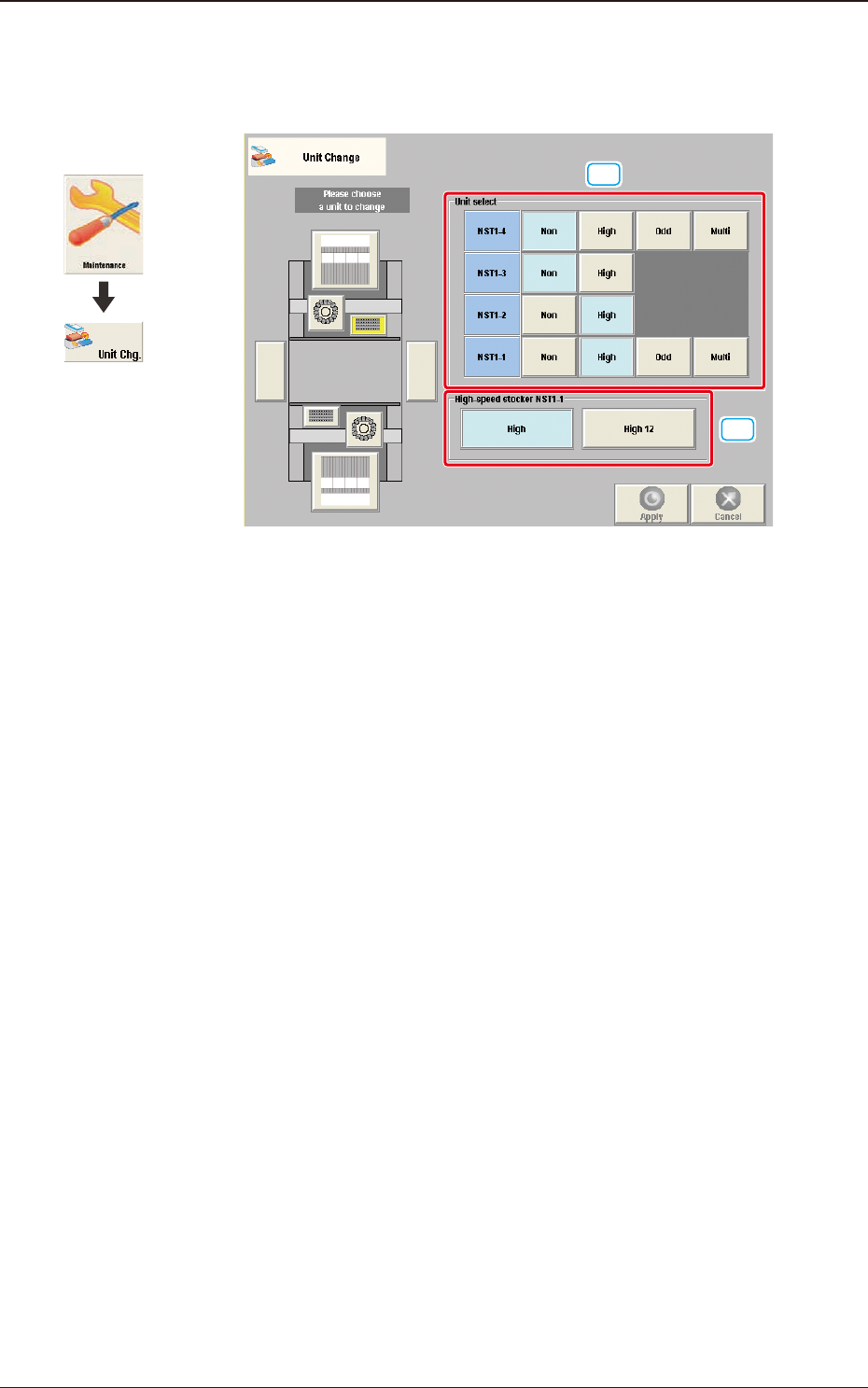
When the nozzle stocker button is pressed, the following window appears.
[1]
[2]
F3A8
[1] Unit select
[Non] Button
: When pressed, the unit without nozzle stocker is selected.
[High] Button
: When pressed, the unit with high-speed nozzle stocker is
selected.
[Odd] Button
: When pressed, the unit with middle size and odd shape
nozzle stocker (option) is selected.
[Multi] Button
: When pressed, the unit with multi-functional nozzle stocker
(option) is selected.
Graphic
Development
1303-001
3.2 Nozzle Stocker
3OM-1751
1-101303-001
3.2 Nozzle Stocker
[2] High-speed stocker
The high-speed stocker type is selected in this selection box.
[High] Button
: When pressed, the unit with high-speed nozzle stocker is
selected.
[High12] Button
: When pressed, the unit with MR12 nozzle stocker is
selected.
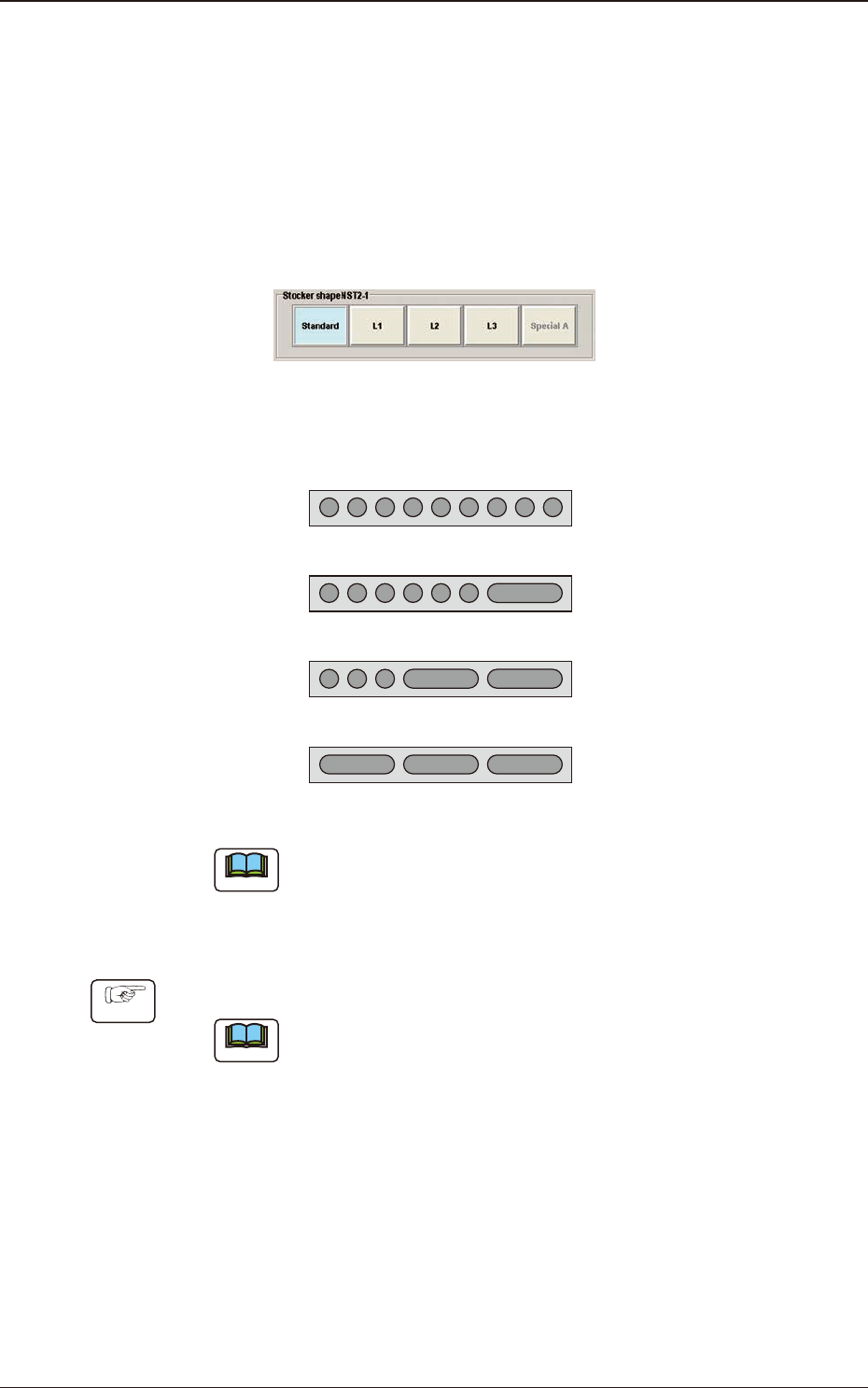
Multi-Functional Stocker Shape Selection
F3A9
The multi-functional nozzle stocker shape is selected in this section.
Standard
L1
L2
L3
GS-NM110(KYB-M9640-000).9 Nozzle
GS-NM111(KYB-M96E0-000) : Max.7 Nozzle
GS-NM112(KYB-M96E0-100) : Max.5 Nozzle
GS-NM113(KYB-M96E0-200): Max.3 Nozzle
F3A10
Note
When the nozzle stocker is to be added, an optional unit is required
separately.
•
Nozzle Stocker Setting Procedure
Procedure
(1) Press the button for the installed nozzle stocker in the "Unit Select" area.
Note
For the high-speed nozzle stocker, the stocker type is displayed and for the
multi-functional nozzle stocker, the stocker shape is displayed.
(2) Press the stocker type or stocker shape button.
(3) Press the stocker type or stocker shape button.
3OM-1751
1-11
3.3 Feeder Unit
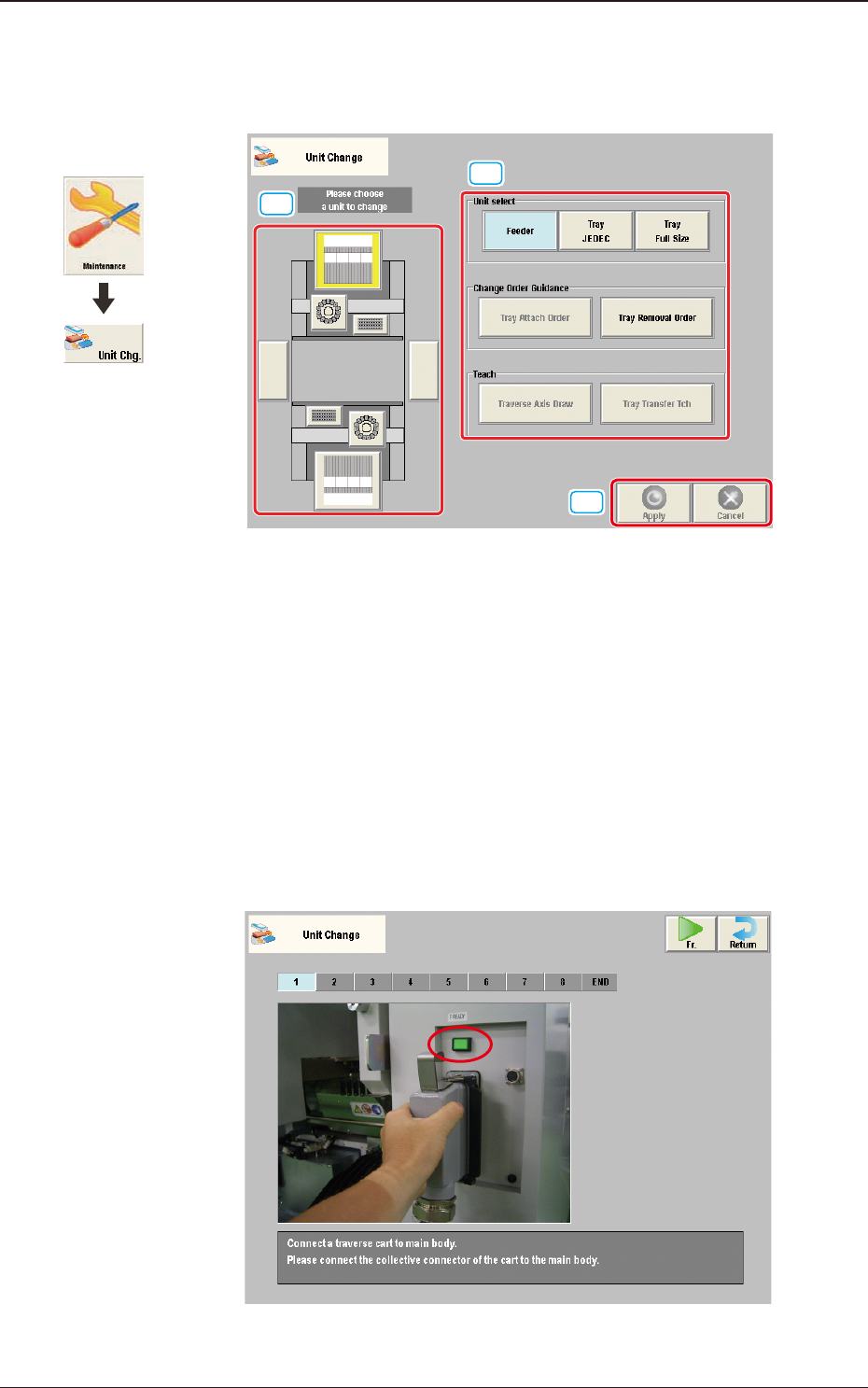
When the feeder unit button is pressed, the following window appears.
[1]
[2]
[3]
F3A11
[1] Unit select
[Feeder] Button
: When pressed, the unit with feeder is selected.
[Tray JEDEC] Button
: When pressed, the JEDEC size tray feeder
(option) is selected.
[Tray Full Size] Button
: When pressed, the FULL size tray feeder (option)
is selected.
[2] Change Order Guidance
When one of these buttons is pressed, the attachment or removal window for
the "Tray JEDEC" (Option) or "Tray Full-Size" (Option) appears.
"Change Order Guidance" window F3A12
1303-001
Graphic
Development
3.3 Feeder Unit