3OM-1751-002w_G5S.pdf - 第71页
3OM-1751 1-17 1303-001 • Procedure for Nozzle Attachment Notice (a) The middle-size odd shaped nozzle can be attached, leaving one out of every two pitches empty . (b) When the high-speed nozzle are used together with th…
3OM-1751
1-161303-001
•
Procedure for Nozzle Storage
Notice
(a) When the high-speed nozzle are used together with the middle-size
odd shaped nozzle, the middle-size odd shaped nozzle must be
stored prior to the others.
When the machine starts to store the high-speed nozzle prior to
the middle-size odd shaped nozzle, a dialog box opens, prompting
that the middle-size odd shaped nozzle must be stored rst and
indicating that the high-speed nozzle cannot be stored.
(b) Do not house the nozzle while the head picks up a component.
Doing so breaks the vacuum and the component drops.
Procedure
(1) Press the head (one of the head selection buttons) holding the nozzle desired
to be stored.
(The background color of the selected button turns light blue.)
(2) Select the nozzle (one of the nozzle allocation No. selection buttons) holding
the nozzle desired to be stored.
(The background color of the selected button turns light blue.)
(3) To select a nozzle stocker different from the original one, press the nozzle
selection button (destination address).
(4) Press the [Reset Nozzle] button.
(The background color of the button turns green and the selected head
selection button, nozzle allocation No. button, and nozzle selection button
are set active.)
(5) Press the [START] button on the operation panel.
(The selected nozzle will be housed in the nozzle stocker with the selected
address.)
4.1 "NOZ. CHNG." Window
3OM-1751
1-171303-001
•
Procedure for Nozzle Attachment
Notice
(a) The middle-size odd shaped nozzle can be attached, leaving one
out of every two pitches empty.
(b) When the high-speed nozzle are used together with the middle-size
odd shaped nozzle, the high-speed nozzle must be attached prior to
the others.
When the machine starts to attach the middle-size odd shaped
nozzle prior to the high-speed nozzle, a dialog box opens, prompting
that the high-speed nozzle must be attached rst and indicating that
the middle-size odd shaped nozzle cannot be attached.
(c) Do not house the nozzle while the head picks up a component.
Doing so breaks the vacuum and the component drops.
Procedure
(1) Select the head (one of the head selection buttons) where the desired nozzle
should be attached.
(The background color of the selected button turns light blue.)
(2) Select the nozzle selection button where the nozzle to be attached is stored.
(The background color of the selected button turns light blue.)
(3) Select the nozzle allocation No. button to specify the position where the
nozzle should be attached.
(The background color of the selected button turns light blue.)
(4) Press the [Set Nozzle] button.
(The background color of the button turns green and the selected head
selection button, nozzle allocation No. button, and nozzle selection button
are set active.)
(5) Press the [START] button on the operation panel.
(The specied nozzle placement operation will be performed.)
Note
No nozzle can be attached to any nozzle No. position where a nozzle is already
attached.
4.1 "NOZ. CHNG." Window
3OM-1751
1-181303-001
4.2 "LINE MEAS" Window
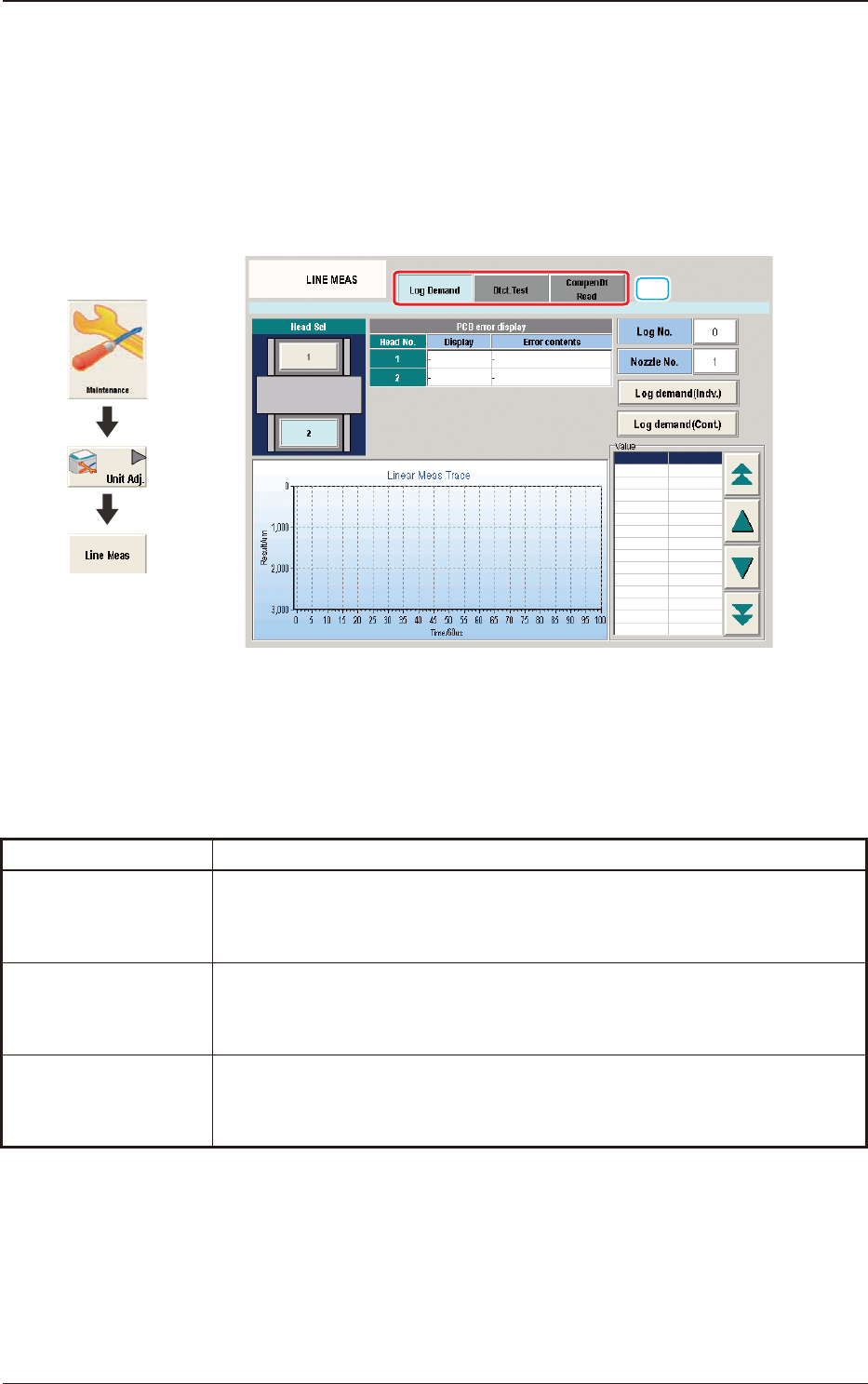
The E/NR traces of the linear measure sensors on each placement head are
expressed by a chart or using numerical values. "E/NR" stands for "Light Emitted
and Not Received".
This window also enables you to check the end of the currently selected nozzle
and the compensative data for the linear measure sensors.
[1]
F3A15
[1] Tabs
The "LINE MEAS" window is provided with the following three tabs. When
each tab is pressed, the corresponding tab sheet appears.
Tabs Description
Log Demand
When pressed, this opens the "Log Display" window, enabling you to view the
log of the linear measure sensor E/NR traces.
Dtct. Test
When pressed, this opens the "Detection Test" window, enabling you to
perform a check operation for the nozzles and its ends on the specied head.
The results are displayed after the operation.
Compen Dt Read
When pressed, this opens the "Compen Dt Read" window, enabling you to
read the compensative data.
T3A2
Graphic
Development
4.2 "LINE MEAS" Window