00197973-10_SM_MaterialTower.pdf - 第263页
0019797 3 - 10 / 02 , 2016 Serv ice D oor M onit oring SIPLACE Mat. Tower St ora ge Ser vice Manu a l © ASM 12 - 17 Attach T hread - Lock Paint Attach fo ur dashes of thr ead - lock pai nt to each of the two se nsors and…
Service Door Monitoring 00197973-10 / 02 , 2016
12-16 © ASM SIPLACE Mat. Tower Storage Service Manual
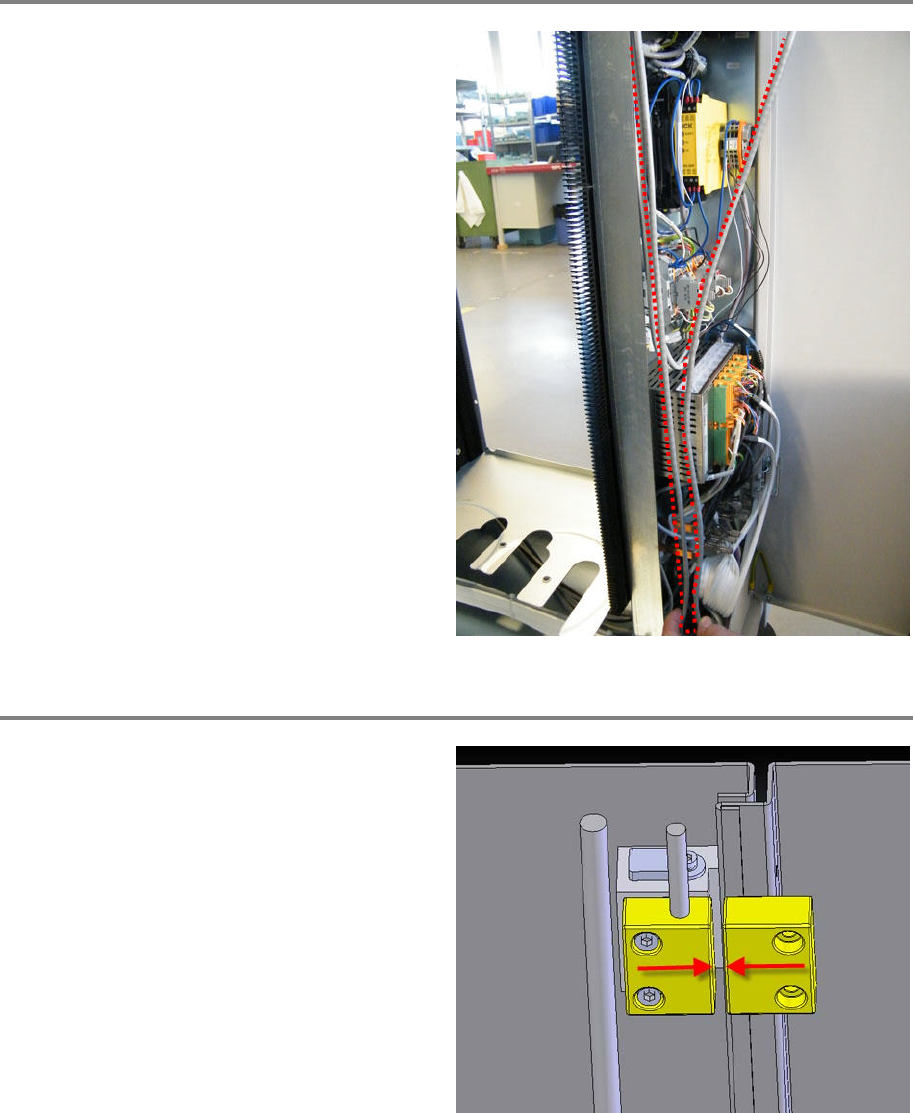
Routing of the Cable Excess
If cabling a SIPLACE Material Tower Regular, the
sensor cable from the right side of the machine
is too lon
g.
In this case just route it as shown on the picture.
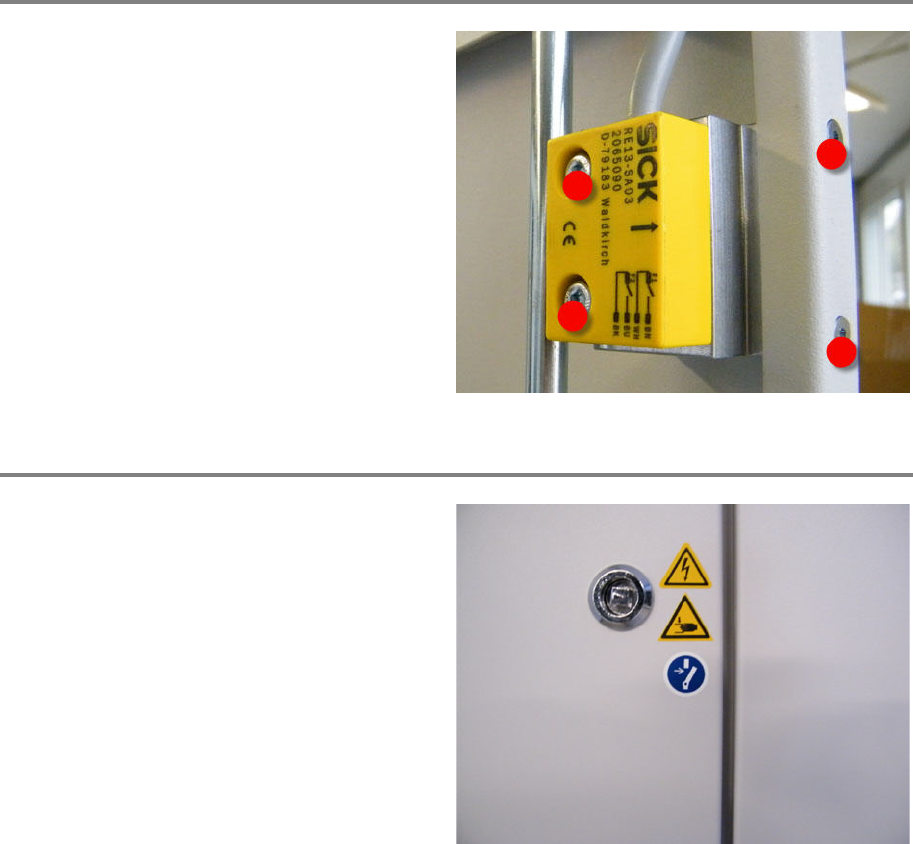
Adjusting the Sensor
Enter the machine with a small double ladder.
Clos
e the door.
Slightly loosen the two fixing screws of the
sensor (part with the cable)
Adjust the position of the sensor. The space
between the sensor and the magnet must not
exceed 3 mm.
Make sure the doors can be opened and closed
smoothly without coll
ision of sensor and
magnet.
Do the same procedure on the other side of the
machine.
00197973-10 / 02 , 2016 Service Door Monitoring
SIPLACE Mat. Tower Storage Service Manual © ASM 12-17
Attach Thread-Lock Paint
Attach four dashes of thread
-lock paint to each
of the two sensors and each of the two magnets
(left and right side of the machine), see picture.
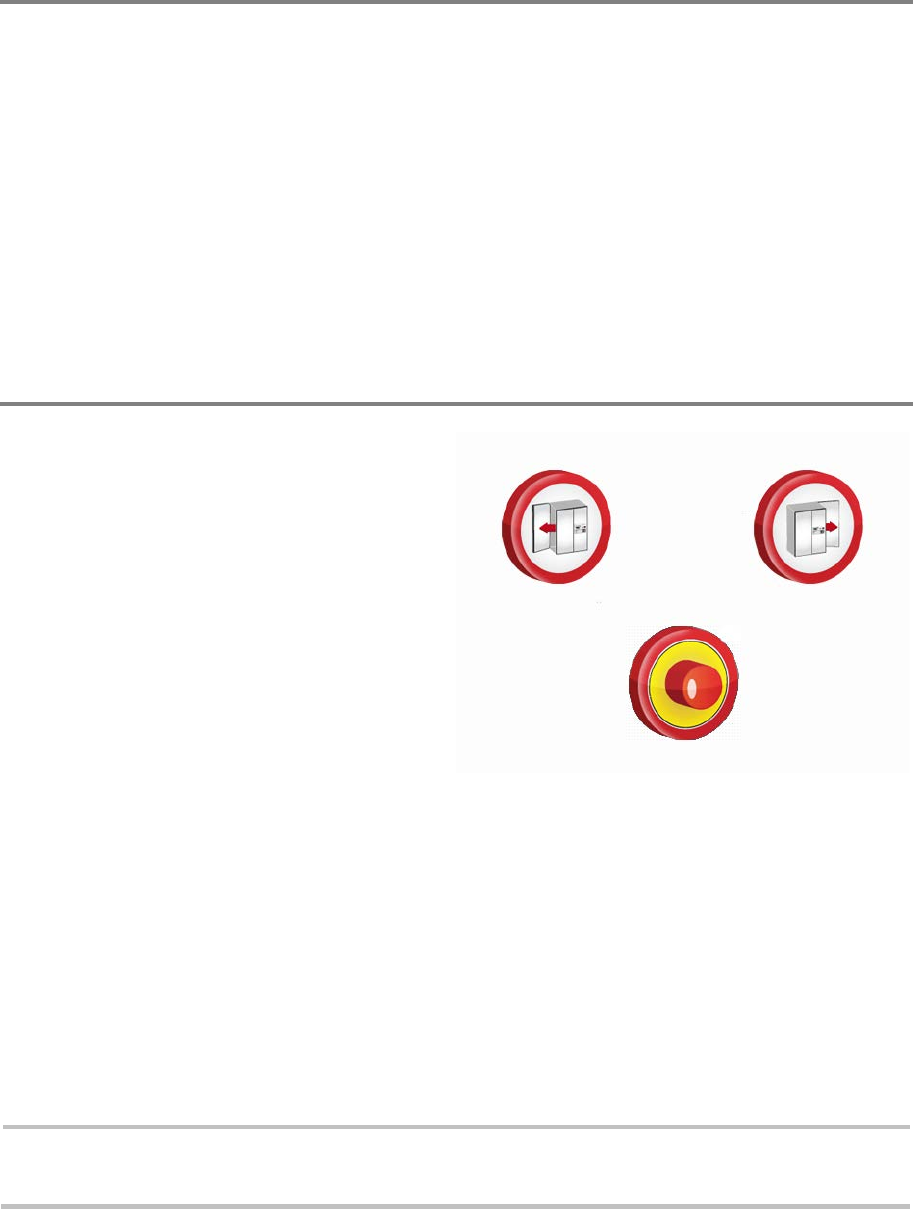
Check Safety Labels
Make sure that all safety labels are placed on
both of the doors (left and right of the machine).
Complete missing labels (clean the surface by
means of Isopropanol).
Service Door Monitoring 00197973-10 / 02 , 2016
12-18 © ASM SIPLACE Mat. Tower Storage Service Manual
12.1.5 Initial Setup and Test
Preparation
Check again for proper cable routing.
Check on both sides of the machine the cable movement during door closing and opening.
Make sure no foreign objects are inside the machine which could cause any collision (tools / cut
cable ties etc.)
Make sure all the stored items are in their proper position (probably displaced during retrofit
mounting).
Close the service doors.
Check the version of the Material Tower software. The version must be 20.0 or higher. If existing
version is lower, install a software update.
Check Service Doors and Emergency Stop
Power up the SIPLACE Material Tower
as
described on chapter 9 in the All
-In-One manual.
Start desktop PC with Material Tower software.
Start initialization (press softkey
Initialize on
Material Tower, screen
Overview).
During initialization, open one of the doors and
the SIPLACE Material
Tower should immediately
stop running. Additionally one of the icons,
shown on the picture, should appear on the
GUIK (screen on machine).
Close the door and initialize the machine again.
Do the same procedure also for the door on the
other side of the m
achine.
Close the door and initialize the machine again.
During initialization, press the emergency stop
button on the portal and the SIPLACE Material
Tower should immediately stop running.
Additionally the icon, shown on the picture,
should appear on th
e GUIK (screen on machine).
Release the button and initialize the machine
again.
Note:
If both doors are open, both icons are shown alternately. If the emergency stop is pressed
additionally, the emergency stop icon and the door icons are shown alternately.